
DataPrep Studio advanced filters let you explore a dataset with custom conditions before you change anything. This part of the series shows how to build them and when to apply them as a rule.
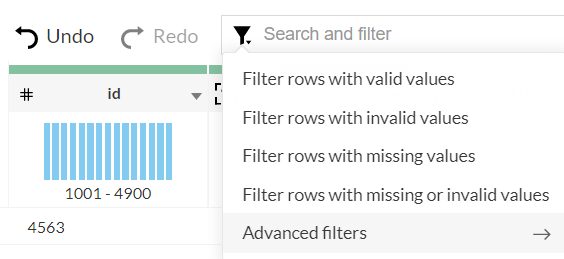
🔶Advanced filters
The Advanced filters option allows you to filter data based on custom conditions applied over one or more columns. The advanced filters is exploratory in nature and provides a way to filter your dataset without applying them as a rule.
However, you can choose to apply them as a rule by either keeping or deleting the filtered rows.
Note:
- All filters present will be automatically included when you open the Advanced filters pane.
- Including the ones that you add while having the pane open.
- You can also edit the filters in the Advanced filters pane.
👉 To apply advanced filters - Choose the Advanced filters option from the Search and filter box. The Advanced filters pane will slide open to view.
- Click the + icon to add columns to the filters. You can also reorder the filters using the drag and drop method.
- When you add more than one filter to the Filters section, the logical operators, AND or OR appear next to the filters. You can click to toggle the logical operator between AND and OR.
- Using the logical operators, you can combine the conditions and apply logic to determine the rule of precedence. The final expression is displayed in the Criteria expression box. You can click Edit to alter the default expression using logical operators and parenthesis to specify the precedence or the sequential order as to which condition should be evaluated first. Click Save after making the required changes.
For example, In the expression, ((1 OR 2) AND (3 OR 4)), first the condition ( 1 OR 2 ) will be executed and then, the condition ( 3 OR 4 ) will be executed next. Thirdly, since, the AND operator is used, the filter will be applied when both the conditions are true. - You can use the Clear button to remove all the filters.
- For every filter added, you can select one of the following options from the drop-down:
- Actual: This option lets you filter rows based on the actual values in the column.
- Data quality: This option lets you filter rows based on the quality of data in the column.
- Patterns: This option helps you filter rows based on the data patterns in the selected column.
- Seasonal: This option helps you filter rows based on the seasonal parameters such as quarter, month, week, etc.
- Outliers: This option allows you to filter rows based on the outliers present in the data of the selected column.
- Click the Filter button. The number of filters added will be shown in the chip that appears above the data grid.
- Advanced filters filter the data without applying any rule. After when you’re satisfied with your filtered data, you can choose to apply either Keep filtered rows or Delete filtered rows rule using the Actions dropdown.
🔶Topbar
The topbar in the Studio page has a dataset switcher on the left hand side and a menu bar on the right. Click the dropdown next to the dataset name in the top bar to switch to other datasets. This is particularly useful to resume the remaining data prep activities in other datasets instantly.
You can also use this dropdown to take a look at the data quality of other datasets. This helps you prioritize data preparation activities in the workspace.
DataPrep Studio advanced filters: key takeaways
- Advanced filters are exploratory: they filter your dataset without applying a rule until you choose to keep or delete the filtered rows.
- Open them from the Search and filter box, then add columns with the + icon.
- With more than one filter, you choose how the conditions combine with a logical operator.
- Existing filters are included automatically when you open the Advanced filters pane, and you can edit them there.
DataPrep Studio advanced filters FAQ
What is the difference between a filter and an advanced filter?
A normal filter transform keeps or deletes rows as a step in your data preparation. An advanced filter lets you explore the data first and only turns into a rule when you keep or delete the rows.
Can I combine several conditions?
Yes. Add more than one filter and choose the logical operator that connects them to match the rows you need.
Zoho DataPrep Studio: how Techwave Solutions can help
Need help with filtering data in Zoho DataPrep Studio? Techwave Solutions is an Authorized Zoho Partner with 11+ years on Zoho. Our team handles setup, customization and automation, so you get working results instead of trial and error. Explore our Zoho consulting services, read the official Zoho DataPrep pages, or contact a Zoho consultant for a free first call.