
Zoho Creator for Printing Businesses: Priced Quotes, Approved Proofs and Jobs You Can Find
How a commercial print shop can price every quote from one rate table, keep one approved proof per job, move work across the floor with a QR scan and invoice the moment a job is ready.
Zoho Creator for Printing Businesses: One Job Order, Quote to Invoice
Pricing, proofs, production stages and billing on the same record
 Zoho Creator
Shop floor scans
 Zoho Books
Quote
Priced from rate table
Job order
Number, due date, rush
Proof
Approved in the portal
Produce
QR scan per stage
Ready
Customer notified
Invoice
Created in Zoho Books
Zoho Creator for printing businesses replaces the paper job ticket, the email proof thread and the pricing spreadsheet with one app that the front desk, prepress and the shop floor share. In a print shop, a job is only as good as its ticket: the right file, the right stock, the right finish and the right date.
This overview follows an example business: a commercial print shop producing business cards, brochures, banners and signage on digital and large-format printers, with a front desk, prepress, production, finishing and delivery. It shows how Techwave Solutions would build quoting, proof approval, print job tracking and invoicing in Zoho Creator. Screen figures are sample data.
A Zoho Creator app holds Customers, Quotes and Job Orders. A Deluge script prices each quote line from a rate table. An accepted quote creates a Job Order with a job number, due date and rush flag. Customers upload artwork and approve proofs in a Creator customer portal, with every version kept. A Kanban report becomes the production status board, staff scan the job ticket’s QR code to move a job on, and a job marked Ready creates an invoice in Zoho Books.
Table of contents
The challenge: paper tickets, email proofs and hand-worked prices
In the example shop, the front desk writes a job ticket by hand, clips it to a folder and walks it to prepress. The folder travels to the digital press or the wide-format printer, then to the cutter and the laminator. When a ticket slips behind a stack of sheets, print job tracking stops until the customer calls to ask where their banner is.
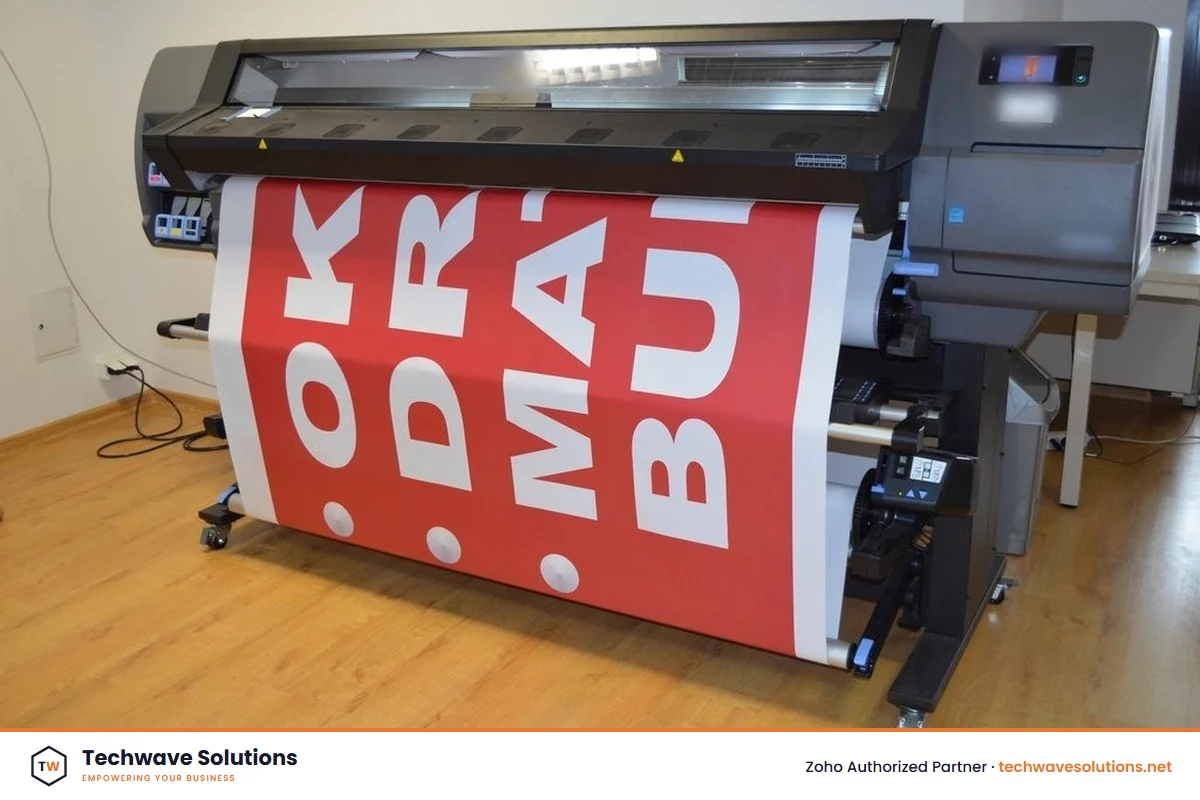
Proofs go back and forth by email. A customer replies “looks good” to the second version while prepress has already sent a third, and the file that reaches the press is not always the approved one. Prices are worked out by hand from a price list for each quote, so two staff can quote the same brochure differently. Rush jobs are squeezed in by word of mouth, and at the end of the week some finished jobs leave the shop without an invoice.
Lost tickets
A paper ticket is the only record of the job, and it can be misplaced on the floor.
Unclear approvals
Proof versions live in email threads, so the approved file is not always clear.
Uneven prices
Each quote is calculated by hand, and the same job can be priced two ways.
Missed invoices
Completed jobs are invoiced late, or not at all, when the ticket is filed away.
One job, three disconnected records
The price, the proof and the ticket never sit together
 Price list
Worked by hand
Reply threads
Travels with the job

Before: price list, email proofs and paper tickets kept apart (illustration)
Why print job tracking breaks down on a busy floor
A print job passes through five or six hands in a day or two. Each hand-over is a moment where the job’s status changes, and on paper that change is recorded nowhere except on the ticket itself. Print job tracking that depends on a piece of paper can only answer “where is it?” by someone walking over to look.
Proofs fail for a similar reason. The approval is a decision about a specific file version, but email records the decision and the file separately. Prices drift because the price list has many combinations of size, quantity, stock and finish, and nobody calculates them the same way twice.
Rush work and invoicing are symptoms of the same gap. With no shared production status board, a rush job lands on the press without the production lead seeing what it displaces, and a finished job with no record of being finished cannot trigger an invoice.
Why Zoho Creator for printing businesses, and not an off-the-shelf print system
Dedicated print management systems exist, but many shops find them heavy for a mixed digital and large-format operation, or rigid about how pricing and stages work. Zoho Creator for printing businesses is built on a low-code platform: the rate table, the stages and the job ticket follow the shop’s own way of working, the same app runs on the web and on phones, and Zoho Books is a native integration for invoicing. When the shop adds a new product or finish, a row goes into the rate table instead of a change request to a vendor.
Paper tickets and email
- Prices worked out by hand
- Proof versions in threads
- Status by walking the floor
- Invoices raised from memory
Zoho Creator for printing businesses
- Deluge prices every line
- Versioned proofs in a portal
- Production status board and QR scans
- Invoice created in Zoho Books on Ready
The solution design: Customers, Quotes and Job Orders in one app
Three core forms carry the business. Proofs, stage scans and material entries are child records of a Job Order, so print job tracking, approvals and costs all point to one job number.
Customers
Company, contacts, portal email, delivery address and the linked Zoho Books customer.
Quotes
A line subform with product, size, quantity, material and finishing, priced by script.
Job Orders
Job number, due date, rush flag, stage, approved proof and material usage.
Rate Table
Base rate per product and material, quantity breaks and finishing charges.
Proofs
One record per version, with file, status and the customer’s comment.
Zoho Books
Receives the invoice when a job reaches Ready.
Every line priced from the same table
The script runs as soon as the last option on the line is chosen
Quote linePricingQuote Q-2318, line 1 (sample)
Price build-upPricedA banner quote line priced from the rate table by a Deluge script (illustration, sample data)
Quotes, job orders and proof approval, step by step
Each step names its trigger, data and result. Staff still decide on discounts and artwork; Zoho Creator for printing businesses makes the routine parts consistent.
The quote calculator
Trigger: the front desk fills in a quote line. Data: product, size, quantity, material and finishing, and the matching Rate Table rows. Next: a Deluge script on user input fetches the base rate for the product and material, calculates area for large-format items, applies the quantity break and adds finishing charges. The line price fills in, and a manager-only Discount field covers exceptions.
An accepted quote creates the Job Order
Trigger: the quote’s Status changes to Accepted. Data: the customer, the quote lines and the requested date. Next: a workflow creates a Job Order with an auto-number job number, the due date, a Rush checkbox and the stage set to Prepress. The quote lines copy into the job’s line subform, so production works from what the customer accepted.
Artwork upload in the customer portal
Trigger: the customer logs in to the Creator customer portal. Data: their open Job Orders, filtered by portal permissions to records linked to their own customer. Next: they upload artwork through a file field on an Artwork form linked to the job, and prepress gets an email that files are in.
Versioned proofs with approve or request changes
Trigger: prepress uploads a proof. Data: the PDF proof and the job. Next: a new Proof record is created with Version set to the next number, and the customer sees it in the portal with two buttons: Approve and Request changes. Approve stamps the approver and time and writes the version to Approved Proof on the job; Request changes requires a comment. Older versions stay as records, so the history is never lost.
The production status board and QR job tickets
Once a proof is approved, the job joins the production status board. Six stages cover the work: Prepress, Printing, Finishing, Quality check, Ready and Delivered.
Every job in one column at a time
A Kanban report grouped by the Stage field
Prepress
Approved proof attached
Zoho CreatorPrinting
Digital or large format
Zoho CreatorFinishing and QC
Cut, laminate, check
Zoho CreatorReady and delivered
Invoice and notice
Zoho CreatorProduction stages on the Kanban-style status board in Zoho Creator (illustration)
The board itself
Trigger: anyone opens the Production report. Data: open Job Orders and their Stage dropdown. Next: a Kanban report shows one column per stage, with cards showing job number, customer, due date and the Rush flag. The production lead can drag a card between columns on a screen by the press. On a phone, each stage shows as its own screen.
A printed job ticket with a QR code
Trigger: the job enters Prepress. Data: the job number, held in a QR/Barcode field. Next: the job ticket is printed from a record template with the job’s QR code, lines, stock, finishing and due date. The ticket can still get lost; the job record cannot.
One scan moves the job on
Trigger: an operator finishes their step and opens Move Job in the Creator mobile app. Data: a QR scan field with manual entry turned off. Next: a Deluge script finds the job by number, advances Stage to the next value and writes a Stage Log record with the user and time. The production status board updates, and print job tracking gains a timestamp for every hand-over.
Due-date and rush alerts
Trigger: a job is saved with Rush ticked, or a daily schedule finds jobs due tomorrow that are not yet in Finishing. Data: due date, stage and rush flag. Next: the production lead gets an email listing the jobs at risk, so a rush job is placed on purpose instead of pushed in.
Material usage per job
Trigger: an operator finishes printing or finishing. Data: a Material Usage subform with material, quantity and unit, picked from a Materials list. Next: usage totals per job and per material appear in a report, so waste and reorders can be checked against real jobs.
Invoicing in Zoho Books and print job tracking dashboards
When a job reaches Ready, a workflow runs a Deluge function that calls the Zoho Books integration task to create an invoice for the linked Books customer, using the job’s lines and prices. The invoice number is written back to the Job Order. The same function emails the customer that the job is ready for pickup or delivery. Payment and accounting stay in Zoho Books, and print job tracking ends with an invoice number on the job.
Jobs by stage
Counts per column on the production status board.
Due and late
Jobs due this week and any past their date.
Proofs waiting
Proofs sent and not yet answered, by days.
Ready, not invoiced
Should stay empty; anything here needs a look.
The shop floor at a glance
Built from Job Orders, Proofs and Stage Logs
Production overviewExample production overview page in Zoho Creator with sample figures (illustration)
Rollout timeline
Discover
Price list, products, stages and ticket layout.
Quoting
Rate table, calculator, job creation.
Portal
Artwork upload and proof approval.
Floor
Board, QR tickets, alerts, materials.
Books and pilot
Invoice sync, then one product line first.
Effort is estimated after discovery. The pilot of Zoho Creator for printing businesses runs banners and signage first, because large-format jobs have the most pricing variables and the clearest stages.
What changes, and how to measure it
This example has no measured baseline, so the table lists intended changes to print job tracking and the cards explain how to check them. Before the pilot, record two weeks of status calls, reprints and jobs invoiced late.
Status calls
Count customer calls asking where a job is, before and after the portal and print job tracking go live.
Wrong-version reprints
Log reprints caused by an unapproved file, using the Approved Proof field to confirm the cause.
On-time delivery
Compare the Ready timestamp in the Stage Log with each job’s due date.
Invoice lag
Measure days from Ready to invoice; the Ready, not invoiced view should stay empty.
Day to day for each role
Zoho Creator for printing businesses gives each role the pages it needs: the desk sees quotes, the floor sees the board, customers see their own jobs.
Front desk
Builds priced quotes, marks them accepted and answers customers from the job record.
Prepress
Checks artwork, uploads proof versions and prints the QR job ticket.
Production lead
Runs the production status board, places rush jobs and acts on due-date alerts.
Operators
Scan the ticket after each step and log materials used.
Accounts
Works the invoices in Zoho Books and checks the Ready, not invoiced view.
Customer
Uploads artwork, approves proofs and sees job status in the portal.
Zoho Creator for printing businesses FAQ
Can the quote calculator handle large-format sizes?
Yes. The Deluge script calculates area from width and height and multiplies it by the material rate before quantity breaks and finishing are added.
How do customers approve proofs?
In the Creator customer portal, where each proof version has Approve and Request changes buttons and only their own jobs are visible.
Do operators need scanners for print job tracking?
No. The Creator mobile app scans the QR code on the job ticket with the phone or tablet camera.
Is the production status board available on the floor?
Yes. The Kanban report runs in a browser on a shop-floor screen and in the mobile app, where each stage is its own screen.
Does the app replace our accounting?
No. Invoices are created in Zoho Books, which keeps payments, taxes and reports; the shop’s accountant still owns those settings.
How Techwave Solutions can help
Techwave Solutions is an Authorized Zoho Partner working with Zoho since 2015. We build Zoho Creator for printing businesses and other job shops: rate-table quoting, customer portals for proofs, a production status board, QR job tickets, Zoho Books invoicing and training for the desk and the floor.
Learn more about Zoho Creator, see a related setup in our Zoho CRM for real estate overview, or book a free first call with a Zoho consultant to map your own job flow.
Talk to a Zoho consultant
Choose the Zoho plan that fits your shop
This setup uses Zoho Creator and Zoho Books together. Zoho One includes both, or pick the apps individually.
Partner sign-up links from Techwave Solutions, an Authorized Zoho Partner.
This is a solution overview built around a composite example. Business details and dashboard figures are examples, not results reported by a specific client.