
Manage WorkDrive In Zoho CRM


A folder for every Lead, Deal, Invoice and more, created automatically and named your way. Upload, preview, share and track a record's files without ever leaving Zoho CRM.
- Runs inside Zoho CRM
- Files stay in your own WorkDrive
- 10 modules ready to use
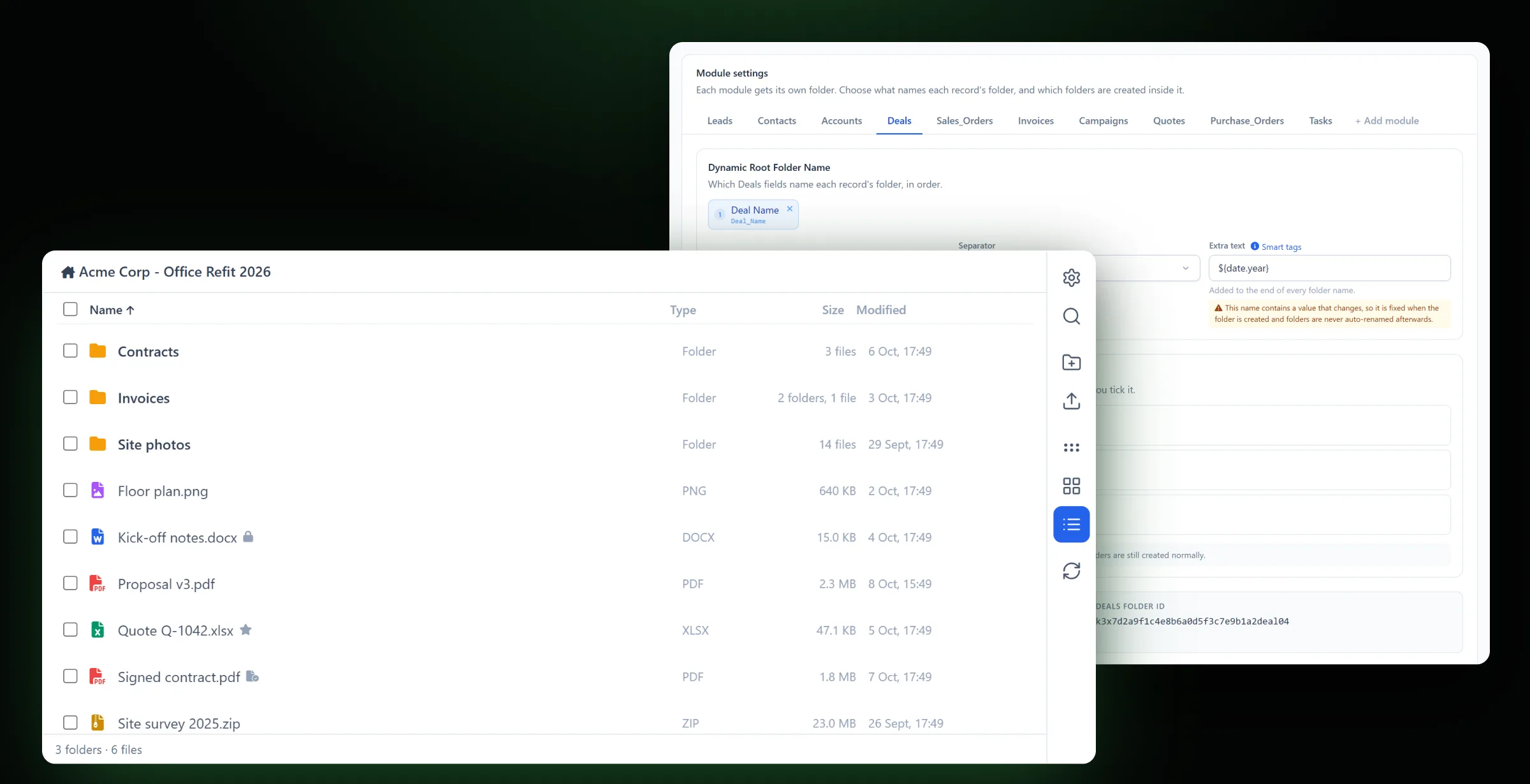
Everything a record's files need
Built for teams who want quotes, contracts and photos kept with the record they belong to, not lost in email or shared drives.
A folder for every record
Created automatically when a record is created, in a tidy layout: one folder per module, one folder per record.
Files right on the record
Browse, preview, upload (with drag and drop) and download from the record page, in list, grid or compact view.
Organise everything
Create folders, rename, move, copy, delete, add favourites, and search all of a record's folders at once.
Share safely
Share with team members at the permission you choose, or with anyone by link, with a password, an end date and download control.
Versions and insights
See a file's versions, upload a new one, read its comments, get a Zia summary, and see how often it was viewed and downloaded.
Keep documents under control
Check a file out so nobody else edits it while you work, and mark signed or approved files as final.
Handy tools
Download a folder as one ZIP, extract ZIP files, turn Office files into Zoho documents, see recent activity, and copy CRM attachments into WorkDrive.
Your names, your structure
Name folders from record fields and smart tags, and create standard subfolders, such as Contracts or Invoices, in every new record's folder.
Ten modules, and more
Leads, Contacts, Accounts, Deals, Sales Orders, Invoices, Quotes, Purchase Orders, Campaigns and Tasks are ready to use. Other modules, including custom ones, can be added.
Product specifications
| Product | Manage WorkDrive In Zoho CRM |
| Publisher | TechWave Solutions, Official Zoho Partner |
| Platform | Zoho CRM (native extension / widget) with Zoho WorkDrive |
| Supported modules | Leads, Contacts, Accounts, Deals, Sales Orders, Invoices, Quotes, Purchase Orders, Campaigns, Tasks, and custom modules |
| Folders | One folder per record, created automatically. Named from record fields and 14 smart tags. Up to 25 standard subfolders per module. |
| Files | Upload (up to 250 MB per file, drag and drop), preview, download, rename, move, copy, delete, search |
| Sharing | Team members, with a permission and an end date. Public links, with a password, an expiry date and download control. |
| Document control | Version history, check out / check in, mark as final, comments, Zia summary, views and downloads |
| Tools | Folder as ZIP, extract ZIP, convert to Zoho Writer / Sheet / Show, recent activity, sync CRM attachments |
| Your data | Files stay in your own Zoho WorkDrive |
Install and set up, step by step
A short video that installs Manage WorkDrive In Zoho CRM and configures it, from the install link to the first record folder.
How to install and use it
Everything Manage WorkDrive In Zoho CRM does, in plain language.
1. How it works
Manage WorkDrive In Zoho CRM connects Zoho CRM with Zoho WorkDrive. Every record, such as a lead, a deal, an invoice or a task, gets its own folder in WorkDrive. A WorkDrive files panel on the record page lets your team work with that folder's files without switching apps.
- An administrator installs the extension, chooses where the folders live in WorkDrive, and turns on the modules to use.
- When someone creates a record in one of those modules, a folder is created for it in WorkDrive, named from the record's fields.
- Everyone works with that record's files from the WorkDrive panel on the record page.
In WorkDrive, the folders are laid out like this:
2. Before you start
You need:
- Zoho CRM, and a user with administrator rights to install and set up the extension.
- Zoho WorkDrive, with a team. The WorkDrive account you connect must be a member of that team and allowed to create folders where the record folders will live.
- A browser that allows pop-ups for Zoho CRM. Downloads and "Open in WorkDrive" open in a new tab.
Important: one WorkDrive account does the work
During installation an administrator connects the extension to Zoho WorkDrive. Everything the files panel does in WorkDrive is done through that connected account, whichever CRM user clicks the button. This means:
- CRM users can work with a record's files from the panel without signing in to WorkDrive themselves. To open a file or folder in WorkDrive itself, a user needs their own access to it there.
- Anyone who can open a record in CRM can see and work with that record's files in the panel.
- Files uploaded from CRM are added by the connected account, so WorkDrive may show that account as their owner.
- If the connected account loses its WorkDrive access, the panel stops working for everyone. Connect an account that will stay, such as an administrator's or a dedicated account.
3. Install the extension
Prefer to watch? The installation and setup video shows every step below.
- Open the install link for Manage WorkDrive In Zoho CRM. It opens the extension's install page in Zoho CRM. Click Install.
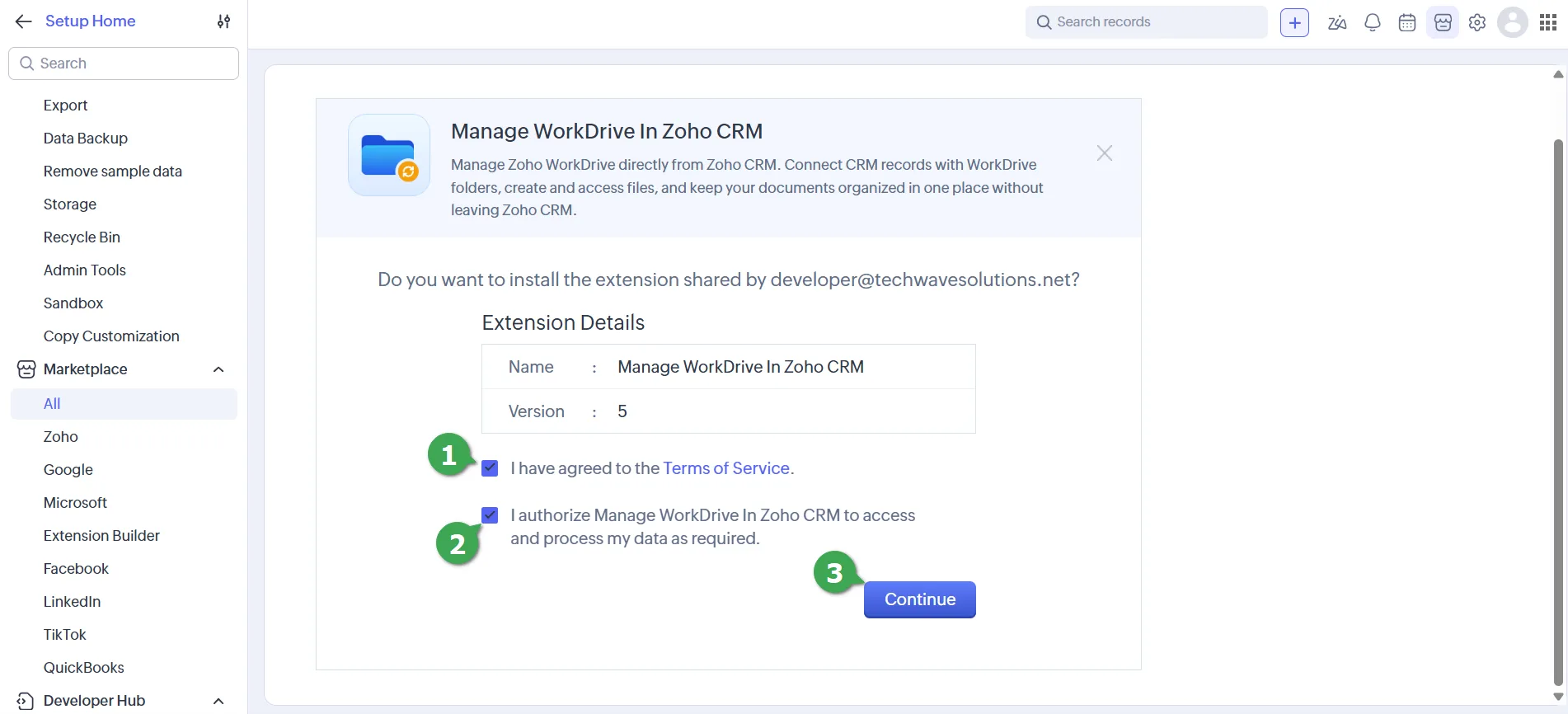
- Sign in with your Zoho CRM administrator account. Tick the box to agree to the Terms of Service and the box that lets the extension access your data, then click Continue.
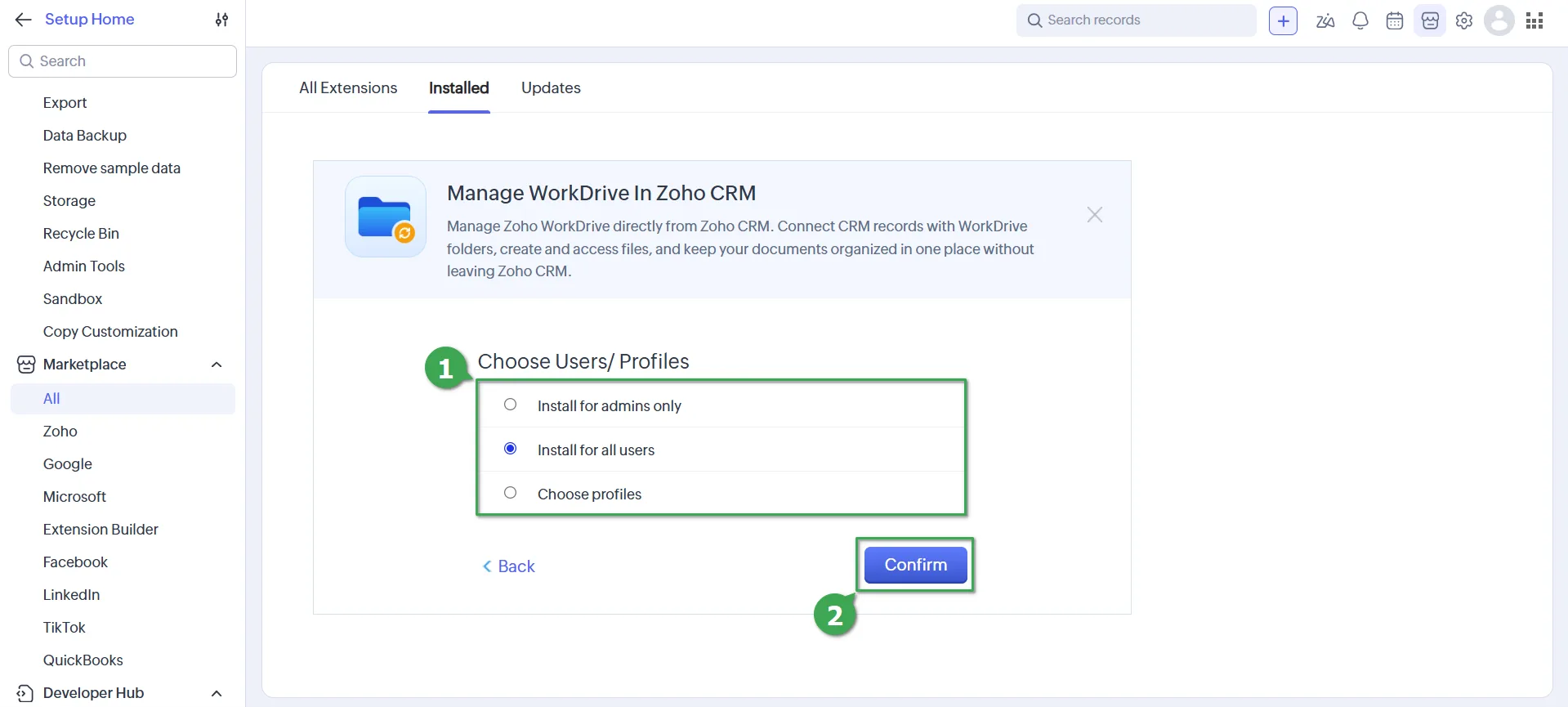
- Choose who can use the extension. To show the files panel to everyone who works with records, choose Install for all users. You can also choose Install for admins only or Choose profiles. Click Confirm.
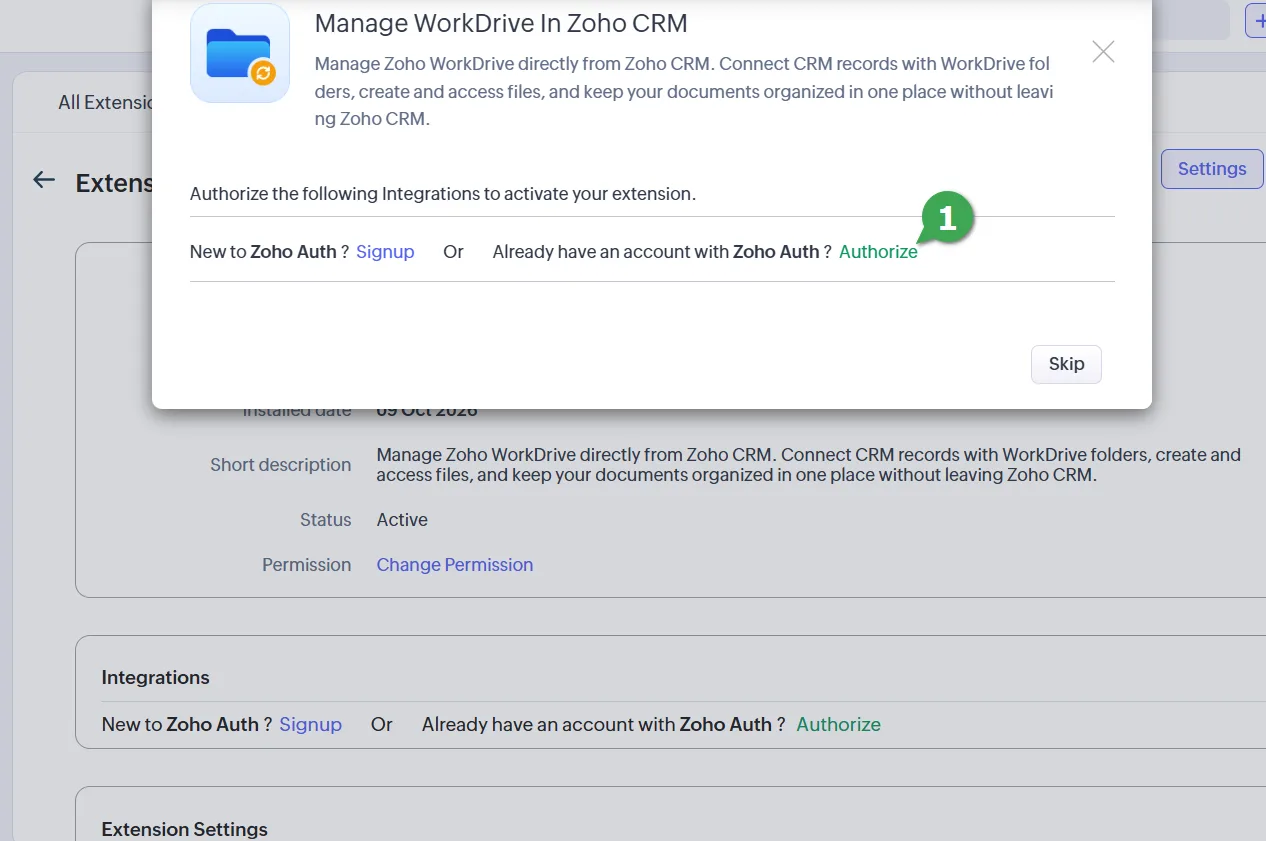
- When asked to authorize the integration, click Authorize next to Zoho Auth and allow access to Zoho WorkDrive. Use the WorkDrive account that should own the record folders (see the note above).
- Wait for the installation to finish, then continue with Set up.
What the installation adds
| What | Where | What it is for |
|---|---|---|
| The WorkDrive files panel | On the record page of the ten supported modules | Working with a record's files. See Use the files panel. |
| A field called ZWD Folder Id | On the ten supported modules | Remembers which WorkDrive folder belongs to the record. It is filled in automatically. |
| The Settings page | In the extension's settings | Choosing where folders live, which modules are on, and how folders are named. |
| Automatic folder creation | Runs when a record is created | Creates the record's folder in modules that are turned on. |
| The custom action Create a WorkDrive folder for each record | Workflow rules | Creating folders for added modules and for older records. See Add another module. |
Don't edit the ZWD Folder Id field by hand
The panel opens whatever folder this field points to. If it is changed or cleared, the record loses its link to its folder. We recommend making the field read-only on your page layouts.
4. Set up (first time)
Setup is done once, by an administrator, on the extension's Settings page. It takes a few minutes.
Open the Settings page
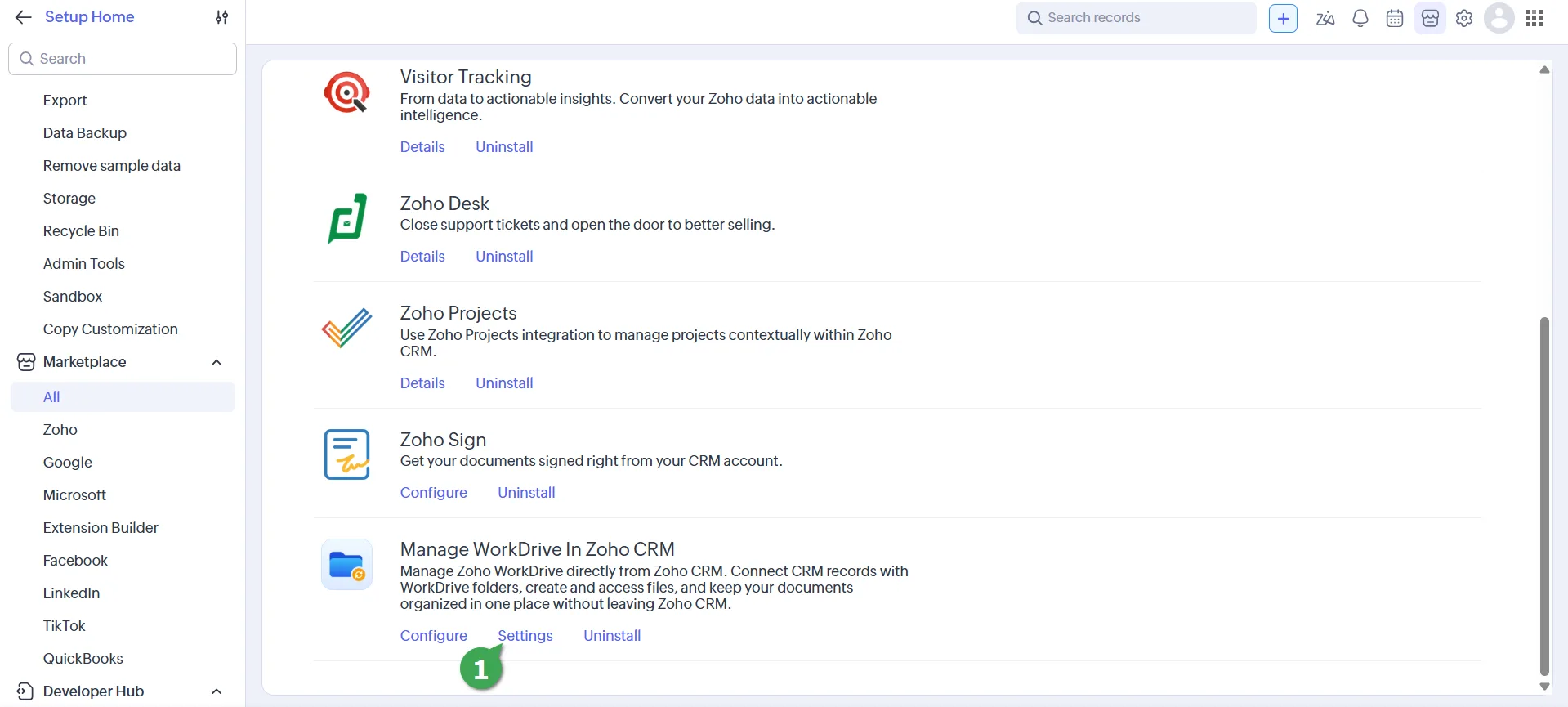
- In Zoho CRM, go to Setup → Marketplace → All → Installed.
- Find Manage WorkDrive In Zoho CRM and click Settings.
The page is titled Manage WorkDrive In Zoho CRM, with the line "Choose where record folders live and how they are named." Setup has a few short steps, from top to bottom.
Step 1: Choose where the folders live
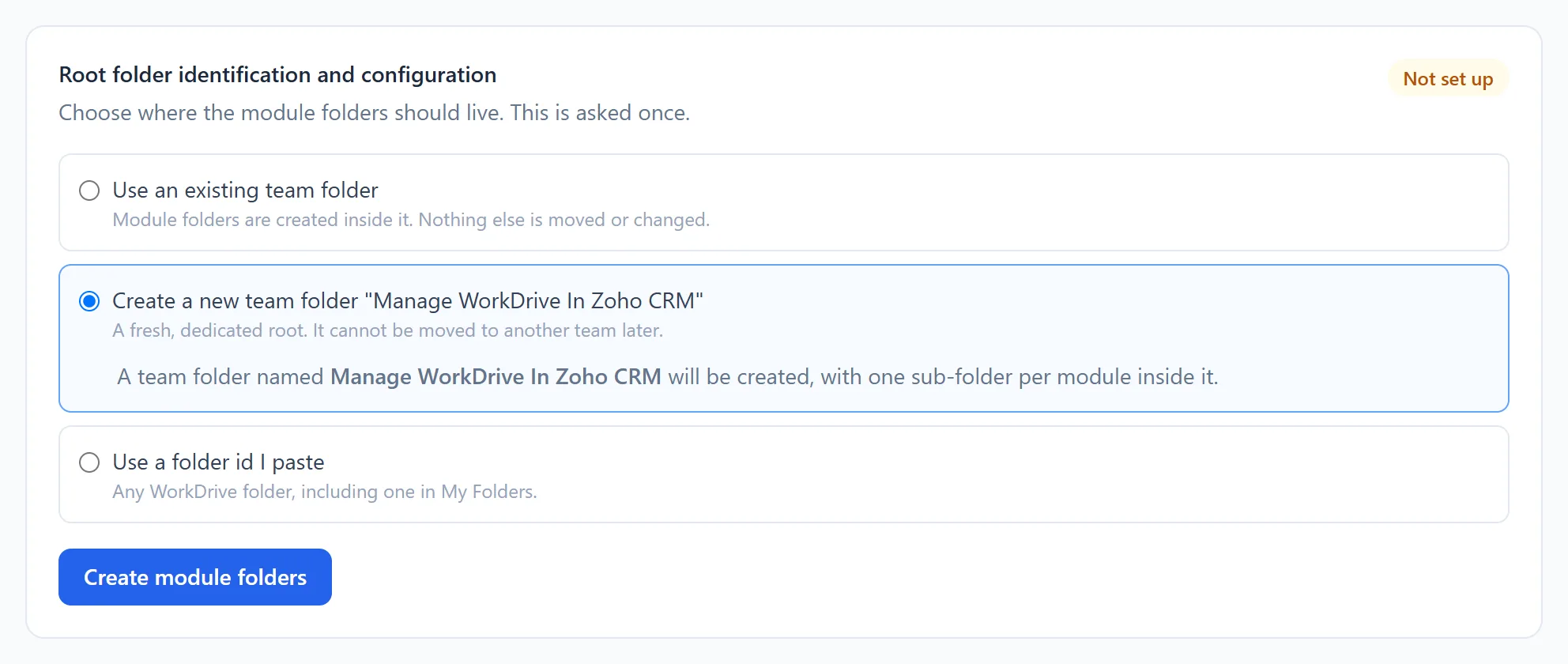
The first card, Root folder identification and configuration, shows Not set up until you finish this step. Pick one of three options:
| Option | Choose it when | What happens |
|---|---|---|
| Create a new team folder "Manage WorkDrive In Zoho CRM" | You are starting fresh. Recommended. | A new team folder with that name is created, with one folder for each module inside it. |
| Use an existing team folder | You already have a team folder for CRM files. | Pick it from the list. Module folders are created inside it. Nothing else in it is moved or changed. |
| Use a folder id I paste | You want a specific folder, even one in My Folders. | Paste the folder's id. In WorkDrive, open the folder: the id is the last part of the address in your browser. |
- If your WorkDrive account belongs to more than one team, first pick the team that should hold the folders. Folders can't be moved between teams later.
- If a team folder called "Manage WorkDrive In Zoho CRM" already exists, it is selected for you and marked "already set up". Running setup again is safe: folders that already exist are reused, never duplicated.
- A team folder created here is not visible to the whole WorkDrive team. To let people browse it in WorkDrive itself, add them to the team folder in WorkDrive.
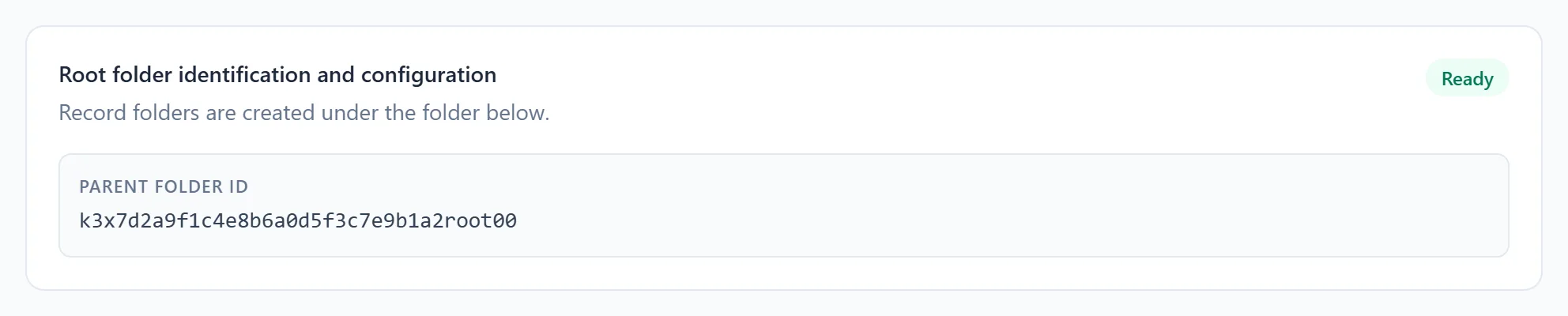
Then click Create module folders. When you see "Folders ready", the card changes to Ready and shows the Parent folder ID.
Inside the root you will find one folder per module: Leads, Contacts, Accounts, Deals, Sales_Orders, Invoices, Campaigns, Quotes, Purchase_Orders and Tasks.
This choice is made once
After setup there is no button to change the root folder. If you need to move it, contact us.
Step 2: Turn on the modules you want
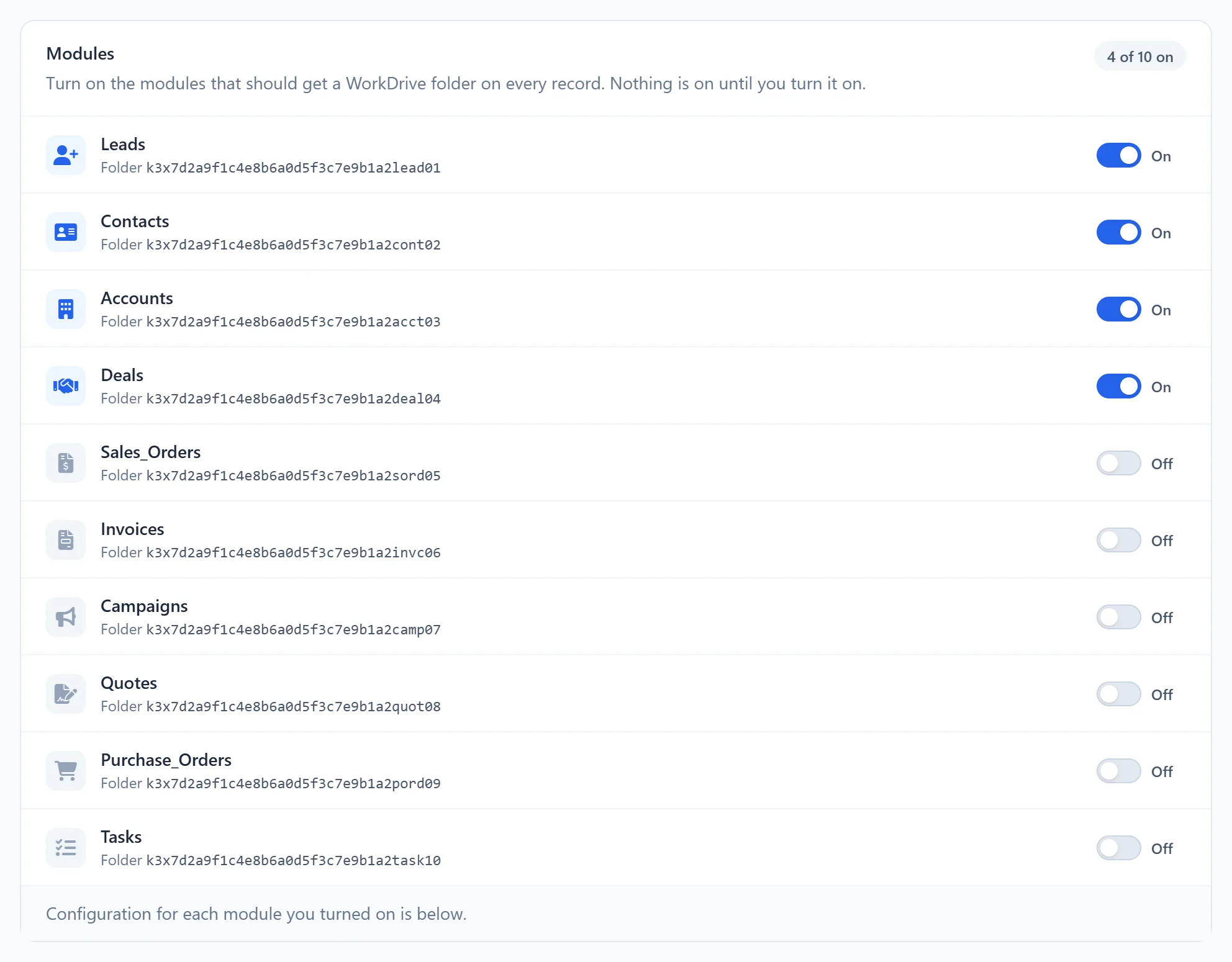
The Modules card lists every module with a switch. Nothing is on until you turn it on. The badge on the right counts them, for example "4 of 10 on".
- A switch saves as soon as you flip it. You will see "Leads enabled" or "Leads disabled". You don't need to press Update setting.
- On: every new record in the module gets a folder, and the files panel works on its records.
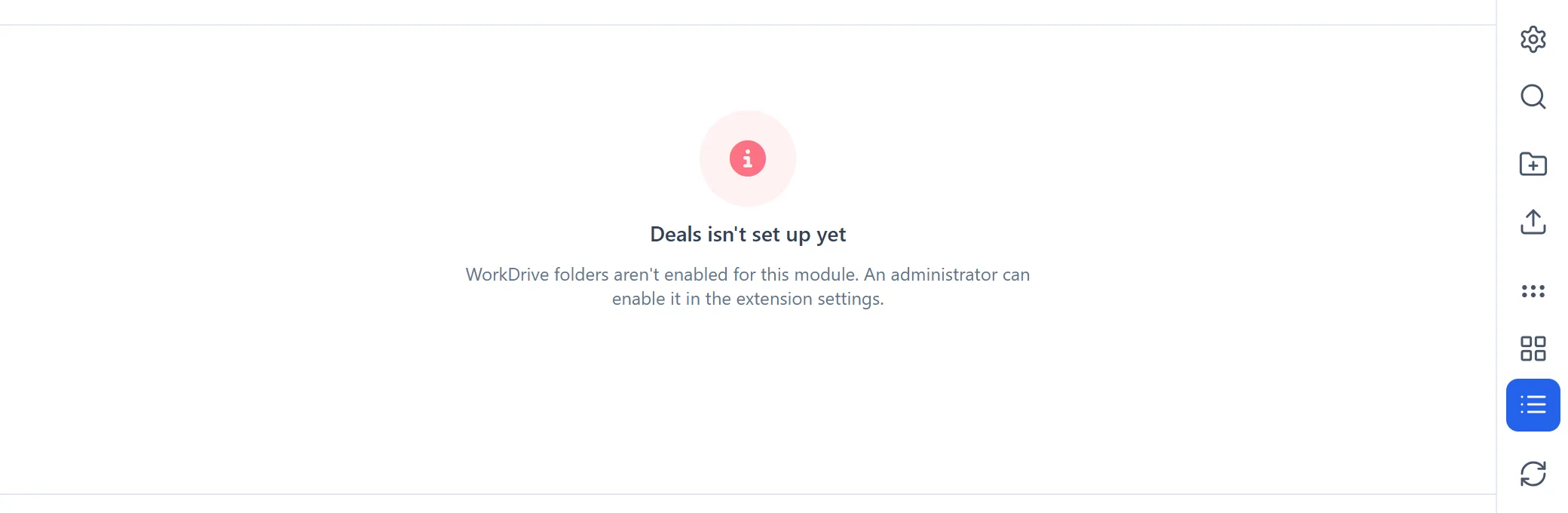
- Off: no new folders are created, and the files panel on the module's records says the module isn't set up. Folders that already exist are kept.
- A module that shows "no folder yet - run step 1" and "not available yet" has no module folder yet, so it can't be switched on.
Tip
You can set up a module's folder names (steps 3 to 5) before you turn it on. That way the very first folder is already named the way you want.
Step 3: Decide how folders are named
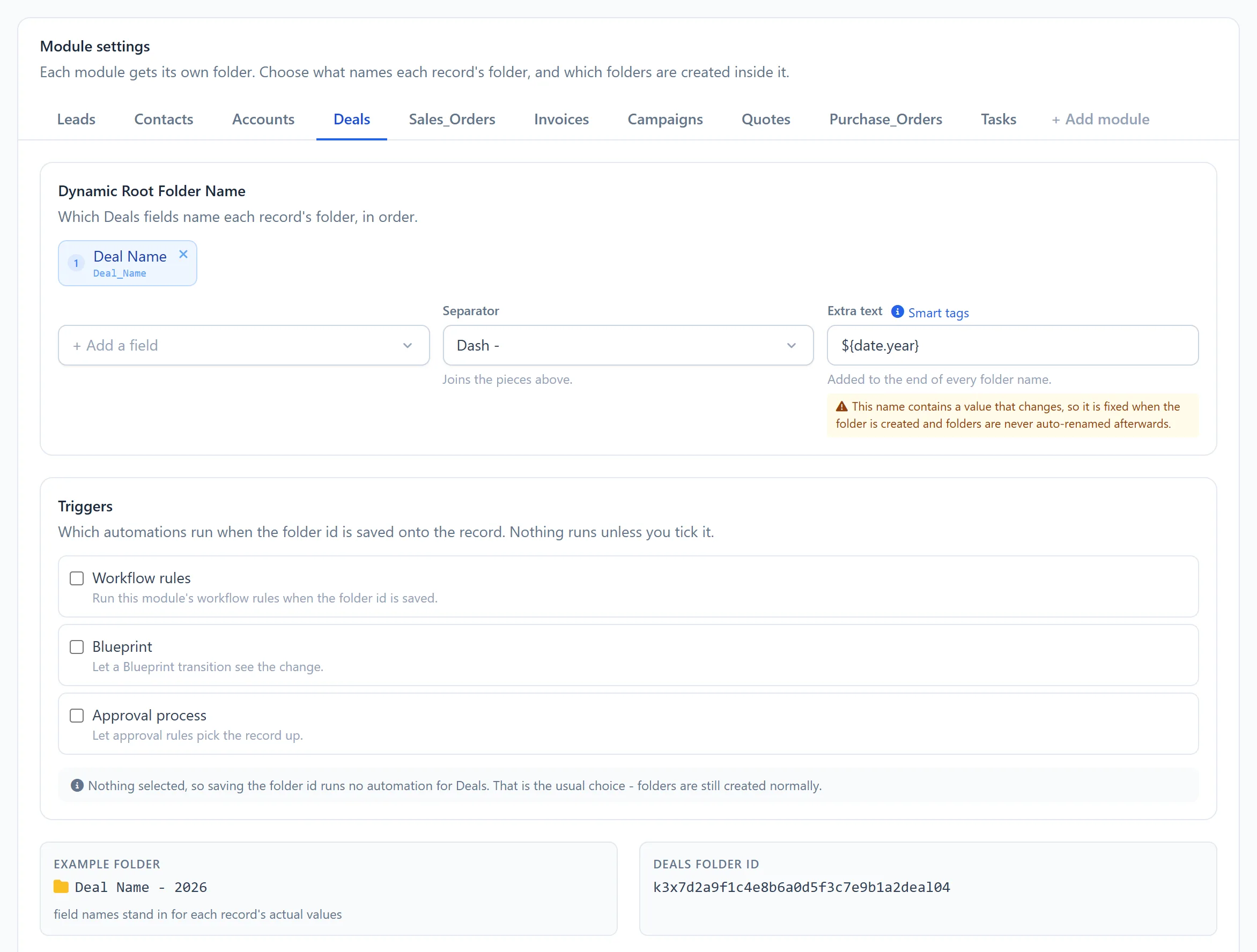
The Module settings card has one tab per module. Settings lists modules by their CRM API names, so Sales Orders appears as Sales_Orders. An amber dot on a tab means it has changes you haven't saved yet. Open a module's tab and use the Dynamic Root Folder Name section.
Fields. Choose which of the record's fields make up the folder name, in order. Each chosen field appears as a numbered chip.
- Click + Add a field and search for the field. You can use text, email, phone, website, pick list, auto-number, number, decimal, currency, date and date-time fields.
- Click the × on a chip to remove that field.
- Fields are used in the order you added them. To change the order, remove a field and add it again.
Each module starts with a sensible default:
| Module | Default field |
|---|---|
| Leads, Contacts | Last Name |
| Accounts | Account Name |
| Deals | Deal Name |
| Sales Orders, Invoices, Quotes, Purchase Orders, Tasks | Subject |
| Campaigns | Campaign Name |
| Modules you add yourself | Name (the record name) |
Separator. This joins the parts of the name. Choose Space (the default), Hyphen -, Underscore _, Dot ., Comma , or Dash - (a hyphen with spaces around it).
Extra text. This is optional text added to the end of every folder name. It can include smart tags, such as the record id or today's date.
Example folder. This shows a live preview of the name. Field names stand in for each record's real values.
Good to know about folder names:
- A field that is empty on a record is simply left out. If every chosen field is empty, the module's default field is used, and if that is empty too, the folder is called "Untitled".
- The characters
\ / : * ? " < > |can't be used in folder names, so they are replaced with-. - Names are limited to 200 characters.
- If two records would get the same name, the second folder is called "Name (2)", then "Name (3)", up to "Name (5)". To keep every name unique, add the
${record.id}smart tag. - Changes apply to new folders only. Folders that already exist keep their names.
Smart tags
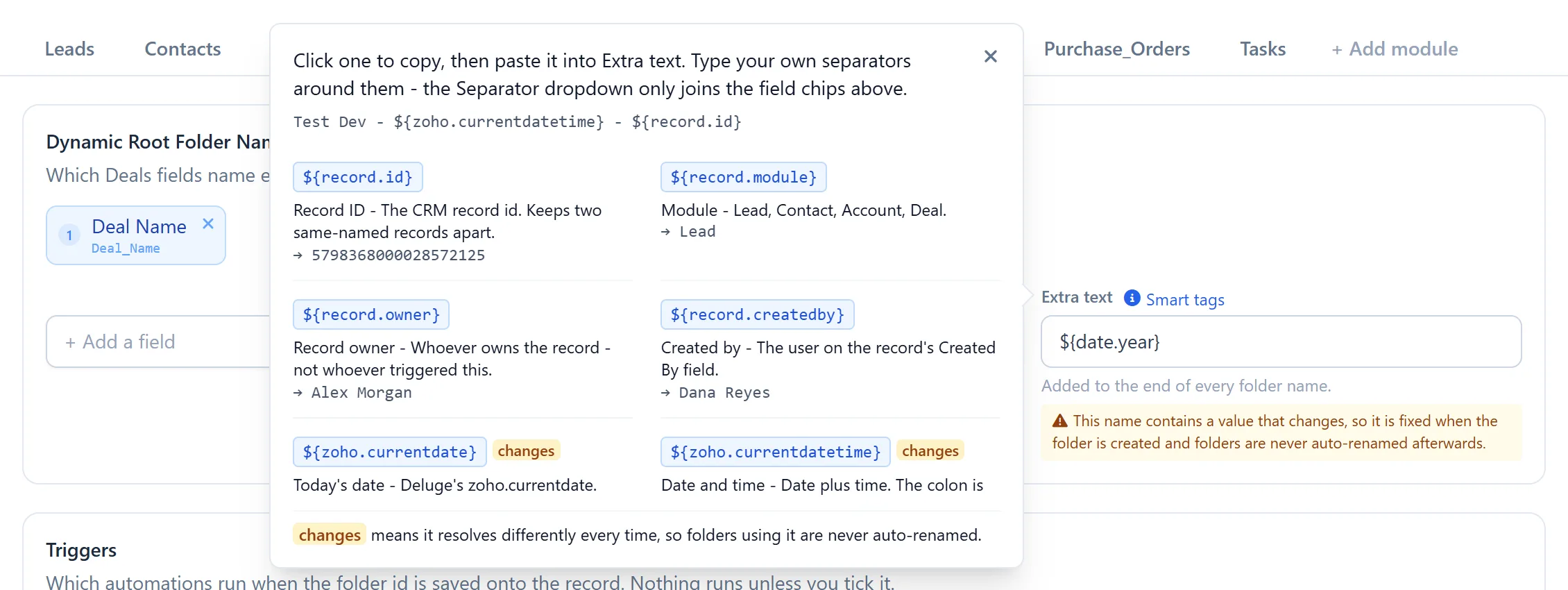
Click Smart tags next to Extra text to see the list. Click a tag to copy it, then paste it into Extra text. Type your own separators around tags, for example Project - ${date.year}. A tag can be used more than once.
| Tag | What it inserts | Example |
|---|---|---|
${record.id} | The CRM record id. Keeps two records with the same name apart. | 5798368000028572125 |
${record.module} | The module's API name. | Leads |
${record.owner} | The record owner. | Alex Morgan |
${record.createdby} | The user in the record's Created By field. | Dana Reyes |
${zoho.currentdate} changes | Today's date. | 2026-08-29 |
${zoho.currentdatetime} changes | Date and time. A folder name can't contain a colon, so it uses a hyphen. | 2026-08-29 15-30 |
${zoho.currenttime} changes | The same as the one above. | 2026-08-29 15-30 |
${date.year} changes | The year, four digits. | 2026 |
${date.month} changes | The month, two digits, so folders sort correctly. | 08 |
${date.day} changes | The day, two digits. | 29 |
${zoho.loginuser} changes | The user who triggered the folder creation. In automations this is usually the super administrator, not the person who saved the record. Use Record owner if that is what you meant. | Alex Morgan |
${zoho.loginuserid} changes | That user's email address. | admin@example.com |
${zoho.adminuser} | The extension's owner in your organisation. | Sam O'Connell |
${zoho.adminuserid} | The extension owner's email address. | owner@example.com |
- changes means the tag gives a different value each time. Its value is fixed when the folder is created.
- Dates use your CRM organisation's time zone. The preview uses your computer's clock, so near midnight the two can differ.
- Text that looks like a tag but isn't one is shown in red under the box, and goes into the name exactly as typed.
Step 4: Add standard subfolders (optional)
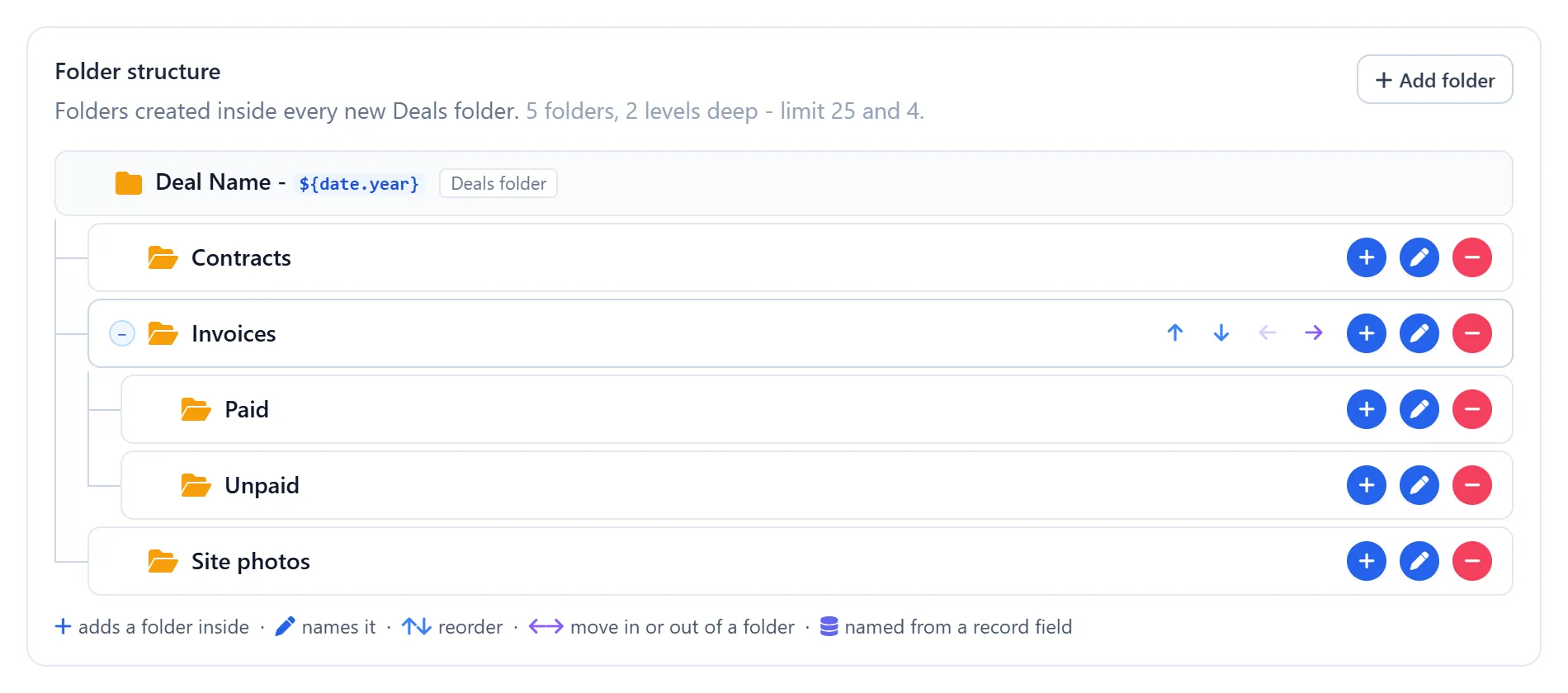
In Folder structure, list the folders to create inside every new record's folder, for example Contracts, Quotes and Photos. If you leave it empty, every record's folder starts empty.
- Click Add folder to add a folder at the top level. The naming window opens straight away.
- On each folder:
- + adds a folder inside it.
- The pen renames it.
- − deletes it, with everything inside it.
- Hover over a folder to show the arrows:
- ↑ ↓ move it up or down.
- → moves it into the folder above it.
- ← moves it out one level.
- The +/− toggle in front of a folder shows or hides what is inside it. It only changes the view.
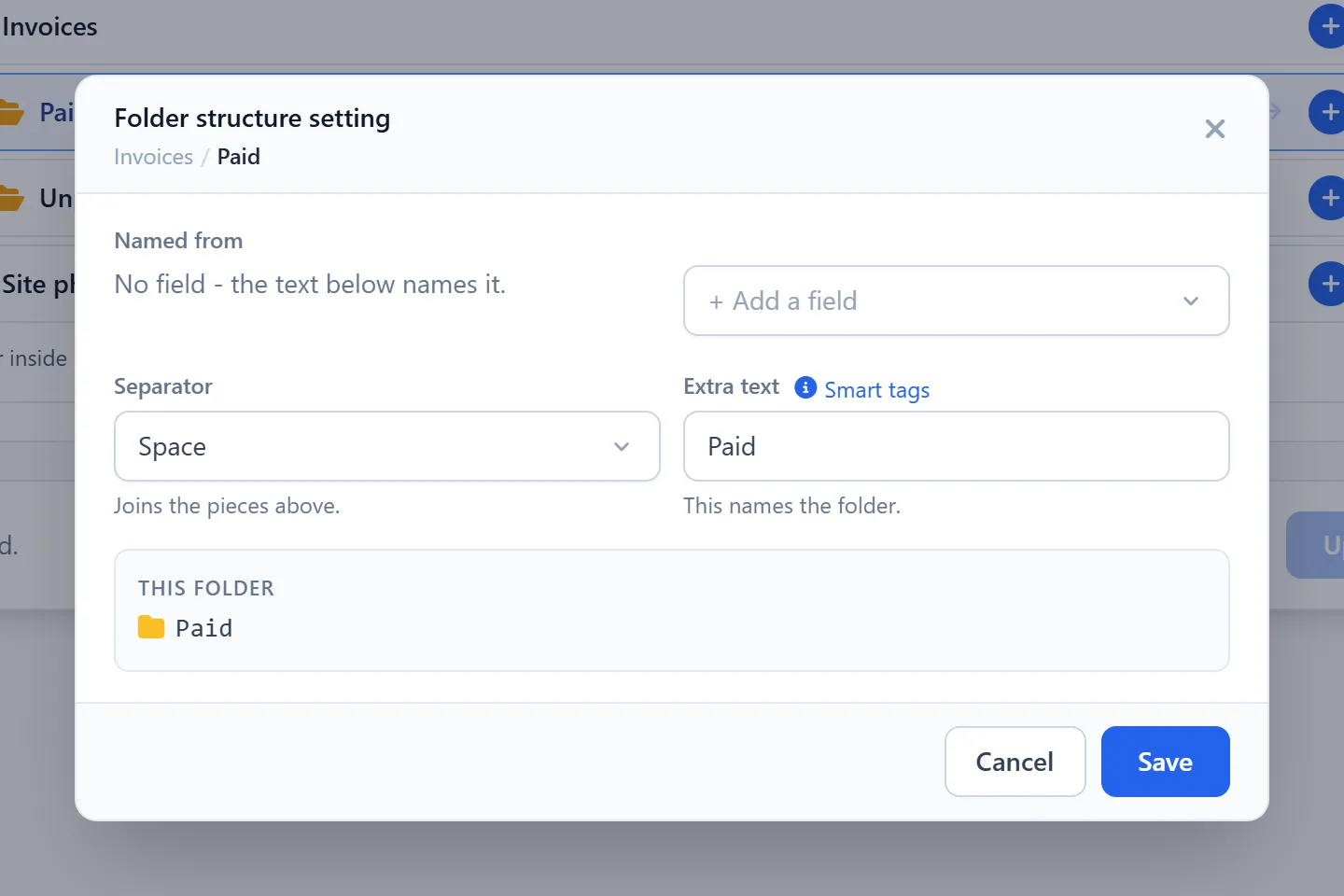
In the Folder structure setting window you can name a folder:
- with fixed text in Extra text, such as
Contracts; - from record fields, just like the record folder, with + Add a field and a Separator;
- with smart tags.
This folder shows a preview. Click Save to keep the change.
Limits and rules
- Up to 25 folders, at most 4 levels deep, with names up to 200 characters. The counter above the tree shows where you are, and a red message appears if you go over. Fix it before saving.
- Two folders at the same level can't end up with the same name.
- Subfolders are created for new record folders. To add them to an existing record, use Sync Folder Structure on that record.
- If a subfolder is named from a field that is empty on the record, it is created with the field's label as its name. Run Sync Folder Structure later to rename it.
- Deleting a folder here asks no question. It is only removed for good when you click Update setting, so if you made a mistake, reload the page before saving.
Step 5: Triggers (advanced, usually left alone)
When a folder is created, its id is saved onto the record. Triggers decides whether that save starts your own automations:
- Workflow rules: run this module's workflow rules when the folder id is saved.
- Blueprint: let a Blueprint transition see the change.
- Approval process: let approval rules pick the record up.
Nothing is ticked by default, and that is the usual choice: folders are still created normally. If you tick one, saving the folder id counts as an edit, so rules that run on edit will fire. Make sure those rules can handle running twice.
Step 6: Save
The bar at the bottom of the page tells you where you stand: "Unsaved changes in Leads, Contacts." or "All changes saved." Click Update setting to save the naming, structure and triggers of every module you changed. You will see "Settings updated".

Save before you leave
The page doesn't warn you about unsaved changes. If you leave or reload it before clicking Update setting, they are lost. Your changes do survive switching between module tabs, so you can edit several modules and save them together.
You're done
Create a test record in a module you turned on, open it, and look for the WorkDrive panel. Its folder should be there, with any subfolders you set up.
Add another module (including custom modules)
Besides the ten built-in modules, you can give any other module, including your custom modules, its own folders.
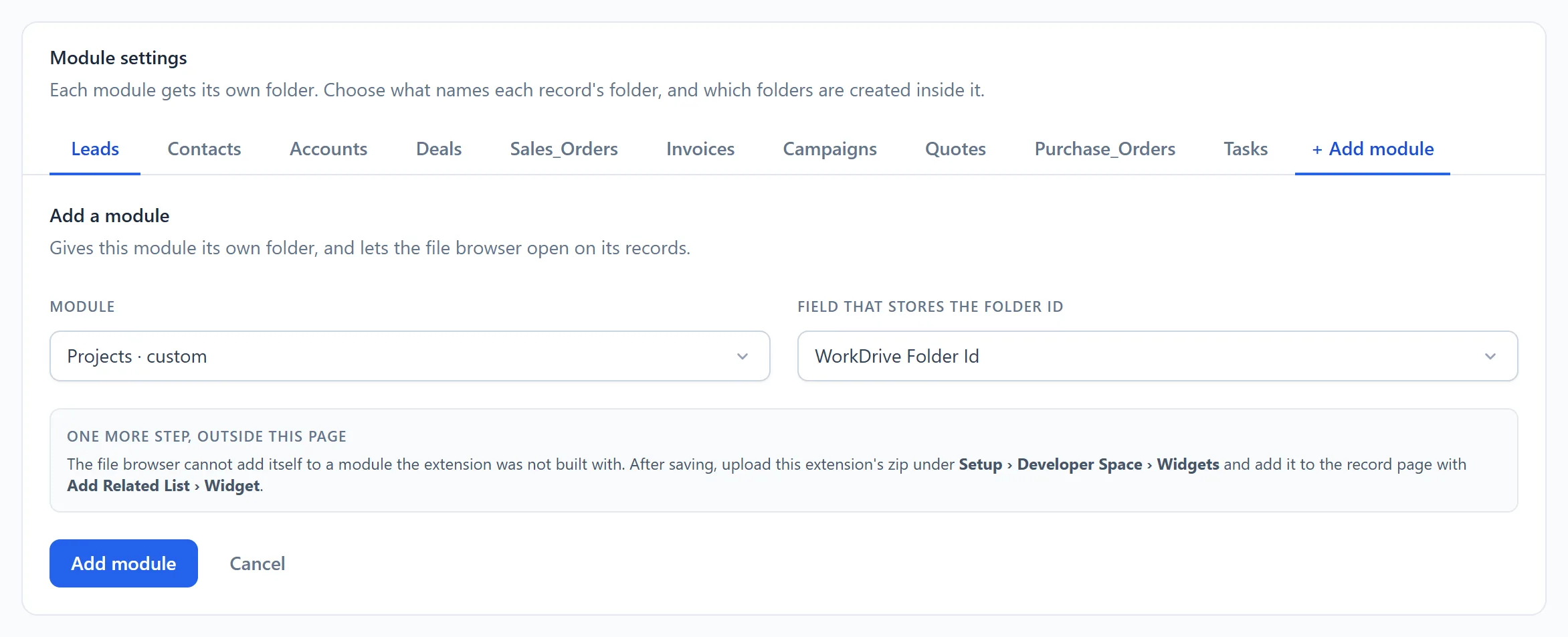
- In Settings, open the last tab, + Add module.
- Under Module, pick the module. Custom modules are listed first.
- Under Field that stores the folder id, pick a single-line text field that can hold at least 40 characters. If the module has none:
- click Create "WorkDrive Folder Id" on <module> to create one, or
- add a Single Line field called WorkDrive Folder Id yourself under Setup → Customization → Modules and Fields, leaving its length at the default.
- Click Add module. A folder for the module is created in your root folder, and the module is switched on straight away.
- Add the WorkDrive panel to the module's record page. As the Settings page explains, this is done under Setup → Developer Space → Widgets, and the panel is then placed on the record page with Add Related List → Widget. Contact us if you need help with this step.
- Create a workflow rule so new records get folders. See Use the custom action in a workflow rule.
Use the custom action in a workflow rule
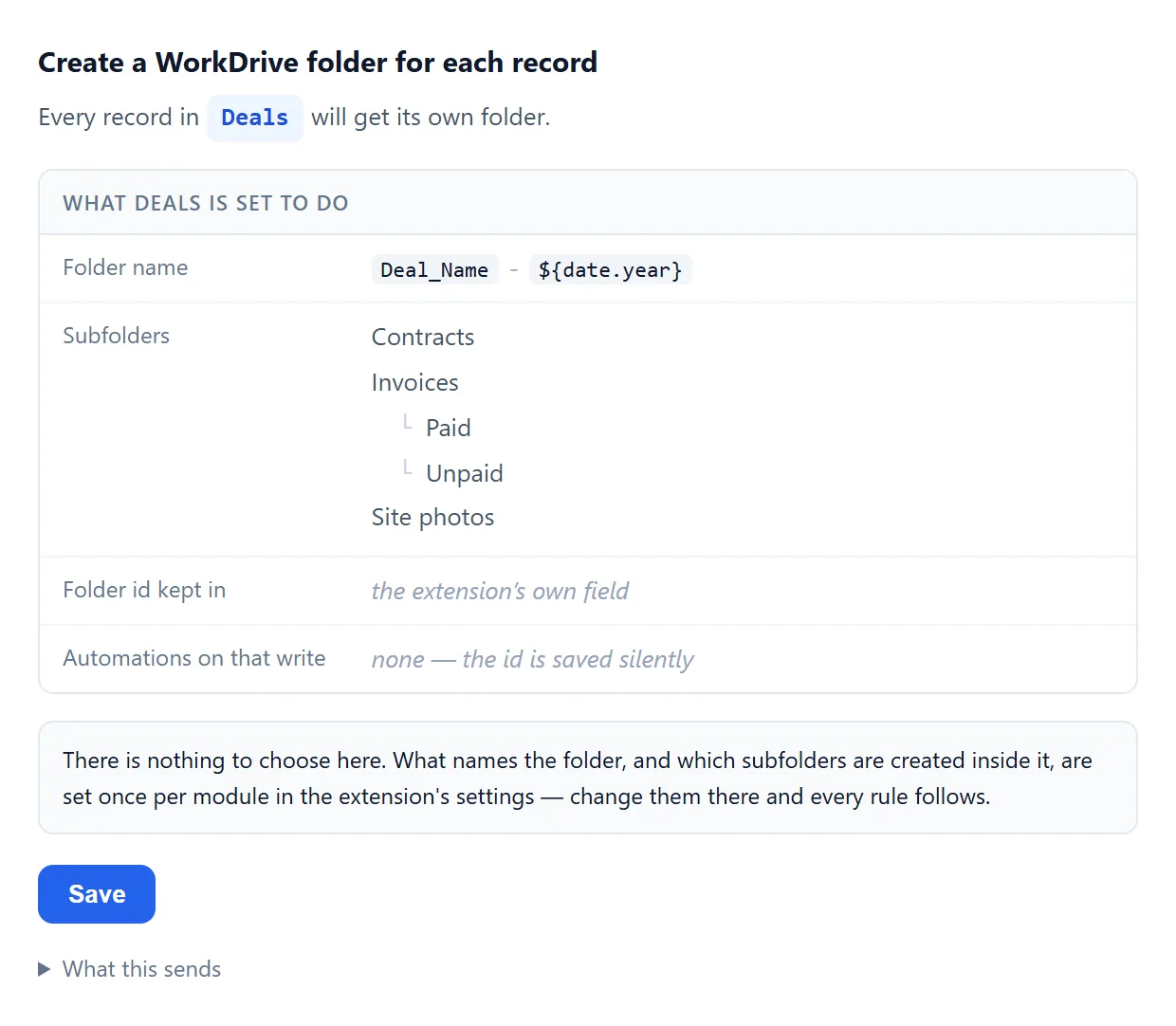
The extension adds a custom action, Create a WorkDrive folder for each record, that you can use in any workflow rule.
- Go to Setup → Automation → Workflow Rules and create a rule for the module.
- Set it to run when a record is created. To also give older records a folder, choose Create or Edit.
- Under instant actions, add the extension's custom action, Create a WorkDrive folder for each record.
- The action's window asks for nothing. It shows what the module is set to do: the folder name, the subfolders, where the folder id is kept, and which automations run. Click Save there, then save the workflow rule.
The action never creates a second folder: a record that already has one is skipped. It also does nothing for a module that is switched off.
Folders for records that already exist
A folder is created when a record is created. Records that existed before you installed the extension or turned their module on don't have one. Their panel says No WorkDrive folder yet.
To give them folders, create a workflow rule on the module that runs on Create or Edit and uses the custom action, as described above. The next time one of those records is edited, it gets its folder. Records that already have a folder are left alone, so you can keep the rule.
5. Use the files panel
Open any record in a module that is turned on. The WorkDrive panel is in the record's related lists, and opens on the record's own folder.
A quick tour
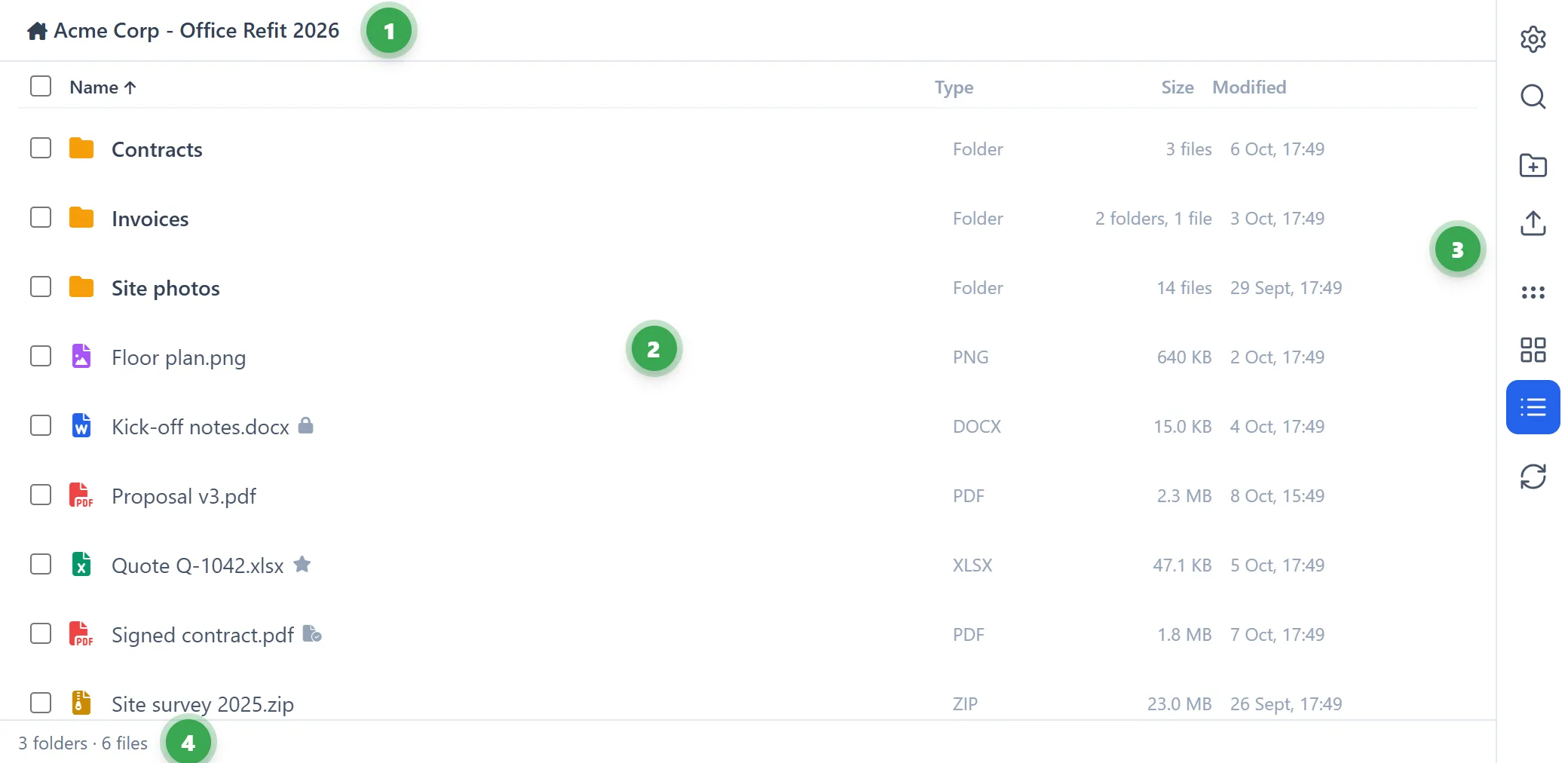
- Folder path (top). The first item, with the house icon, is the record's own folder. Click any part of the path to go back to it.
- File list. Click a folder to open it, or a file to preview it.
- Control column (right side). It holds all the panel's buttons, explained below.
- Count (bottom). It shows what is in the folder, for example "2 folders · 5 files".
The control column, from top to bottom:
| Button | What it does |
|---|---|
| ⚙ More actions | Opens the folder menu: sync, ZIP, activity, sharing and more. See The ⚙ menu. |
| 🔍 Search files | Shows or hides the search box. |
| New folder | Creates a folder in the folder you are looking at. |
| Upload files | Uploads files from your computer into the folder you are looking at. |
| Compact view, Grid view, List view | Change how the files are shown. List view is the default. |
| Refresh | Reloads the folder, or runs the search again. |
Hover over any button to see its name.
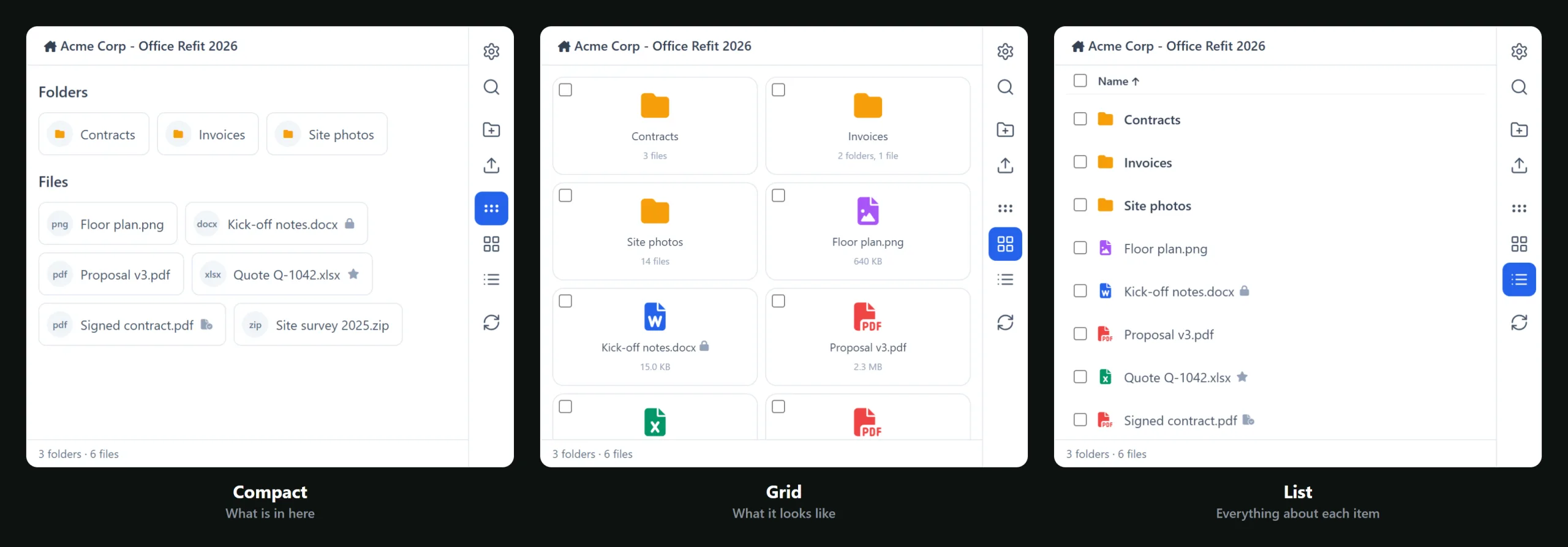
Views and sorting
- List view:
- shows Name, Type, Size, Modified and Owner, with more columns appearing as the panel gets wider;
- click Name, Size or Modified to sort, and click again to reverse;
- folders always come first.
- Grid view shows each item as a card with a large icon.
- Compact view:
- groups items under "Folders" and "Files" as small labels;
- is good for browsing;
- has no tick boxes and no ⋮ menu. Switch to List or Grid to work with files.
The panel remembers your view and sort order on your computer.
Small symbols after a name show a file's state:
- ★ means it is a favourite;
- a padlock means it is checked out;
- a file with a tick means it is marked as final.
Large folders
The panel shows the first 50 items of a folder. If a folder holds more, use Go to WorkDrive Folder in the ⚙ menu to see all of it in WorkDrive.
Open folders and files
- Click a folder to open it.
- Click a file to preview it. If it can't be previewed, it opens in WorkDrive in a new tab.
- With the keyboard, use Tab to move between items, and Enter or Space to open one. Esc closes menus and windows.
Preview a file
The preview opens inside CRM, with Open in WorkDrive and Download buttons at the bottom.
| File types | Largest size |
|---|---|
| Images: jpg, png, gif, webp, bmp, svg, ico, tiff, heic | 25 MB |
| 25 MB | |
| Office files: doc, docx, odt, rtf, xls, xlsx, ods, ppt, pptx, odp | 25 MB |
| Audio (mp3, wav, ogg, m4a, flac, aac) and video (mp4, webm, mov, avi, mkv, wmv), with a player | 25 MB |
| CSV and TSV, shown as a table (first 500 rows) | 2 MB |
| Text and code files (txt, md, log, json, xml, yaml, js, py, sql and more), and web pages (html) | 2 MB |
Some formats, such as heic, tiff, avi, mkv and wmv, depend on what your browser can play or show. When a file can't be shown, you will see No preview available. Download it or open it in WorkDrive instead.
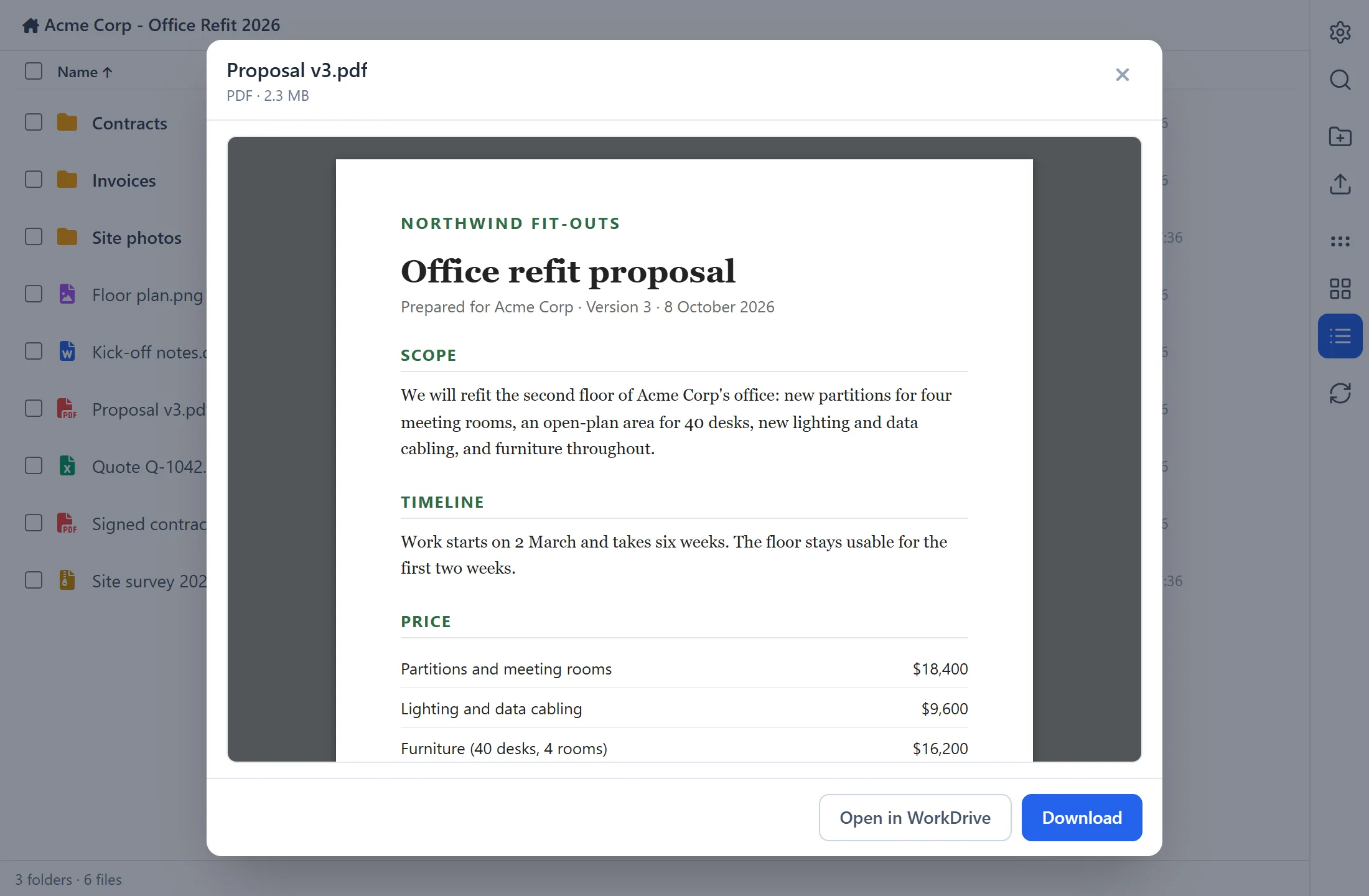
Preview and download use a temporary link
To show or download most files, the panel creates a view-only link to the file that expires after 7 days. It is named "CRM · <file name>". You can see it, and revoke it, under Anyone with the Link…. Small text, CSV and HTML files are previewed without a link.
Upload files
- Click Upload files in the control column, or Upload in an empty folder. You can pick several files at once.
- Or drag files from your computer onto the list. "Drop files to upload into <folder>" shows where they will go.
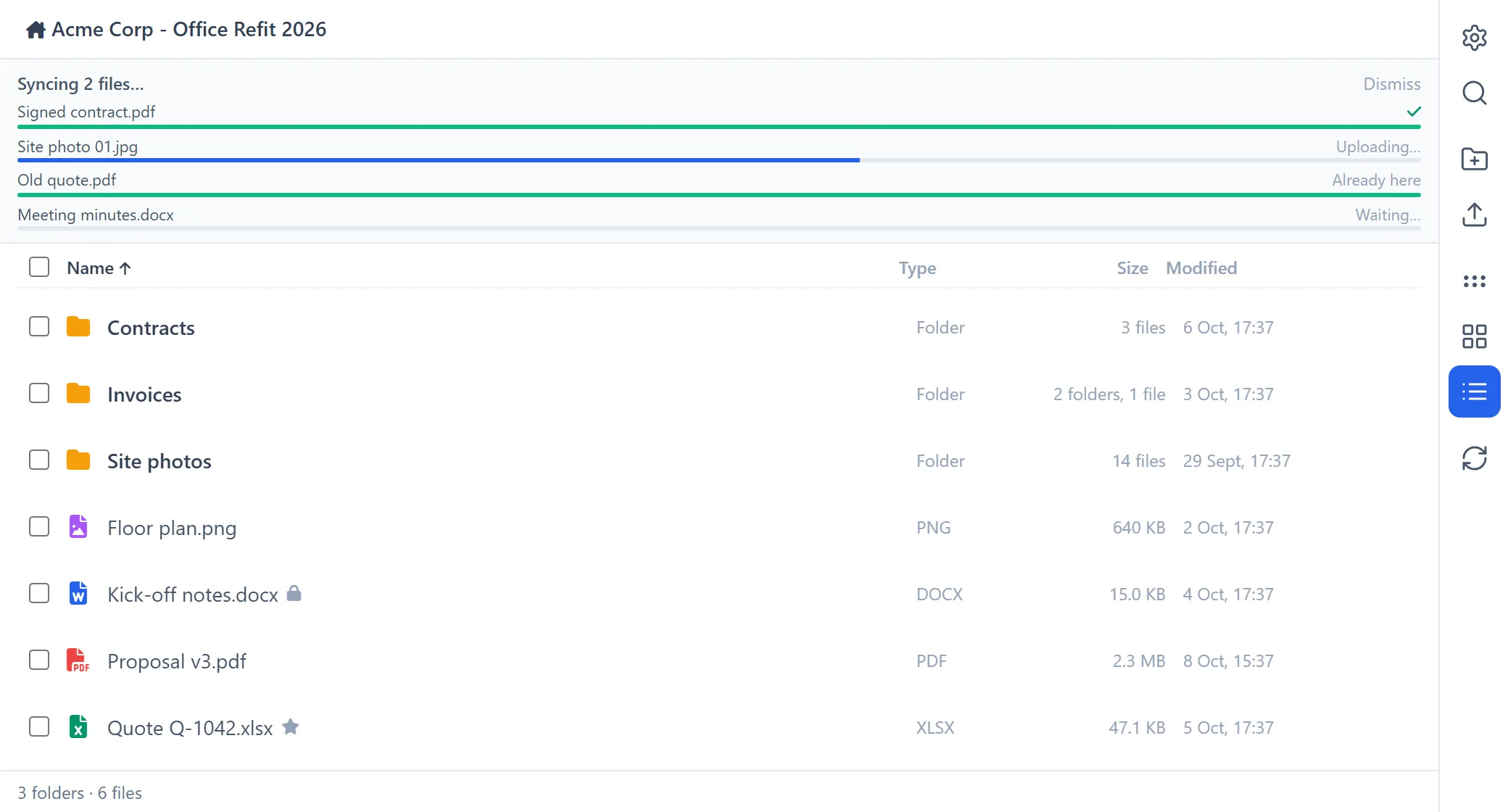
Files go into the folder you are looking at, one at a time. A progress panel shows each file. The percentage is an estimate, and reaches 100% when WorkDrive confirms the file. Finished files disappear from the panel after a few seconds. Failed ones stay with the reason, and Dismiss clears them.
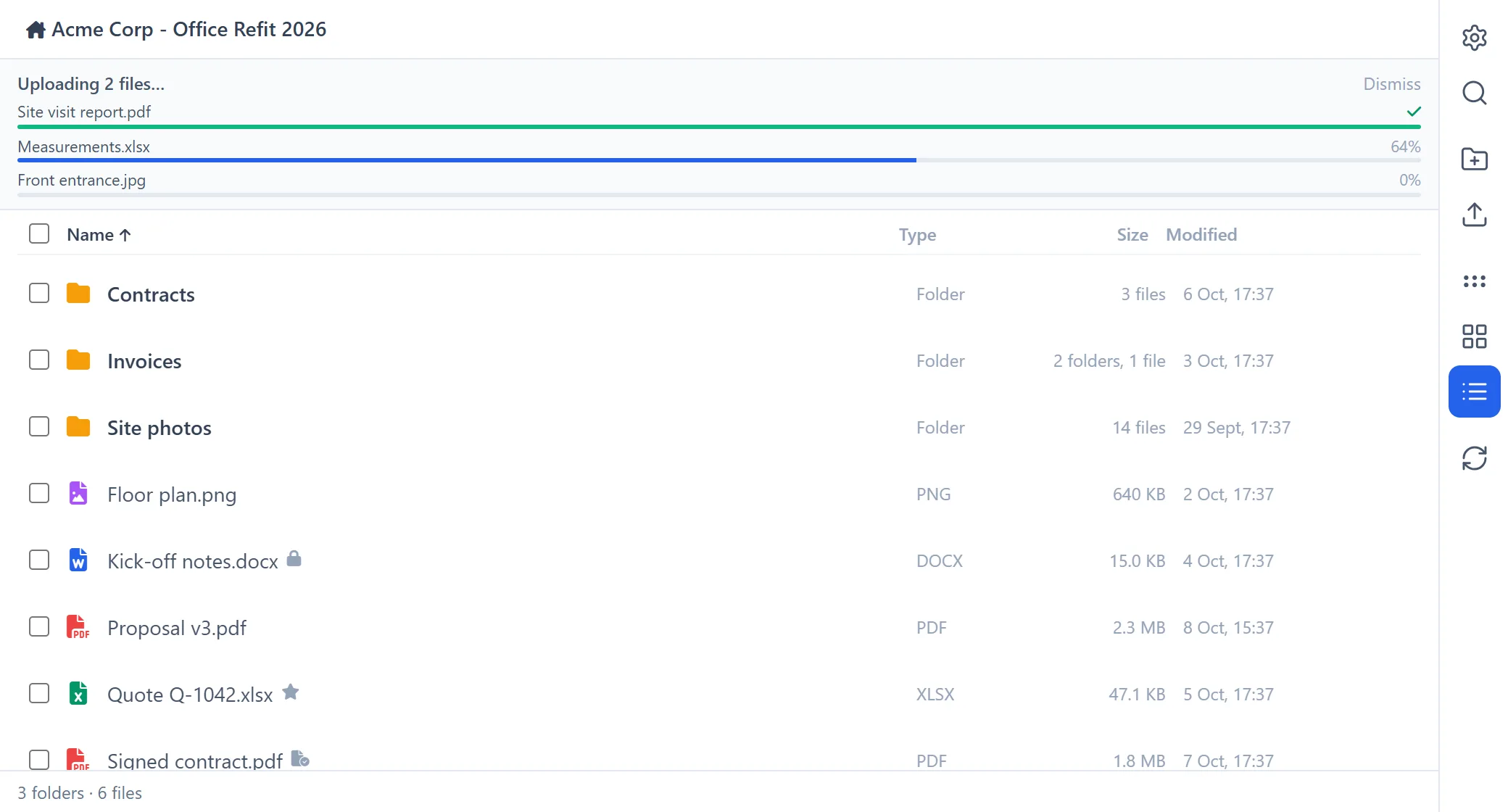
- Size limit: 250 MB per file. Larger files are refused before they are sent.
- Slow uploads: a large file is given more time, up to 20 minutes. If time runs out, the message says the file may still arrive. Press Refresh after a few minutes before sending it again, or you may end up with two copies.
- Same name: uploading never overwrites a file. If a file with that name is already there, WorkDrive keeps both and gives the new one a different name. To replace a file, use Upload new version… instead.
- Folders can't be uploaded, only files. Drag and drop is turned off while you are searching.
Create a folder
Click New folder in the control column, or in an empty folder. Type a name of up to 200 characters, and click Create. The folder is created inside the folder you are looking at.
Search
- Click Search files in the control column and type in the box. The search starts as you type.
- It searches the whole record folder, including subfolders, whichever folder you are in. The first 50 results are shown.
- Work with results as usual: open, preview and use the ⋮ menu.
- To leave the search, clear the box, press Esc, click Back in the folder path, or close the search box.
The ⋮ menu of a file or folder
In List and Grid view, hover over an item and click ⋮. A greyed-out entry means WorkDrive doesn't allow that action on the item. Share entries are hidden when sharing isn't allowed.
| For a file | For a folder |
|---|---|
|
Preview Download Open in WorkDrive Versions & details… Add to favourites / Remove from favourites Check out (lock) / Check in (unlock) Mark as final… Rename Move… Copy to… Extract here… (ZIP files) Convert to Zoho Writer / Sheet / Show… (Office files) Anyone with the Link… Specific Team Members… Move to trash |
Open Open in WorkDrive Details… Add to favourites / Remove from favourites Rename Move… Copy to… Anyone with the Link… Specific Team Members… Move to trash |
The ⚙ menu
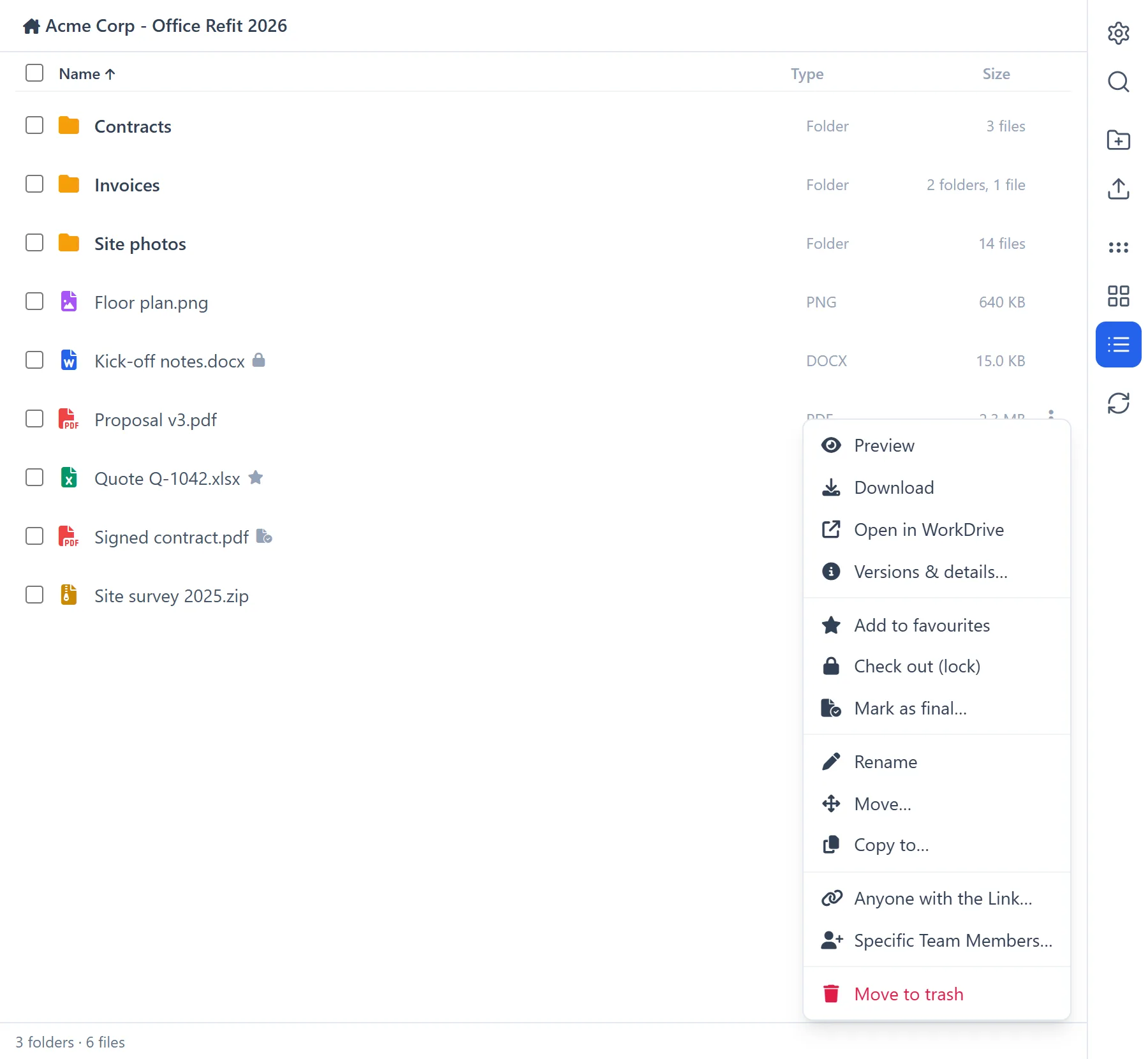
The ⚙ More actions button opens a menu for the folder you are looking at:
- Sync Attachments: copies the record's CRM attachments into this folder. More
- Sync Folder Structure: creates the module's standard subfolders in the record's folder. More
- Go to WorkDrive Folder: opens this folder in WorkDrive, in a new tab.
- Download Current Folder as ZIP. More
- Recent Activity in Current Folder. More
- Share Current Folder (Anyone with the Link) and Share Current Folder (Specific Team Members).
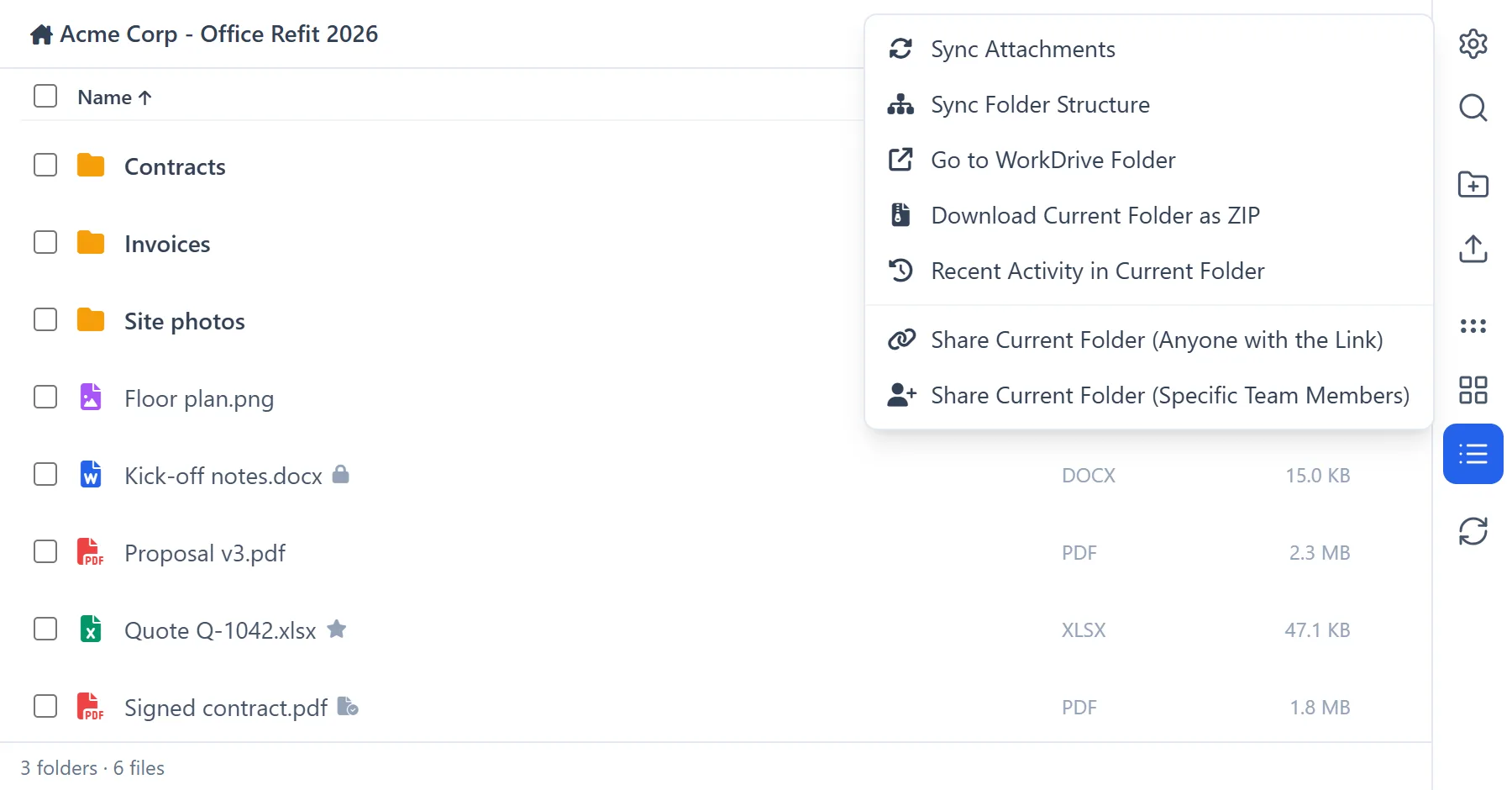
Download, or open in WorkDrive
Download and Open in WorkDrive open in a new browser tab. If nothing happens, your browser has probably blocked the pop-up. Allow pop-ups for Zoho CRM, and try again.
Rename
Choose Rename, type the new name, and click Save. For a file, only the part before the extension is selected, so the extension (for example .pdf) is kept unless you change it.
Move or copy
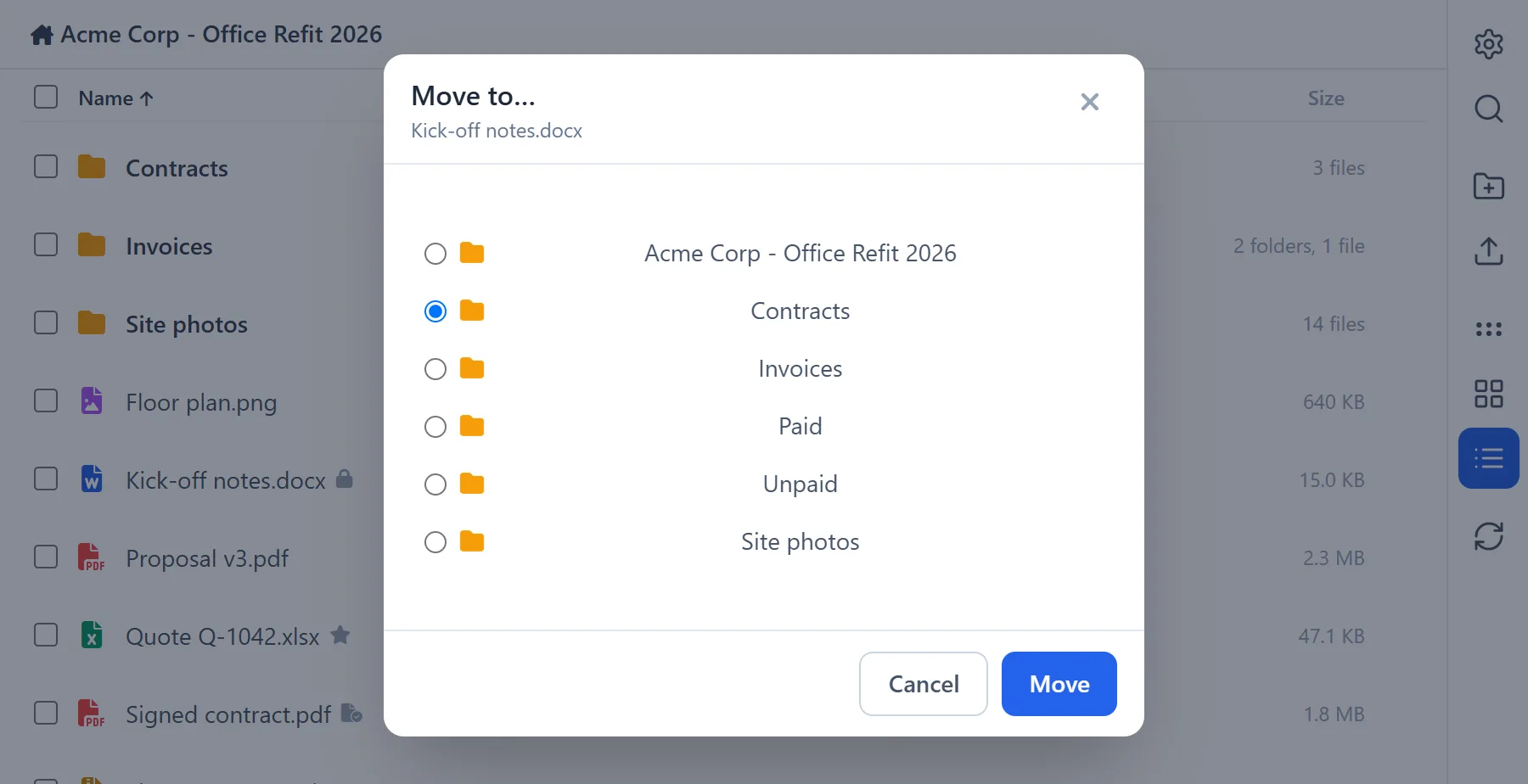
Choose Move… or Copy to…, pick the destination folder and click Move or Copy. You can choose the record's own folder or one of the folders directly inside it. To move something deeper, or to another record, use WorkDrive.
Delete (move to trash)
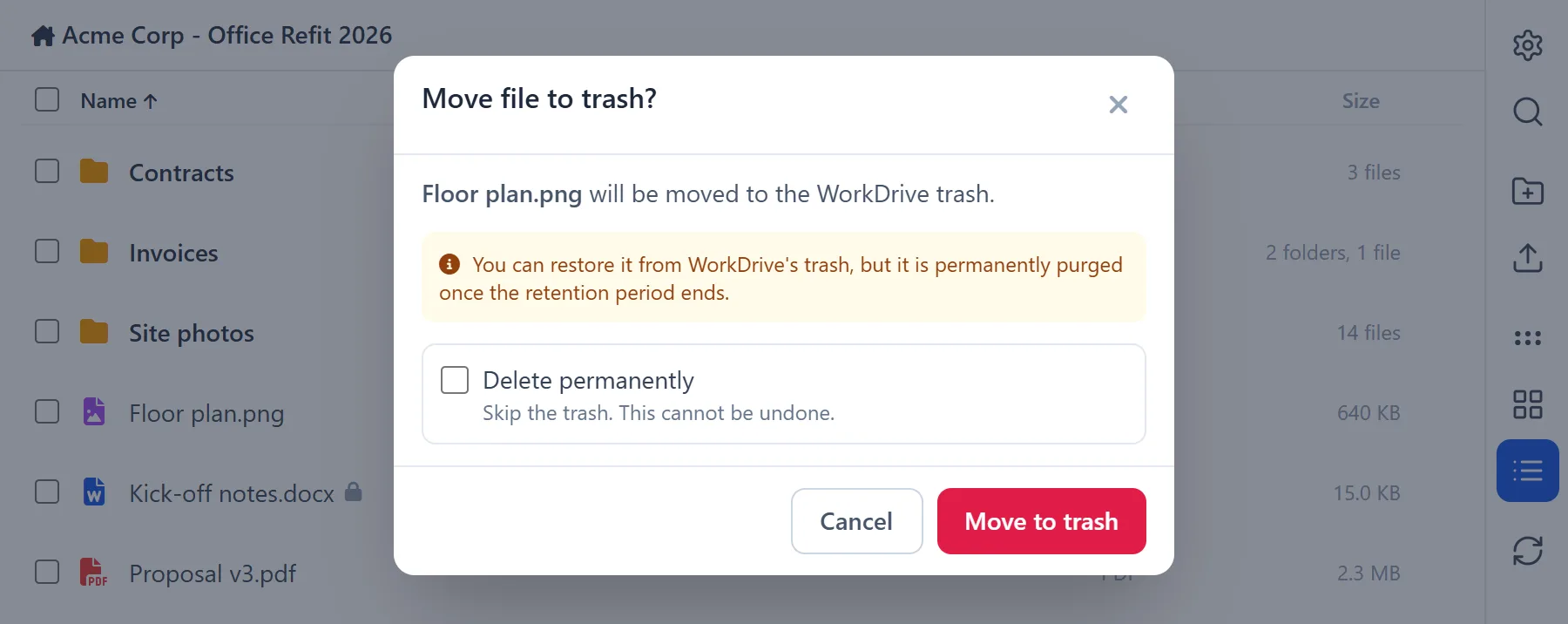
Choose Move to trash and confirm. The item goes to WorkDrive's trash, and a folder takes everything inside it along. You can restore it from WorkDrive's trash until your organisation's retention period ends.
Tick Delete permanently to skip the trash. This can't be undone.
Select several items
- Tick the boxes in List or Grid view. In List view, the box in the header selects everything shown.
- A bar shows how many are selected, with Delete and Clear. Delete works like Move to trash, for all of them at once.
- The selection is cleared when you open another folder or start a search.
Share with team members
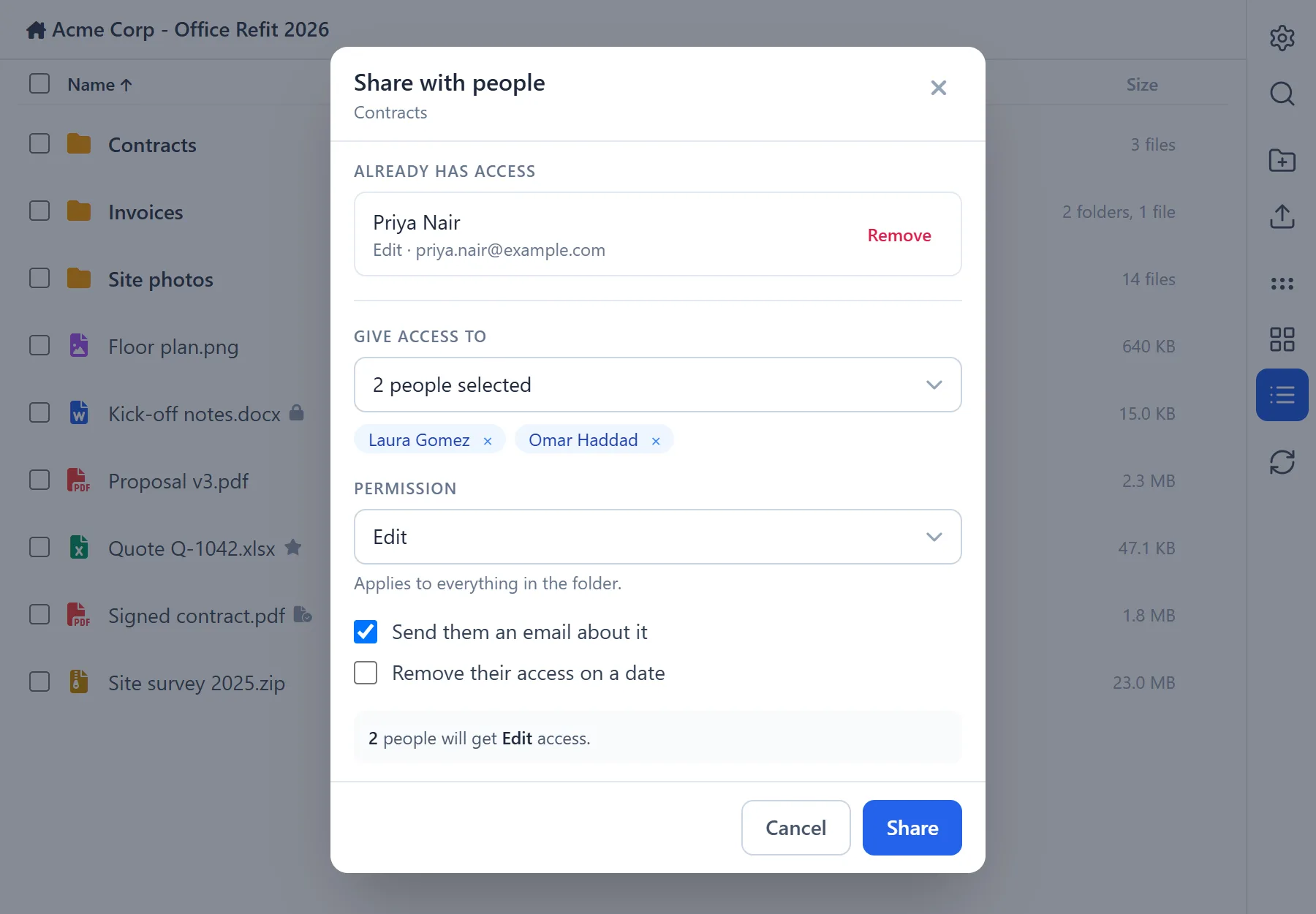
Choose Specific Team Members… on an item, or Share Current Folder (Specific Team Members) in the ⚙ menu.
- Already has access lists who can open the item, with their permission. Click Remove to take someone's access away.
- Give access to: open Choose team members…, search, and tick one or more people. Only members of the WorkDrive team can be chosen.
- Permission:
- for a file: View, View and comment, View and fill, Edit or Share;
- for a folder: View, Upload, Organize or Edit.
- Send them an email about it is ticked by default.
- Remove their access on a date lets you set an end date and time.
Check the summary line, for example "2 people will get Edit access until …", and click Share.
Share with a link
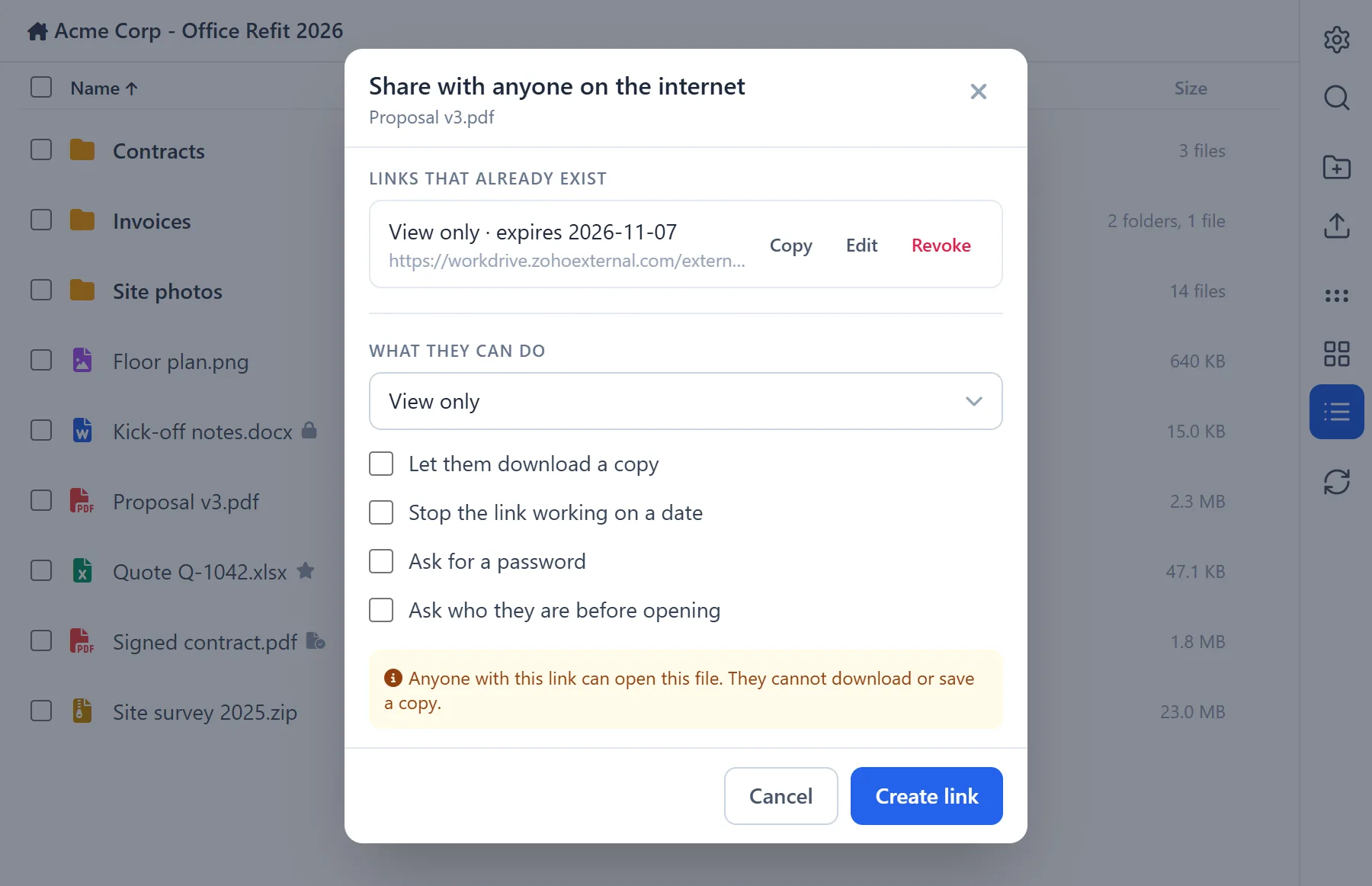
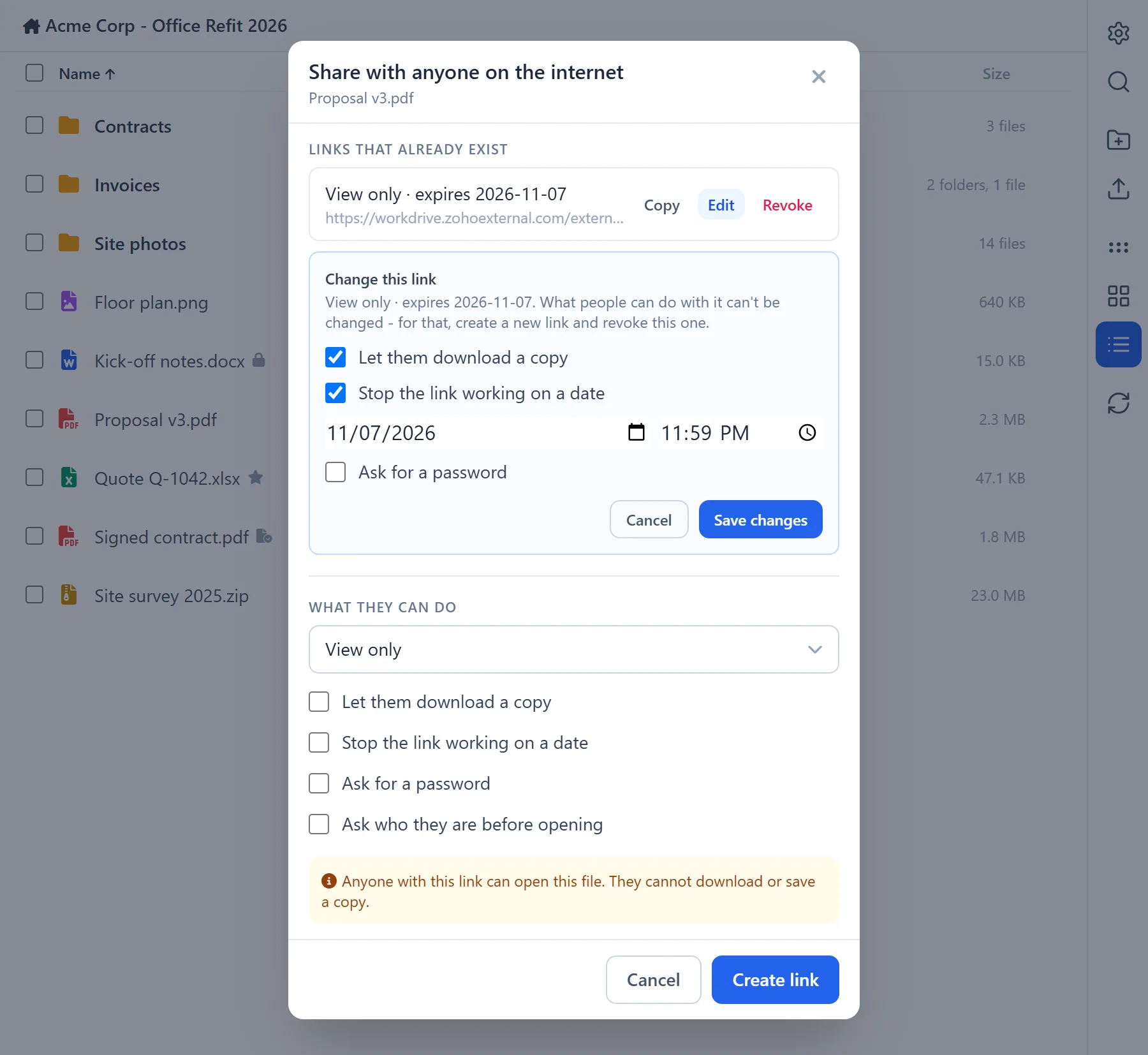
Choose Anyone with the Link…, or Share Current Folder (Anyone with the Link) in the ⚙ menu. Anyone who has the link can open the item, without signing in.
- Under What they can do, choose View only, View and comment, Edit - full access, or, for a folder, Upload only. Upload only lets people send you files without seeing what is already there, which is handy for collecting documents from a customer.
- Choose the options you want:
- Let them download a copy, for View only and View and comment;
- Stop the link working on a date, which suggests a date a week ahead;
- Ask for a password;
- Ask who they are before opening, which asks visitors for their name and email address.
- Read the coloured note. It says in plain words what anyone with the link will be able to do.
- Click Create link, then copy the link and send it.
Check the password
If you tick "Ask for a password" but leave the password box empty, the link is created without a password.
Links that already exist are listed at the top of the window, each with a summary, such as "View only · no download · password · expires 2026-10-14":
- Copy copies the link.
- Revoke stops the link working, straight away.
- Edit changes an existing link.
- You can turn downloading on or off, where the link allows it.
- You can set, change or remove the date it stops working.
- You can add, change or remove the password.
- Click Save changes when you are done.
- What people can do with a link can't be changed. For that, create a new link and revoke the old one.
Favourites
Choose Add to favourites to mark a file or folder so it is easy to find again in WorkDrive. A ★ appears next to its name. Choose Remove from favourites to undo it. Favourites are kept in the connected WorkDrive account.
Check out and check in
Choose Check out (lock) before you work on a file. Everyone can still open it, but nobody else can edit or replace it. A padlock appears next to its name, and the message says "only you can edit … now". This affects the whole team, not just you. When you are finished, choose Check in (unlock). Only files can be checked out, not folders.
Mark as final
For a signed contract or an approved quote, choose Mark as final… and confirm. The file is marked as final in WorkDrive, so it can no longer be edited. It can't be undone from the panel. A small "file with a tick" symbol appears next to its name.
WorkDrive doesn't tell the panel whether a file was already marked final. So after you reload the page, a final file may offer Mark as final… again. Marking it again does no harm.
Versions & details
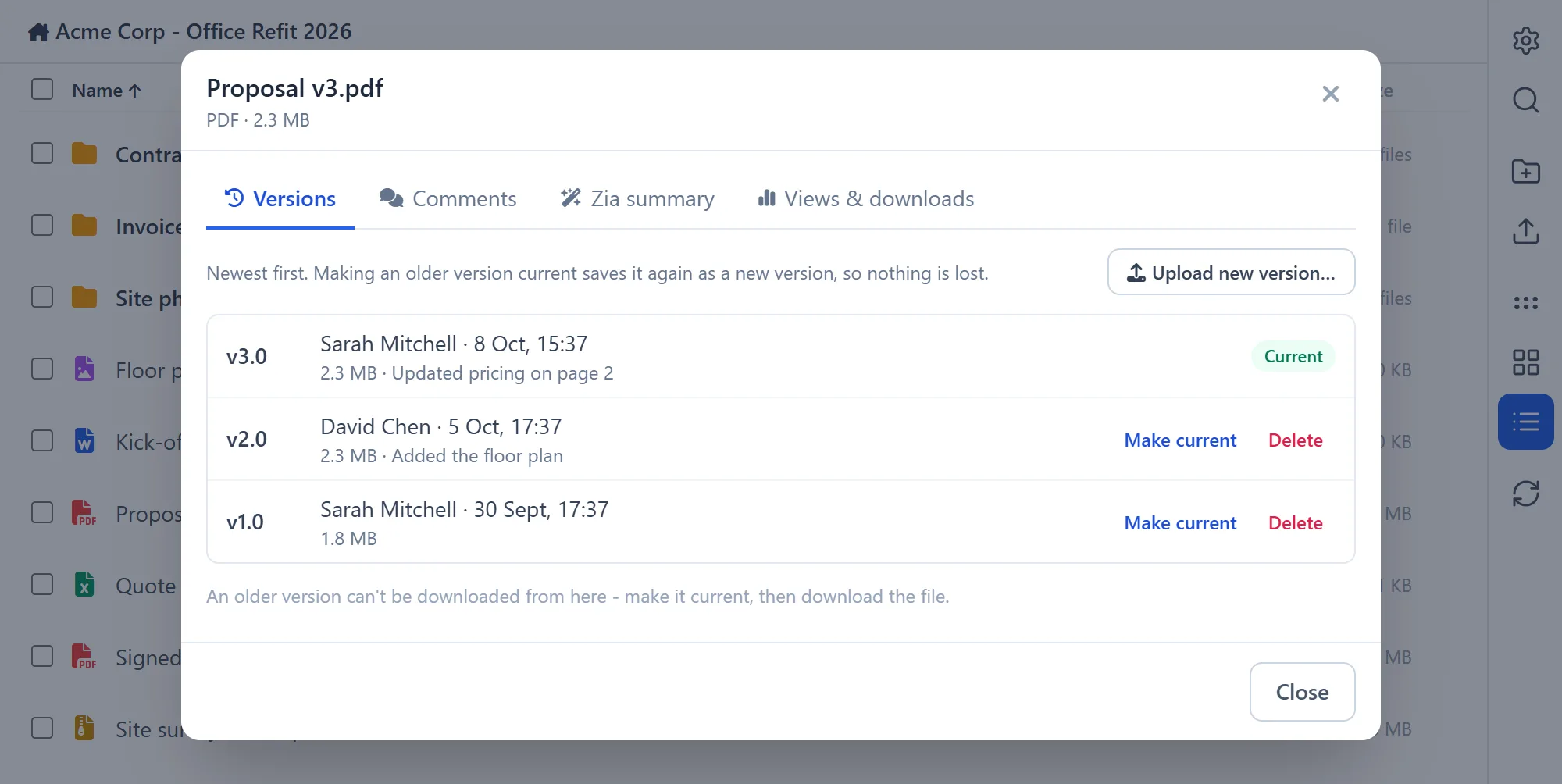
Choose Versions & details… on a file. Each tab loads the first time you open it.
Versions
- Lists every version, newest first. The current one is marked Current.
- Make current brings an older version back. It is saved again as a new version, so nothing is lost.
- Delete removes an older version. You are asked to confirm in the row.
- Upload new version… replaces the file with one from your computer:
- it must be the same type, for example another
.pdf; - it keeps the original file's name;
- the old one stays in the list.
- it must be the same type, for example another
- A Zoho document gets a new version each time it is edited in WorkDrive, so it has no upload button.
- An older version can't be downloaded directly. Make it current first, then download the file.
Comments
- Shows the comments people have left on the file in WorkDrive, newest first.
- Replies are shown under each comment, and resolved threads are marked.
- Comments are read-only here. Click Open in WorkDrive to reply.
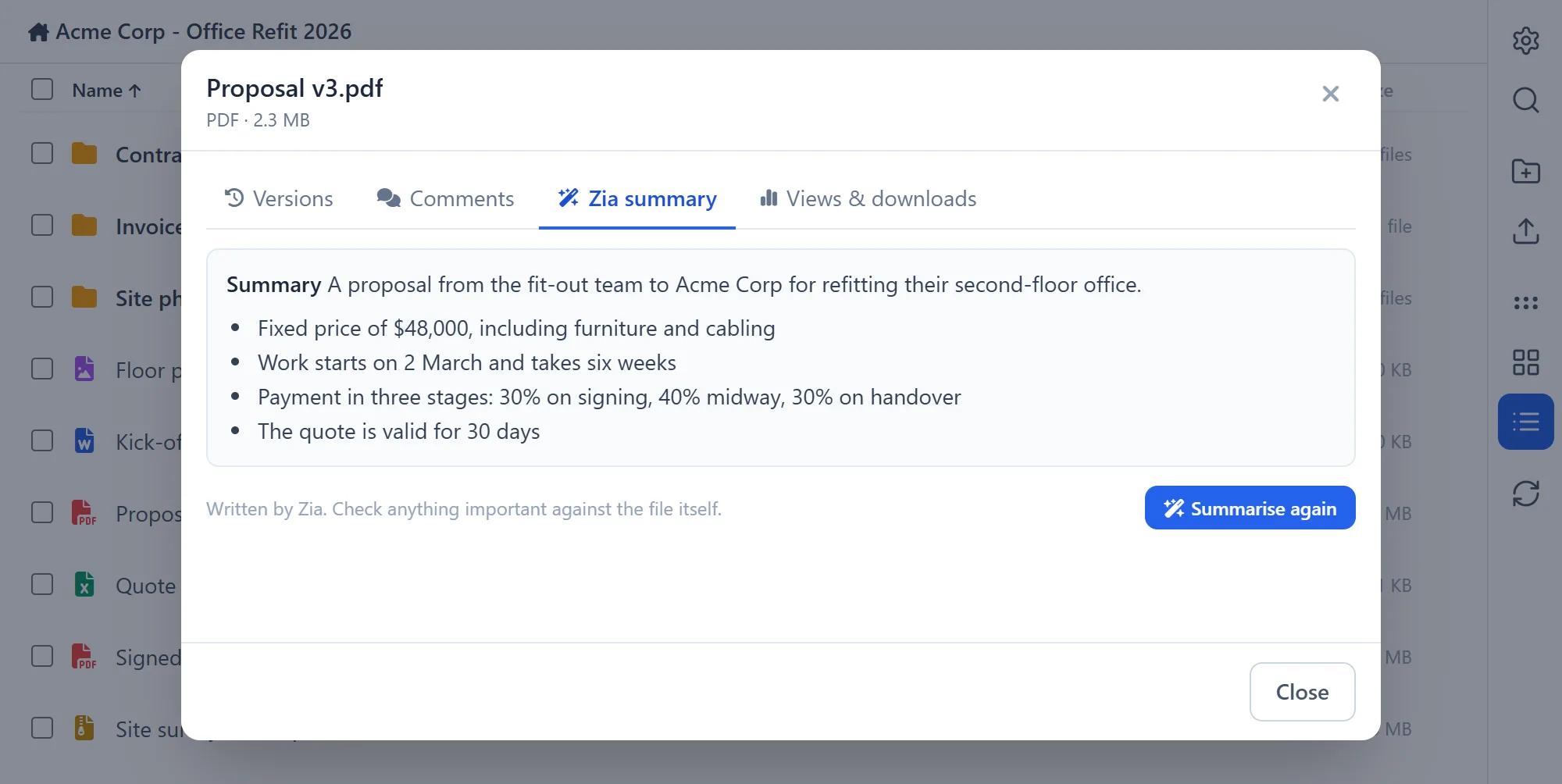
Zia summary
- Shows Zia's short summary of the file, if one exists.
- If there is none, click Summarise with Zia. It can take up to a minute. If it takes longer, open the tab again a little later.
- Each summary uses some of your organisation's Zia allowance, so nothing is summarised unless you click the button.
- Zia can't summarise every file. A very short file, or a file with no text, can't be summarised.
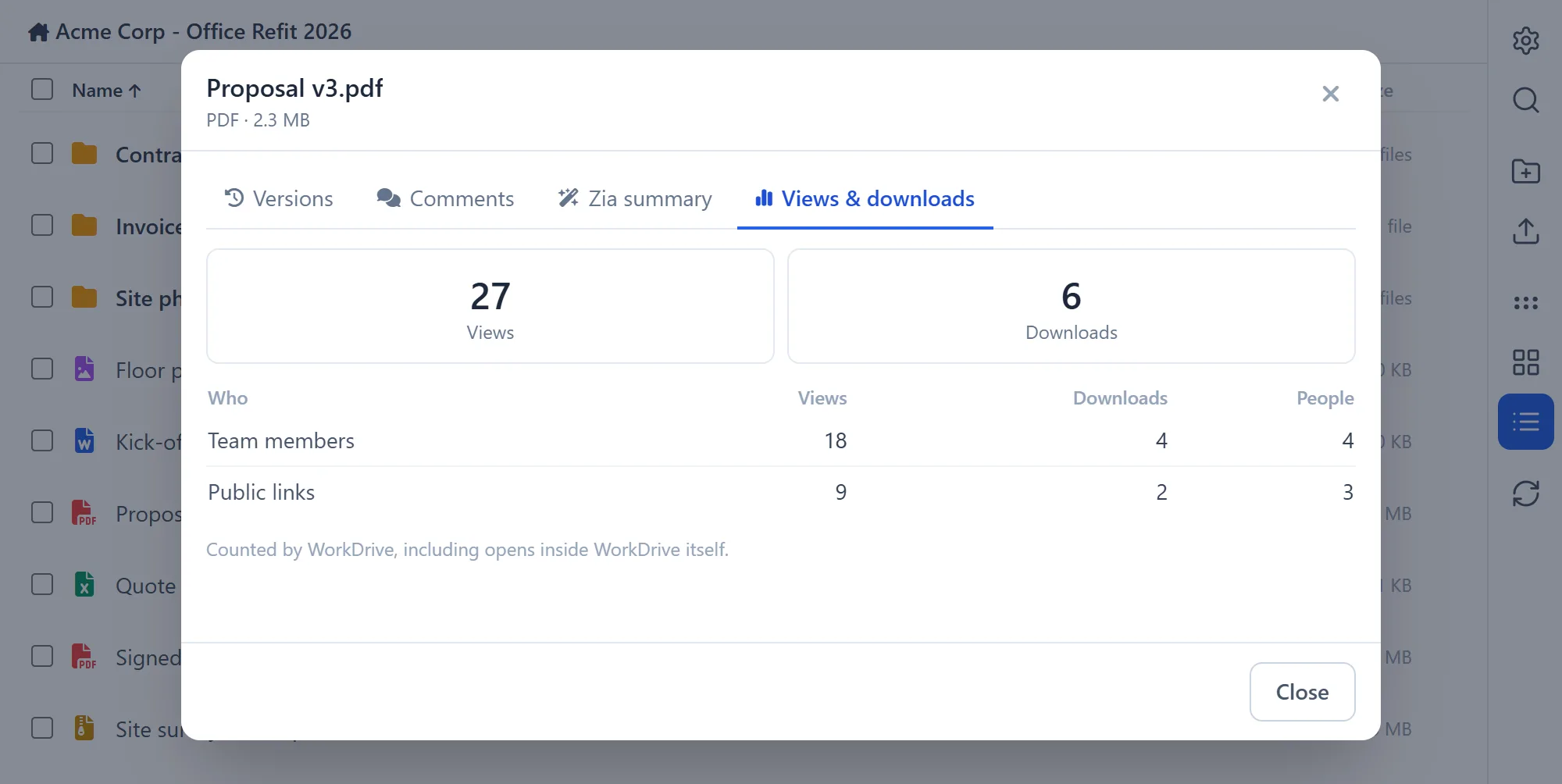
Views & downloads
- Shows how many times the item was viewed and downloaded, by team members and through public links. It also counts opens inside WorkDrive.
- It needs Editor access or above.
- For a folder, the menu item is called Details…, and it shows this tab only.
Download a folder as ZIP
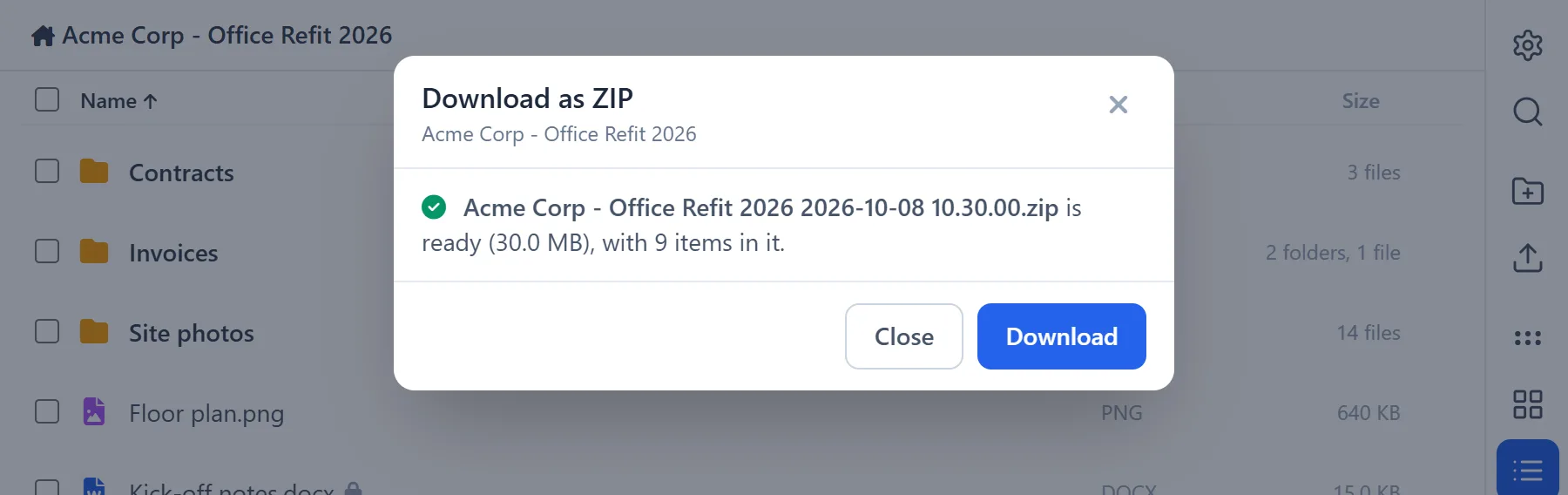
In the ⚙ menu, choose Download Current Folder as ZIP. The panel makes a ZIP of everything in the folder you are looking at. When it is ready, click Download.
- The ZIP is also saved in that folder, named after the folder with the date and time, so you can close the window and download it later from its row.
- Earlier ZIPs of the same folder are left out of the new one.
- A ZIP holds up to the first 50 items of the folder. For a larger folder the window says so. Use Go to WorkDrive Folder to download all of it.
- If WorkDrive takes a long time, the window tells you to press Refresh in a minute and download the ZIP from its row.
Extract a ZIP
On a .zip file, choose Extract here… and click Extract. Its contents are unpacked into the folder the ZIP is in. The ZIP itself stays. Extracting it again makes a second copy.
Convert to a Zoho document
Office files can be turned into Zoho documents, so they can be edited in the browser:
- Word, RTF and OpenDocument text files become Zoho Writer documents;
- Excel, OpenDocument spreadsheet, CSV and TSV files become Zoho Sheet spreadsheets;
- PowerPoint and OpenDocument presentation files become Zoho Show presentations.
Choose Convert to Zoho …. The new name is filled in as the original name without its extension, and you can change it. Click Convert. The new document is created next to the original, which is left as it was.
Recent activity
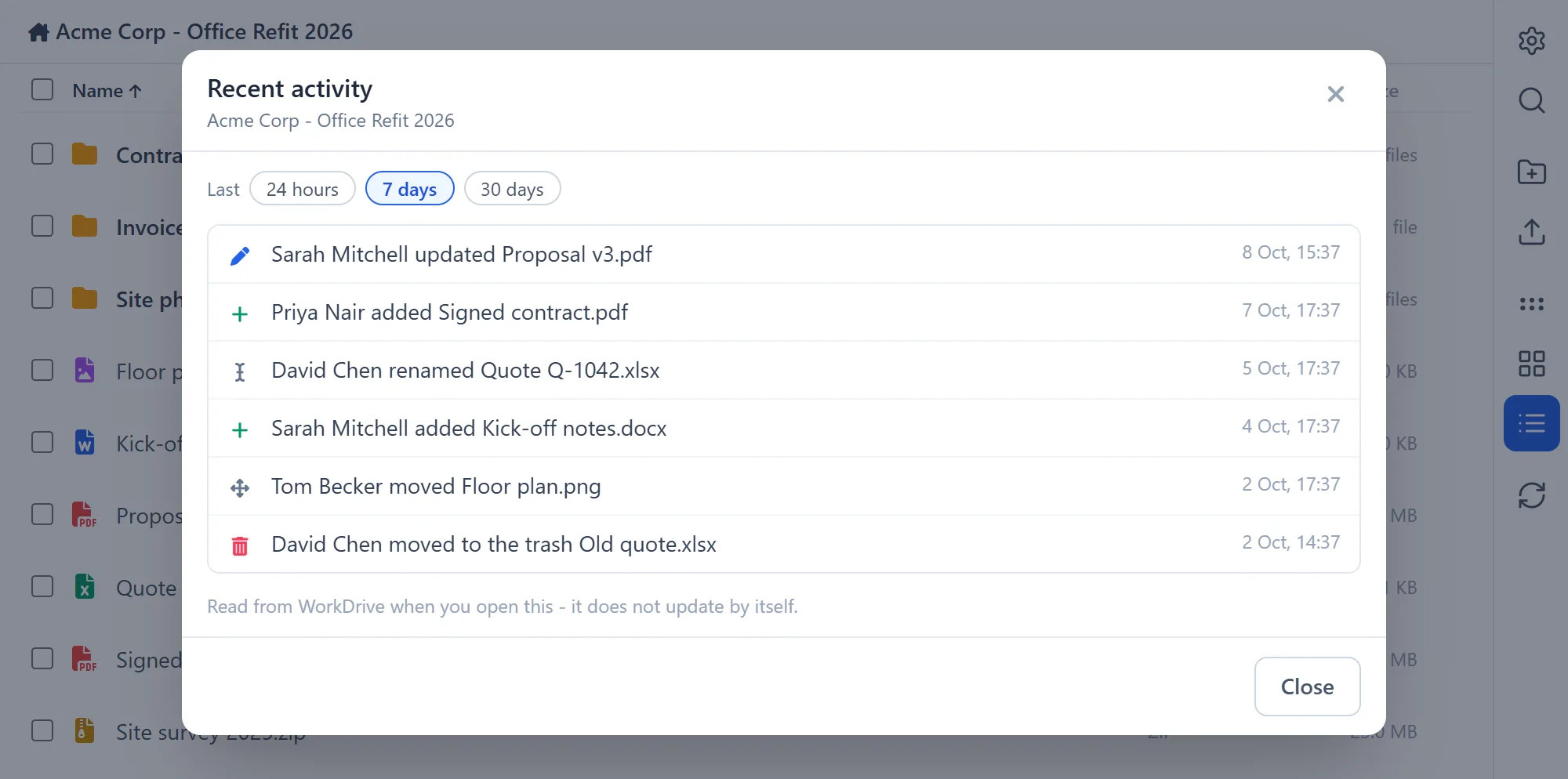
In the ⚙ menu, choose Recent Activity in Current Folder to see what changed in the folder, and who changed it:
- files added, updated, renamed or moved;
- files moved to the trash, deleted or restored.
Pick 24 hours, 7 days (the default) or 30 days. The list is read when you open it and doesn't update by itself. Open it again to see newer changes.
Sync Attachments
In the ⚙ menu, choose Sync Attachments to copy the record's CRM attachments into the folder you are looking at.
- It copies one way, from CRM to WorkDrive. The CRM attachments are not changed.
- Attachments with the same name as a file already in the folder are skipped ("Already here"), so you can run it again safely.
- Link attachments are skipped, because they contain no file.
- When it is done, a message sums it up, for example "3 copied · 1 already here".
Sync Folder Structure
In the ⚙ menu, choose Sync Folder Structure to create the module's standard subfolders (from Step 4) in the record's folder.
- Use it for records created before you set up the structure, or after you change it.
- Folders that are already there are kept, not created twice.
- A subfolder named after a field label, because the field was empty, is renamed once the field has a value.
- It always works on the record's own folder, whichever folder you are in.
If the module has no structure set up, you will see "No folder structure is set for this module - add one in the extension settings."
6. Troubleshooting
What the panel's messages mean
| You see | What it means | What to do |
|---|---|---|
| <Module> isn't set up yet | The module is switched off, or was never added. | An administrator turns it on in Settings (Step 2), or adds it (Add another module). |
| No WorkDrive folder yet | The record was created before its module was turned on, so it has no folder. | See Folders for records that already exist. After the folder is created, reload the record page. |
| No record context | The panel was opened outside a record. | Open it from a record's page. |
| Couldn't read this record or Record not found | You can't view the record, or CRM couldn't load it. | Check your access to the record, and reload the page. |
| The folder can't be opened | The record's folder was deleted or moved in WorkDrive. | Restore it from WorkDrive's trash, or ask an administrator. |
| Nothing happens when you click Download or Open in WorkDrive | The browser blocked the new tab. | Allow pop-ups for Zoho CRM, and click again. |
Common error messages
| Message | What to do |
|---|---|
| This extension is missing a WorkDrive permission it needs. Ask your administrator to re-authorize the WorkDrive connector. | An administrator authorizes Zoho WorkDrive again (see Updates). |
| Your WorkDrive session has expired. Please reload the page. | Reload the page. |
| You don't have permission to do that in WorkDrive. | The connected WorkDrive account isn't allowed to do this. Check its role in the team folder. |
| A file or folder with that name already exists here. | Choose another name. |
| That name isn't valid. Try removing special characters. | Remove characters such as \ / : * ? " < > |. |
| That file or folder no longer exists in WorkDrive. | Someone deleted or moved it. Click Refresh. |
| This file is checked out by another user. / This file is locked by another user. | Wait until they check it in, or ask them to. |
| "…" is larger than the 250 MB upload limit. | Upload the file in WorkDrive instead. |
| Your organization's WorkDrive storage is full. | Free up space or add storage in WorkDrive. |
| WorkDrive is rate-limiting requests. Please wait a moment and retry. | Wait a minute and try again. |
| Your organization's WorkDrive policy blocks public links for this item. | Your WorkDrive admin has turned off public links. Share with team members instead. |
| Zoho couldn't pass the request through to WorkDrive. Please try again. | A temporary problem. Try again. |
After an update
Some updates add features that need more access to Zoho WorkDrive. After such an update, an administrator has to authorize Zoho WorkDrive again, once. Until then, the new features may show the "missing a WorkDrive permission" message.
7. Limits at a glance
| What | Limit |
|---|---|
| Upload size | 250 MB per file. Files upload one at a time. |
| Items shown in a folder | The first 50 |
| Search results | The first 50 |
| Move and copy destinations | The record's folder and the folders directly inside it |
| ZIP of a folder | Up to the first 50 items |
| Preview | 25 MB. Text, CSV and HTML files: 2 MB. CSV: first 500 rows. |
| Recent activity | The last 24 hours, 7 days or 30 days |
| Folder names | 200 characters, without \ / : * ? " < > | |
| Standard subfolders per module | 25 folders, 4 levels deep |
| Views & downloads | Needs Editor access or above |
| Zia summaries | Use your organisation's Zia allowance |
These can't be done from the panel. Use WorkDrive for them:
- change what a link allows (create a new link instead);
- download an older version (make it current first);
- reply to comments;
- undo "Mark as final".
8. Frequently asked questions
Where are the files stored?
In your own Zoho WorkDrive, in the folders described in How it works. The extension doesn't keep copies anywhere else. You can always open the same folders in WorkDrive itself.
Do my CRM users need a WorkDrive account?
Not to use the files panel: it works through the WorkDrive account connected during installation. To open files in WorkDrive itself, with "Open in WorkDrive", a user needs their own access there.
Who can see a record's files?
Anyone who can open the record in CRM and has access to the extension can see and work with its files in the panel. Control access to records with CRM's own roles and profiles.
Are CRM attachments copied into WorkDrive automatically?
No. Use Sync Attachments in the ⚙ menu whenever you want to copy them. It skips files that are already there.
What happens to the folder when I rename a record?
The folder keeps the name it was given when it was created. To rename it as well, choose Go to WorkDrive Folder in the ⚙ menu and rename it in WorkDrive. The record stays linked to it.
What happens to the folder when I delete a record?
Nothing. The folder and its files stay in WorkDrive. Delete them there if you no longer need them.
I changed the folder naming. Why didn't my old folders change?
Naming changes apply only to folders created after you save them. Existing folders keep their names.
Does turning a module off delete its folders?
No. It only stops new folders from being created. Existing folders, and the link from each record to its folder, are kept.
Why do I see only 50 items in a big folder?
The panel lists the first 50 items of a folder. Use Go to WorkDrive Folder in the ⚙ menu to see all of it in WorkDrive.
Can I upload files bigger than 250 MB?
Not from CRM. Use "Go to WorkDrive Folder" and upload large files in WorkDrive itself. They then appear in the panel.
Why are there links named "CRM · …" on my files?
Those are the temporary view-only links the panel makes to preview or download a file. They expire after 7 days, and you can revoke them under Anyone with the Link….
Can I change the root folder after setup?
Not from the Settings page. Contact us and we will help.
Can I use it with my custom modules?
Yes. See Add another module.
9. Need help?
We are happy to help with installation, setup or anything else.
When you write to us, please include the module, what you clicked, and the exact message you saw. A screenshot helps a lot.
Manage WorkDrive In Zoho CRM · Built and supported by TechWave Solutions, an Official Zoho Partner