
Zoho Sheet vs Zoho Projects: which one should your team use to track billable hours? The honest answer is the tool your team already has open. If most of your client work happens on Zoho CRM records, a third option, a time tracker that lives on the record itself, is worth a look.
Quick answer
Free and simple, but every entry is typed by hand.
Strong time tracking, but in a separate app from your CRM.
Tracks time on the CRM record itself, with no extra app or login.
Pick the one your team already has open all day.
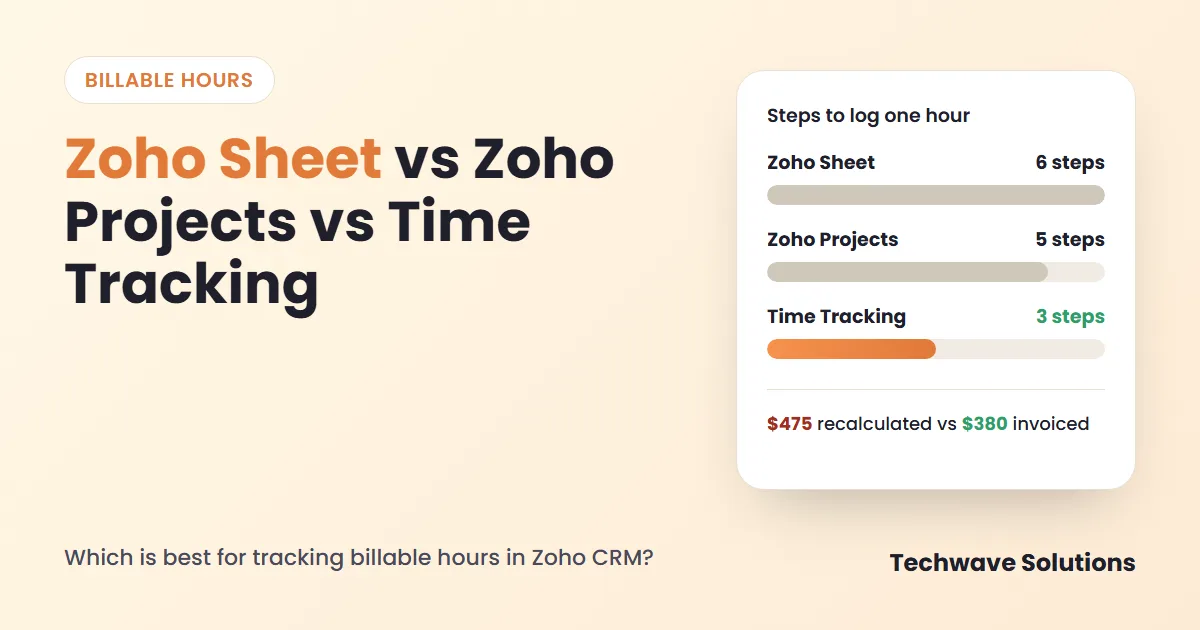
How many steps does it take to log one hour?
Every extra step is a chance to forget. Here is the path for each option, counting each time you leave the CRM.
Steps counted by TechWave from the normal workflow of each option: open, find the right place, start or type, stop, save, return.
Where billable hours go missing
Teams rarely lose hours in one big mistake. They lose them in small gaps that repeat every week. These are the five we see most often when we review how a services team tracks time.
- Forgotten short tasks. A ten-minute call or a quick fix never gets written down, and ten of them a week add up to a lost hour or two.
- End-of-week guesses. Entries typed on Friday from memory are rounded, and rounding almost always goes in the client’s favour.
- Inconsistent names. “Acme”, “ACME Ltd” and “Acme Inc” become three clients in a report, so totals never match.
- Rate recalculation. One shared rate cell rewrites old rows when the price changes, as the example below shows.
- No link to the record. When time sits in a separate file, nobody can see the hours spent on a Deal while they work on it.
Whichever tool you choose, judge it by how many of these gaps it closes. A timer that lives where the work happens closes the first two by design.
Zoho Sheet: free, familiar, easy to get wrong
A spreadsheet is the first thing most teams reach for. It is free, flexible and everyone knows it. The cost shows up later.
Good to know
- Free and quick to set up
- Flexible columns and formulas
- Easy to share with contractors
Watch out
- No timer, every entry is typed by hand
- Not linked to CRM records
- Forgotten short tasks and end-of-week guesses
- Client names typed differently each time
Zoho Projects: strong, but a separate app
Zoho Projects is a full project management app with timers, timesheets, approvals and billing reports. It is strong when work is planned with tasks, milestones and Gantt charts. It can connect projects to CRM records such as Deals, Accounts and Contacts, but you still log the time inside Projects.
Good to know
- Live timers and timesheets
- Approvals and billing reports
- Planning with tasks and Gantt charts
Watch out
- A separate app to open
- Priced per user
- Sales teams rarely work inside it
Time Tracking for Zoho CRM: the timer lives on the record
Time Tracking for Zoho CRM adds a timer to Deals, Leads, Contacts and Accounts. You can pause, resume and end it, or add forgotten time manually. Billable amounts come from each person’s hourly rate, saved on every entry. Freelancers can be added without a CRM seat, and a Reports tab shows charts, filters and export.
What happens when a rate changes?
This is where spreadsheets hurt. Say a rate rises from $40 to $50 per hour in November. October had 9.5 hours.
October recalculates at $50. You invoiced $380, so your records now disagree with your invoice.
October stays at $40. Only new entries use $50, and your history still matches what you billed.
Zoho Sheet vs Zoho Projects vs Time Tracking, side by side
| Need | Zoho Sheet | Zoho Projects | Time Tracking for Zoho CRM |
|---|---|---|---|
| Log time without leaving the CRM | No | No | Yes |
| Live timer | No | Yes | Yes |
| Linked to Deals, Leads, Contacts, Accounts | No | Partly, via the CRM integration | Yes |
| Old billing safe after a rate change | No | Depends on setup | Yes |
| Contractors without a CRM login | Yes | Needs a Projects user | Yes, as Time Loggers |
| Charts and reports | Build them yourself | Yes | Yes, built in |
| Gantt, milestones, planning | No | Yes | No |
| Extra app to buy | None | Yes, per user | None |
Which one should you choose?
One or two people, few clients, no need to link time to CRM records.
Work is planned with tasks, Gantt charts and approvals.
Most client work happens on CRM records.
Projects for delivery, Time Tracking for sales and account work.
Getting started with Time Tracking for Zoho CRM
- An admin installs it from the Zoho Marketplace.
- Add your users and set each hourly rate.
- Open a Deal, Lead, Contact or Account.
- Choose the person and task, then press Start and End, or add time manually.
- Review the Time Tracker Report tab.
Want the full walkthrough? Read the Time Tracker user guide or watch the video walkthrough on YouTube.
Frequently asked questions
Do I need a separate login for Time Tracking for Zoho CRM?
No. It runs under your normal CRM login, with no outside app or server.
Where is the time data stored?
In three modules inside your own CRM: Time Logs, Time Loggers and Time Tracker Tasks. The only data sent to the vendor is an install or uninstall notice with the installer’s name and email, used for support.
What happens to old entries when an hourly rate changes?
Nothing. The rate is saved on each entry, so a rate change applies only to new entries.
Can I keep using Zoho Projects for delivery work?
Yes. Many teams use Zoho Projects to plan and deliver work, and track time on sales and account work inside Zoho CRM. The two do different jobs.
Is Zoho Sheet ever the right choice?
Yes, for one or two people with few clients and no need to link time to CRM records. Expect to type every entry by hand.
Ready to track hours inside Zoho CRM?
Install Time Tracking for Zoho CRM from the Zoho Marketplace, see the product page, or ask our Zoho consultants which setup fits your team. Compare more options in our guide to the time tracking extension for Zoho CRM.