
WordPress to Zoho CRM Integration
Zoho CRM is an AI-powered online CRM solution that streamlines your customer operations within a single platform. Trusted by over 300,000 businesses worldwide.
With FormBridge for Zoho, you can connect popular WordPress plugins like Contact Form 7, WPForms, Gravity Forms, Fluent Forms, and Ninja Forms, WooCommerce to Zoho CRM. Choose your trigger, connect your Zoho CRM account, map your fields, and automatically send to your CRM—without manual data entry.
Before you start
Before you start
Make sure your WordPress form is ready and your Zoho account is authorised under FormBridge for Zoho → Connections.
Also decide which Zoho CRM module should receive the submitted data. If you want to create Zoho CRM Leads from WordPress form submissions, make sure your form contains the required module’s fields.
How to set up a WordPress to Zoho CRM integration
Follow these steps to connect your WordPress form and send form data to Zoho CRM.
Step 1: Select Zoho CRM as the destination
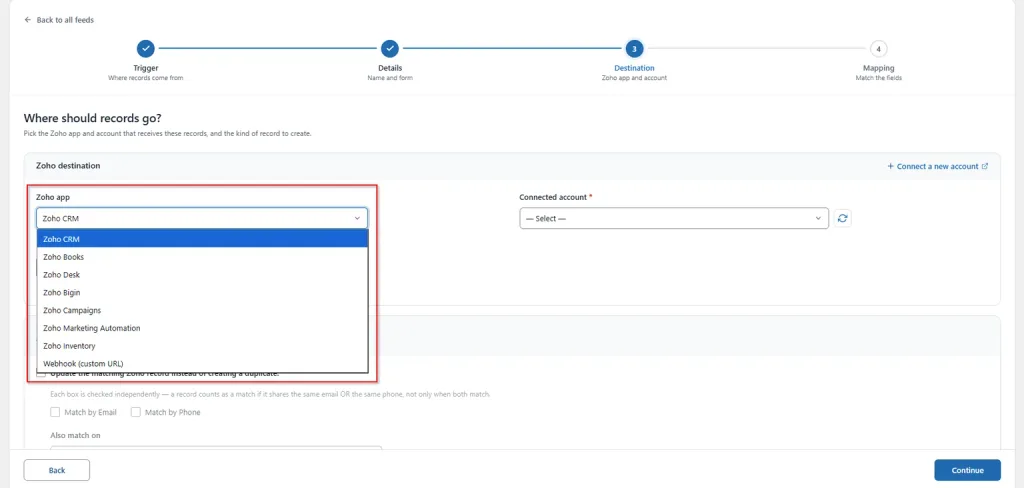
After configuring your form trigger, open the Destination tab.
From the Zoho App dropdown, select Zoho CRM. This tells FormBridge to send the submitted form data to Zoho CRM..
Step 2: Select your connected Zoho Account
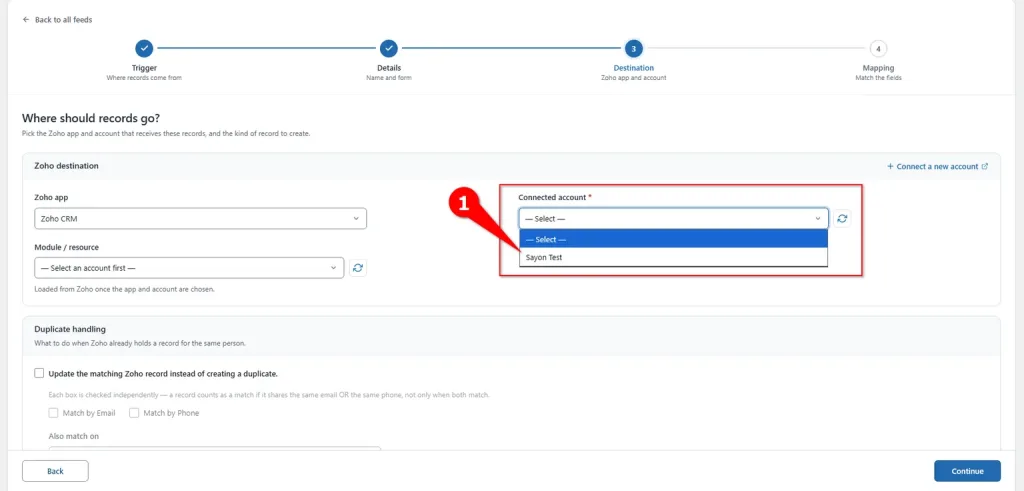
Select the Zoho account you previously authorised under FormBridge for Zoho → Connections.
If no account is available, create a Zoho connection first and then return to the feed setup.
Learn how to create a Zoho Connection →
Step 3: Select the module
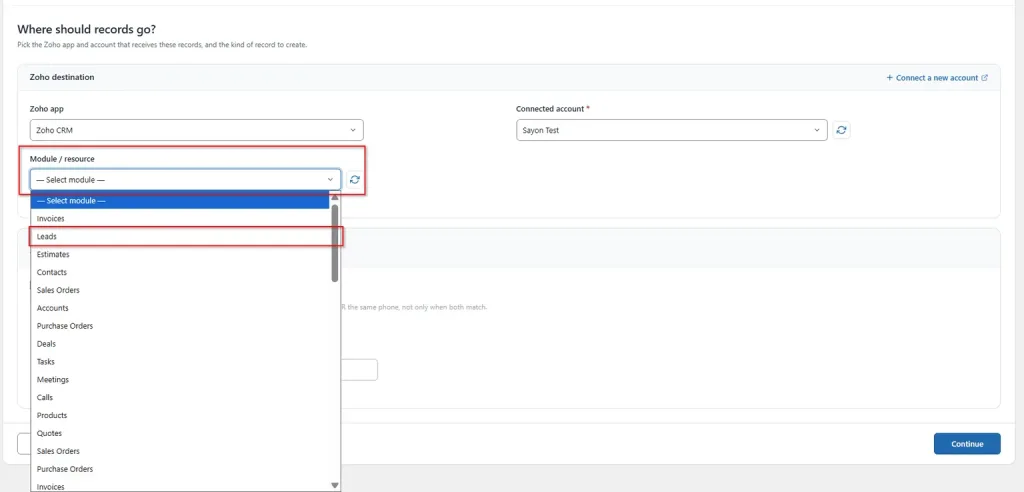
Next, choose the Zoho CRM module that will receive your form data.
You can select Leads, Contacts, Deals, Accounts or another available module. In this example, select Leads to create Zoho CRM Leads from WordPress form submissions.
Step 4: Configure Zoho CRM duplicate handling
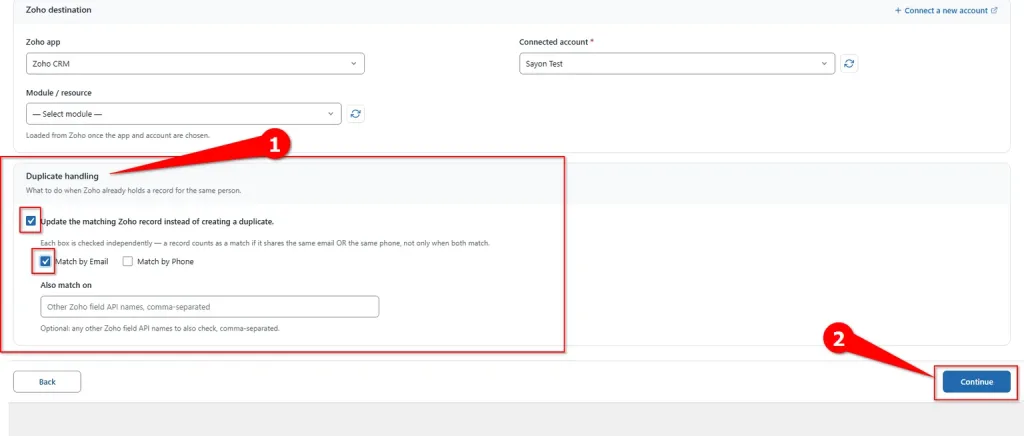
Zoho CRM duplicate handling checks whether a matching record already exists before creating a new record.
You can check for an existing record using Email, Name, or another supported field.If a match is found, FormBridge can update the existing record instead of creating a duplicate.
Configure the option as required, then click Continue.
Step 5: Map your form fields
Zoho CRM field mapping lets you connect each WordPress form field to the corresponding Zoho CRM field.
 Note
Note
For example, map your form Email field to the Zoho CRM Email field. If you select the Leads module, Last Name is required, so make sure this field is mapped correctly.
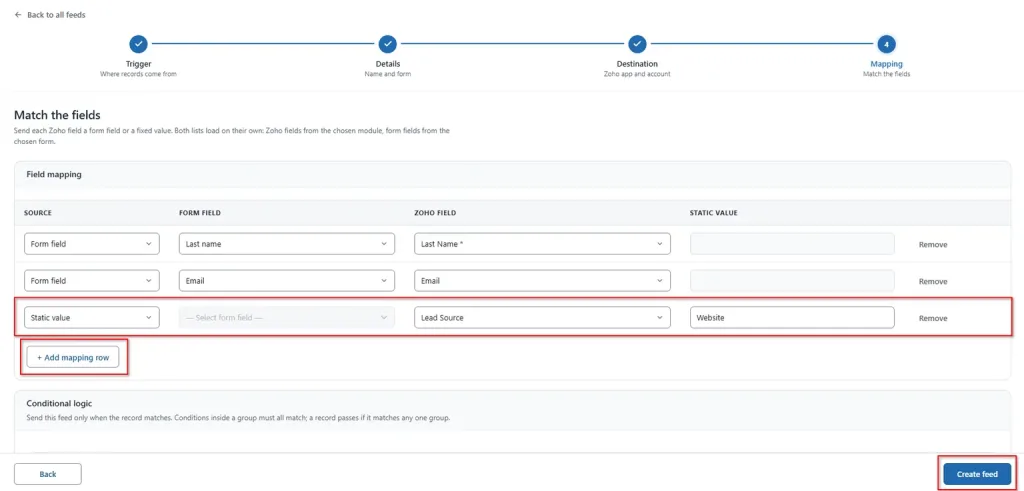
You can also assign a static value to any Zoho CRM field. This is useful for fixed information such as Lead Source or Lead Status.
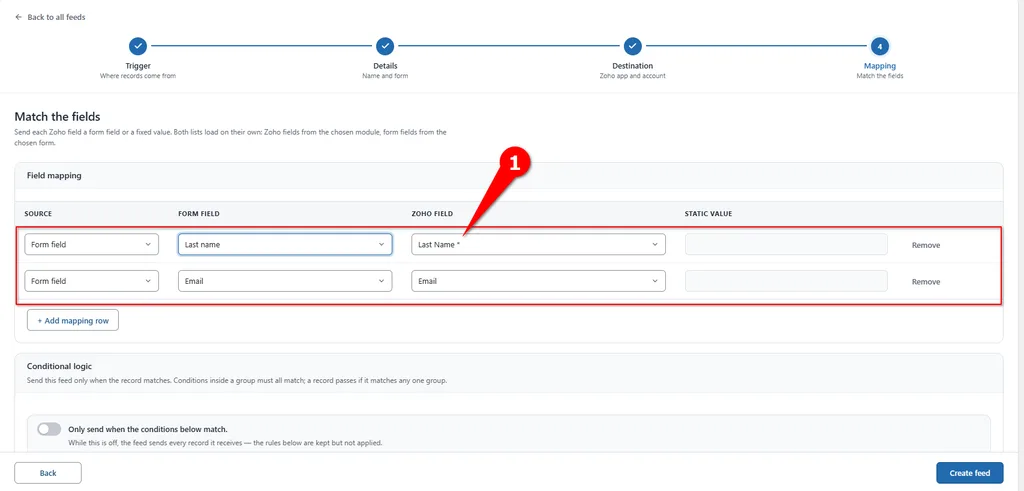
Click Add Mapping Row when you need to map additional fields.
Step 6: Create the feed and test
After mapping the required fields, click Create feed.
Submit the selected WordPress form using test data. One feed listens to exactly one form, so create separate feeds if different forms need to send data to Zoho CRM.
Info
Every delivery, success or failure, is recorded on the FormBridge for Zoho → Logs screen, with a one-click Resubmit option for anything that failed.
Note
- One feed always listens to exactly one Form. If you have two Forms that should both go to Zoho CRM, create two feeds.
- Switching the Zoho app, account, or module after you’ve already mapped fields will clear the existing mapping rows. You’ll need to map the fields again after changing any of these settings.
- To find the exact Zoho CRM field API names, go to FormBridge for Zoho → Connections and click Modules & Fields for the relevant account.
Troubleshooting
Find the symptom on the left, apply the fix on the right.
No lead is created
A required field is unmapped.
Check the selected module, then map every field Zoho marks as required.
Mapping rows cleared
The app, account or module changed after mapping.
Set the app, account and module first, then map the fields. Changing any of the three resets the rows.
Duplicate records
Duplicate handling is off in Zoho CRM.
Turn on duplicate handling and pick the field used to match an existing record — usually email.
Field name not found
The API name doesn’t exist in the selected module.
Open the connected Zoho account and go to Connections → Modules & fields for the real field API names.
Wrong form firing
One feed listens to exactly one form.
Check which form the trigger points at. Give every form that needs its own Zoho CRM connection a separate feed.
Still stuck? Turn on logging and send the feed log to support@techwavesolutions.net.
Frequently asked questions
Can I send data to a module other than Leads?
Yes. FormBridge can send data to available Zoho CRM modules such as Contacts, Accounts, Deals and custom modules. Select the required module under Module / resource, then map your form fields to it. Make sure all required fields for that module are mapped before creating the feed.
Can one form send data to multiple Zoho apps?
Yes. You can use the same form with more than one Zoho destination by creating a separate feed or action setup for each destination. For example, one feed can send form data to Zoho CRM while another feed sends the same form data to another supported Zoho app.
Does this update existing records or always create new ones?
It depends on your duplicate handling settings. If duplicate handling is disabled, form submissions can create new records. If it is enabled, FormBridge can check a selected field such as email and update the matching Zoho CRM record instead of creating another duplicate.
Where do I find Zoho CRM field API names?
Go to FormBridge for Zoho → Connections, open the connected Zoho account and select Modules & fields. Here you can check available modules and Zoho CRM field API names. Use this when a field is missing during Zoho CRM field mapping or you need to confirm its correct API name.
Form-specific setup guides
For detailed trigger instructions, use the dedicated guide for your WordPress form plugin:
Elementor Pro Forms, Contact Form 7, WPForms, Gravity Forms, Fluent Forms, Ninja Forms, Forminator, Formidable Forms, HappyForms or SureForms.
After your form trigger is ready, return to this guide to configure the FormBridge Zoho CRM action and complete your WordPress to Zoho CRM integration.
