
Contact Form 7 Zoho CRM Integration: Connect and Create Leads Automatically.
Contact Form 7 is a plugin designed to be a practical tool for all WordPress users who embrace the philosophy of free and open source software.
FormBridge for Zoho is a handy WordPress plugin that lets you connect Contact Form 7 to Zoho CRM without coding. You can link up any of ten popular form plugins, including Elementor Forms, Contact Form 7, WPForms, and Gravity Forms, with six Zoho apps: Zoho CRM, Zoho Bigin, Zoho Books, Zoho Desk, Zoho Campaigns, and Zoho Marketing Automation.
In this guide, we’ll show you how to use Contact Form 7 as a trigger, and send every new submission into Zoho CRM as a Lead automatically.
Setup Contact Form 7 Integration With Zoho CRM
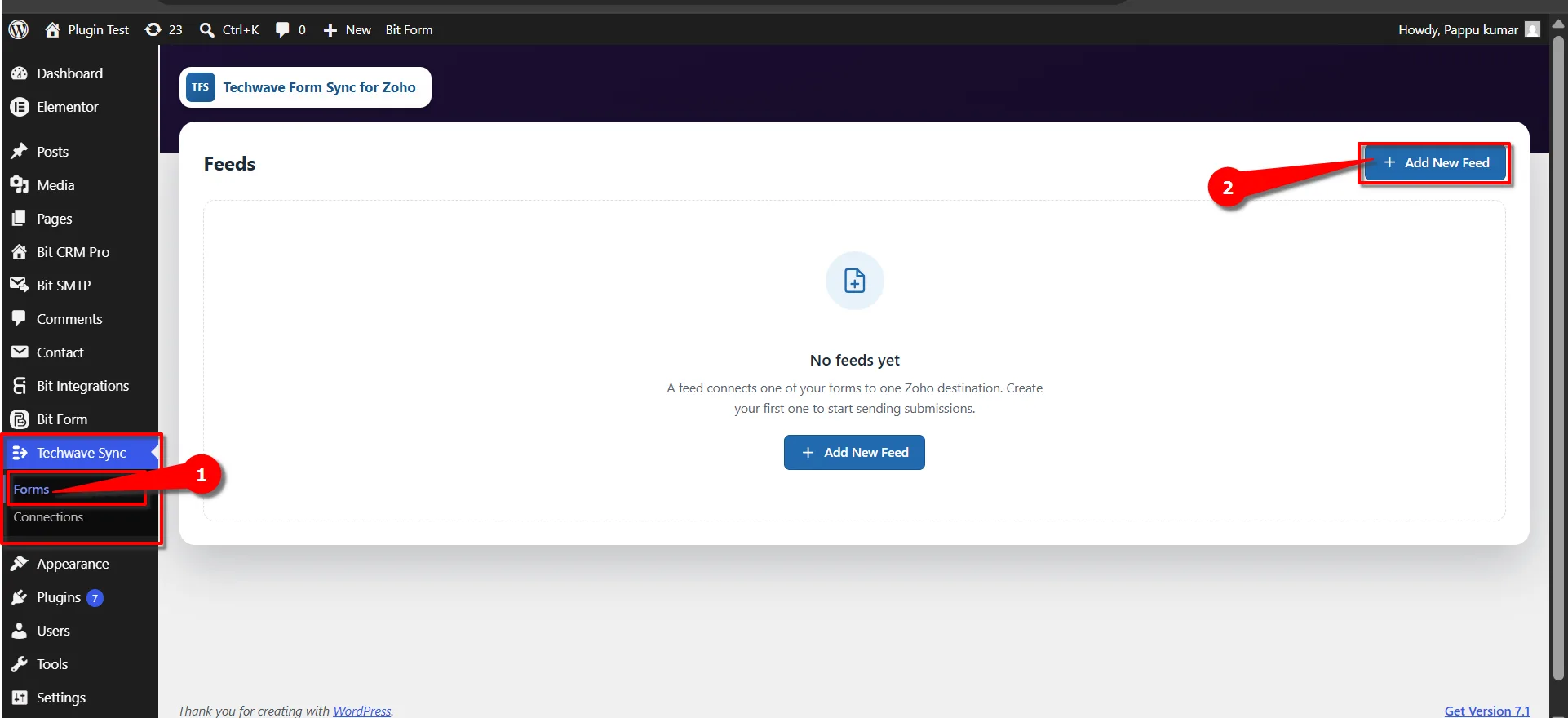
First, go to your FormBridge for Zoho dashboard, click on Forms, and then + Add New Feed.
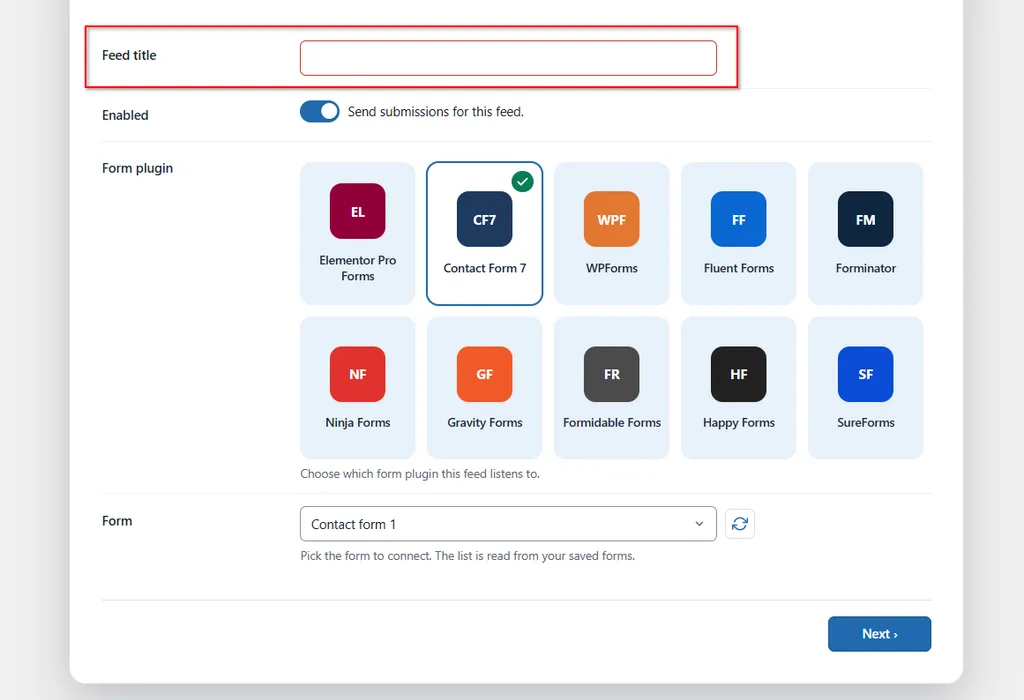
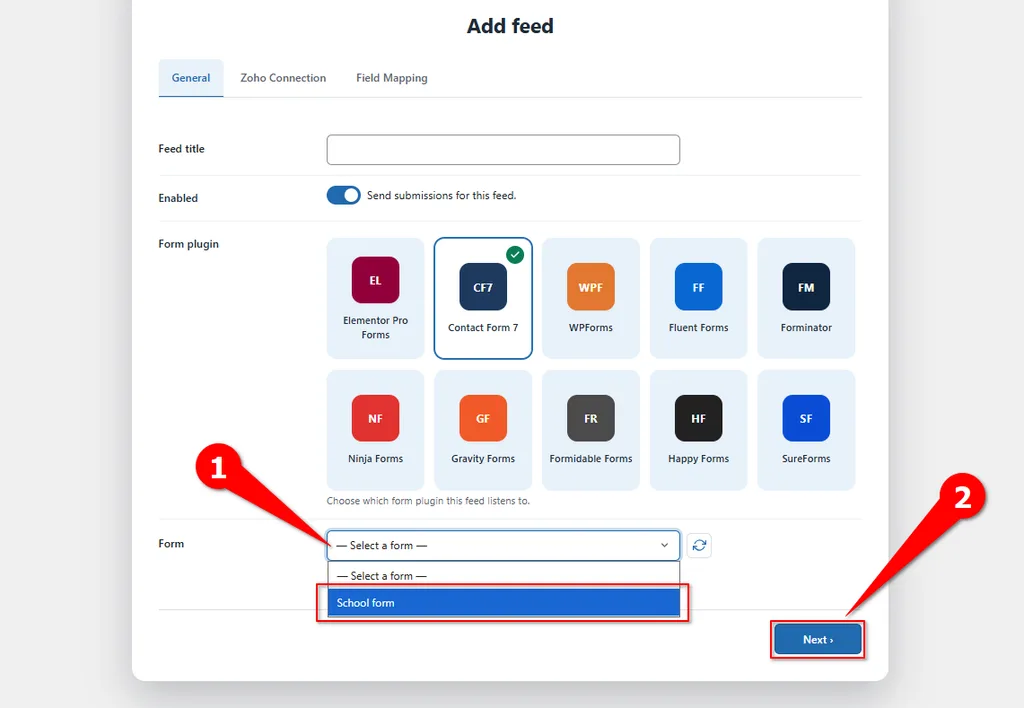
On the add feed screen,fill in the necessary information. Put your desired name in Feed title.
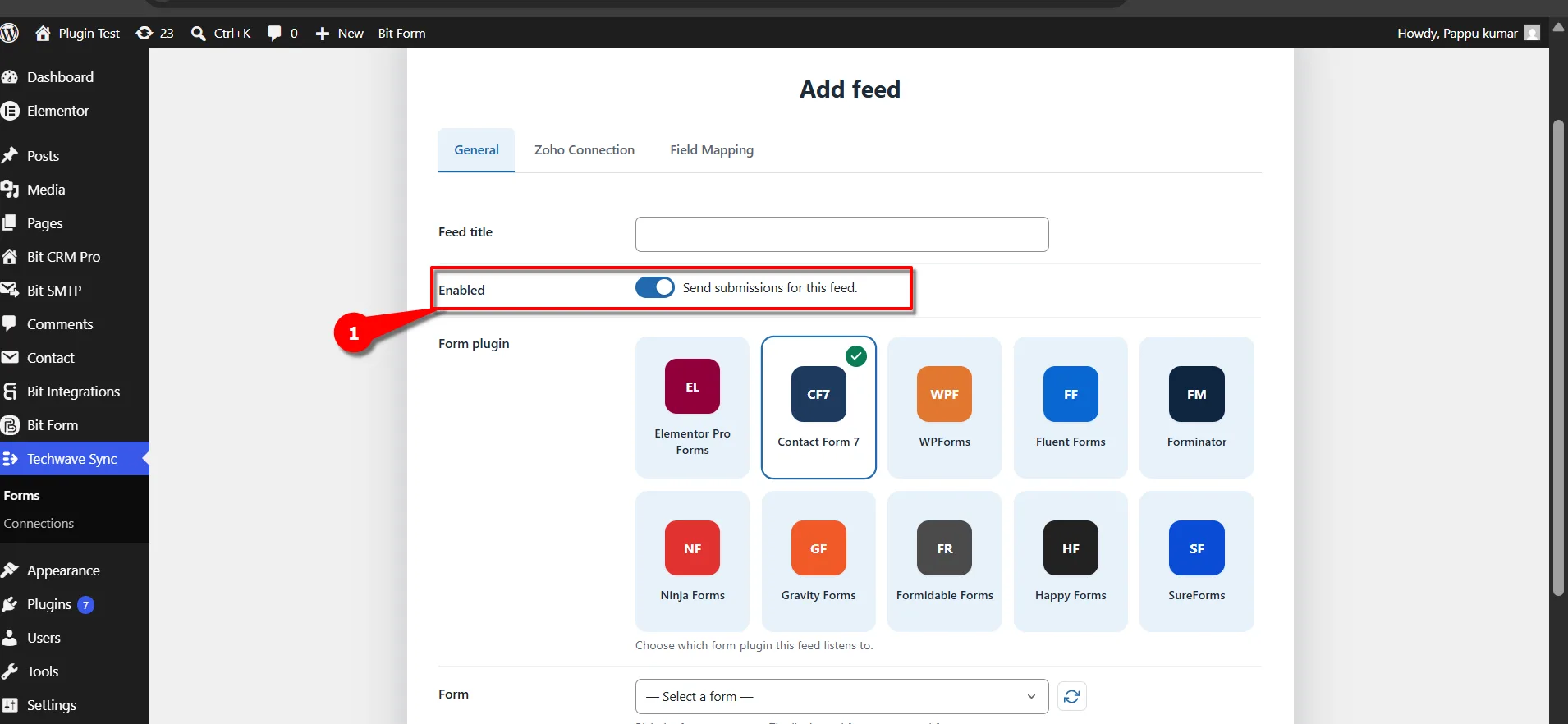
Then you need to make sure Enabled (Send Submissions for this feed) is turned on.
 Note
Note
If this option is disabled, submission data from the selected form will not be sent to Zoho.
After that, the most important thing is to select your Trigger. In this case, we are selecting Contact Form 7.
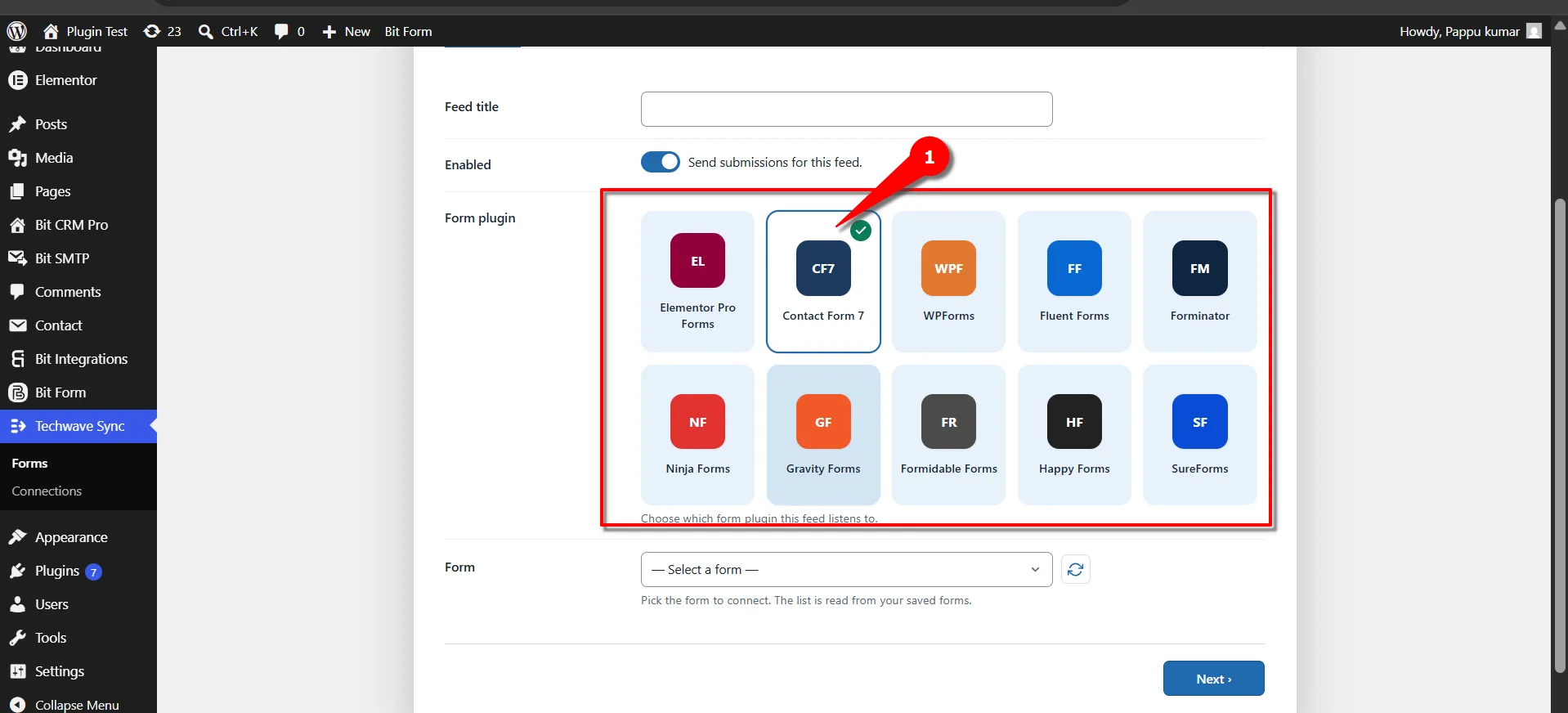
Once you select the trigger, you can see the form list in the form dropdown. Select the form that you want to use for sending data to Zoho CRM, for example School form and then click Next.
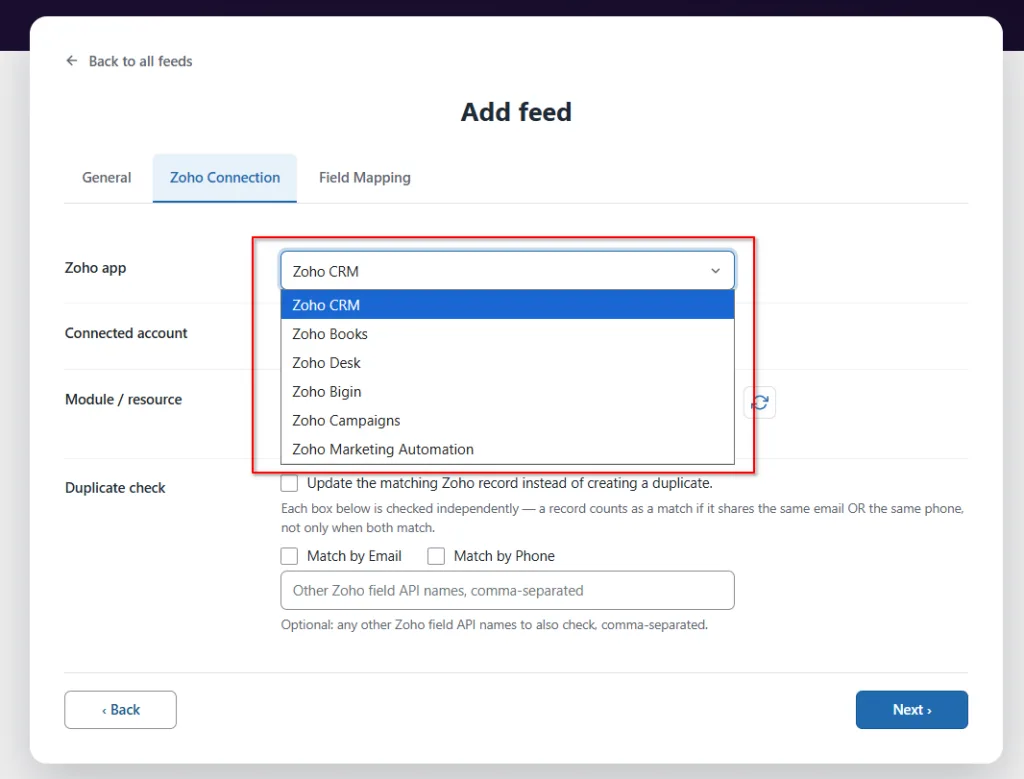
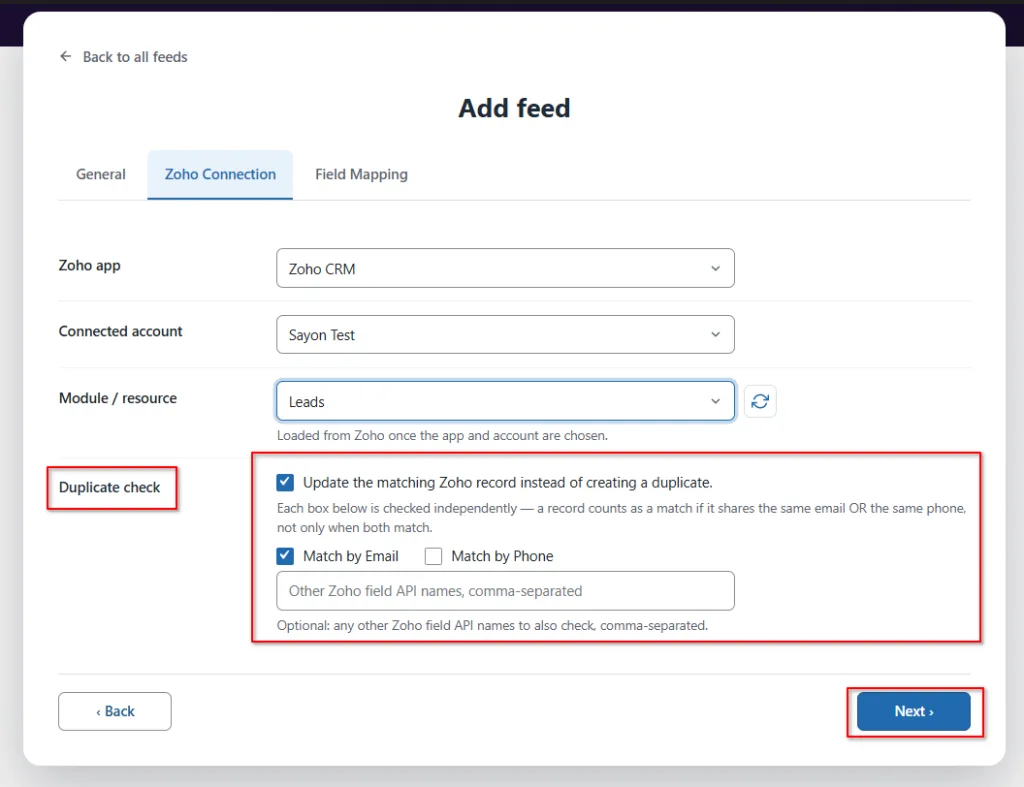
You’ll now arrive on the Zoho Connection tab. Here, first select Zoho app from the dropdown menu select Zoho CRM.
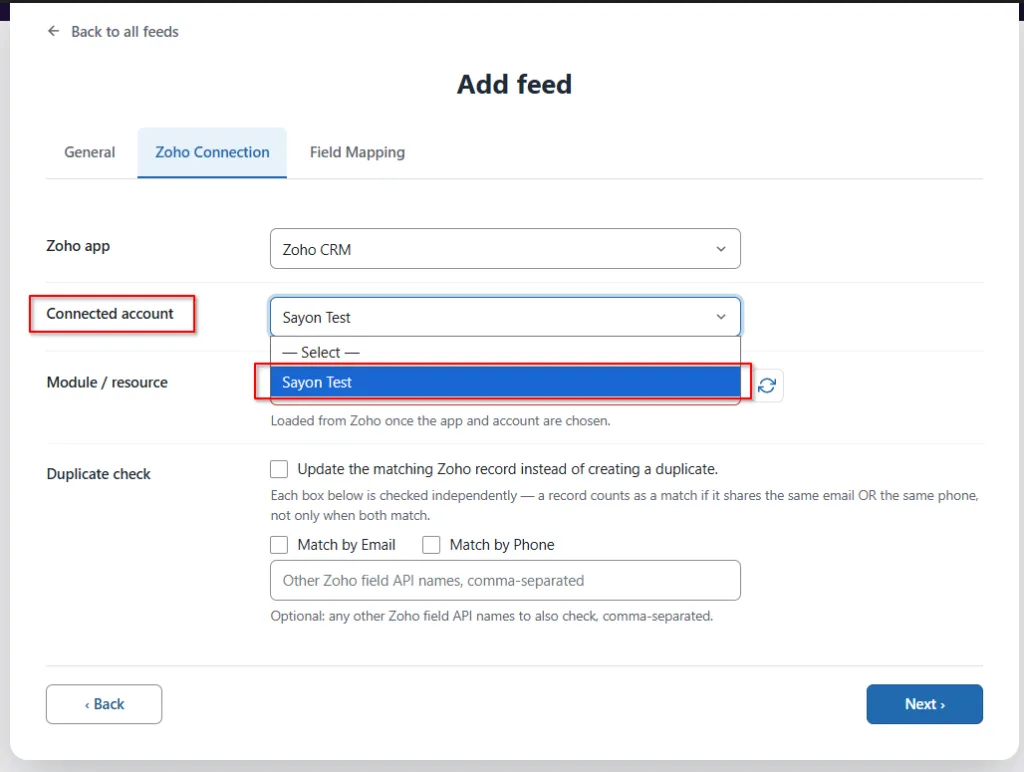
Now select the Connected account that you have already created. If you haven’t created one yet, set that up first under FormBridge for Zoho → Connections.
Click Here How to Create connections →
After that, select the Module / resource from the dropdown menu. We are selecting the Leads module in this case.
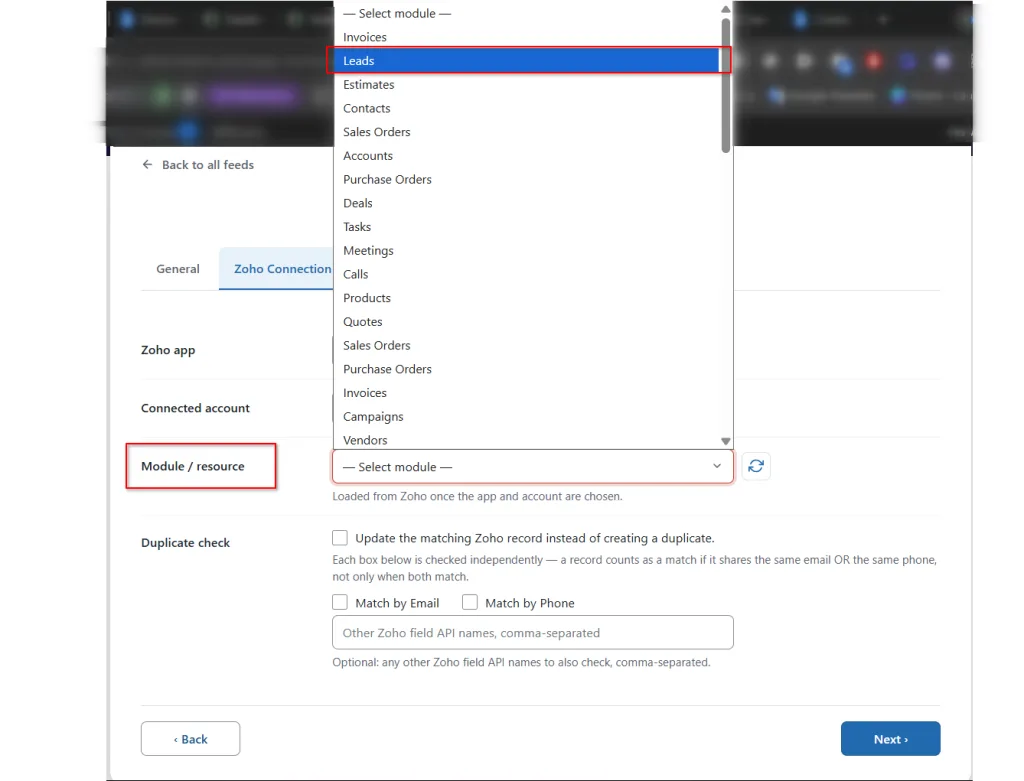
In the Duplicate Check field, you can check for duplicate records and update an existing record in Zoho if a match is found based on email, name, or other fields. Enable this option if you want to update existing records. Then, click Next.
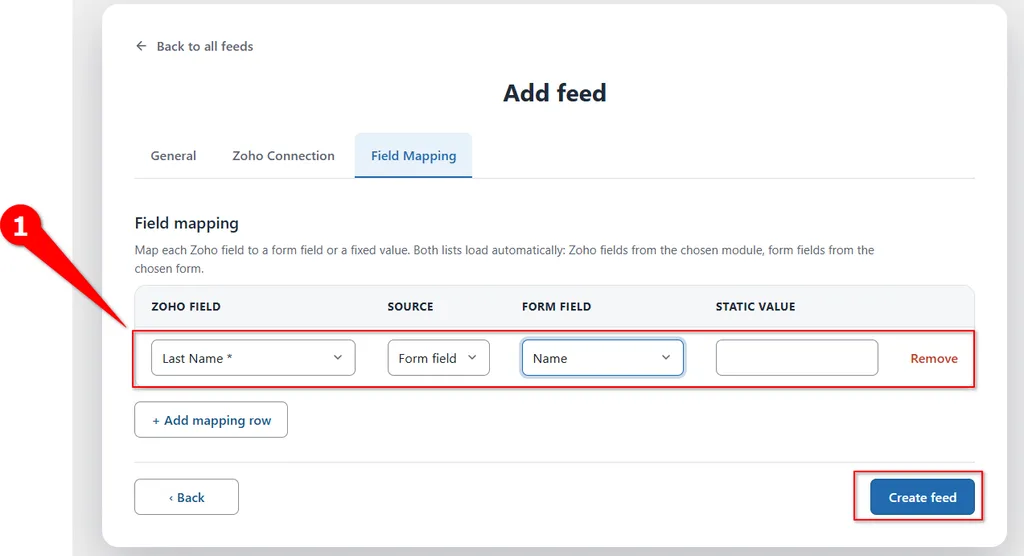
Field Mapping: Here, you need to map your form fields to the corresponding fields in the selected Zoho CRM module. Since we selected Leads, the Last Name field is required in Zoho CRM. Make sure to map your form’s Name/Last Name field to the corresponding Zoho CRM field.
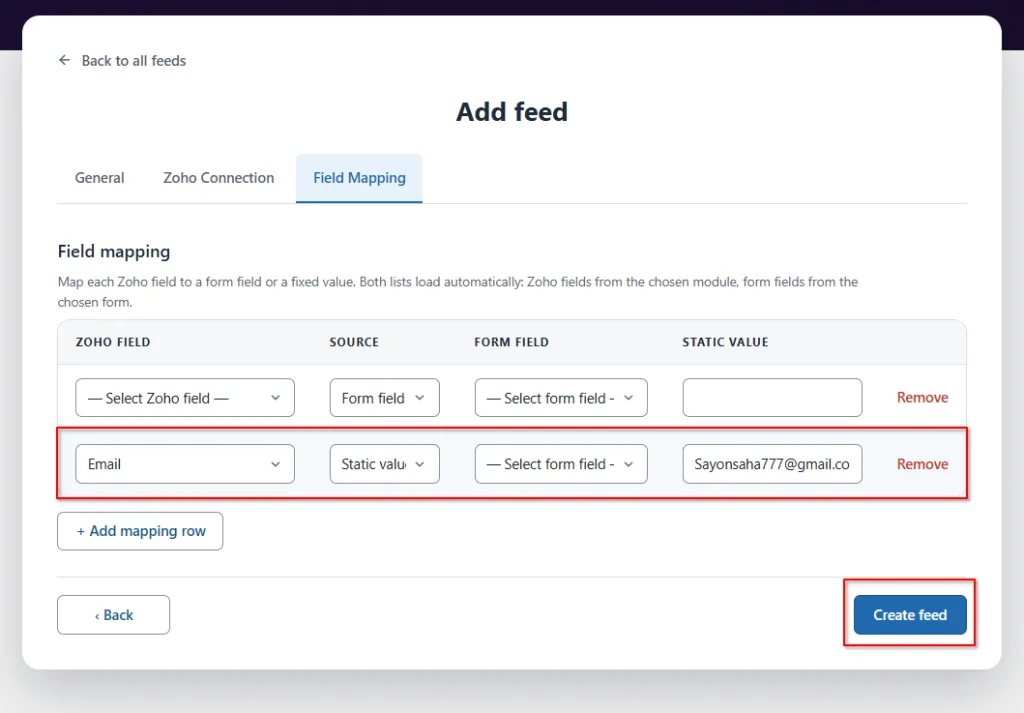
The required fields may vary depending on the module you select, so make sure to map all required fields accordingly. You can also click the Add Mapping Row button to map additional form fields.
From the mapping you can put also static field value if you want
Once your necessary fields are mapped, click on the Create feed button.
Now, to check your connection, go and submit the form that you selected for this integration. Then you can see the status from the timeline.
Info
Every delivery, success or failure, is recorded on the FormBridge for Zoho → Logs screen, with a one-click Resubmit option for anything that failed.
Note
- One feed always listens to exactly one Contact Form 7. If you have two Contact Form 7 that should both send data to Zoho CRM, create two separate feeds.
- Switching the Zoho app, account, or module after you have already mapped fields will clear the mapping rows below. After changing any of these options, you need to map the fields again.
- To find the exact Zoho CRM field API names, go to FormBridge for Zoho → Connections and click the Modules & fields button for the selected account.
