
Contact Form 7 Integration with FormBridge for Zoho
Contact Form 7 is a widely used WordPress plugin, built for anyone who wants a simple, reliable form on their site without any extra cost.
FormBridge for Zoho is a handy WordPress plugin that connects the form plugin you already use to your Zoho apps without needing to write any code. You can link up any of ten popular form plugins, including Elementor Pro Forms, Contact Form 7, WPForms, and Gravity Forms, with six Zoho apps: Zoho CRM, Zoho Bigin, Zoho Books, Zoho Desk, Zoho Campaigns, and Zoho Marketing Automation.
In this guide, we’ll show you how to use Contact Form 7 as a trigger.
Setup Contact Forms 7 Trigger
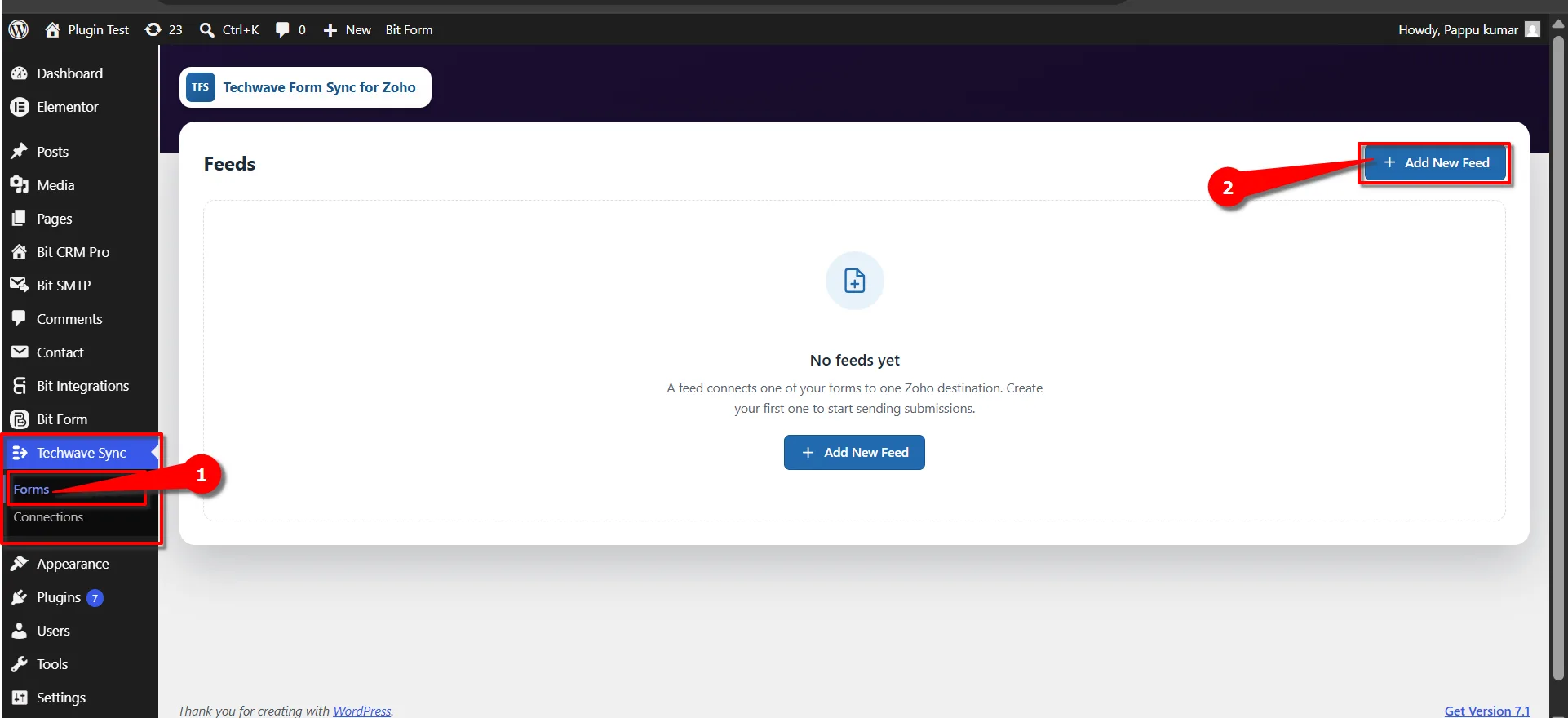
First, go to your FormBridge for Zoho dashboard, click on Forms, and then + Add New Feed.
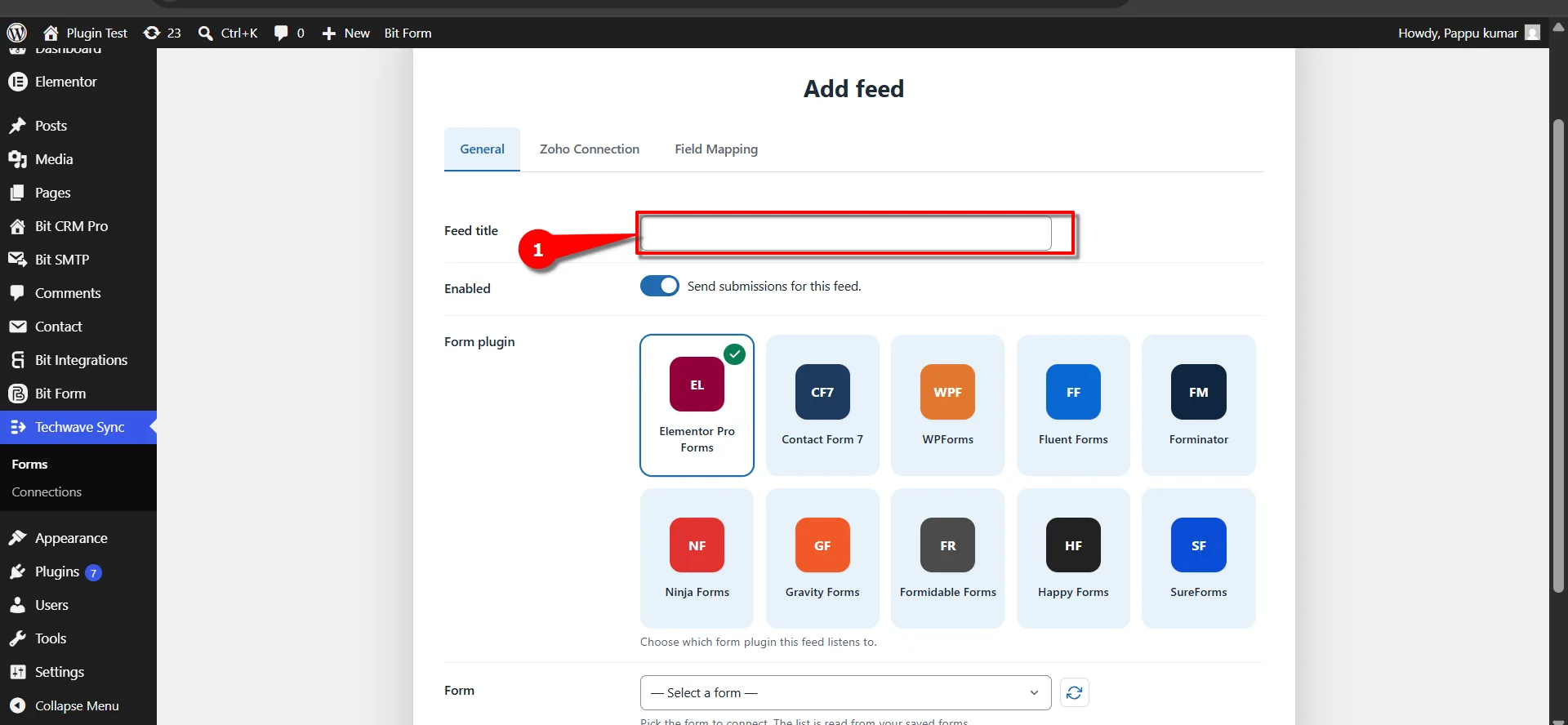
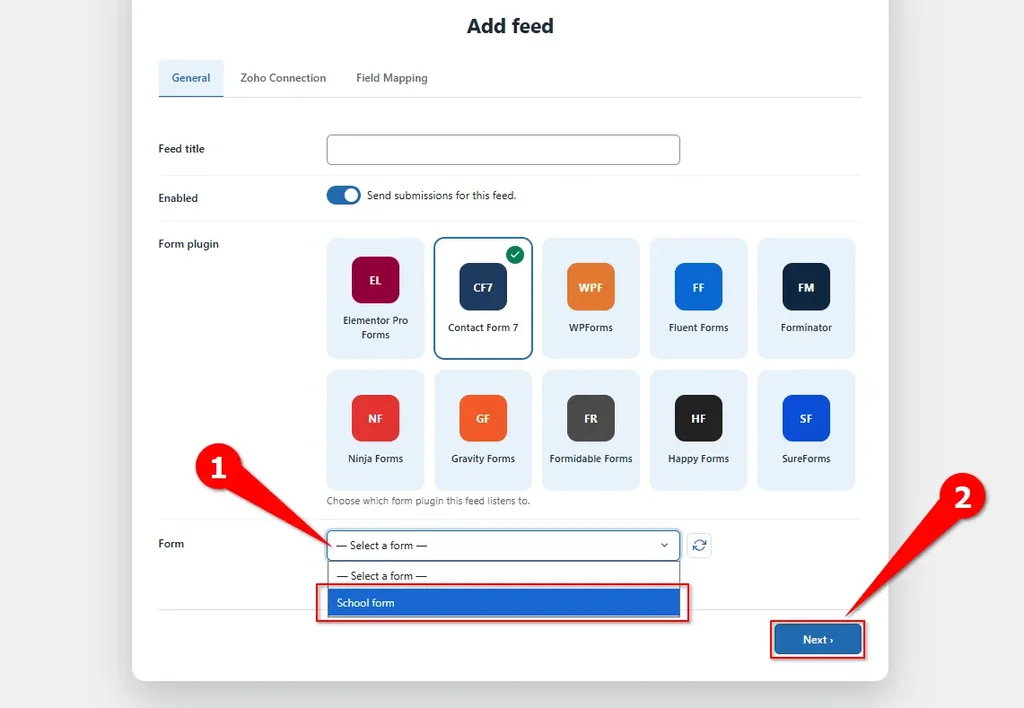
On the add feed screen, fill in the necessary information. Put your desired name in Feed title.
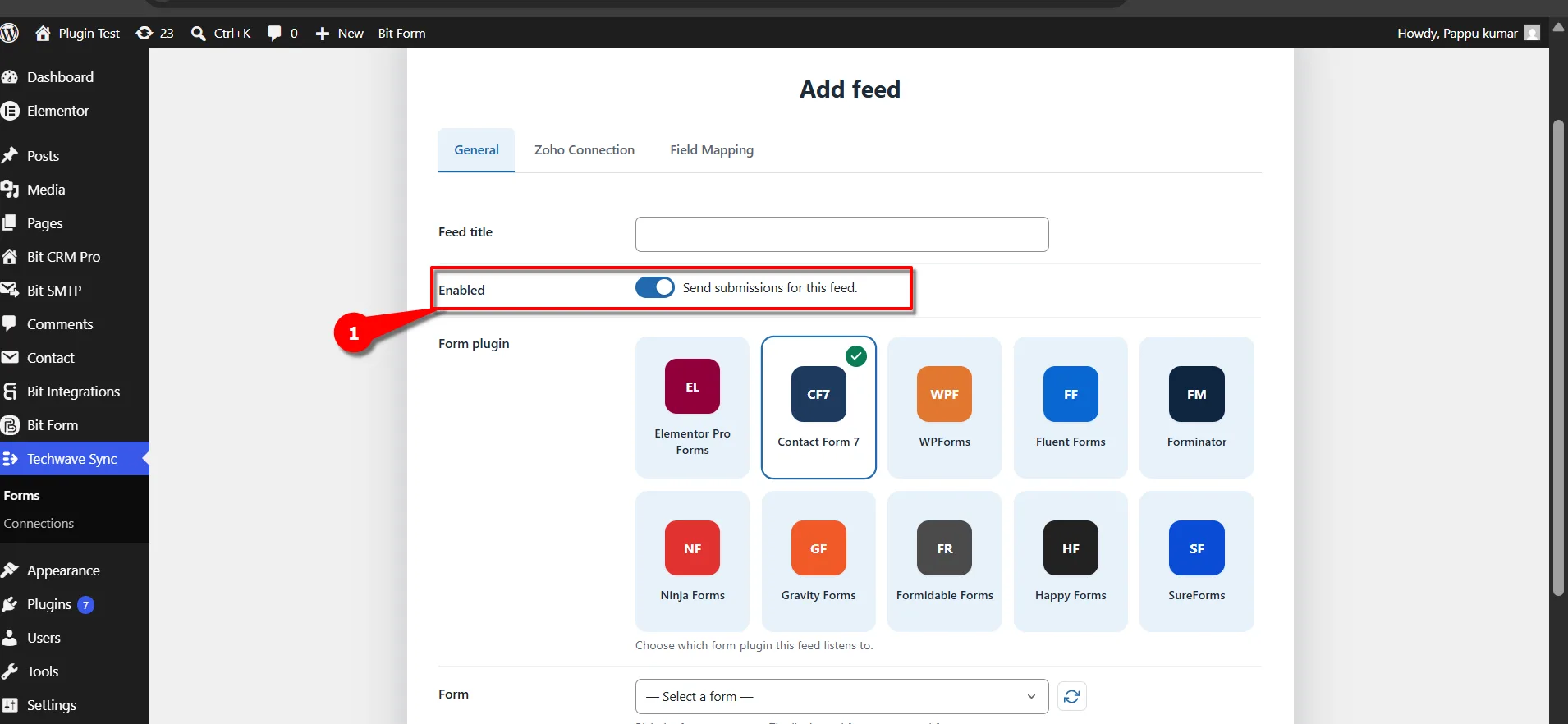
Then you need to make sure Enabled (Send Submissions for this feed) is turned on.
 Note
Note
If this is turned off, Submissions data the selected form will not be sent to zoho.
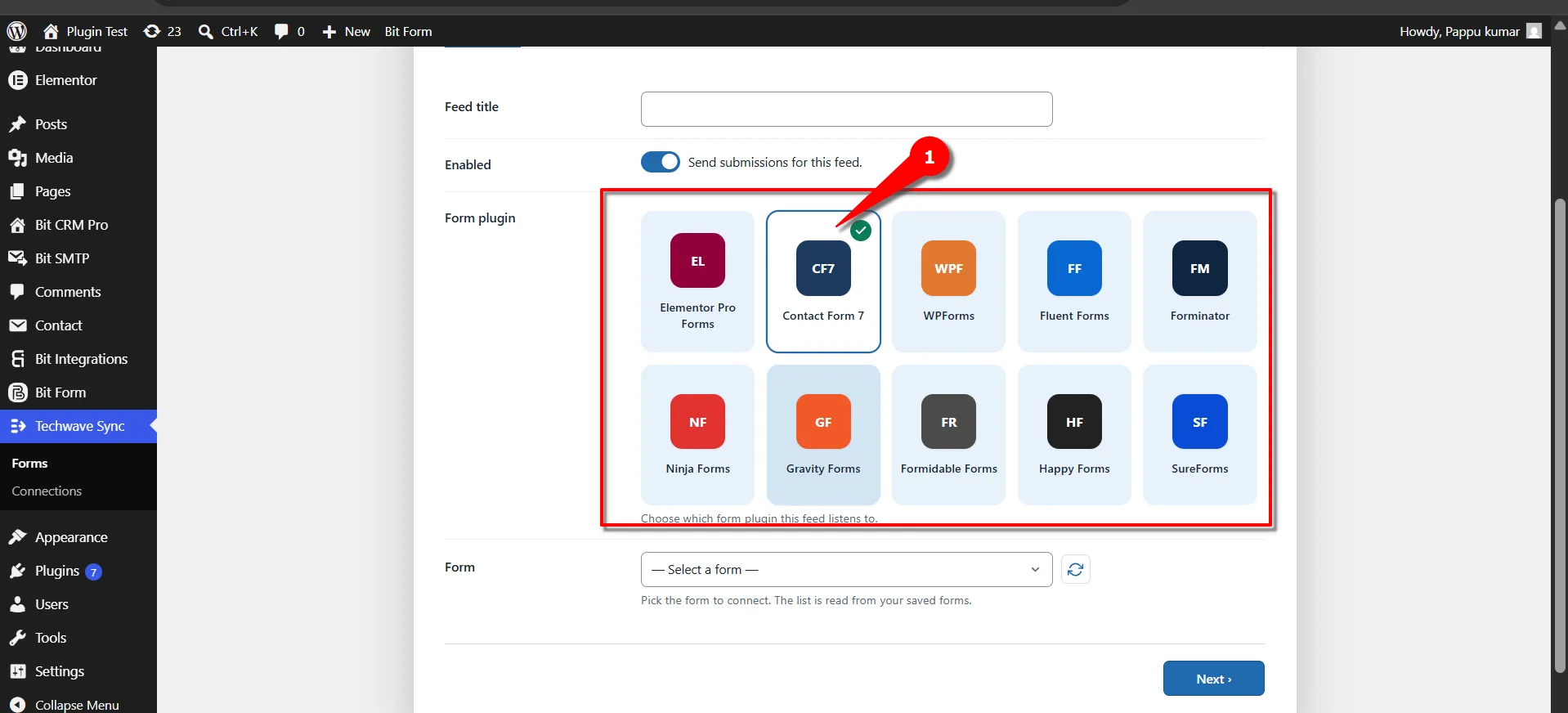
After that, the most important thing is to select your Trigger. In this case, we are selecting Contact Form 7.
Once you select the Trigger, you can see the form list in the form dropdown. Select the form that you want to use for sending data to Zoho CRM, for example School form and then click Next.
Info
After completing these steps, go to the Action section. Here, you will find several required fields. Select and fill in each field according to your requirements.
A Connection is required to use this Action. If you have not created a Connection yet, you must create and authorize one before proceeding to the next step.
Need help creating a connection?
Click Here to Create and Authorize a Connection →
