
HappyForms Zoho Integration: Connect Forms with FormBridge for Zoho
A HappyForms Zoho integration lets you automatically send WordPress form submissions to your Zoho apps without manually copying data. With FormBridge for Zoho, you can use HappyForms as the trigger and send captured form data to Zoho CRM, Zoho Books, Zoho Desk and other supported Zoho applications.
This guide explains how to select HappyForms as a trigger, choose your form and capture submission data before configuring your Zoho Action.
What is HappyForms?
HappyForms is a WordPress form builder that allows you to create contact forms, enquiry forms, lead forms and other forms directly inside WordPress.
With FormBridge for Zoho, a HappyForms submission can start an automated workflow and send the submitted information to a selected Zoho app.
Before you start.
Before setting up the integration, make sure:
- HappyForms is installed and activated.
- You already created at least one HappyForms form.
- Your required Zoho account is connected under FormBridge for Zoho → Connections.
Once these are ready, you can create your integration feed.
How to set up HappyForms integration with FormBridge for Zoho
Step 1: Create a new integration feed
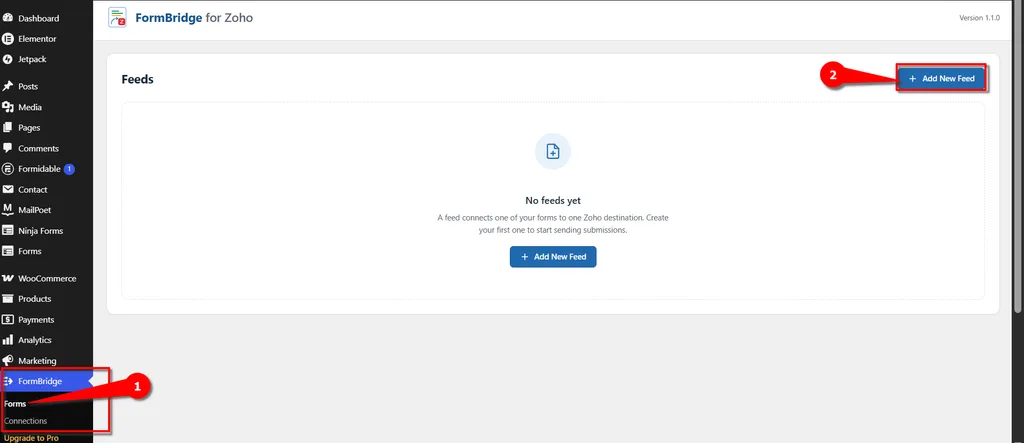
Go to your WordPress dashboard and open FormBridge for Zoho. Now click on Forms, and then + Add New Feed.
Step 2: Select HappyForms as the trigger
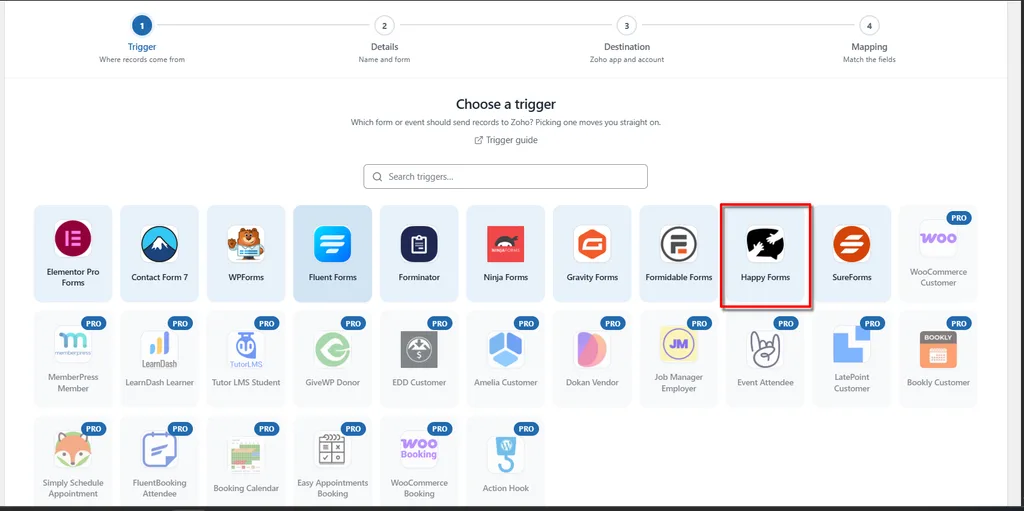
From the available trigger apps, select HappyForms.
This tells FormBridge for Zoho that the integration should run whenever the selected HappyForms form is submitted.
Step 3: Put Your Feed title
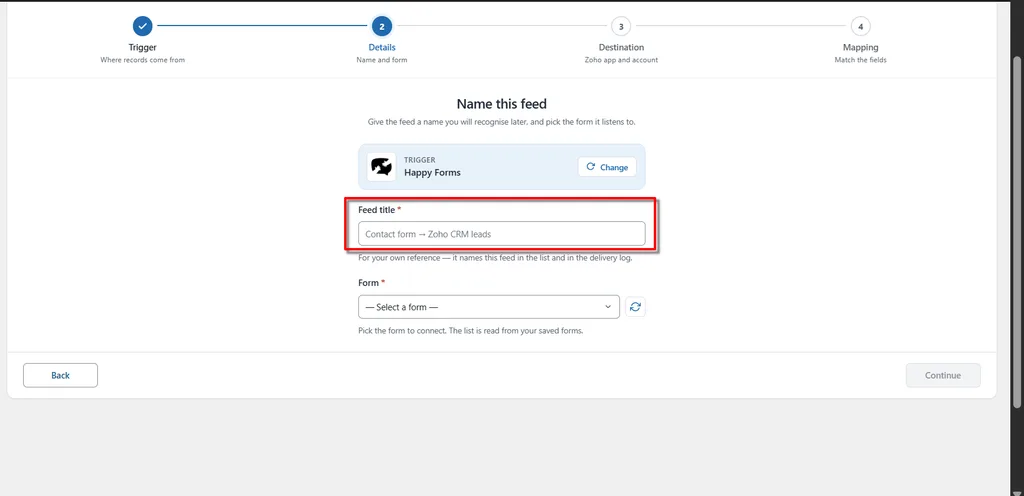
Fill in the necessary information and put your desired name in Feed title.
Step 4: Select your HappyForms form
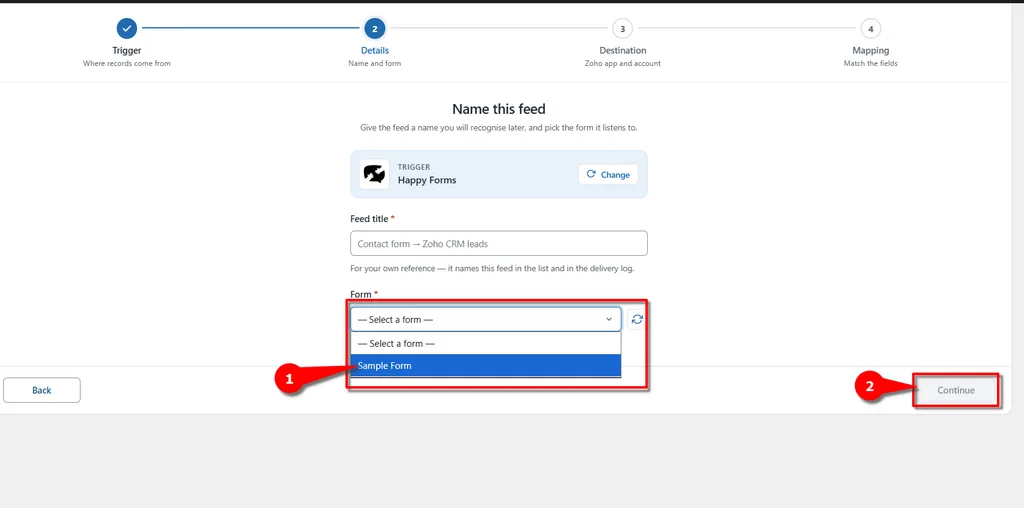
Now you can see the form list in the form dropdown. Select the form that you want to use for sending data to zoho, for example Sample Forms and then click Continue.
 Info
Info
After completing these steps, go to the Action section. Here, you will find several required fields. Select and fill in each field according to your requirements.
A Connection is required to use this Action. If you have not created a Connection yet, you must create and authorize one before proceeding to the next step.
Need help creating a connection?
Click Here to Create and Authorize a Connection →
Frequently asked questions
Can I connect HappyForms to Zoho CRM?
Yes. You can use HappyForms as the trigger and Zoho CRM as the Action in FormBridge for Zoho. After capturing your form fields, select Zoho CRM, choose a module such as Leads or Contacts and map the HappyForms fields to the matching CRM fields.
Can I connect different HappyForms forms to Zoho?
Yes. You can create separate integration feeds for different HappyForms forms. This allows one form to create Zoho CRM Leads while another form can send data to Zoho Desk, Zoho Books or another supported Zoho application.
Do I need coding for the HappyForms Zoho integration?
No. FormBridge for Zoho handles the connection through its visual integration settings. You select HappyForms, capture the form submission, choose your Zoho app and map the fields without writing custom code.
Can I send HappyForms data to multiple Zoho apps?
Yes. You can configure separate integrations for the same HappyForms form when the submission needs to be sent to multiple Zoho applications.
