
WordPress to Zoho CRM Integration
A WordPress to Zoho CRM integration sends form submissions straight into Zoho CRM as Leads, Contacts, Deals or custom module records, with no manual entry and no coding.
FormBridge for Zoho connects most popular WordPress form plugins through a simple feed. This guide explains the Zoho CRM action and its main settings.
Supported form plugins and Zoho apps
FormBridge for Zoho connects these WordPress form plugins with these Zoho apps. This page focuses on the Zoho CRM action.
WordPress form plugins
- Elementor Forms
- Contact Form 7
- WPForms
- Gravity Forms
- Fluent Forms
- Ninja Forms
- Forminator Forms
- Formidable Forms
- Happyforms
- SureForms
Zoho apps
- Zoho CRM
- Zoho Bigin
- Zoho Books
- Zoho Desk
- Zoho Campaigns
- Zoho Marketing Automation
Before you start
- Your WordPress form is published and its trigger is set up in FormBridge for Zoho.
- Your Zoho account is authorised under FormBridge for Zoho → Connections. If it isn’t, follow the guide to creating a Zoho connection.
- You know which Zoho CRM module should receive the data, and your form collects that module’s required fields.
How to set up a WordPress to Zoho CRM integration
Once your form trigger is ready, open the Destination tab and follow these six steps.
Step 1: Select your connected Zoho account
Destination tab › Connected accountAfter configuring your form trigger, open the Destination tab and choose the Zoho account you authorised under FormBridge for Zoho → Connections. Records are created in this account.
No account in the list?Create a Zoho connection first, then return to the feed setup. Learn how to create a Zoho connection.
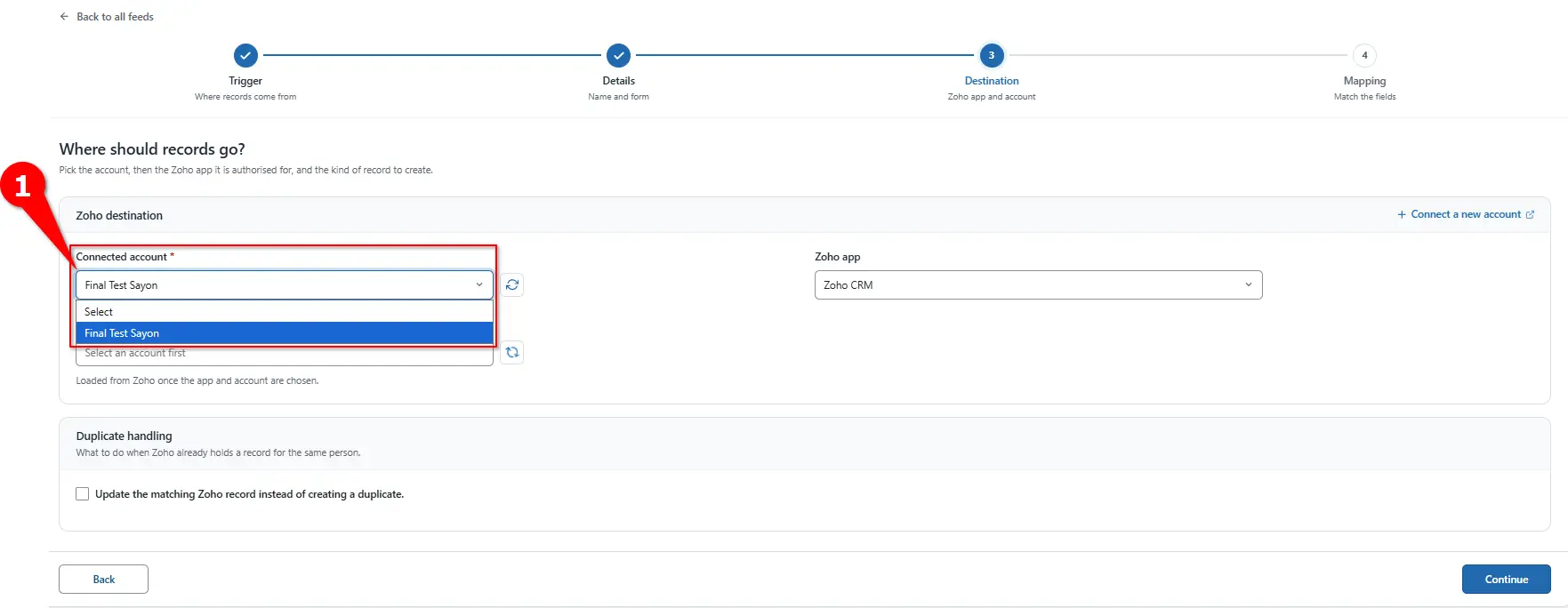
Choosing the authorised Zoho account. Step 2: Select Zoho CRM as the destination
Destination tab › Zoho AppFrom the Zoho App dropdown, select Zoho CRM. This tells FormBridge to send the submitted form data to Zoho CRM.
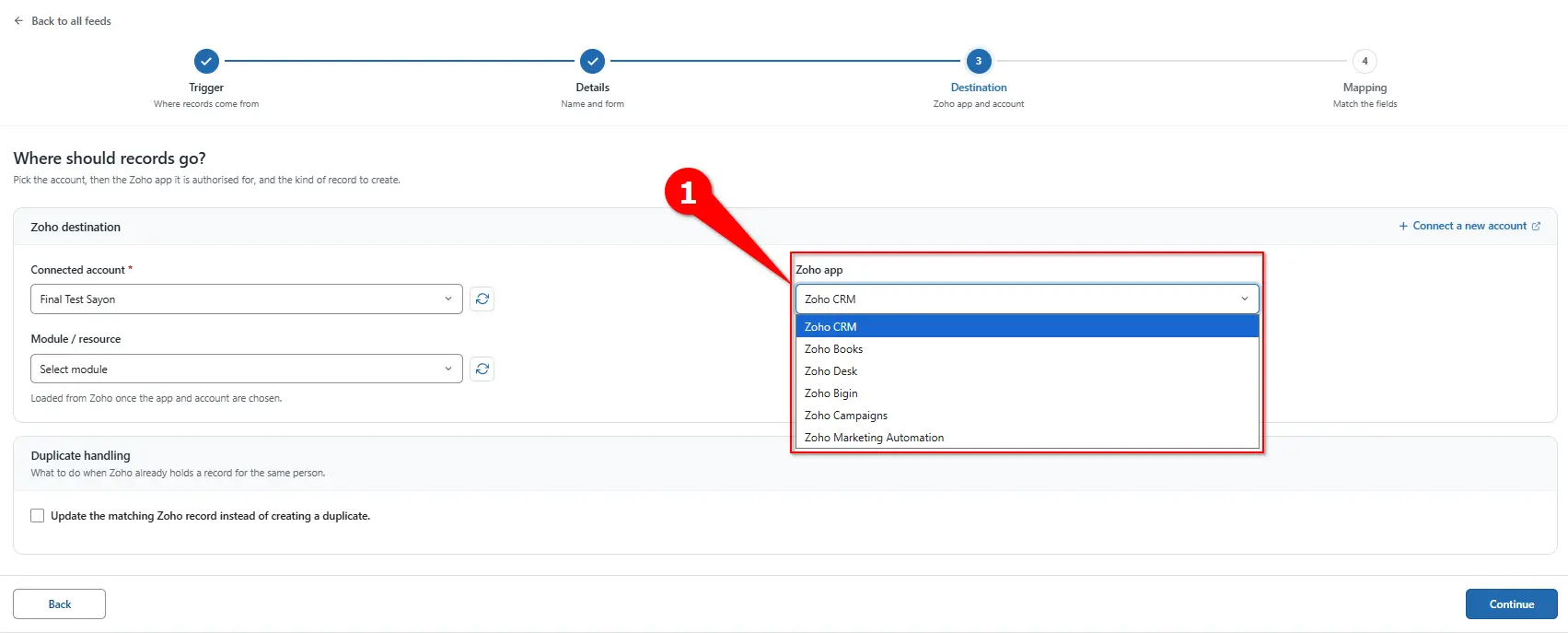
Selecting Zoho CRM as the destination. Step 3: Select the Zoho CRM module
Destination tab › Module / resourceChoose the module that will receive your form data. You can select Leads, Contacts, Deals, Accounts or another available module. This example uses Leads, the usual choice for contact and enquiry forms.
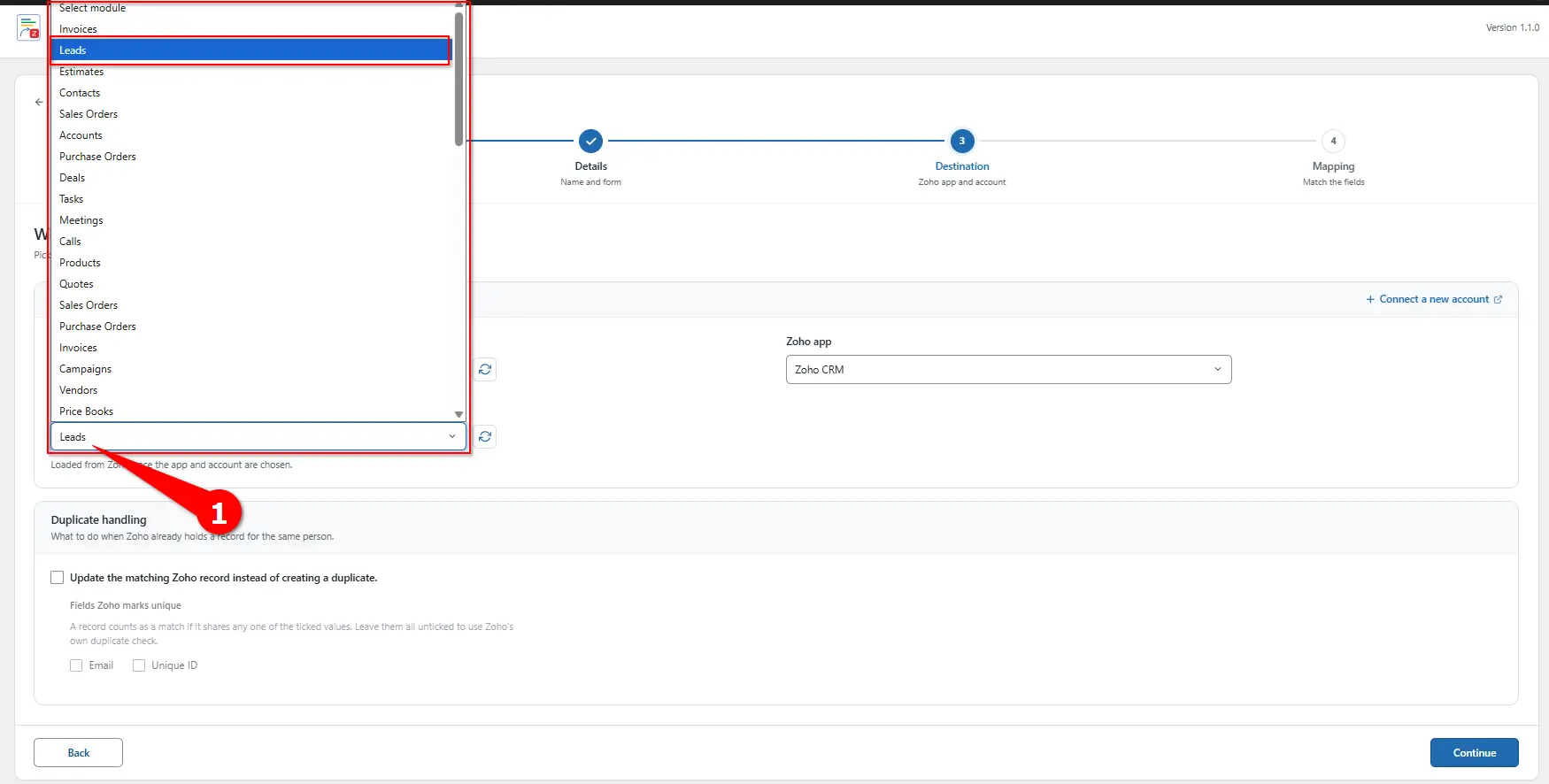
Selecting the Leads module. Step 4: Configure duplicate handling
Destination tab › Duplicate handlingDuplicate handling checks whether a matching record already exists before a new one is created. If a match is found, FormBridge updates that record instead of creating a duplicate.
Choose the field used to find a match, such as Email or Name, then click Continue.
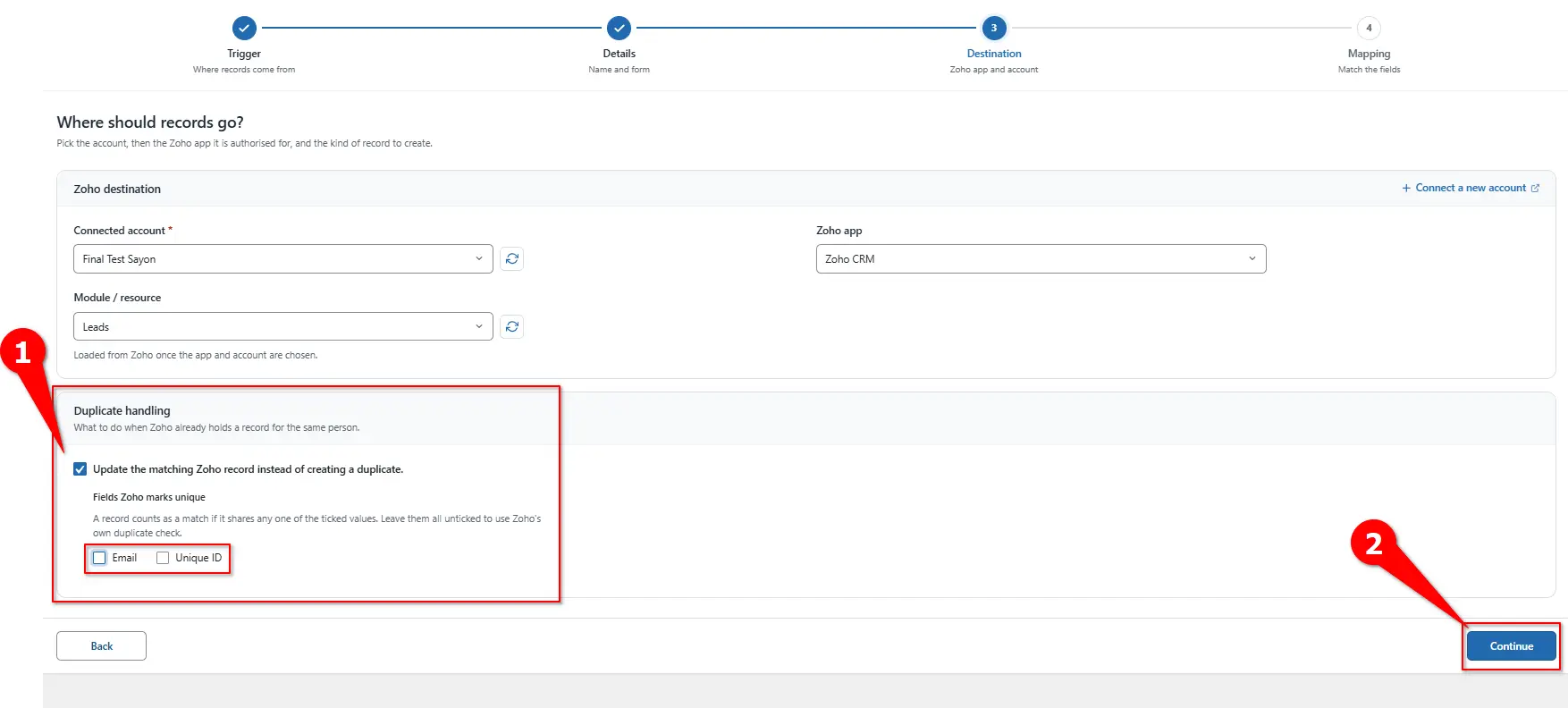
Configuring Zoho CRM duplicate record handling. Step 5: Map your form fields
Mapping tab › Match the fieldsField mapping connects each WordPress form field to the Zoho CRM field that stores its value. For example, map your form’s Email field to the Zoho CRM Email field.
Required fieldThe Leads module needs a value for Last Name. If it isn’t mapped, Zoho CRM won’t create the lead.
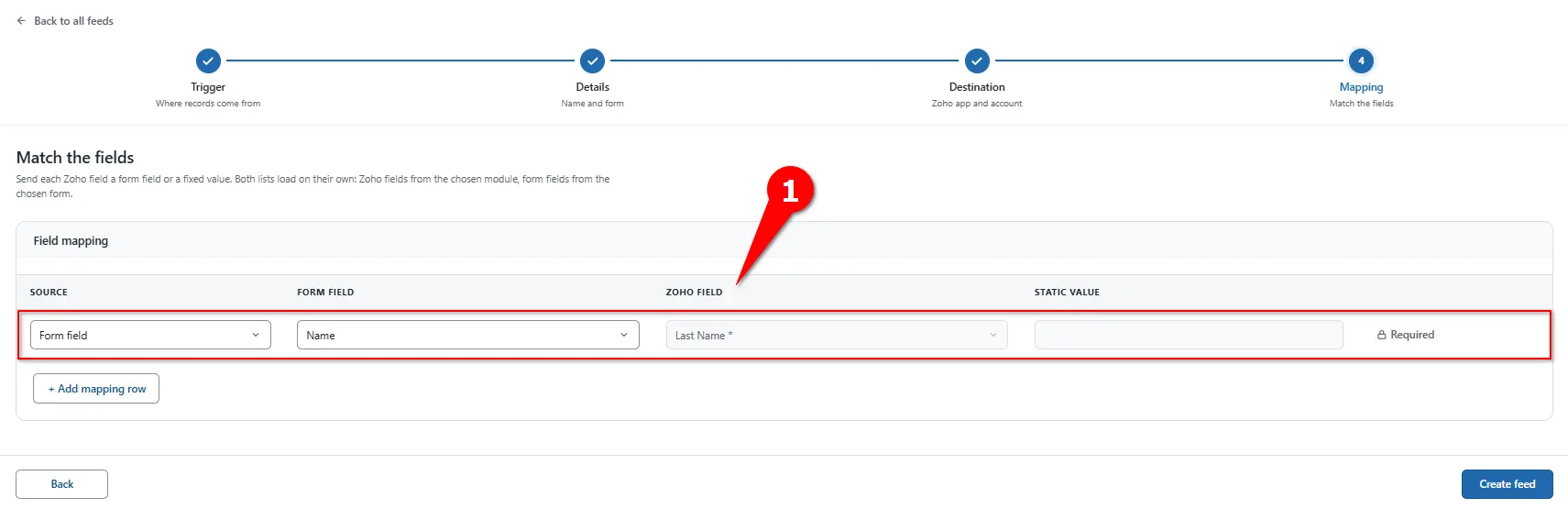
Mapping WordPress form fields to Zoho CRM fields. You can also assign a static value to any Zoho CRM field, which is sent with every submission. This suits fixed information such as Lead Source or Lead Status. For picklist fields, use a value that already exists in that picklist.
Example mapping for the Leads module Source Form field Zoho CRM field Static value Form field Last name Last Name * – Form field Email Email – Static value – Lead Source Website Click Add Mapping Row when you need to map additional fields.
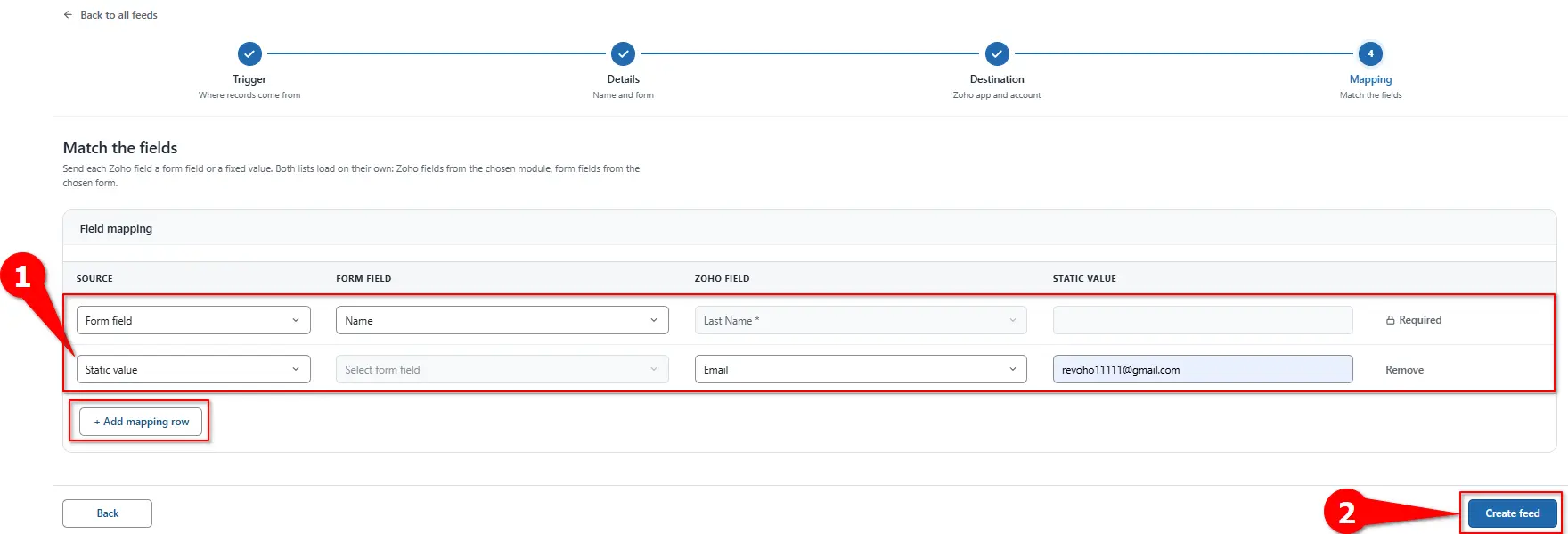
Adding a static value with Add Mapping Row.
Every delivery, successful or failed, is recorded under FormBridge for Zoho → Logs. Failed deliveries can be sent again with Resubmit.
- One feed listens to exactly one form. If two forms should both send data to Zoho CRM, create two feeds.
- Changing the Zoho app, account or module after mapping clears the mapping rows, so set those first.
- To see exact Zoho CRM field API names, go to FormBridge for Zoho → Connections and click Modules & Fields for the relevant account.
Zoho CRM action settings reference
| Setting | Tab | What it does |
|---|---|---|
| Connected account | Destination | The authorised Zoho account where records are created. |
| Zoho App | Destination | Chooses the Zoho app that receives the data. |
| Module / resource | Destination | The Zoho CRM module that receives the record. |
| Duplicate handling | Destination | Updates a matching record instead of creating a duplicate. |
| Source | Mapping | Form field sends the visitor’s input. Static value sends the same text every time. |
| Form field / Zoho field | Mapping | The form field to send and the Zoho CRM field that receives it. |
| Add Mapping Row | Mapping | Adds another field pair. |
| Create feed | Mapping | Saves the feed and starts listening to the form. |
Required fields by Zoho CRM module
Zoho CRM only creates a record when its mandatory fields have a value. Map these fields, or give them a static value.
| Module | Required field | API name |
|---|---|---|
| Leads | Last Name | Last_Name |
| Contacts | Last Name | Last_Name |
| Accounts | Account Name | Account_Name |
| Deals | Deal Name, Stage, and Pipeline when pipelines are enabled | Deal_Name, Stage, Pipeline |
Your Zoho CRM admin may have made other fields mandatory too. Check the module under Connections → Modules & Fields and map those fields as well.
Verify the integration
- Submit a test entry using an email address you can recognise.
- Check the log under FormBridge for Zoho → Logs and confirm the delivery succeeded.
- Find the record in the Zoho CRM module you selected by searching for the test email.
- Check the values, including static values such as Lead Source.
- Test duplicate handling, if it’s on, by submitting the same email again. The existing record should update.
Troubleshooting
Pick the symptom you’re seeing to get the fix.
No lead is created
- Likely cause
- A required field isn’t mapped.
- How to fix it
- Map every field Zoho marks as required for the selected module, then check the Logs screen for the error returned by Zoho CRM.
Mapping rows cleared
- Likely cause
- The app, account or module changed after mapping.
- How to fix it
- Set the account, app and module first, then map the fields. Changing any of the three resets the rows.
Duplicate records
- Likely cause
- Duplicate handling is turned off in the feed.
- How to fix it
- Turn on duplicate handling in Step 4 and pick the field used to match an existing record, usually email.
Field name not found
- Likely cause
- The API name doesn’t exist in the selected module.
- How to fix it
- Check the correct name under FormBridge for Zoho → Connections → Modules & Fields.
Wrong form firing
- Likely cause
- The feed’s trigger points at a different form.
- How to fix it
- Check which form the trigger points at. Give every form that needs its own Zoho CRM connection a separate feed.
Still stuck? Email the failed entry from the Logs screen to support@techwavesolutions.net.
Frequently asked questions
Which WordPress form plugins work with the Zoho CRM action?
FormBridge for Zoho supports Elementor Forms, Contact Form 7, WPForms, Gravity Forms, Fluent Forms, Ninja Forms, Forminator Forms, Formidable Forms, Happyforms and SureForms.
Can I send data to a module other than Leads?
Yes. FormBridge can send data to available Zoho CRM modules such as Contacts, Accounts, Deals and custom modules. Select the module under Module / resource, then map that module’s required fields before creating the feed.
Can one form send data to multiple Zoho apps?
Yes. Create a separate feed for each destination. For example, one feed can send form data to Zoho CRM while another sends the same form data to another supported Zoho app.
Does this update existing records or always create new ones?
It depends on duplicate handling. When it is off, each submission creates a new record. When it is on, FormBridge checks a selected field such as email and updates the matching Zoho CRM record.
Where do I find Zoho CRM field API names?
Go to FormBridge for Zoho → Connections, open the connected Zoho account and select Modules & Fields. Use this when a field is missing during mapping or you need to confirm its API name.
