
Action Hook Zoho Integration: Send WordPress Data to Zoho
An Action Hook Zoho integration sends data to your Zoho apps whenever a WordPress action runs on your site, with no copying and pasting. With FormBridge for Zoho Pro, any do_action() call can be the trigger: one from your theme, your own code or a plugin that has no built-in trigger. The data it carries goes to Zoho CRM, Zoho Bigin, Zoho Books, Zoho Desk, Zoho Campaigns or Zoho Marketing Automation.
This guide shows how to select Action Hook as the trigger, name your feed, enter the hook name and let FormBridge learn its fields, ready for the Zoho action.
Before you start
Check these before you create the feed.
- FormBridge for Zoho Pro is installed, and its licence is active. The Action Hook trigger is a Pro feature.
- You know the name of the action: the text passed to
do_action(), such asmy_plugin_order_paid. A plugin’s developer documentation usually lists its actions. - You can make that action run once, for example by placing a test order or submitting a test form.
- Your Zoho account is connected under FormBridge for Zoho → Connections. See how to create a connection
How to set up Action Hook with FormBridge for Zoho
Follow these four steps to make a WordPress action hook the trigger for your Zoho integration.
Step 1: Create a new integration feed
FormBridge for Zoho › All FeedsIn your WordPress dashboard, open FormBridge for Zoho, click All Feeds, then click + Add New Feed.
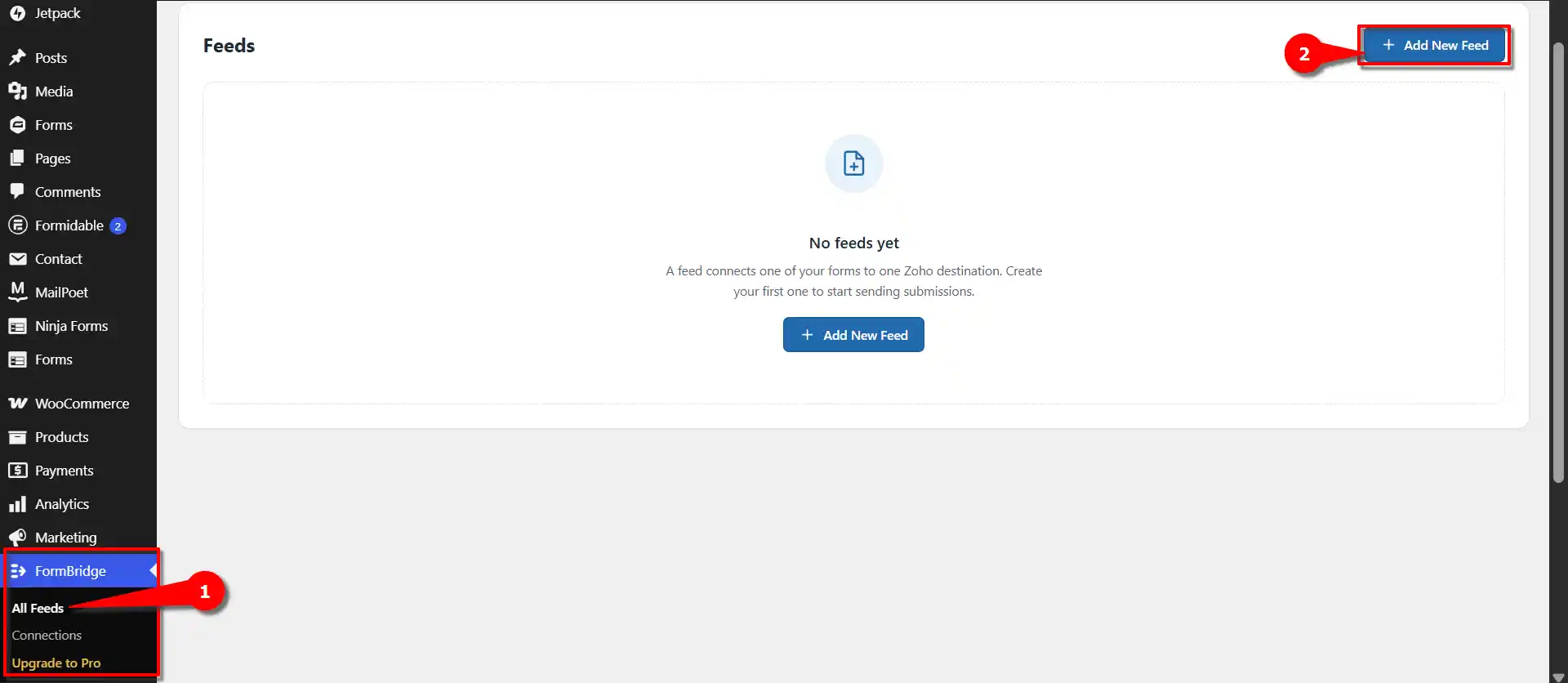
Open All Feeds and click + Add New Feed. Step 2: Select Action Hook as the trigger
New feed › Trigger appFrom the list of trigger apps, select Action Hook. You can type Action in the search box to find it quickly. The feed will now run each time the action you name in the next step runs.
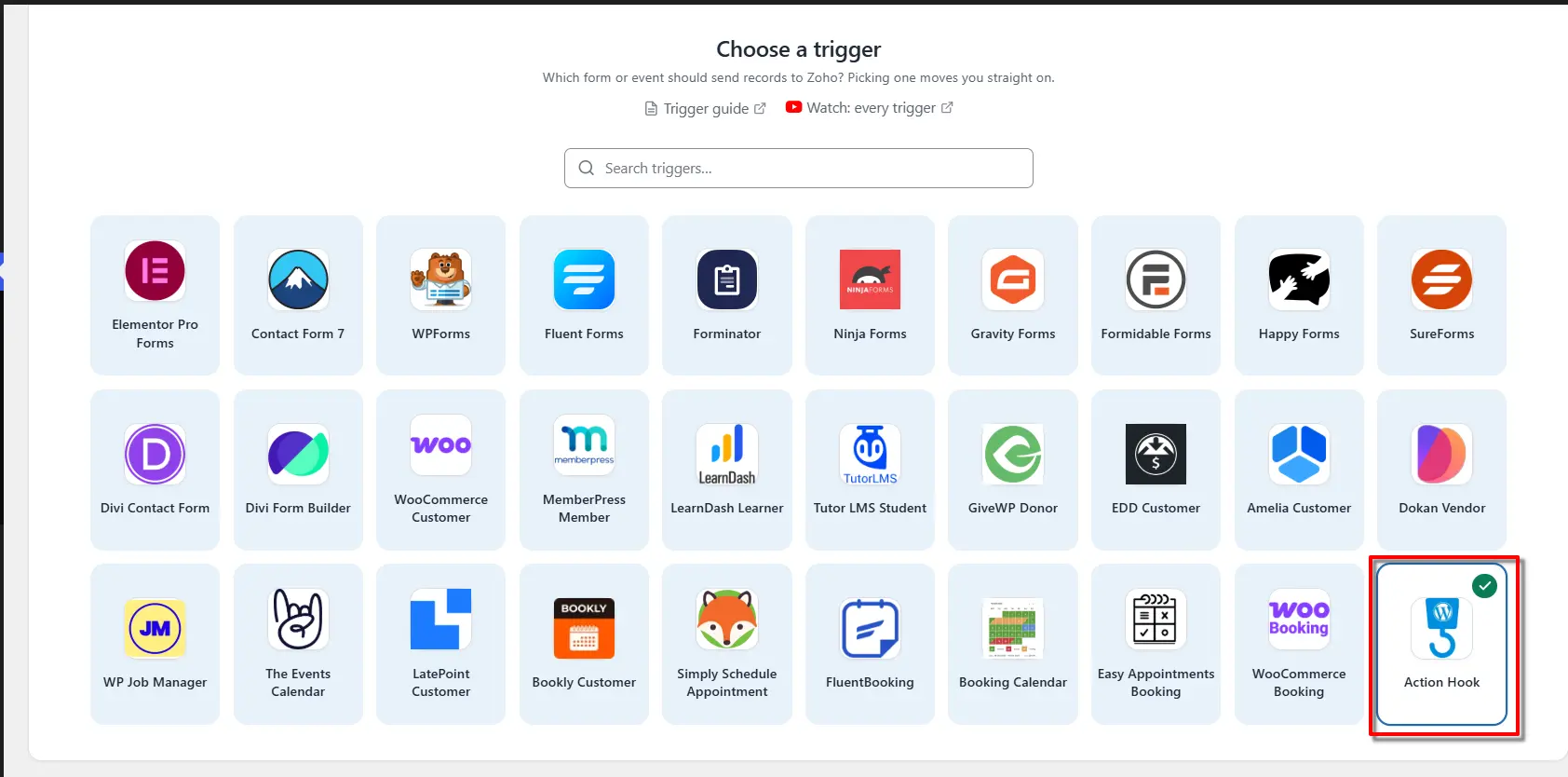
Search for Action and select Action Hook. Step 3: Enter a feed title and the hook name
Name this feed › Feed title, Custom hookIn the Feed title field, enter a name of your choice. Then, in Custom hook (use an add_action hook only), type the action name exactly as your code passes it to
do_action(), with no spaces. Names already used on your site are suggested as you type.The line under the box now shows Waiting for … to run.
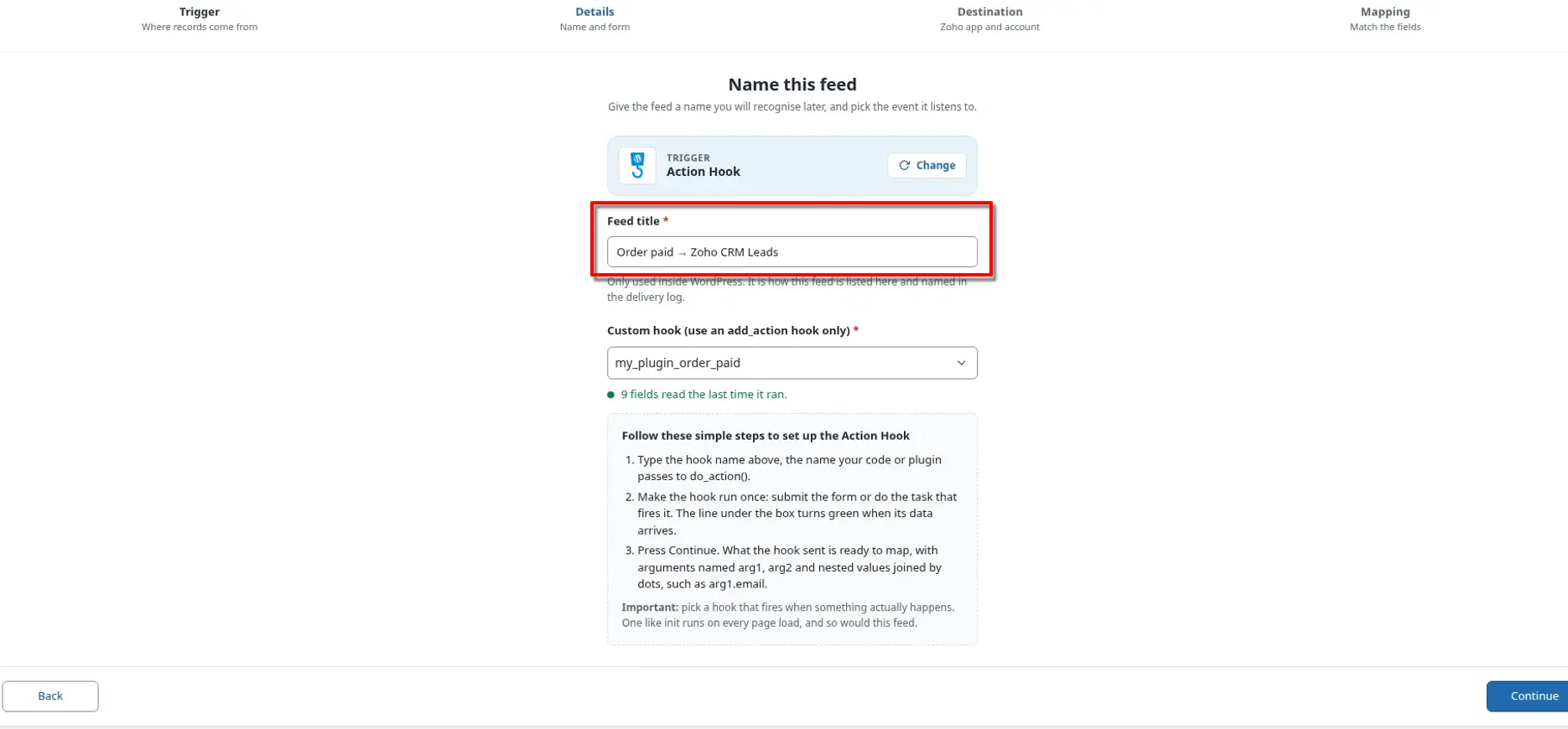
Enter a feed title and the action name your code fires. Pick a hook that fires when something happensA hook such as
initorwp_loadedruns on every page load, so the feed would send a record on every page load too. Choose an action tied to a real event, like an order being paid or a form being sent.Step 4: Run the action once
Your site › the task that fires the actionKeep the feed screen open and make the action run once: place a test order, submit the form, or do whatever fires it. When its data arrives, the line under the box turns green and says how many fields were read. Then click Continue.
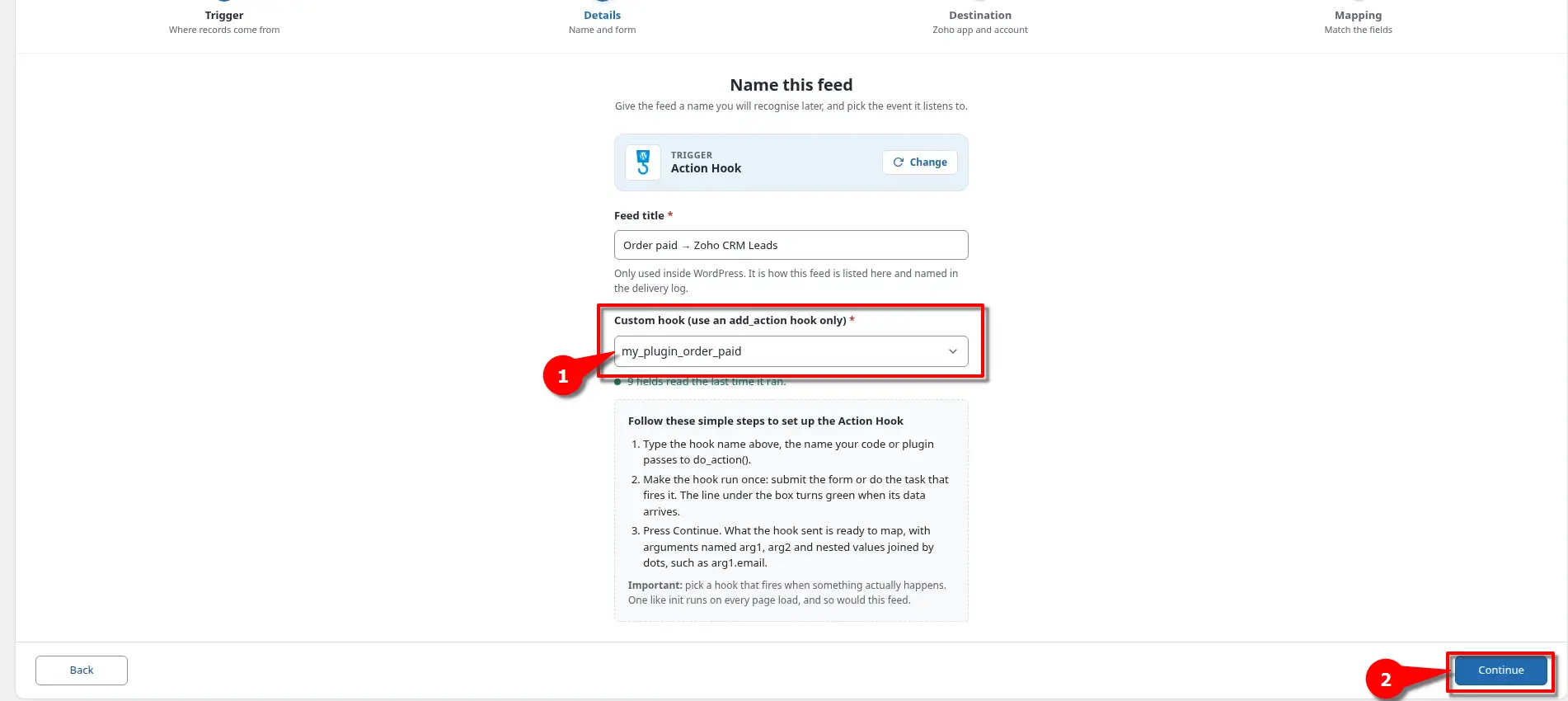
The status turns green once the action has run. Click Continue. One feed, one actionEach feed listens to exactly one action. To send another action to Zoho, create another feed. You don’t need to run the action twice: the first run teaches the feed its fields and is delivered as well.
How the hook’s data becomes fields
The values the action passes are offered as fields on the Mapping step. Arguments are numbered from one (arg1, arg2), and values nested inside them are joined with dots. Take this call:
do_action( 'my_plugin_order_paid', $order, 'checkout' );

// $order = [
//   'id'       => 1042,
//   'total'    => 59.90,
//   'customer' => [
//     'name'    => 'Rahim Uddin',
//     'email'   => 'rahim@example.com',
//     'address' => [ 'city' => 'Dhaka' ],
//   ],
// ];
It gives you these fields to map:
arg1.id                      1042
arg1.total                   59.90
arg1.customer.name           Rahim Uddin
arg1.customer.email          rahim@example.com
arg1.customer.address.city   Dhaka
arg2                         checkout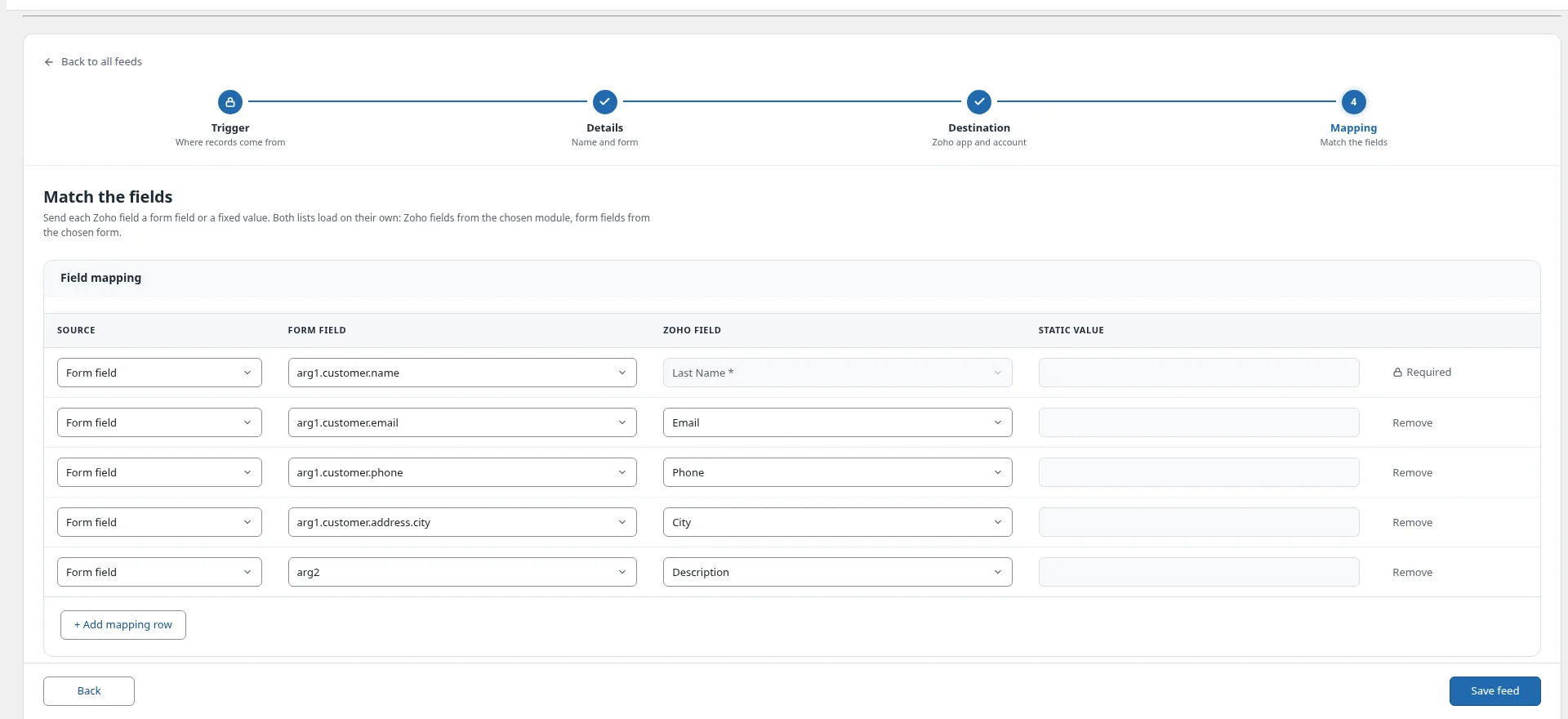
- Objects work too. A
WP_User, aWC_Orderor a plugin’s own object is read through its usual data methods, or its public properties. - Passwords and keys are never offered. Values named like
password,token,secretorapi_keyare left out of the field list. - Renaming the hook clears its fields. They came from a different action, so run the new one once to learn its fields.
- An action with no arguments still works. It has nothing to map, but a feed made of static values can still send.
- Limits: the first 10 arguments, 6 levels deep, up to 200 fields.
Next step: configure the Zoho action
After completing these steps, go to the Destination section and select the Zoho Action you want to connect with your selected Trigger. This allows FormBridge for Zoho to send the action’s data to the selected Zoho application automatically.
- Zoho CRM action guide
- Zoho Books action guide
- Zoho Desk action guide
- Zoho Bigin action guide
- Zoho Campaigns action guide
- Zoho Marketing Automation action guide
Frequently asked questions
Can I send a WordPress action to Zoho CRM?
Yes. Use Action Hook as the trigger and Zoho CRM as the action. Choose a module such as Leads or Contacts, then map the hook’s fields, such as arg1.customer.email, to the matching CRM fields.
Which hooks can I use?
Any action that is fired with do_action(), by your theme, your own code or another plugin. Filters made with apply_filters() are not supported. Choose an action that runs when something actually happens, not one that runs on every page load.
Do I need coding for the Action Hook Zoho integration?
No coding is needed in FormBridge for Zoho. You type the action’s name and map the fields on its settings screens. The action itself has to exist on your site, from a plugin, your theme or your own code.
Is Action Hook a Pro feature?
Yes. The Action Hook trigger needs FormBridge for Zoho Pro with an active licence. Without it, the Action Hook tile is shown locked in the trigger list.
How do I check that the data reached Zoho?
Make the action run with test data, then open FormBridge for Zoho → Logs. Every delivery is listed with its result, and failed deliveries can be resubmitted.
Want the whole setup in one place? Read the complete WordPress to Zoho CRM guide, or email support@techwavesolutions.net for help.
