
How to Buy FormBridge for Zoho Pro
To buy FormBridge for Zoho Pro, create a free account on the Techwave Solutions customer portal, verify your email, choose a plan and pay in Paddle’s secure checkout. Your license key appears on the Licences page as soon as the payment clears, and a copy is emailed to you.
This guide walks through every screen, from creating your account to downloading the Pro plugin and managing your subscription later. When you have your key, the installation guide shows how to install Pro and activate the license in WordPress.
Create your customer account
One account holds every license you buy, for every website you run it on. If you already have an account, skip to signing in.
Step 1: Open the sign-up page
Customer portal › Create your accountGo to subscription.techwavesolutions.net/register. If you land on the sign-in page instead, click Create an account under the form.
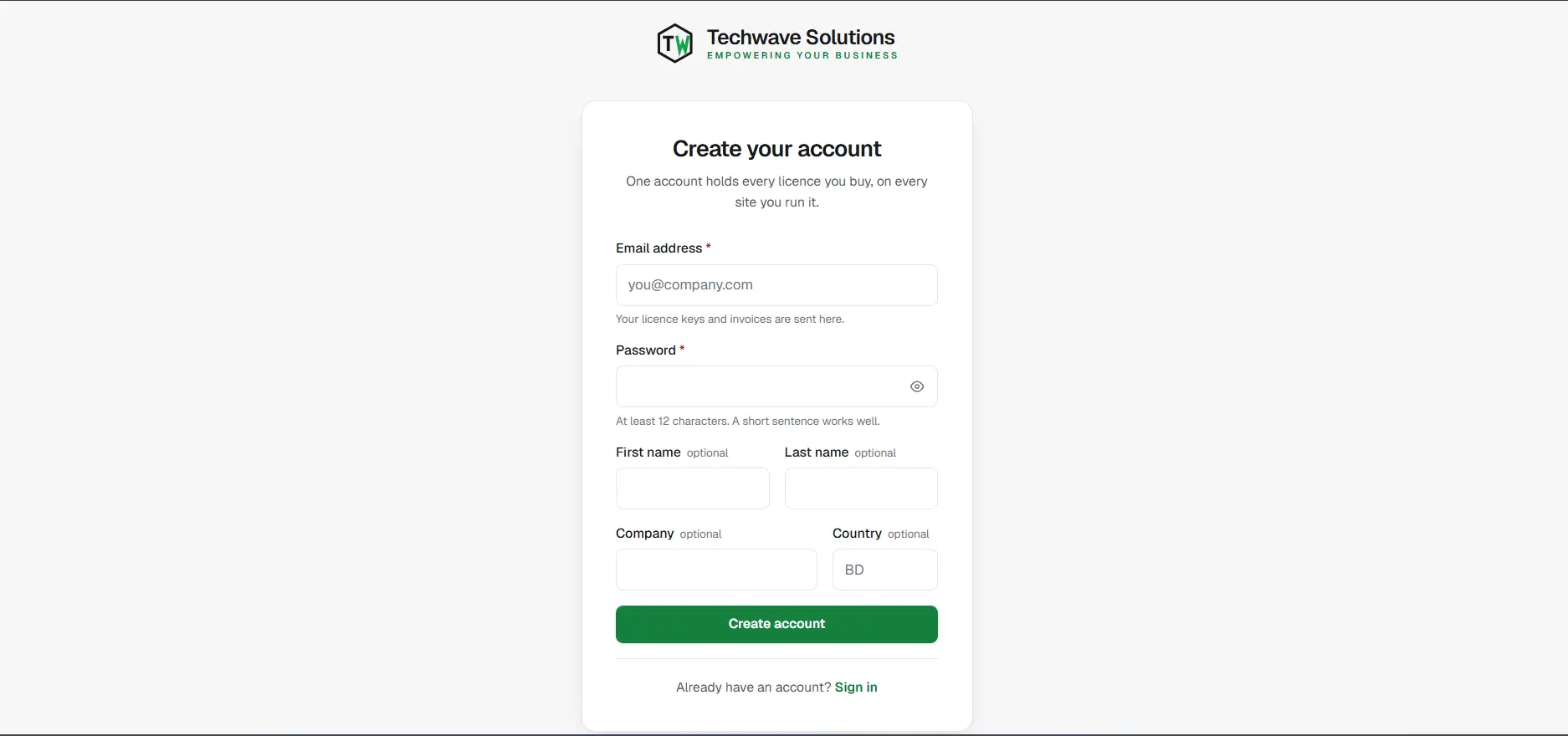
The sign-up page on the customer portal. Step 2: Fill in your details and create the account
Create your account › Create accountEnter your Email address and a Password of at least 12 characters. First name, Last name, Company and Country are optional; the country is a two-letter code such as
USorBD. Then click Create account.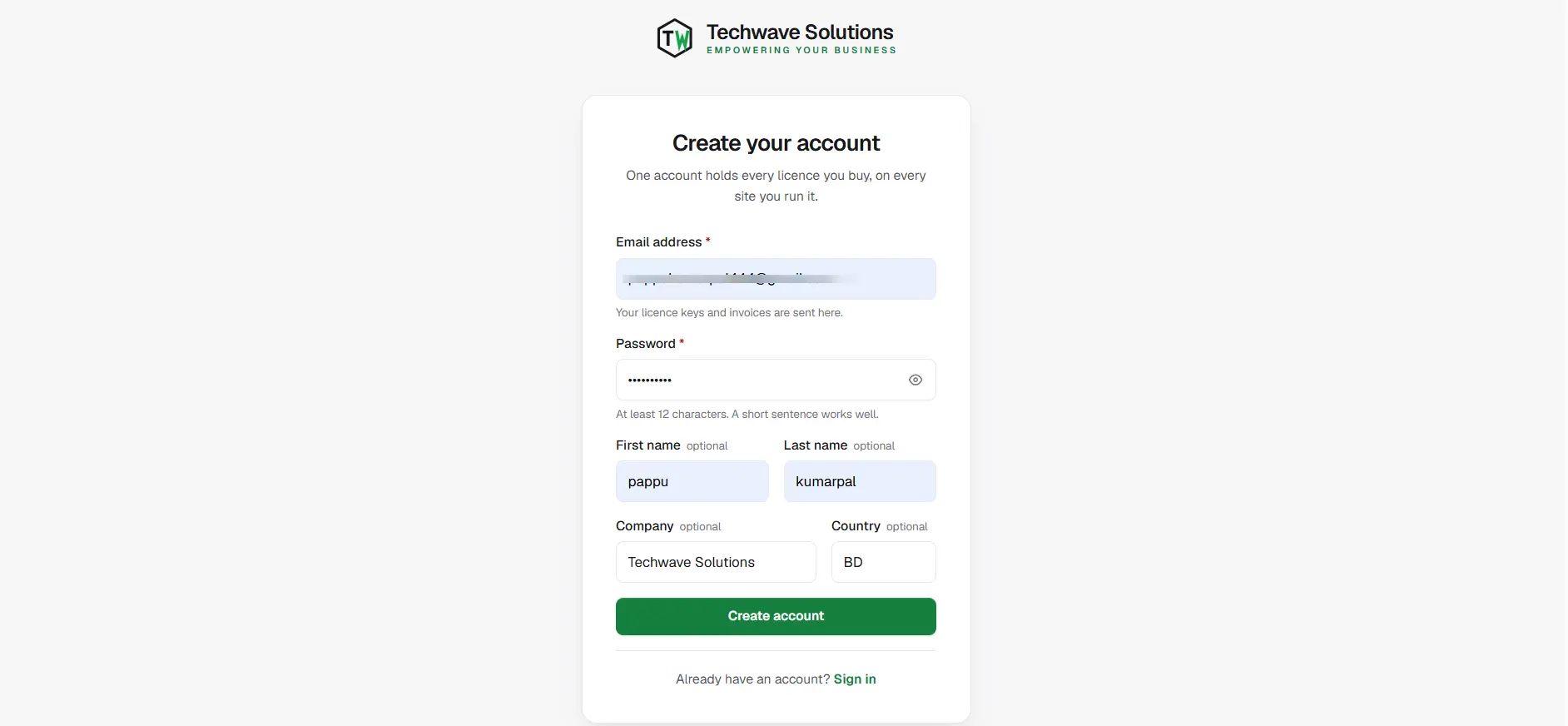
Filling in the sign-up form. Use an address you readYour license keys, invoices and password-reset links are all sent to this email address.
Step 3: Verify your email address
Your inbox › Verification emailYou’ll see a Check your email page. Open the email we sent and click the verification link. The link works once and is valid for 24 hours. When it opens, the portal confirms “Your email address is verified. You can sign in now.”
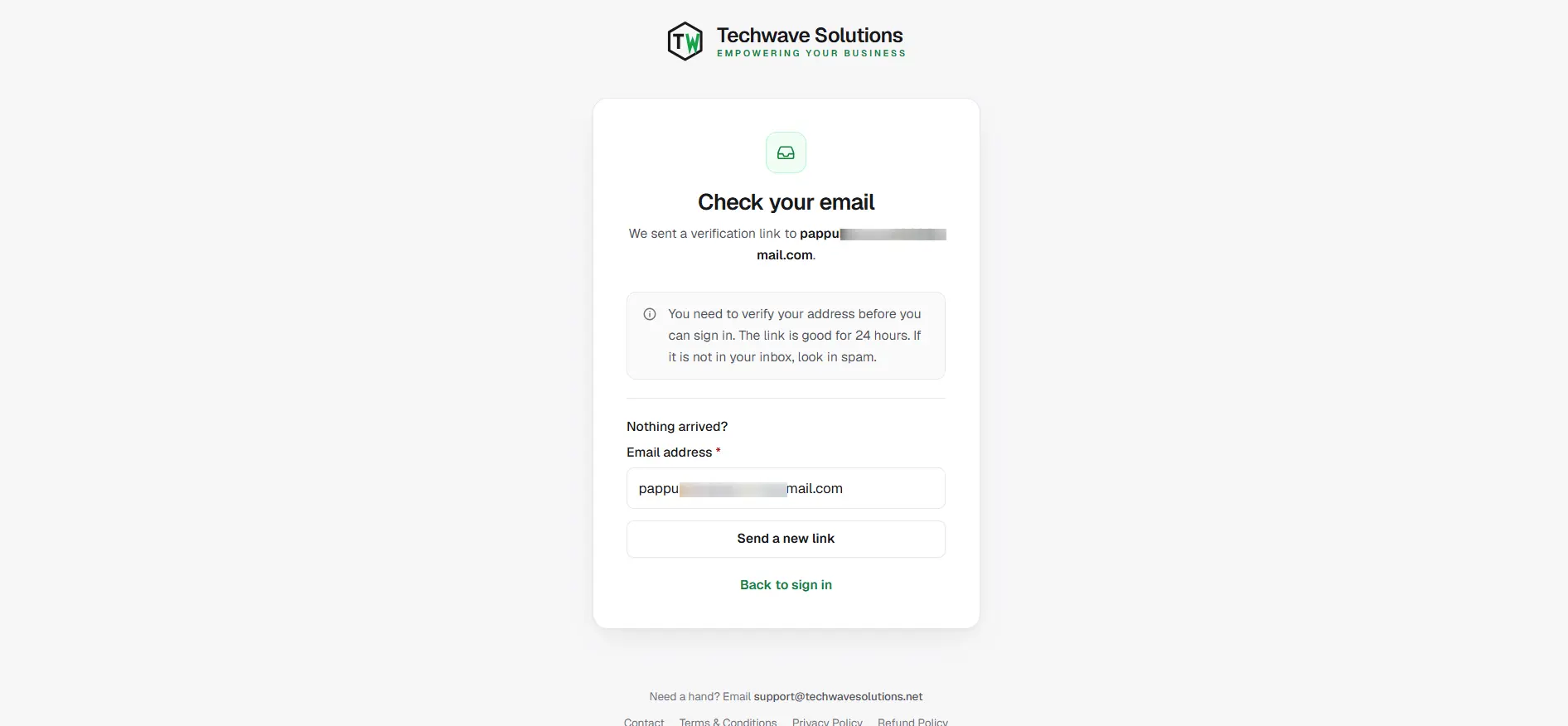
The portal asks you to confirm your email address. No email?Check your spam or promotions folder first. Still nothing? On the same page, under Nothing arrived?, enter your address and click Send a new link. You can’t sign in until your address is verified.
Step 4: Sign in
Customer portal › Sign inEnter your Email address and Password and click Sign in. If you have turned on two-factor authentication, enter the six-digit code from your authenticator app and click Verify and sign in. You arrive on your Overview page.
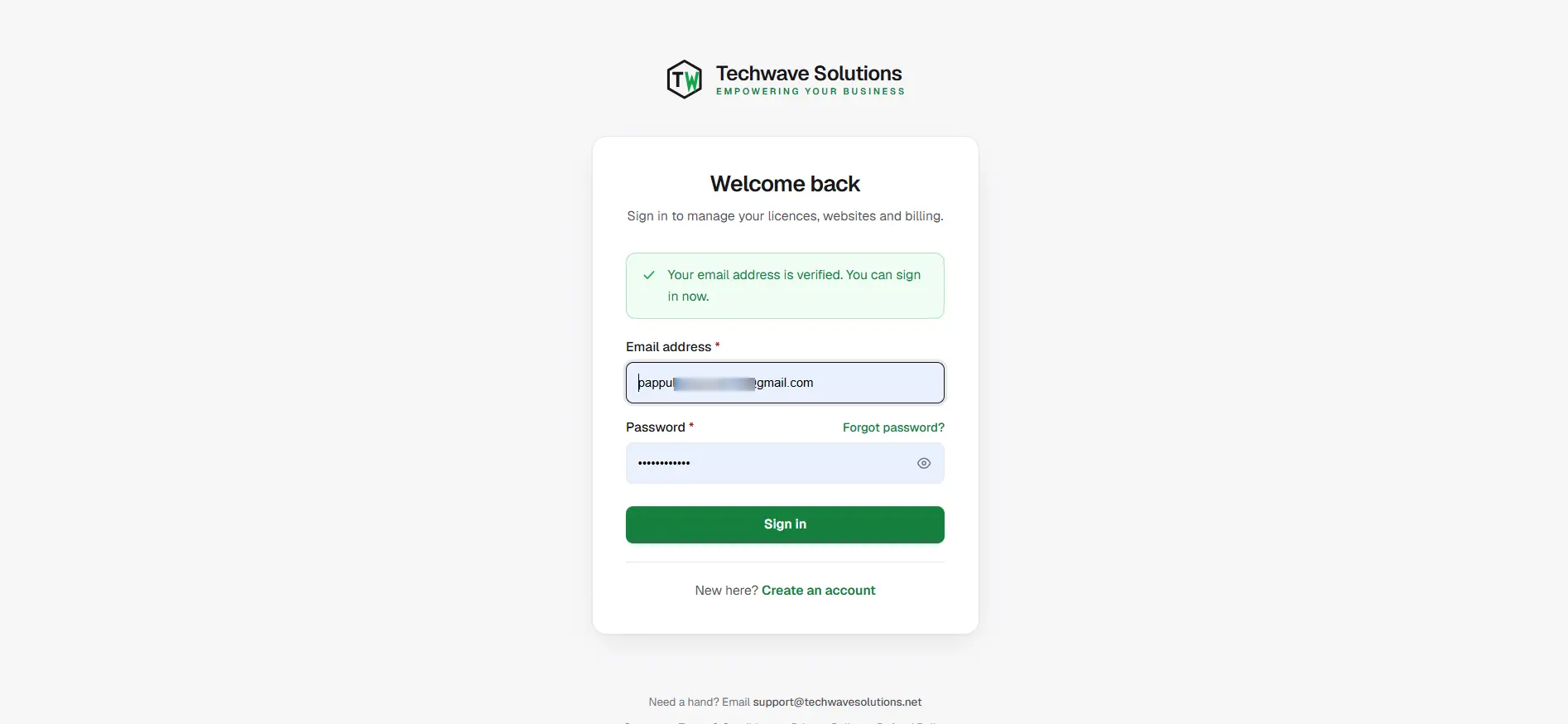
Signing in to the customer portal. Forgot your password? Click Forgot password? next to the password field. We’ll email you a reset link that is valid for one hour.
Buy FormBridge for Zoho Pro
Payments are processed by Paddle, our payment provider and merchant of record. Paddle handles the card or PayPal payment and any sales tax or VAT, and sends your receipt. Your card details never reach our servers.
Step 1: Open Buy a licence
Customer portal › Billing › Buy a licenceIn the left-hand menu, under Billing, click Buy a licence. Find FormBridge for Zoho Pro and click View plans.
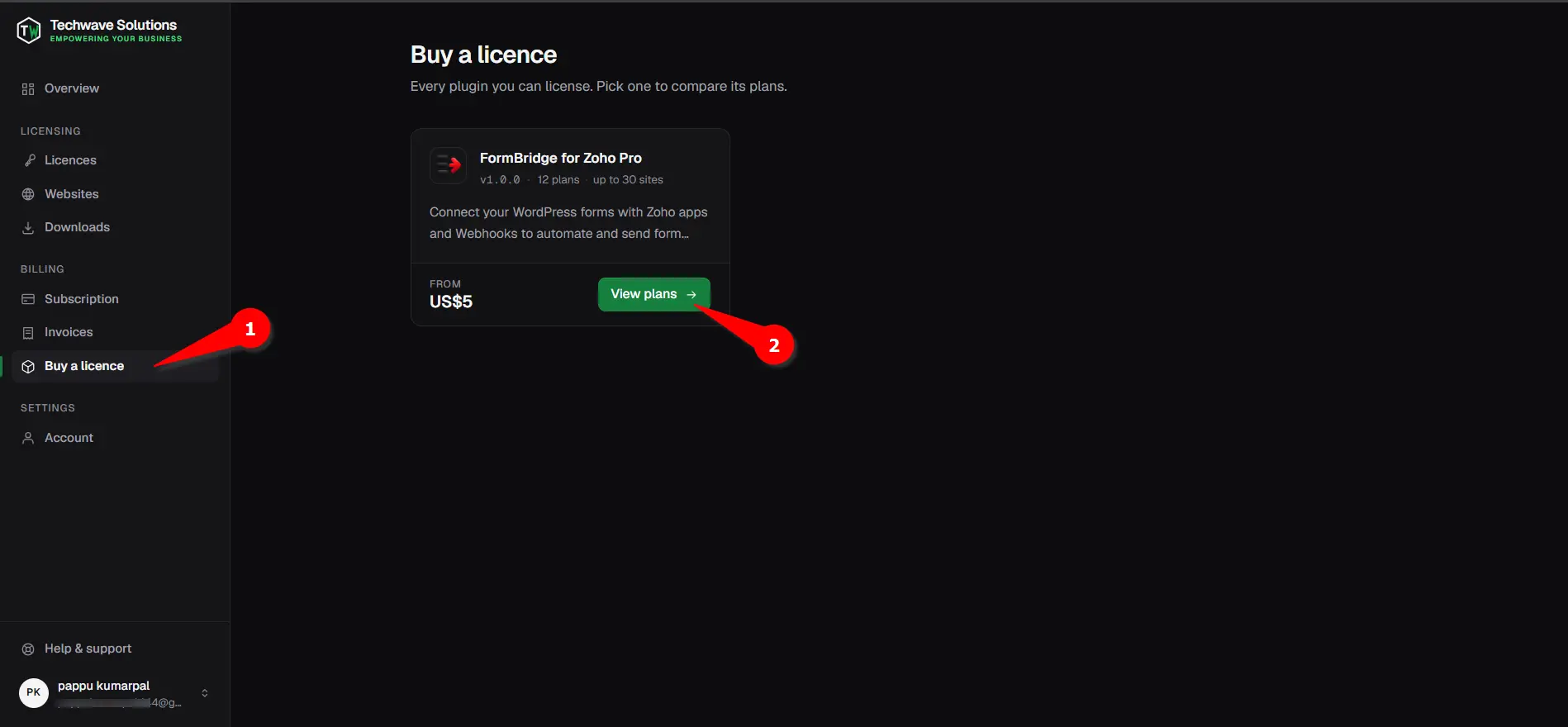
Choosing FormBridge for Zoho Pro. Step 2: Compare the plans
Buy a licence › FormBridge for Zoho ProEach plan card shows the price, how often it’s billed and how many websites it covers. The plan that costs least per website is marked Lowest cost per site.
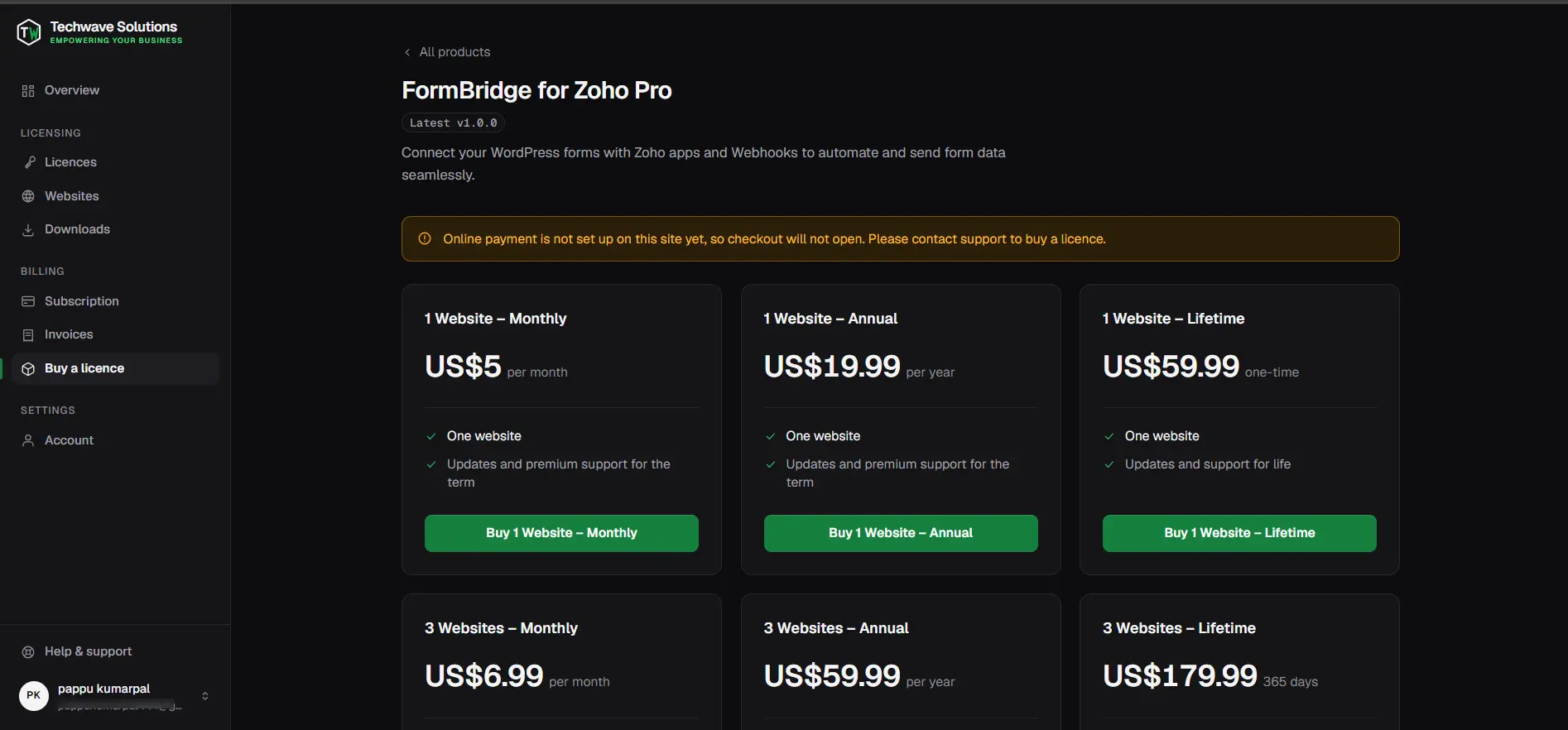
Comparing the Pro plans. Plan type How you pay Updates and premium support Monthly Every month, renews automatically While the subscription is active Annual Every year, renews automatically While the subscription is active Lifetime Once For life How many websites do you need?Each website you activate the license on uses one seat, including staging and development copies. Count every site, or start small and upgrade later; an upgrade applies straight away.
Step 3: Apply a coupon (optional)
FormBridge for Zoho Pro › Have a coupon code?If you have a discount code, click Have a coupon code? above the plans. Enter the code and click Apply. The plan prices update to show the discounted price next to the original.
Screenshot 07 — a coupon applied to the plan pricesThe discounted prices after applying a coupon. Step 4: Click Buy and pay
Plan card › Buy › Paddle checkoutOn the plan you want, click Buy (for example Buy 1 Website – Annual). Paddle’s secure checkout opens over the page. Confirm your email and country, choose a payment method such as Card or PayPal, enter your payment details and complete the payment.
Screenshot 08 — the Paddle checkout windowPaying in Paddle’s secure checkout. Tax is added by countryDepending on your country, Paddle adds sales tax or VAT at checkout. The total you see in the checkout is the amount you pay.
Step 5: Payment received
Customer portal › LicencesAfter the payment, you are taken to the Licences page with the message Payment received — thank you. Your new license key appears within a few seconds and is emailed to you. Paddle also emails your receipt.
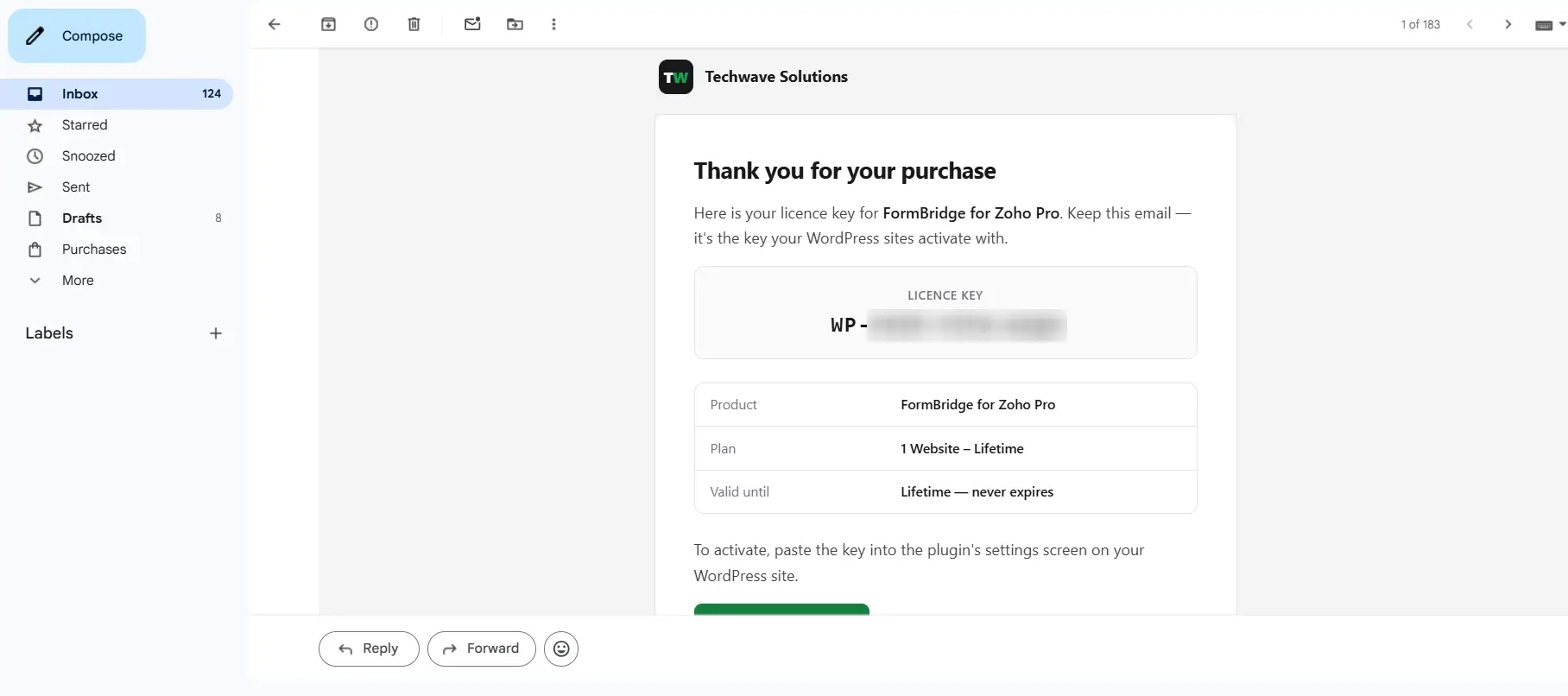
Your new license, right after payment.
Get your license key and the Pro plugin
Everything you need for your WordPress site, the key and the plugin file, is under Licensing in the left-hand menu.
Step 1: Copy your license key
Customer portal › Licensing › LicencesOpen Licences. Each license card shows the product, your plan, its status, Websites (how many of your seats are in use) and the expiry date. Click Copy next to the Licence key.
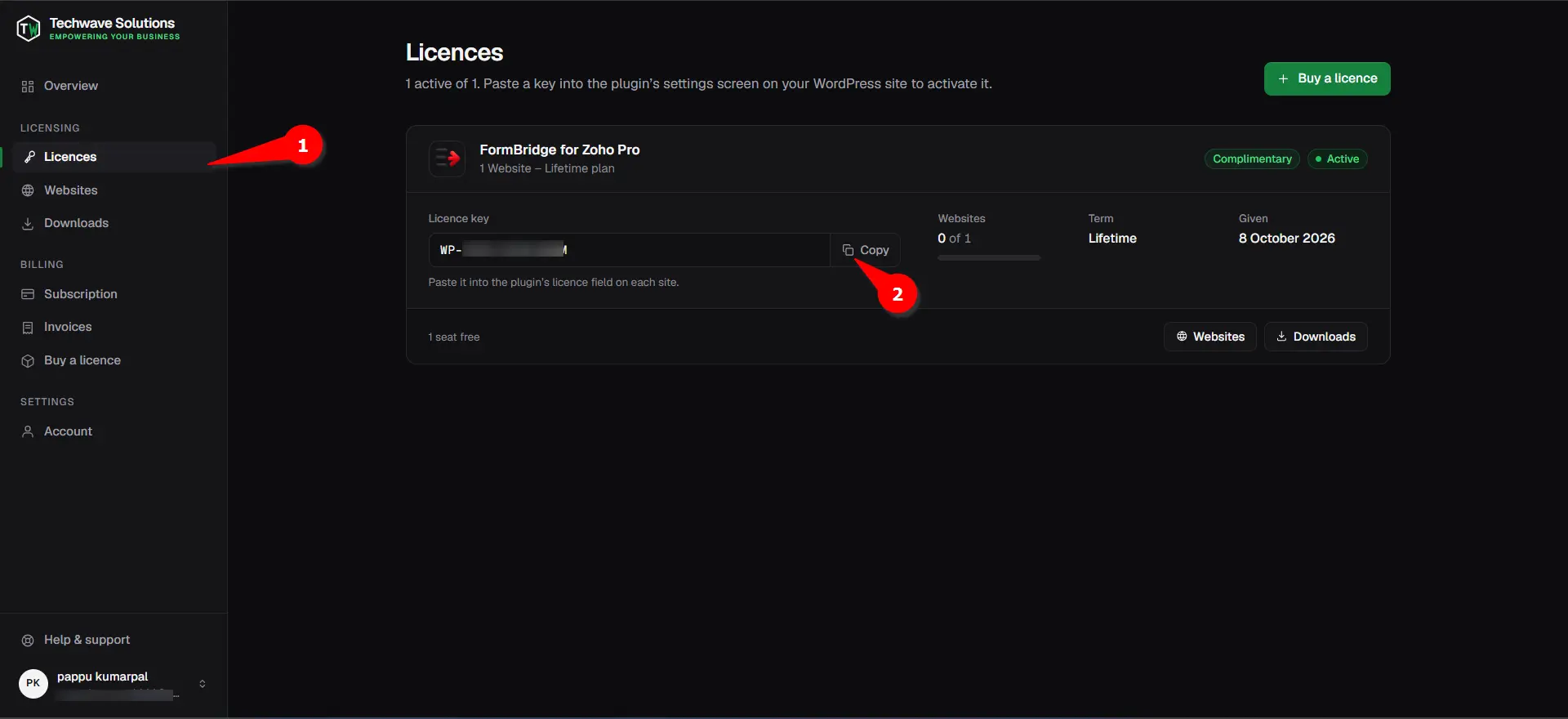
Copying your license key. Keep your key privateAnyone with your key can use your website seats. Don’t post it in public forums or share it outside your team.
Step 2: Download the Pro plugin
Customer portal › Licensing › DownloadsOpen Downloads and click Download v… next to the latest version of FormBridge for Zoho Pro. Keep the file zipped; WordPress installs the ZIP directly.
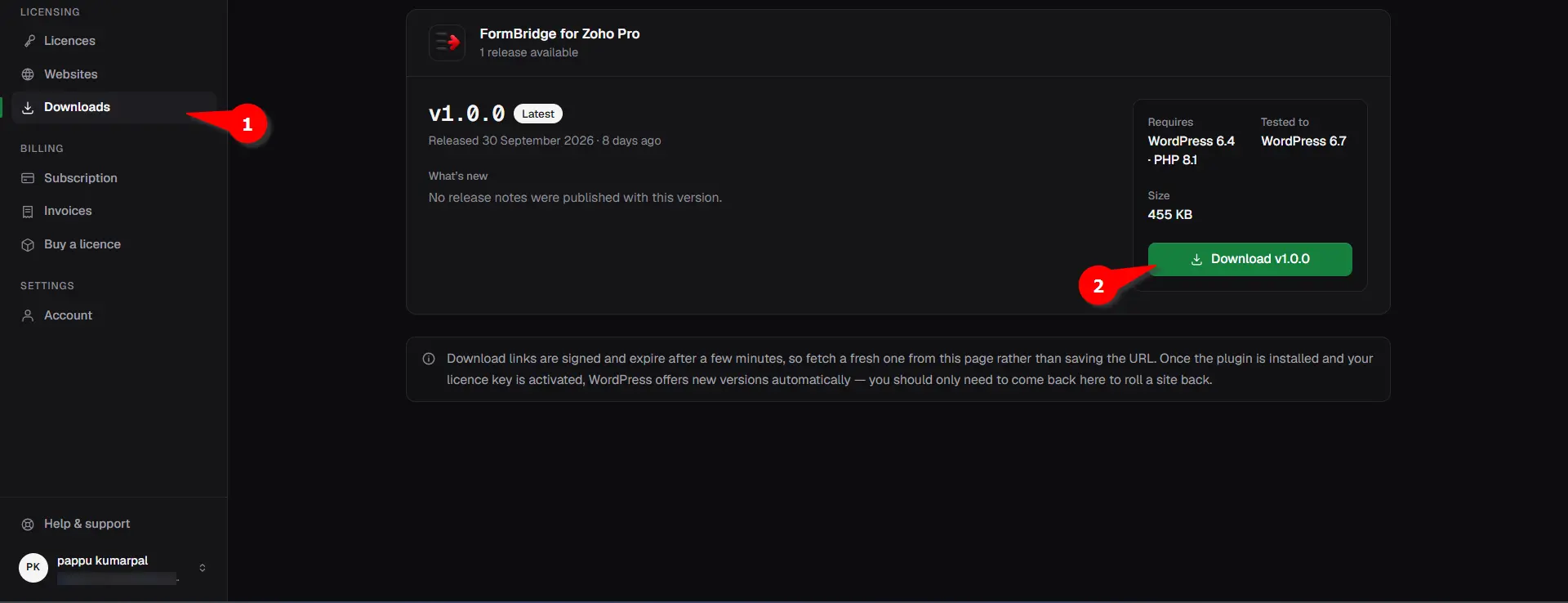
Downloading the FormBridge for Zoho Pro ZIP file. Download links expireEach download link works for a few minutes only, so download from this page rather than saving the link. Once Pro is installed and activated, WordPress offers new versions automatically.
Step 3: Install Pro and activate the license
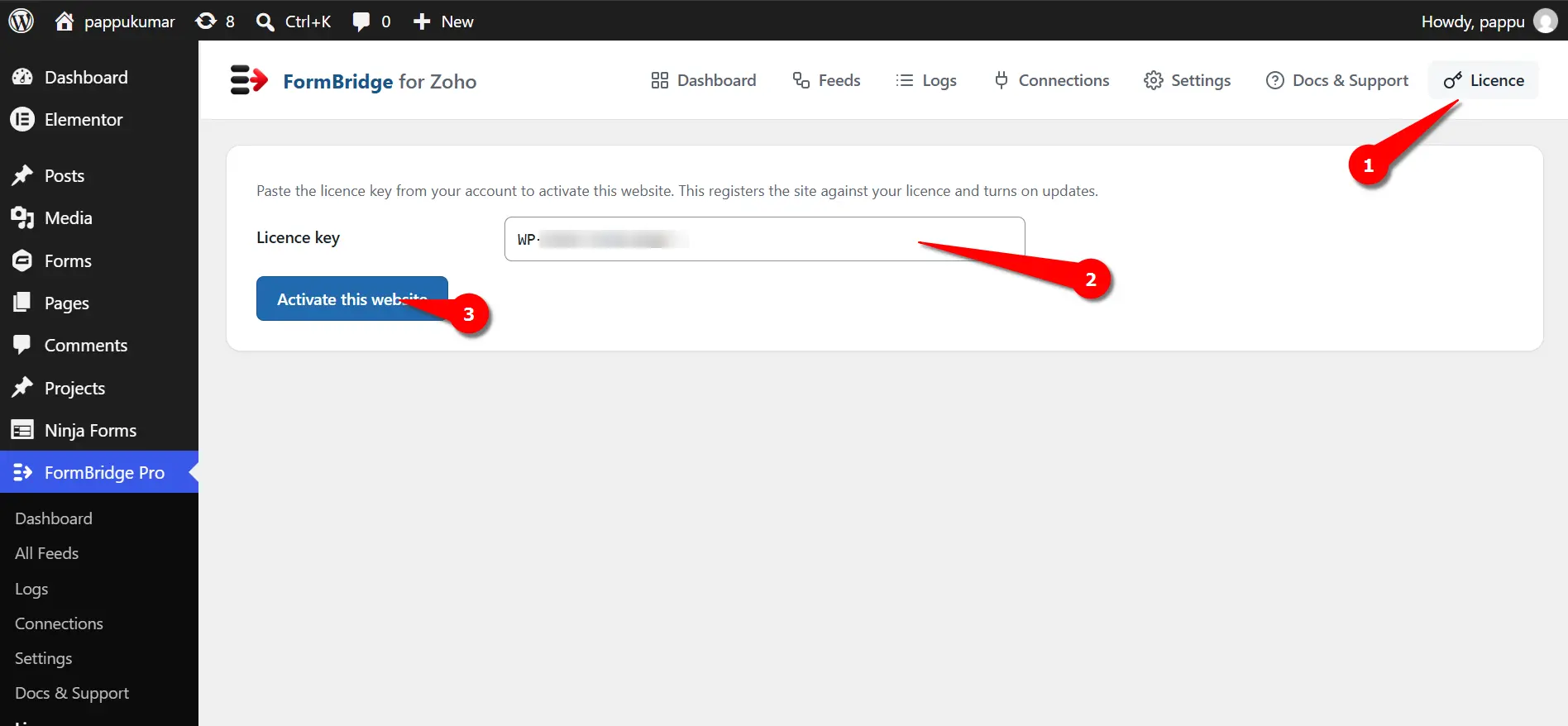
WordPress › FormBridge for Zoho › LicenseUpload the ZIP in WordPress under Plugins → Add New Plugin → Upload Plugin and activate it. Then go to FormBridge for Zoho → License, paste your key into the License Key field and click Activate.
The installation guide covers this step by step: Install FormBridge for Zoho Pro and Activate your license.
Install the free plugin firstPro is an add-on to the free FormBridge for Zoho plugin from WordPress.org. Keep both installed and active.
Manage your license and subscription
Everything after the purchase is self-service in the customer portal.
| I want to… | Where to go |
|---|---|
| See which websites use my license | Websites |
| Move the license to a new website | Websites › Free seat on the old site, then activate the key on the new one |
| Cover more websites | Subscription › Change plan › Upgrade |
| Switch to a smaller plan | Subscription › Change plan › Downgrade |
| Update my card | Subscription › Change payment method |
| Stop renewing | Subscription › Cancel subscription |
| Download an invoice | Invoices › PDF, or open the invoice and click Email me a copy |
| Renew an expired license | Licences › Buy a new licence |
Moving to a new website
Deactivating the license inside the plugin releases its seat by itself. If the old site is already gone, open Websites, click Free seat next to it and confirm with Yes, free the seat. The seat is free straight away, ready for the new site.
Upgrading or downgrading
Under Subscription, Change plan lists the other plans with the same billing period. An upgrade applies straight away, and you pay only the difference for the rest of the current period. A downgrade applies at your next renewal; you keep your current plan until then. Your license key never changes.
Cancelling
Click Cancel subscription and confirm with Yes, cancel it. Your license stays active until the end of the period you’ve paid for, and nothing more is charged. Changed your mind? Click Keep my subscription before that date.
If your license expires or is cancelled, FormBridge for Zoho Pro keeps working on your websites. Only plugin updates and premium support stop until you renew.
Troubleshooting
No verification email
- Why
- The email was filtered as spam, or the link has expired after 24 hours.
- Fix
- Check your spam folder. Otherwise, try to sign in and click Send me a new verification link, or use Send a new link on the Check your email page.
Checkout doesn’t open
- Why
- An ad blocker or privacy extension is blocking
paddle.com, which runs the payment window. - Fix
- Allow
paddle.comin your blocker, or use a private window with extensions off, and click Buy again.
No key after paying
- Why
- The license is issued as soon as Paddle confirms the payment, which usually takes a few seconds.
- Fix
- Wait a moment and refresh Licences, and check your inbox. If it still isn’t there after a few minutes, email us with your Paddle receipt.
Every seat is in use
- Why
- Your plan’s website limit is reached, so a new site can’t be activated.
- Fix
- Free a seat under Websites, or upgrade to a plan with more websites under Subscription › Change plan.
My payment failed
- Why
- Usually a card that has expired or been replaced. Your sites keep working while Paddle retries over the next few days.
- Fix
- Open Subscription and click Update payment method.
Still stuck? Email support@techwavesolutions.net and include the email address on your account.
Frequently asked questions
Do I need the free plugin as well?
Yes. Pro is an add-on to the free FormBridge for Zoho plugin from WordPress.org. Install and keep both active.
Can I use one license on several websites?
Yes, up to the number of websites in your plan. Each website uses one seat. Upgrade any time to cover more sites.
Does the license key change when I renew or upgrade?
No. The same key keeps working through renewals, upgrades and downgrades, so you never have to re-enter it on your sites.
Where do I find my invoices?
Under Billing › Invoices in the customer portal. Click PDF to download one, or open an invoice and click Email me a copy. Need a VAT number or a different billing name on an invoice? Email support.
What happens when my license expires?
Your sites keep working with Pro. Updates and premium support stop until you renew from the Licences page.
- Next: Install and activateInstall Pro and activate your license in WordPress.
- Then: Connect ZohoCreate your first Zoho connection.
- Customer portalLicences, downloads, subscription and invoices.
