
Installation, Activate and Update of FormBridge for Zoho
To install FormBridge for Zoho, add the free plugin from Plugins → Add New Plugin in WordPress. For Pro features, you then upload the FormBridge for Zoho Pro ZIP file and activate your license key.
FormBridge for Zoho sends WordPress form submissions to Zoho CRM, Bigin, Books, Desk, Campaigns and Marketing Automation. This guide covers installing the free plugin, buying and installing Pro, activating your license and keeping both plugins updated.
Install the free FormBridge for Zoho plugin
The free plugin comes from the WordPress plugin directory, so you install it without leaving your dashboard.
Step 1: Open the WordPress plugins menu
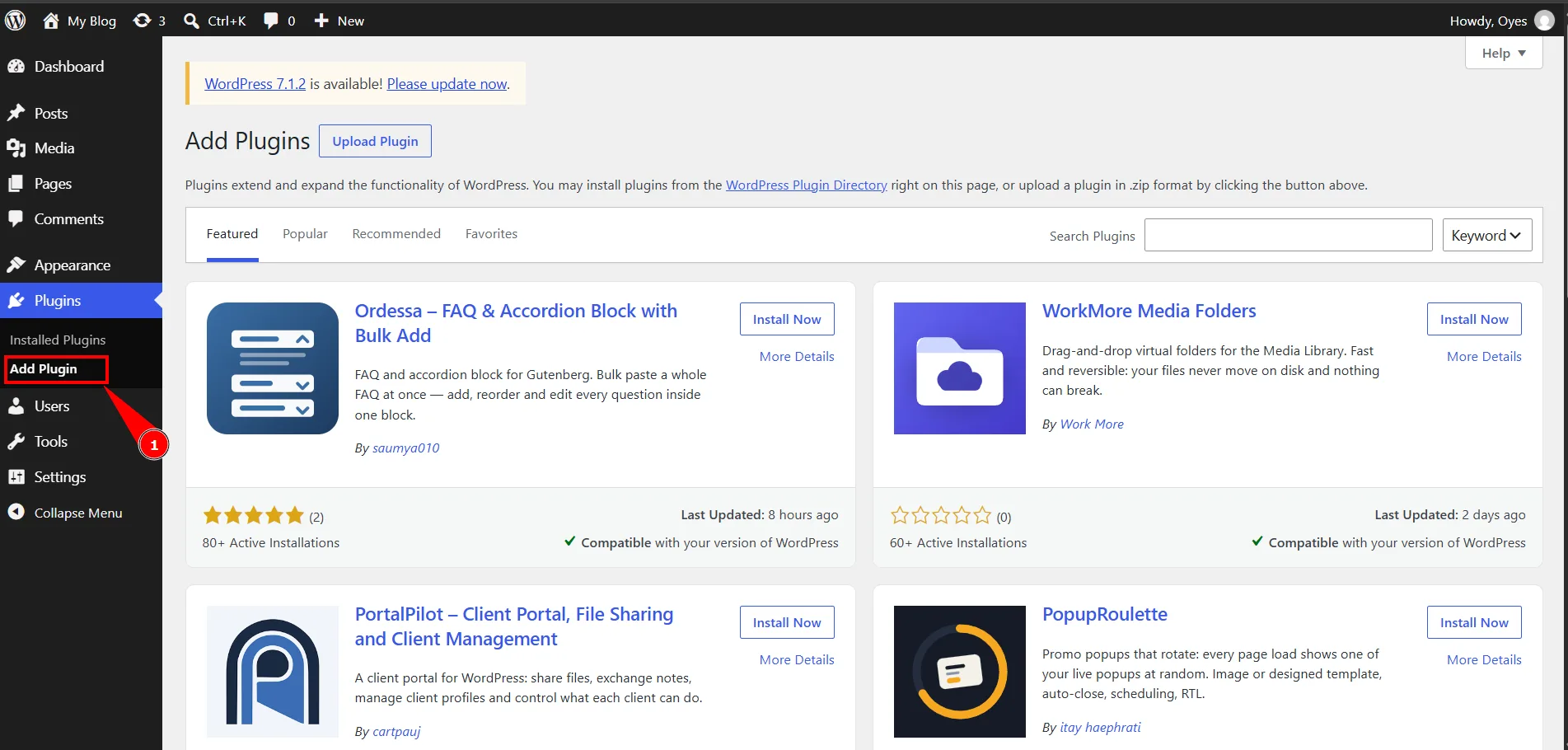
WordPress › Plugins › Add New PluginLog in to your WordPress Dashboard. From the left-side menu, go to Plugins → Add New Plugin.
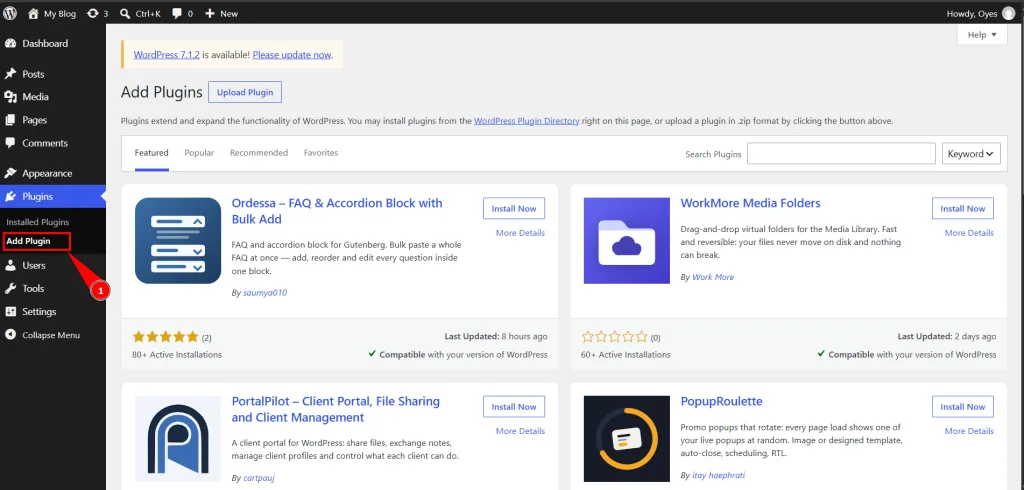
Open Plugins → Add New Plugin. Step 2: Search, install and activate FormBridge for Zoho
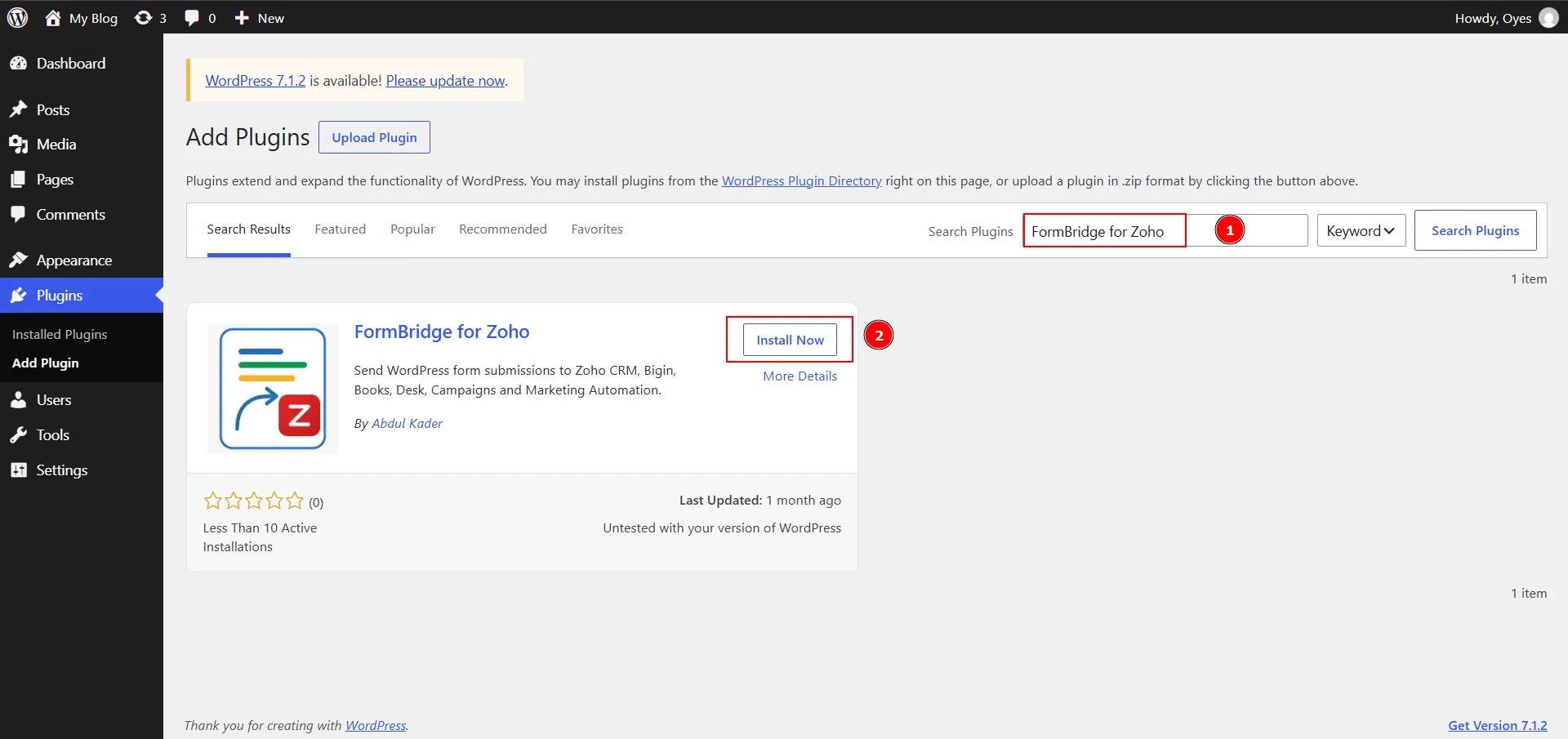
Add Plugins › Search PluginsIn the Search Plugins box, search for FormBridge for Zoho. When the plugin appears, click Install Now, then click Activate.
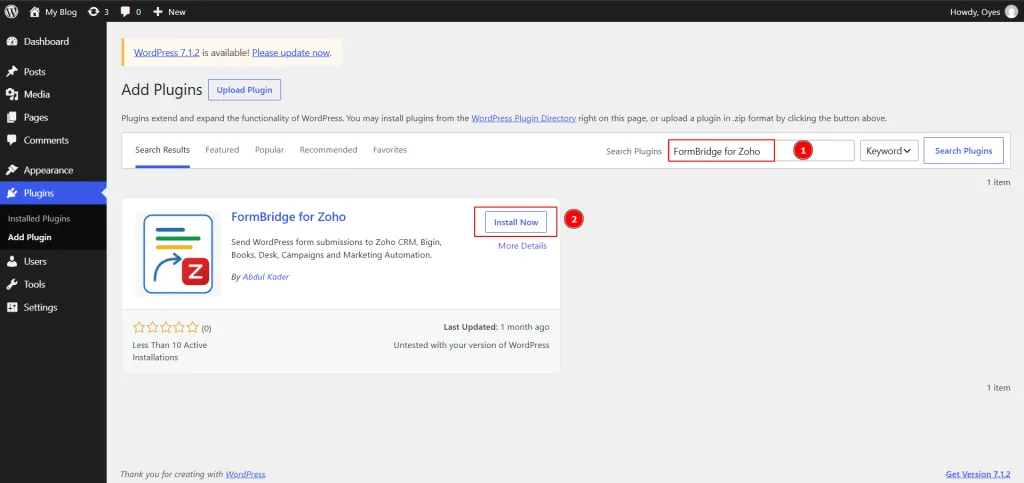
Search for FormBridge for Zoho, then install and activate it. Step 3: Confirm the plugin is active
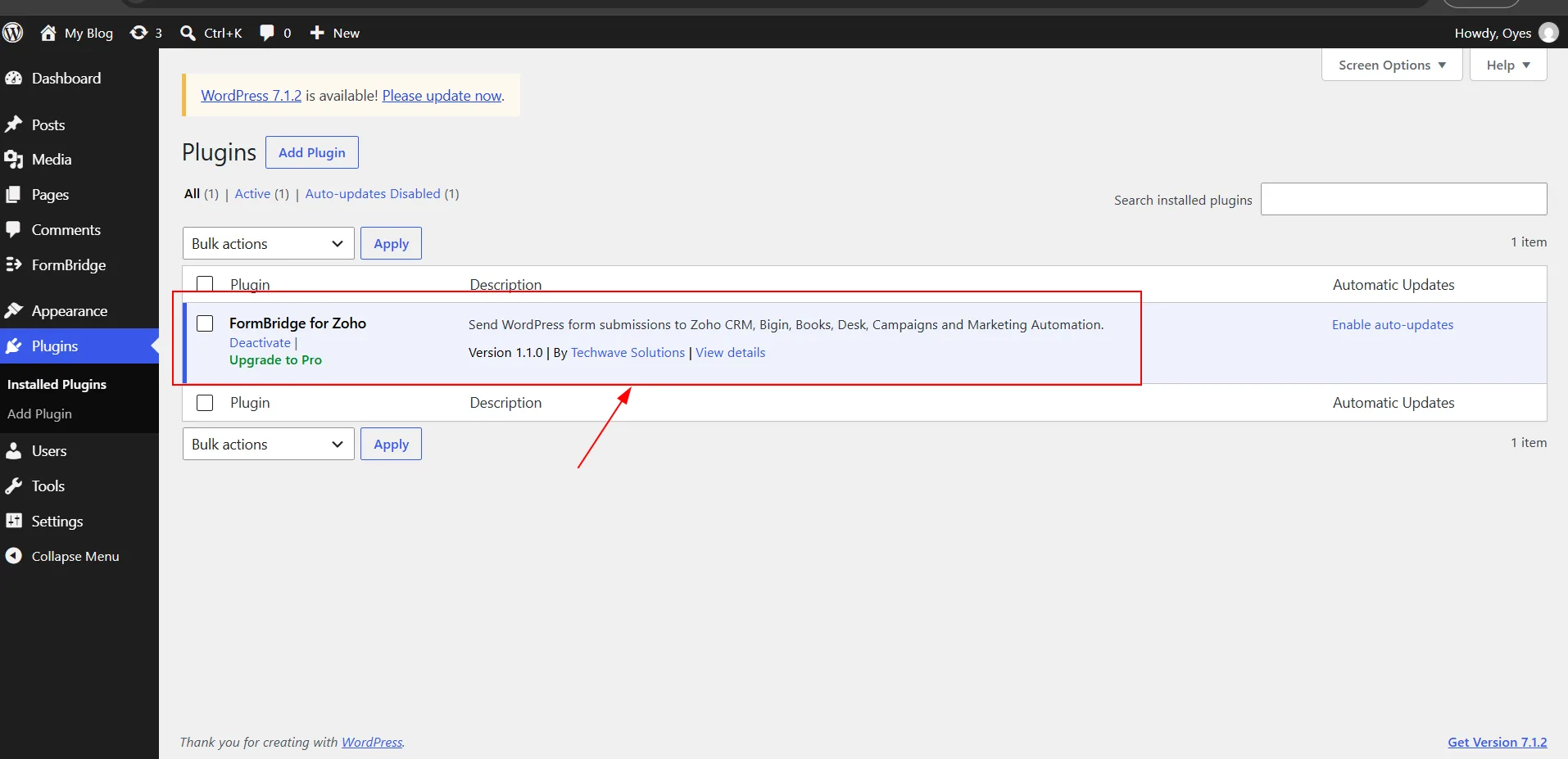
Plugins › Installed PluginsFormBridge for Zoho now appears in your installed plugins list, and a FormBridge entry appears in the dashboard menu. You can start creating feeds once you have a Zoho connection.
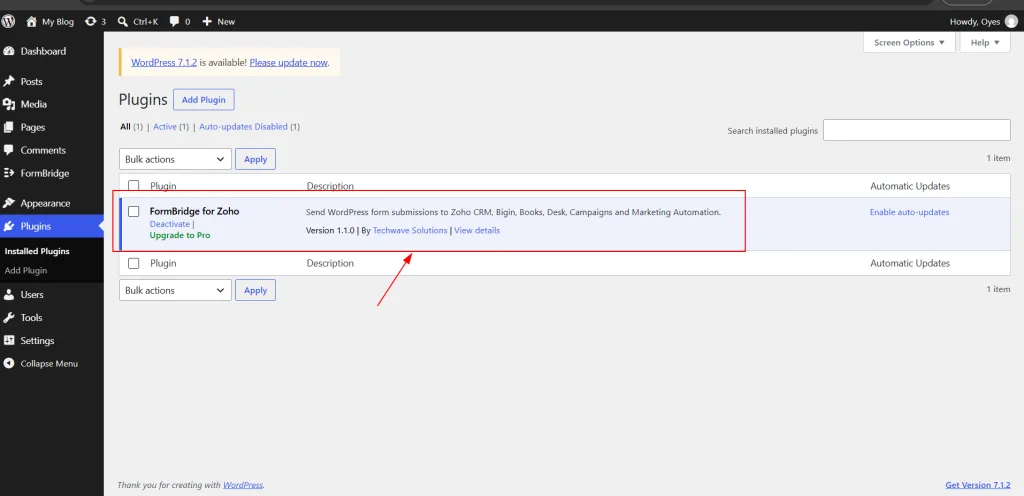
FormBridge for Zoho in the installed plugins list.
Buy and download FormBridge for Zoho Pro
Pro adds 17 record sources such as WooCommerce customers, bookings and memberships, an Action Hook trigger, a Webhook destination and conditional logic. Skip to updates if you only need the free plugin.
Step 1: Choose a Pro plan
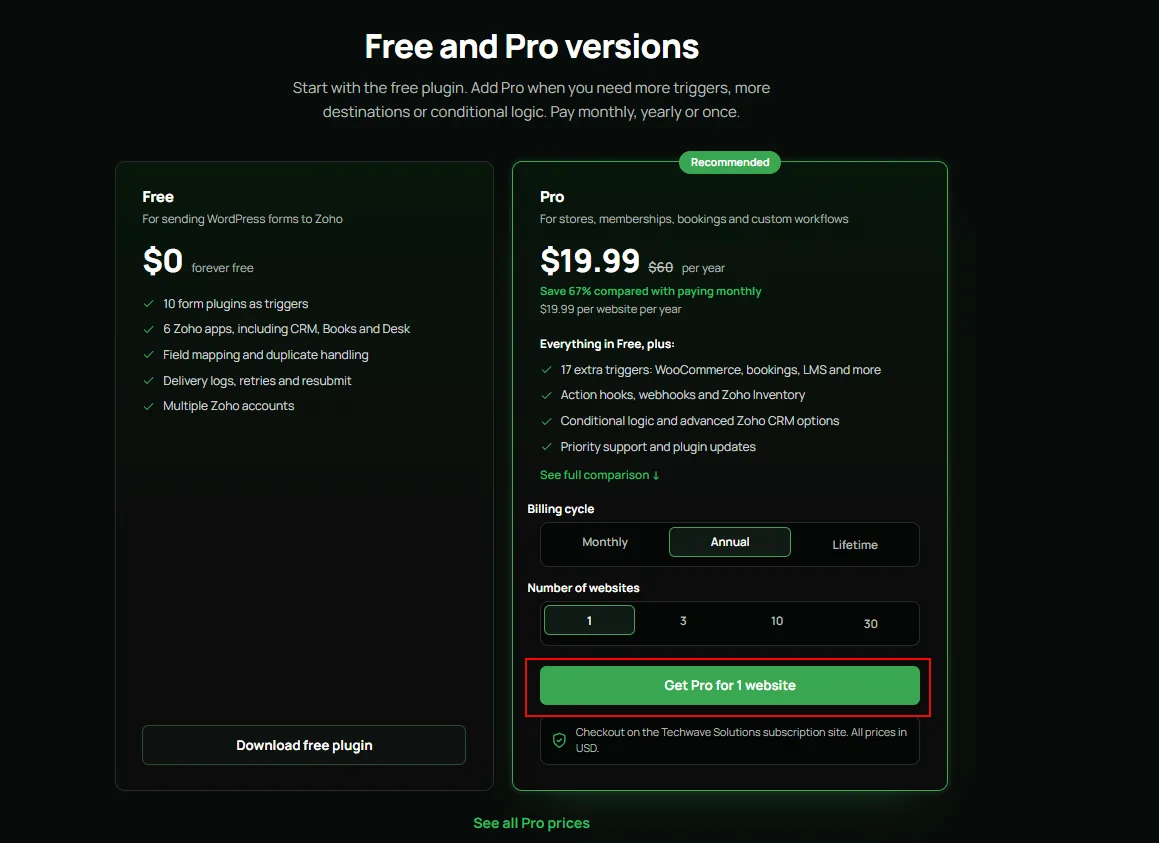
FormBridge for Zoho website › PricingGo to the FormBridge for Zoho website, scroll to the Pricing section, choose a plan and click Buy.
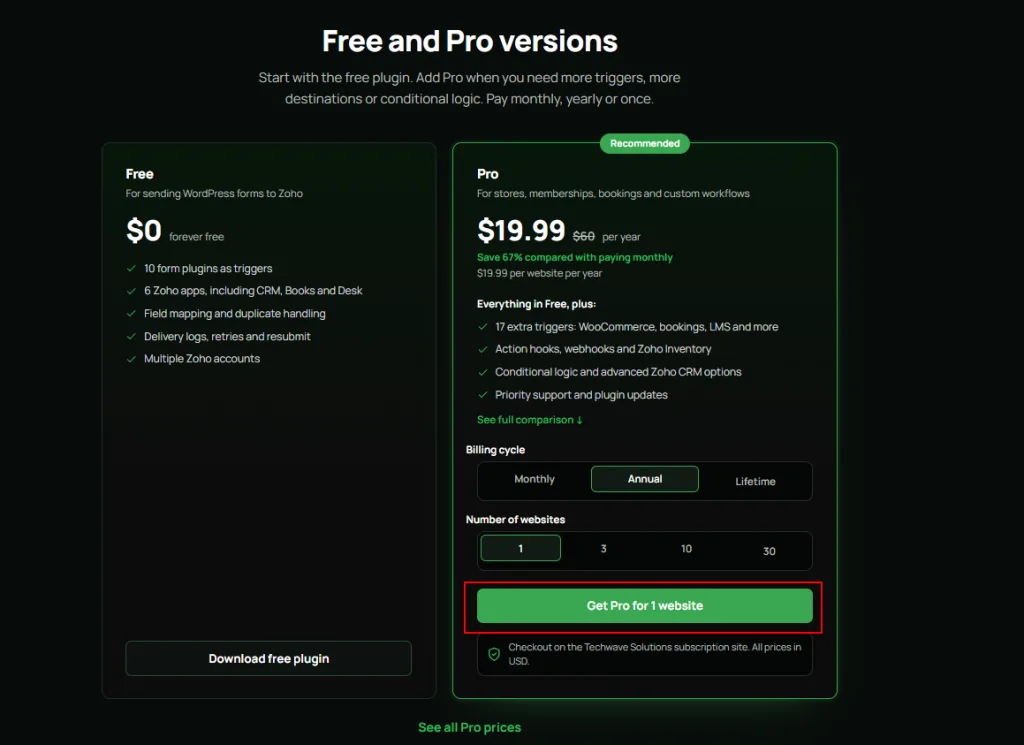
Choosing a plan in the Pricing section. Step 2: Log in or create an account
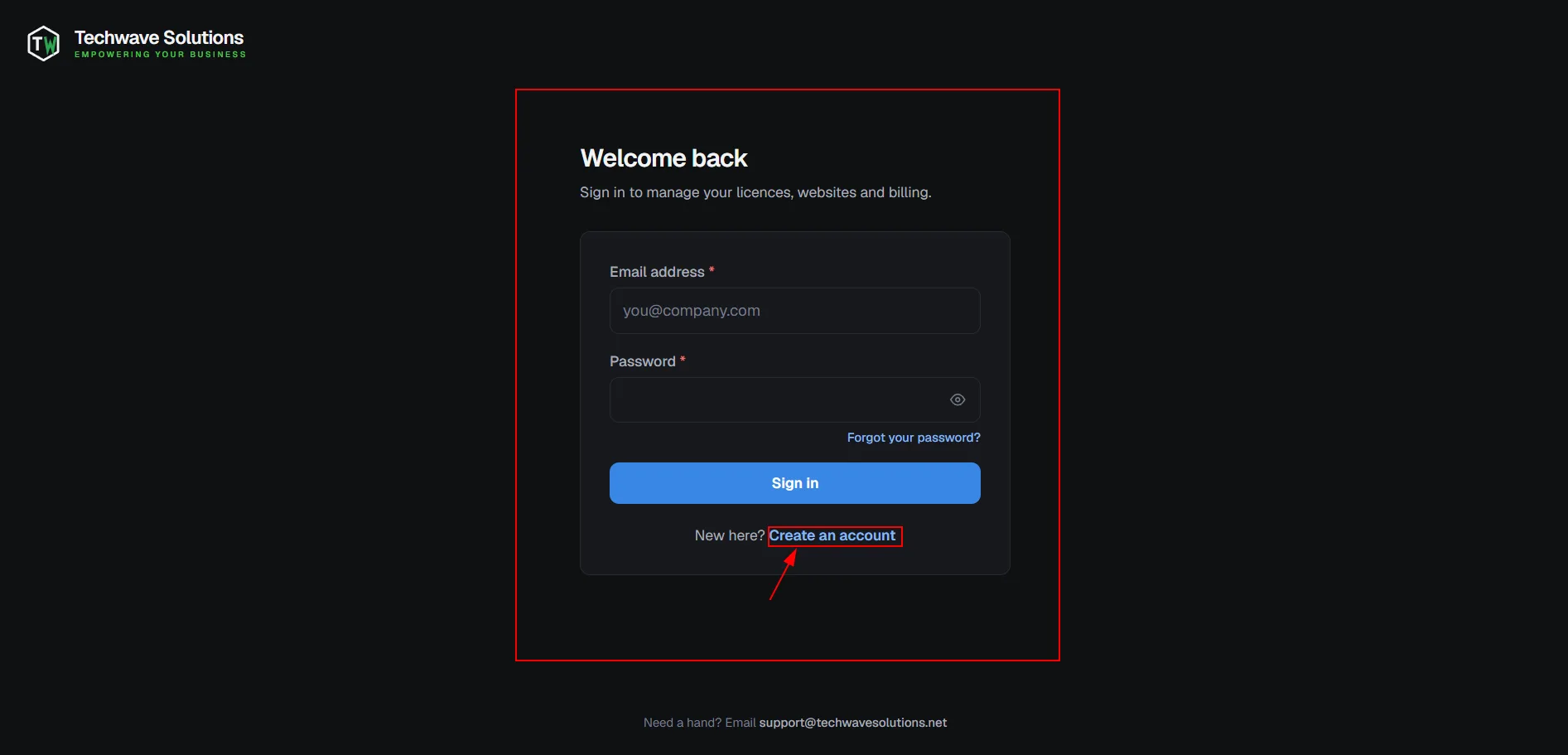
Subscription site › Log inYou are redirected to the subscription site. Log in with your email and password, or create a new account.
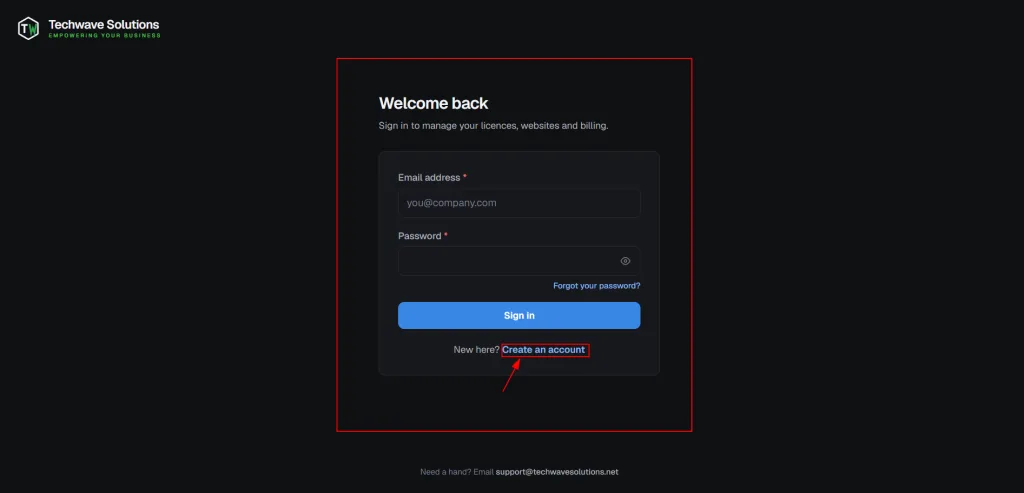
Logging in to, or creating, a subscription account. Step 3: Select FormBridge for Zoho Pro
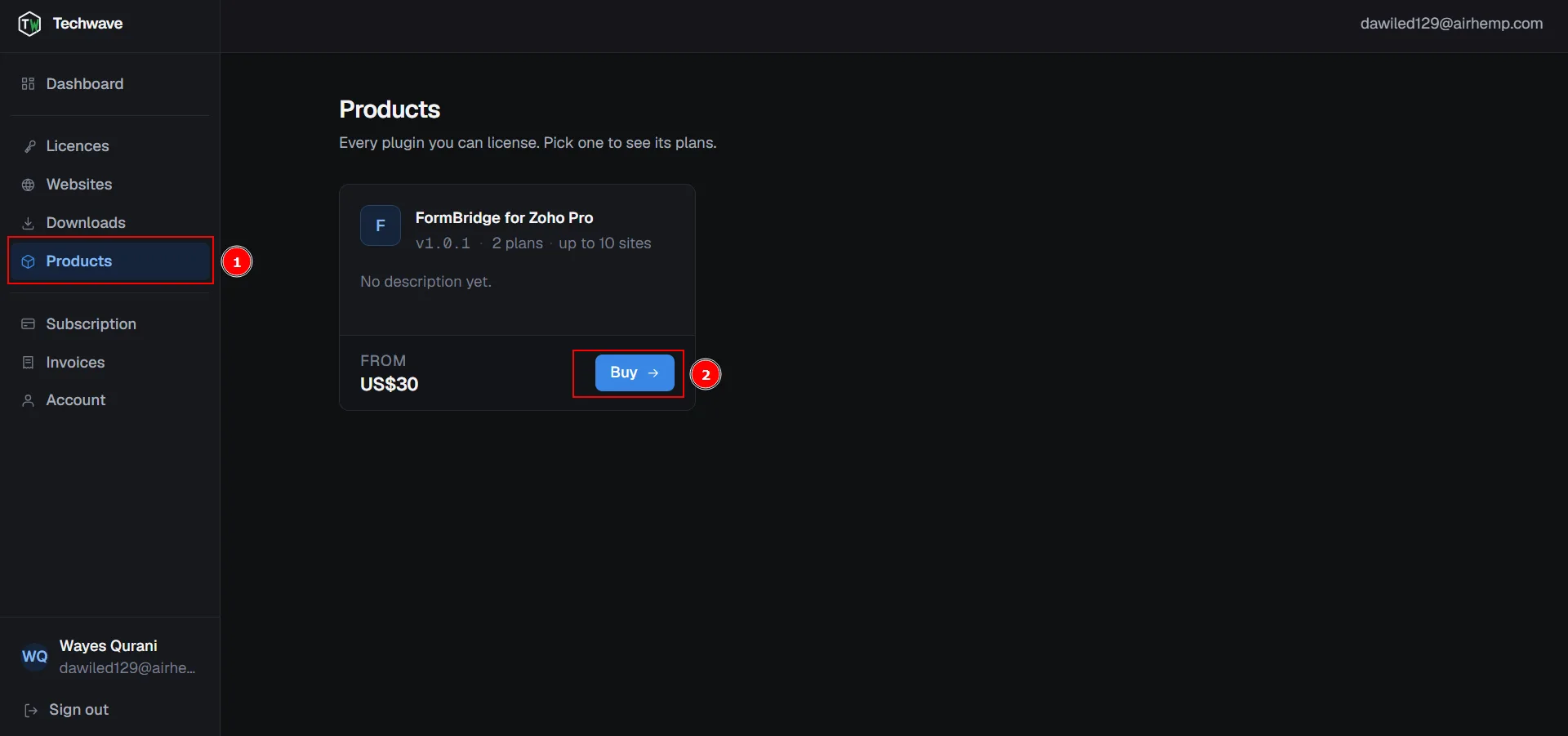
Subscription dashboard › ProductsIn the FormBridge for Zoho Subscription Dashboard, go to Products. Select FormBridge for Zoho Pro and click Buy.
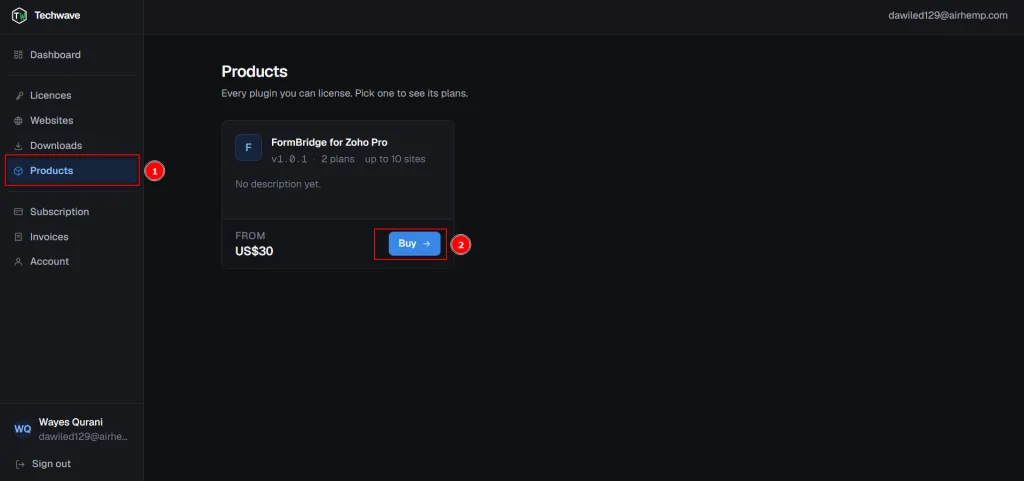
Selecting FormBridge for Zoho Pro under Products. Step 4: Choose your plan and click Buy Now
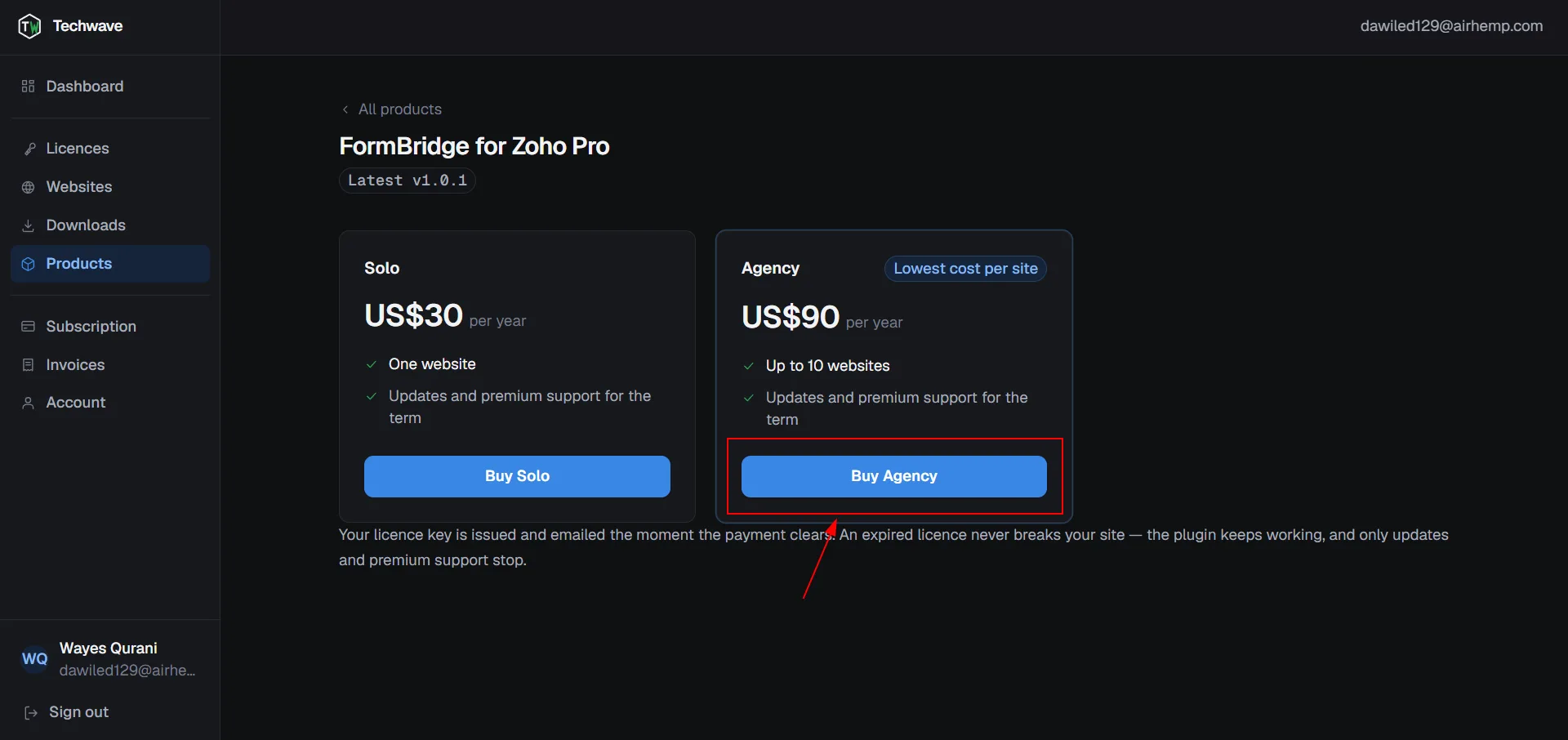
Products › FormBridge for Zoho ProPick your preferred plan and click Buy Now.
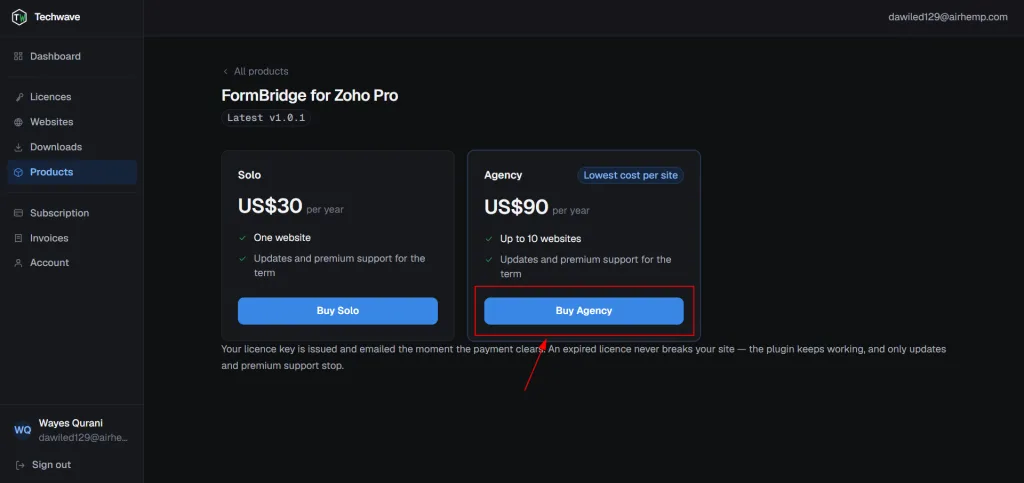
Choosing a plan and clicking Buy Now. Step 5: Review the plan details
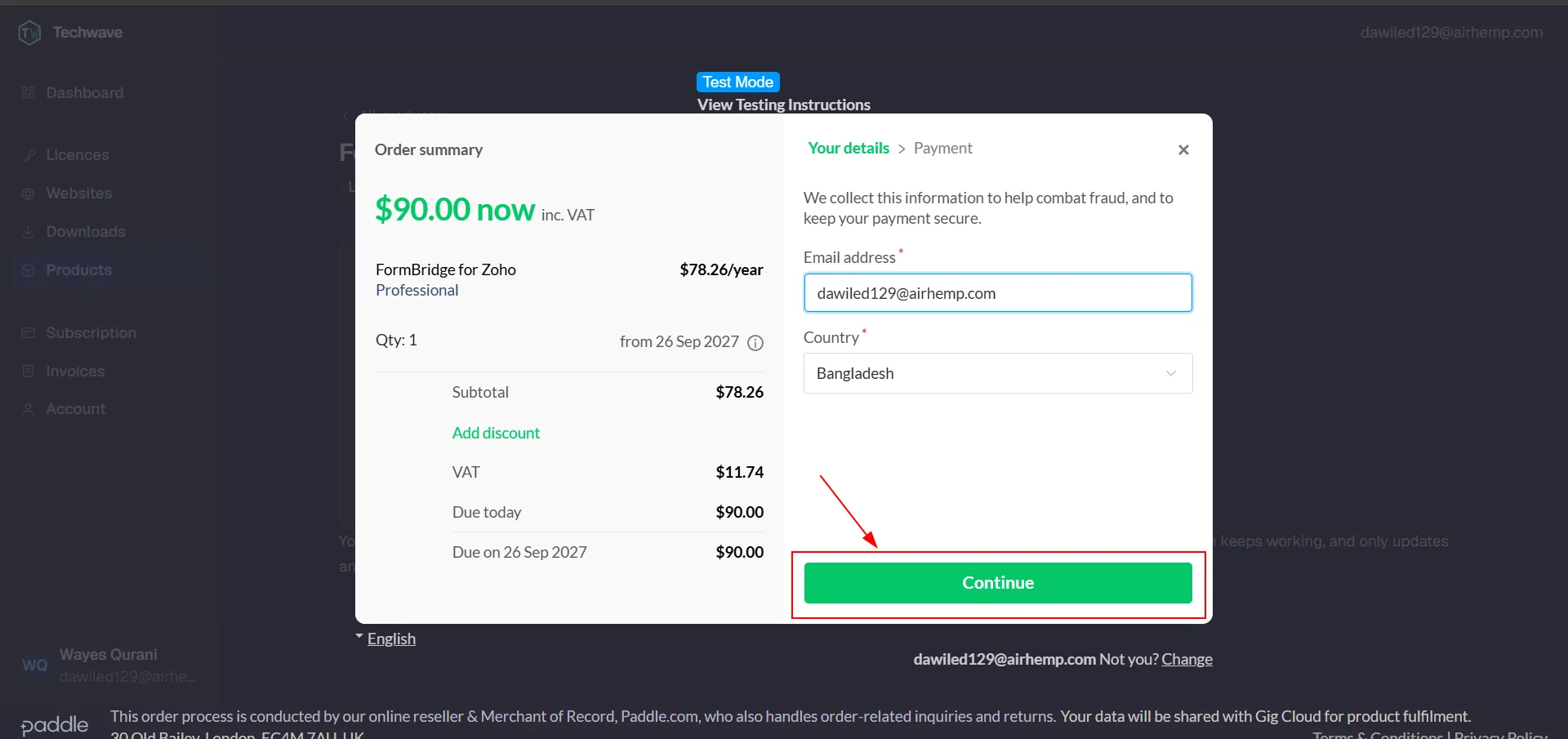
Checkout › Plan detailsThe payment page opens in a popup. Check the plan details and click Continue.
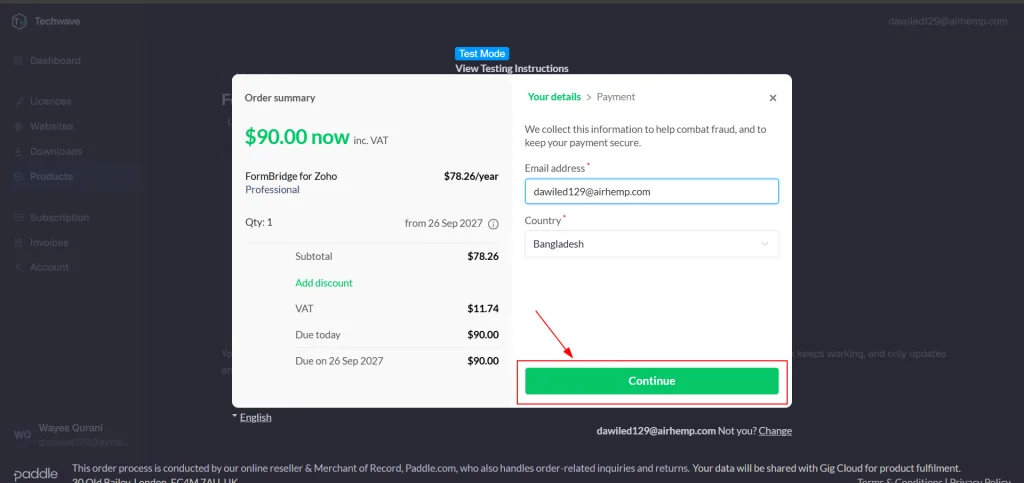
The payment popup with plan details. Step 6: Pay and subscribe
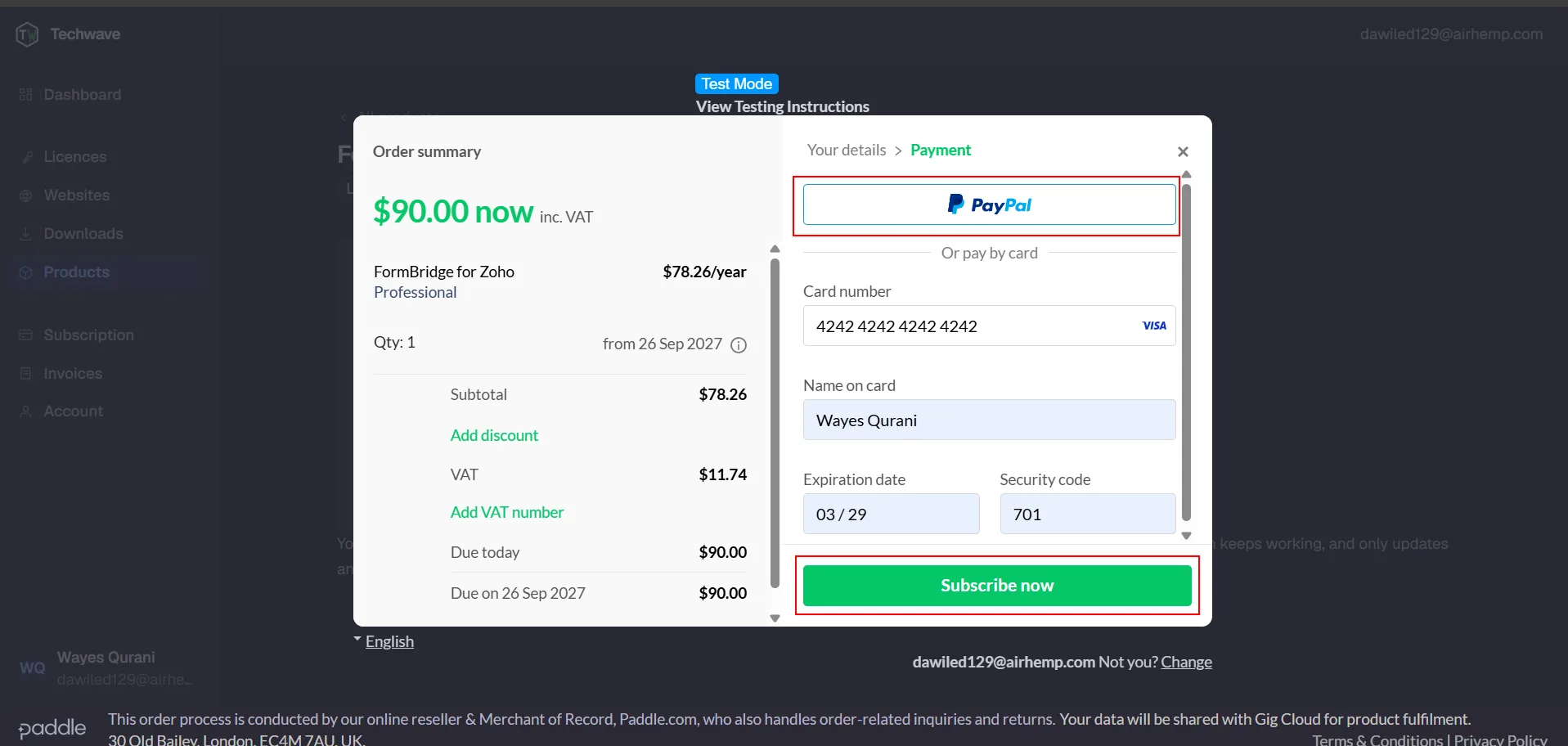
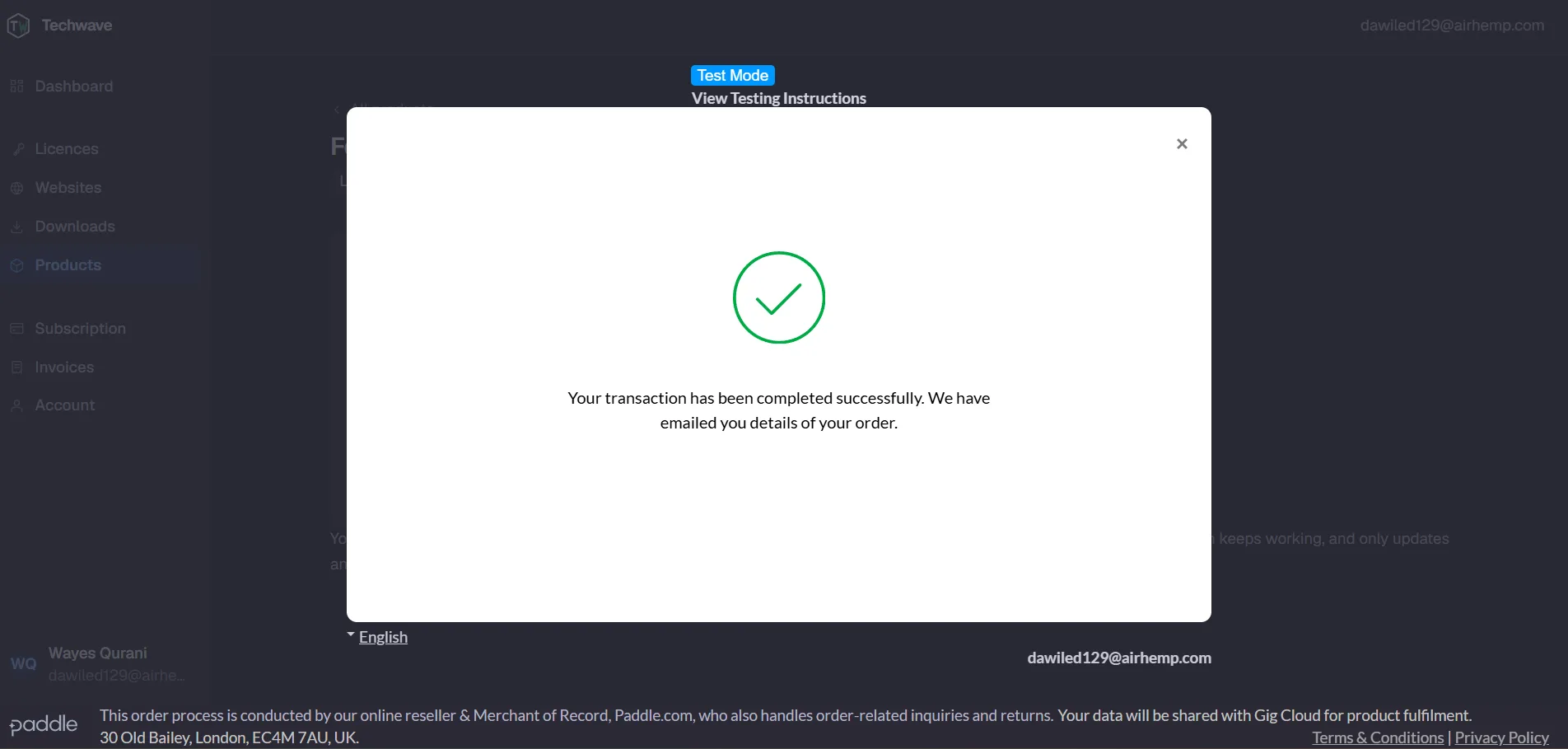
Checkout › PaymentChoose a payment method, such as Card or PayPal, enter your payment details and click Subscribe Now.
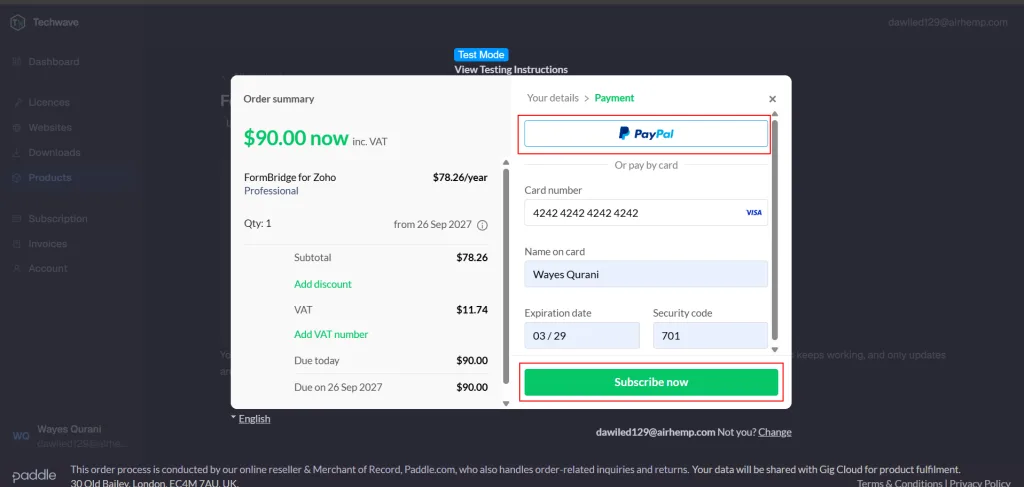
Choosing a payment method and subscribing. After a successful payment you’ll see a confirmation message. You can then close the payment window.
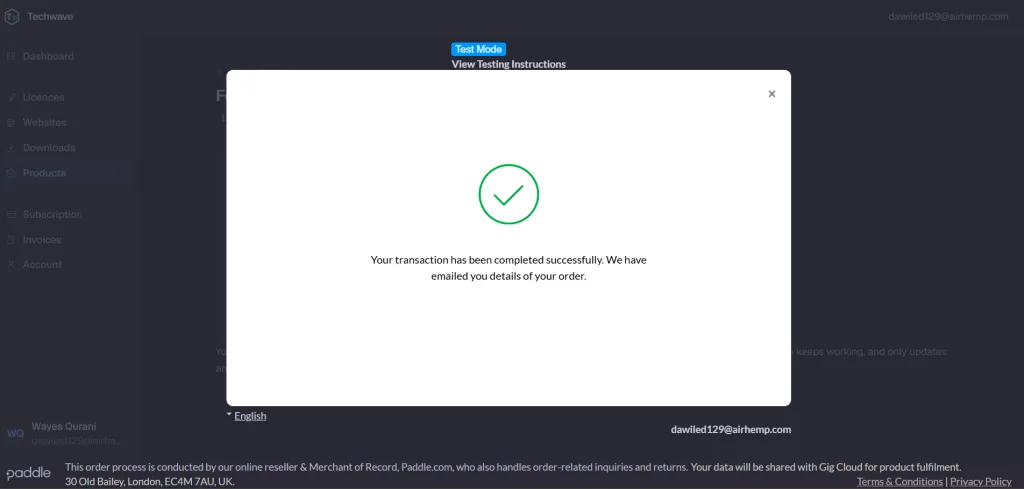
The payment confirmation message. Step 7: Download the Pro plugin ZIP file
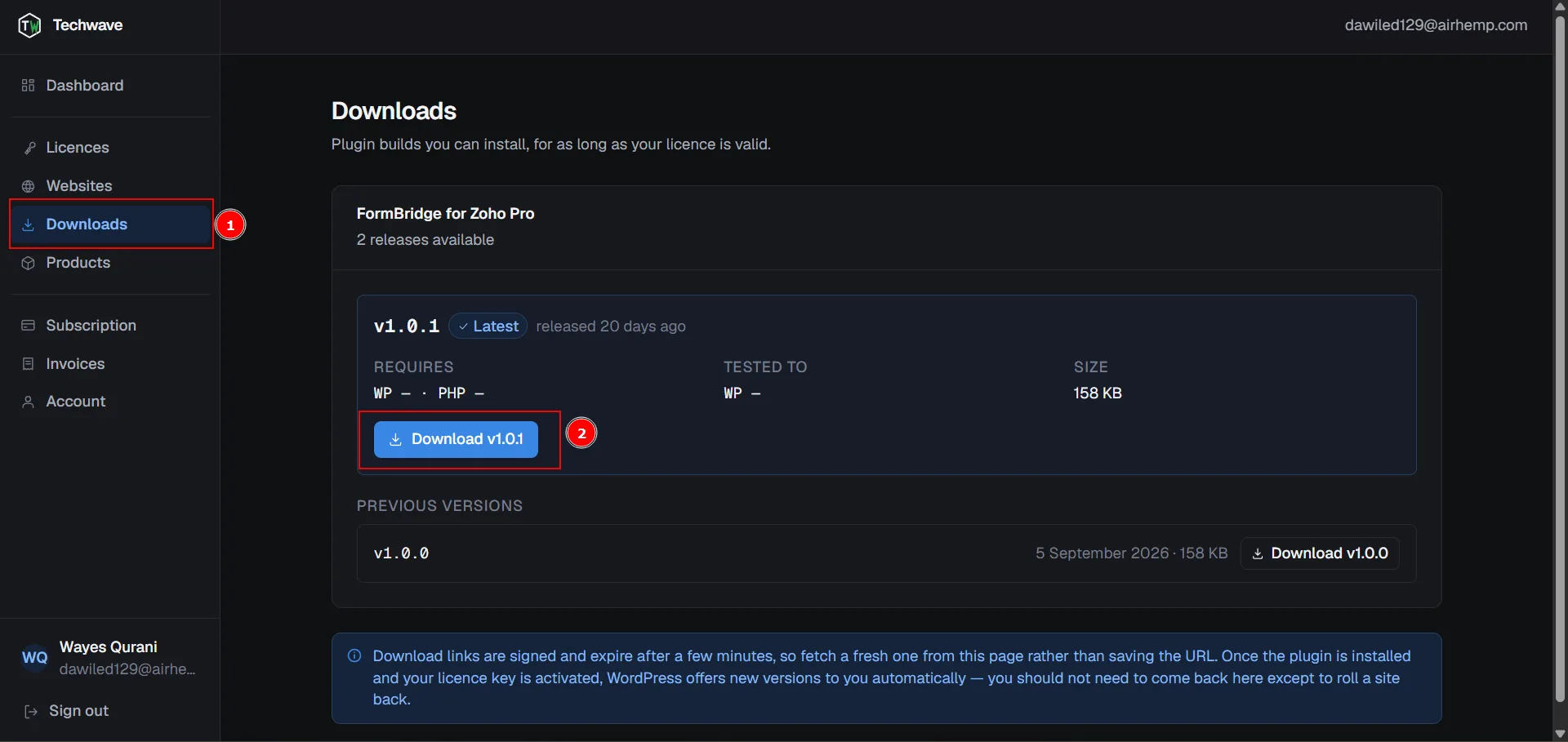
Subscription dashboard › DownloadGo to Download and download the FormBridge for Zoho Pro ZIP file. Keep it zipped; WordPress installs the ZIP directly.
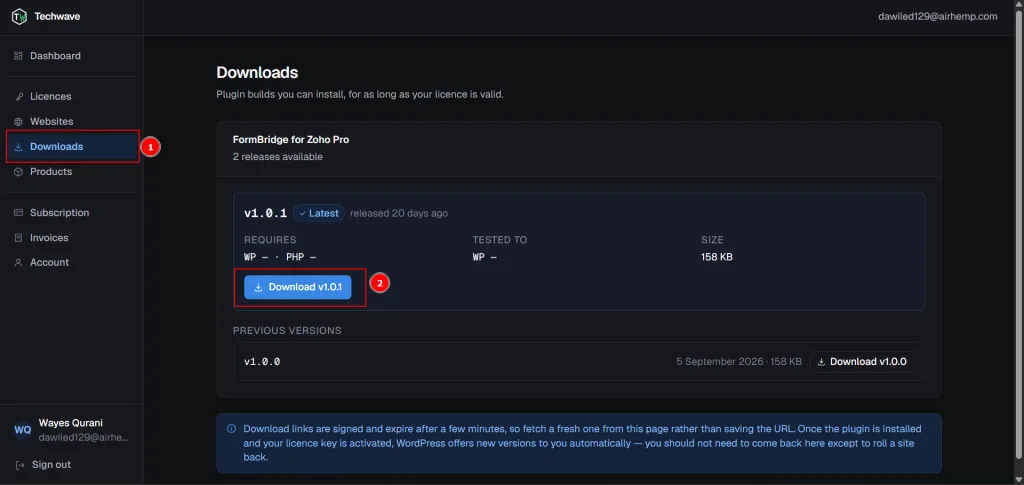
Downloading the Pro plugin ZIP file.
Install FormBridge for Zoho Pro
Pro is an add-on that runs on top of the free plugin. It will not activate unless FormBridge for Zoho is installed and active. Keep both plugins active.
Step 1: Open Upload Plugin
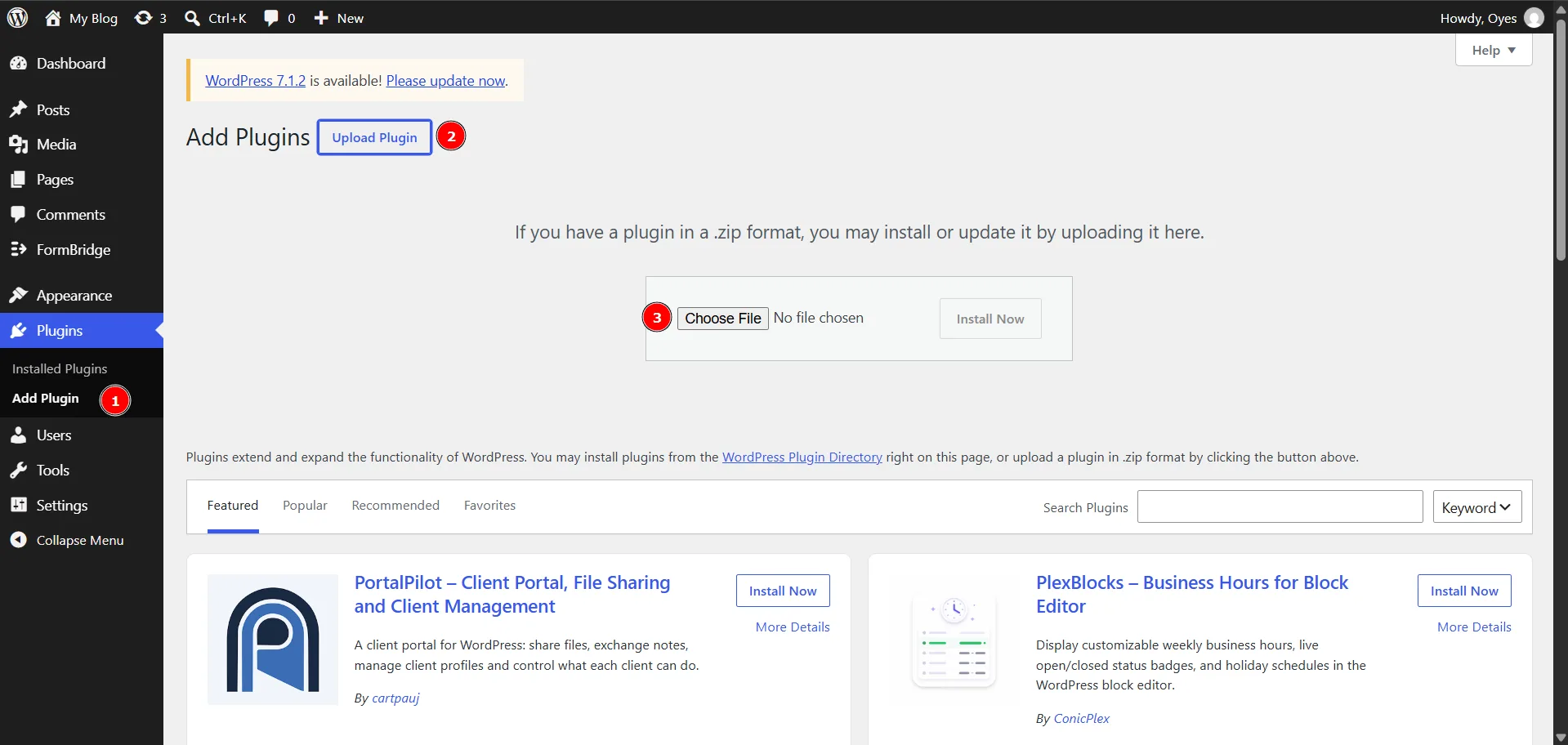
WordPress › Plugins › Add New Plugin › Upload PluginIn your WordPress Dashboard, go to Plugins → Add New Plugin and click Upload Plugin.
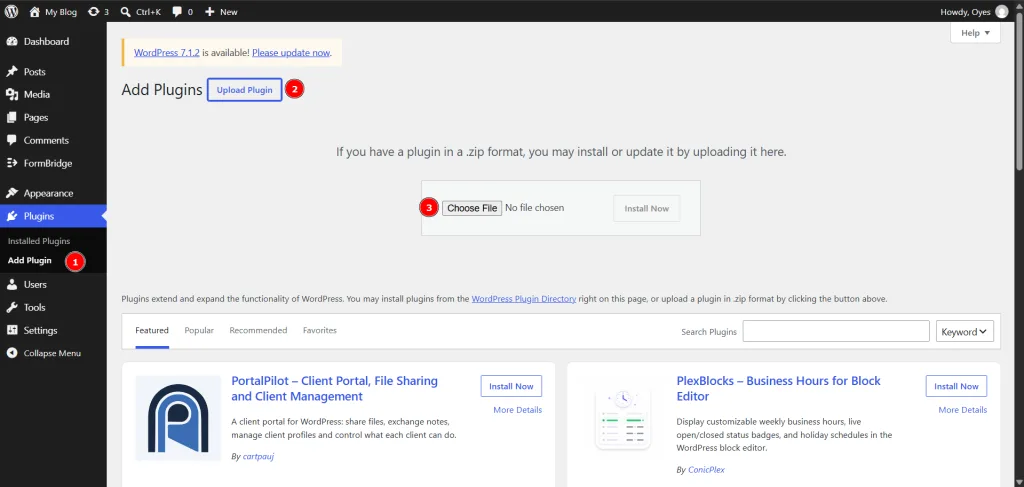
Opening Upload Plugin in WordPress. Step 2: Upload the ZIP file and install
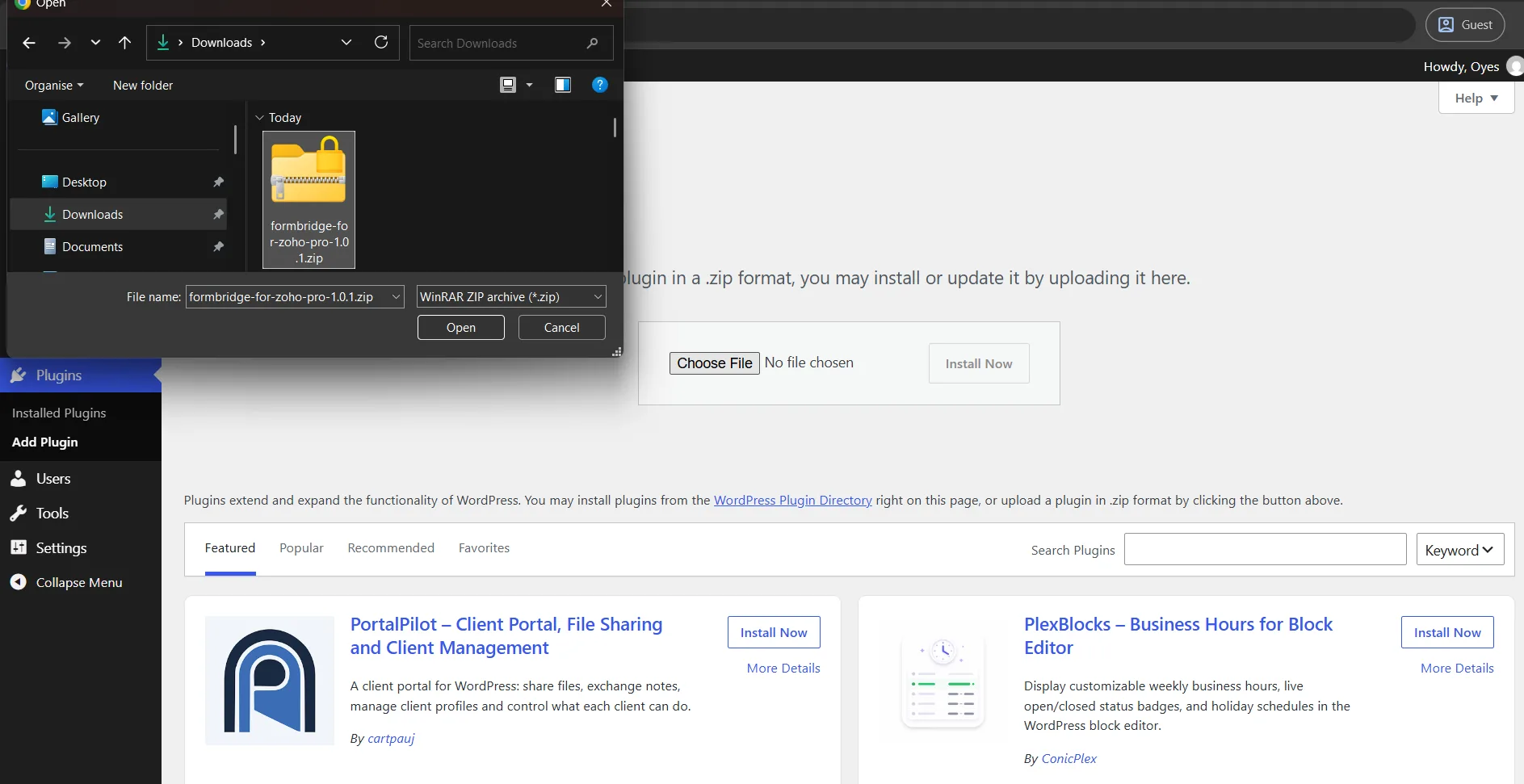
Upload Plugin › Install NowChoose the Pro ZIP file you downloaded and click Install Now.
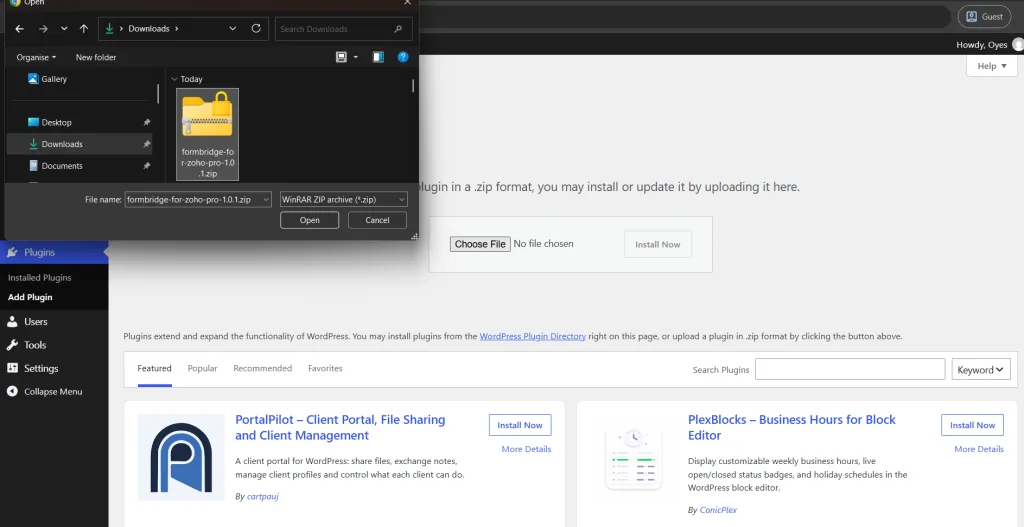
Uploading the Pro ZIP file and clicking Install Now. Step 3: Activate FormBridge for Zoho Pro
Installing plugin › Activate PluginWhen the installation finishes, click Activate Plugin.
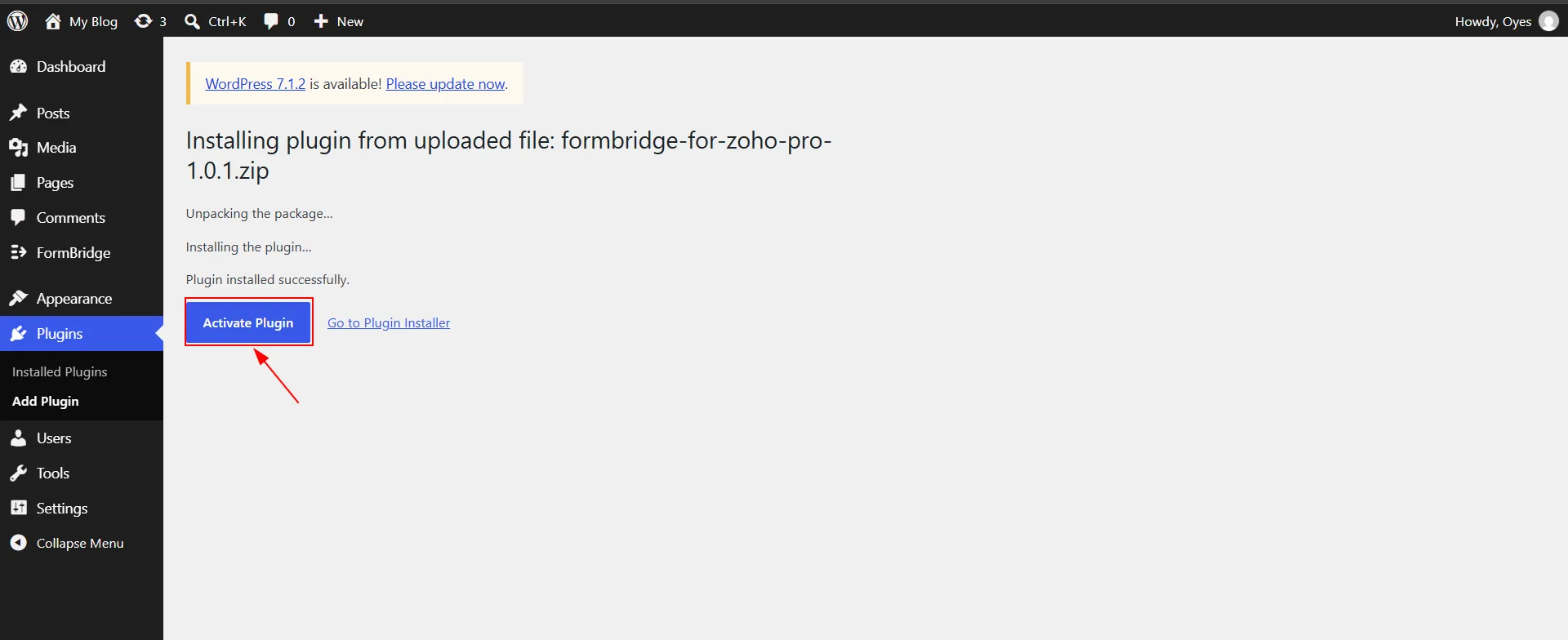
Activating FormBridge for Zoho Pro after installation. FormBridge for Zoho Pro now appears in your installed plugins list, next to the free plugin.
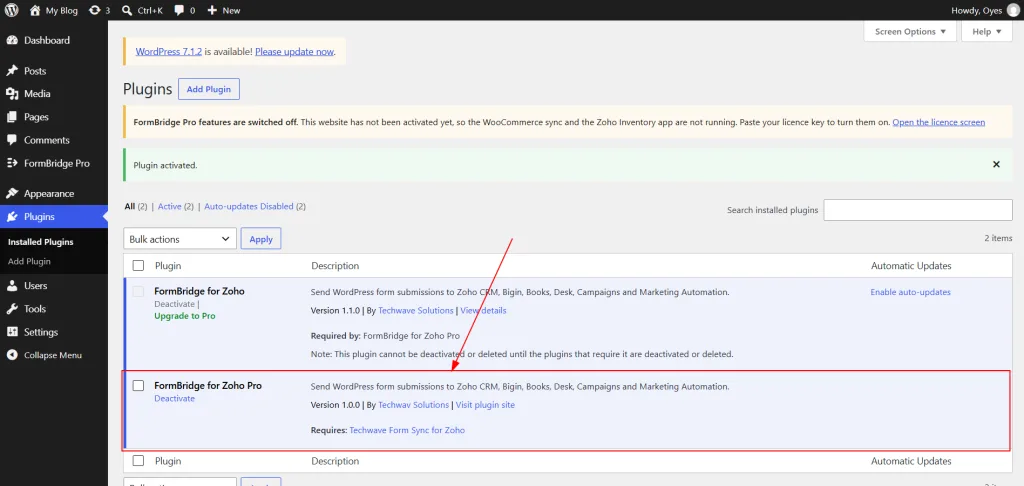
FormBridge for Zoho Pro in the installed plugins list.
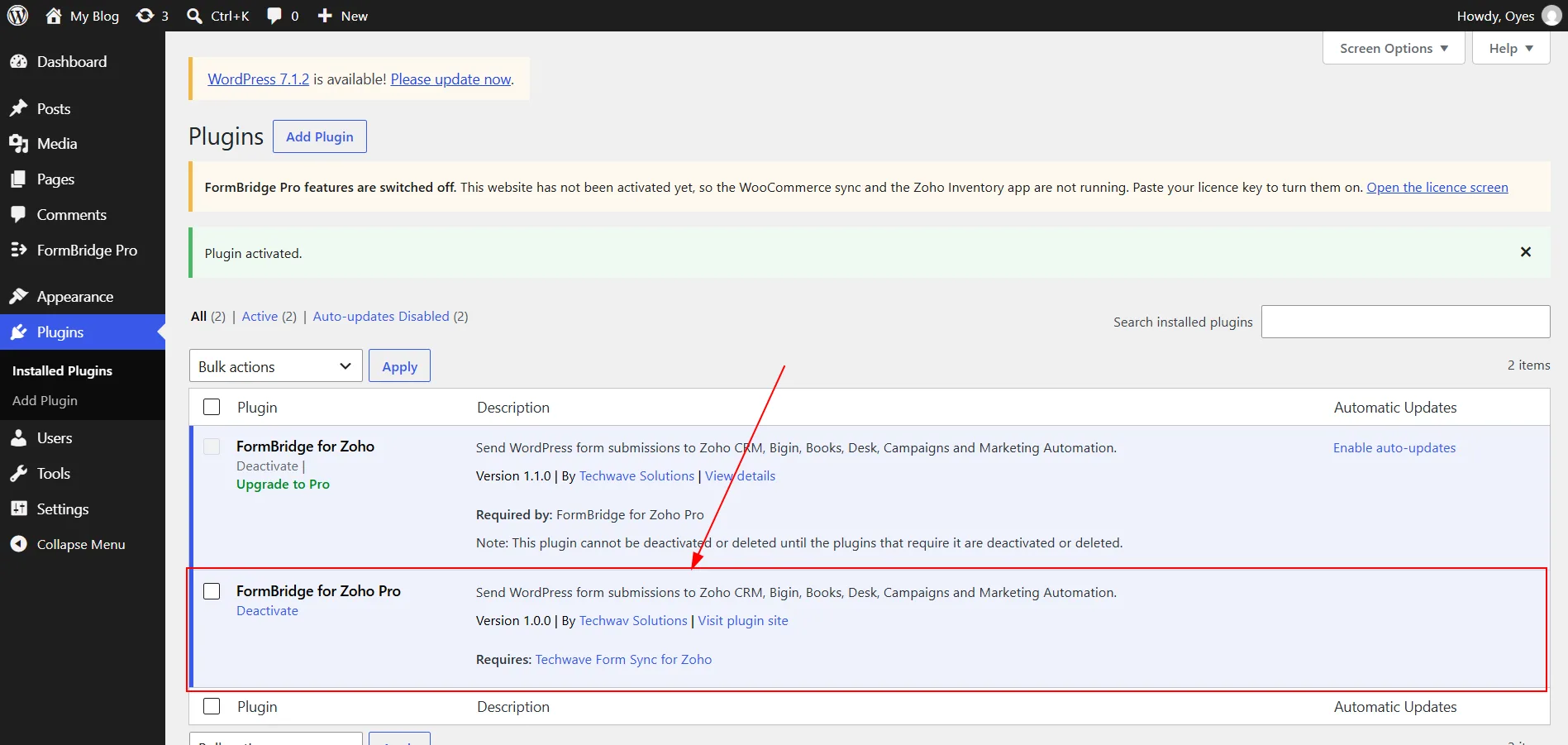
Activate your FormBridge for Zoho Pro license
Pro features stay locked until the license is active on your site.
Step 1: Copy your license key
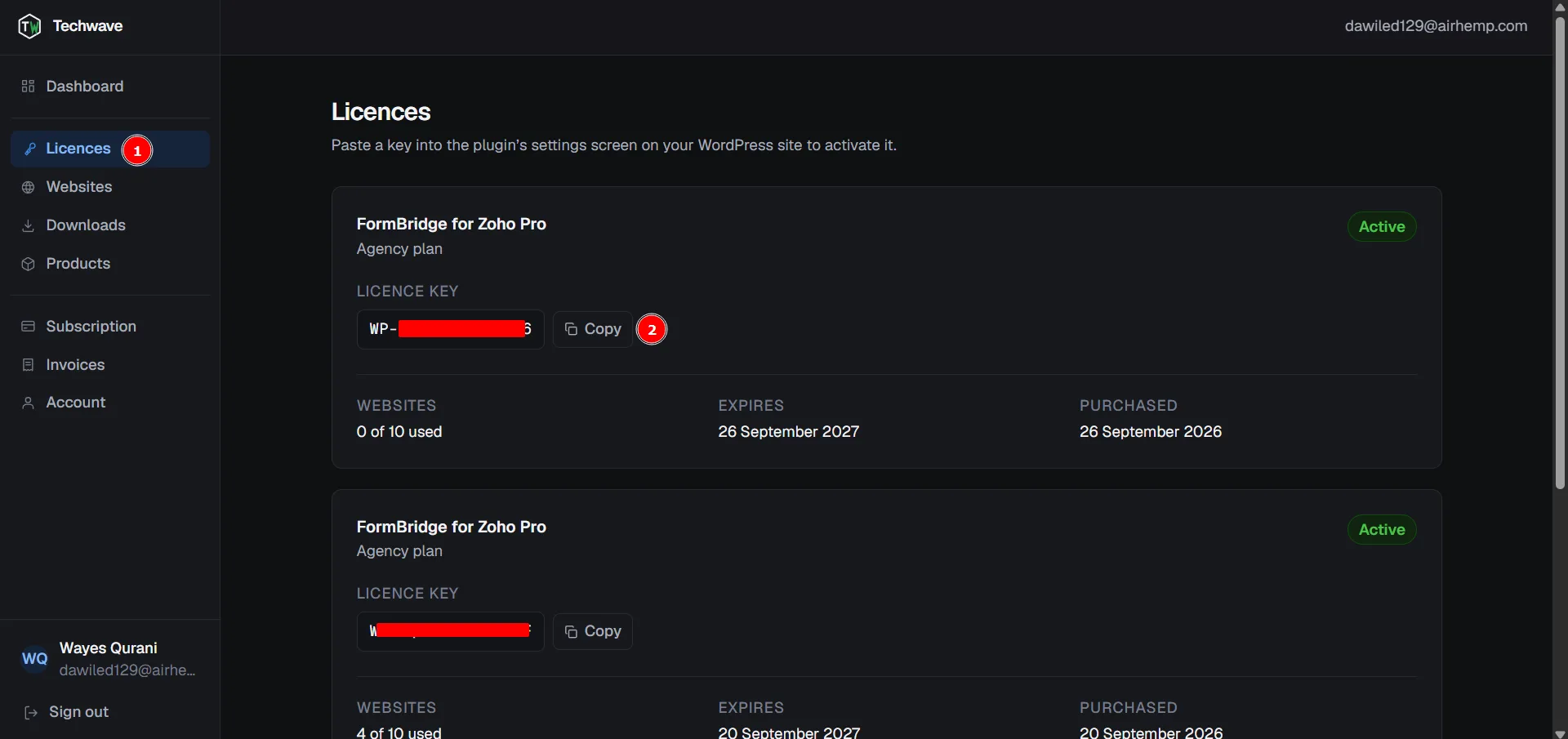
Subscription dashboard › LicencesIn your subscription account, go to Licences and copy your License Key.
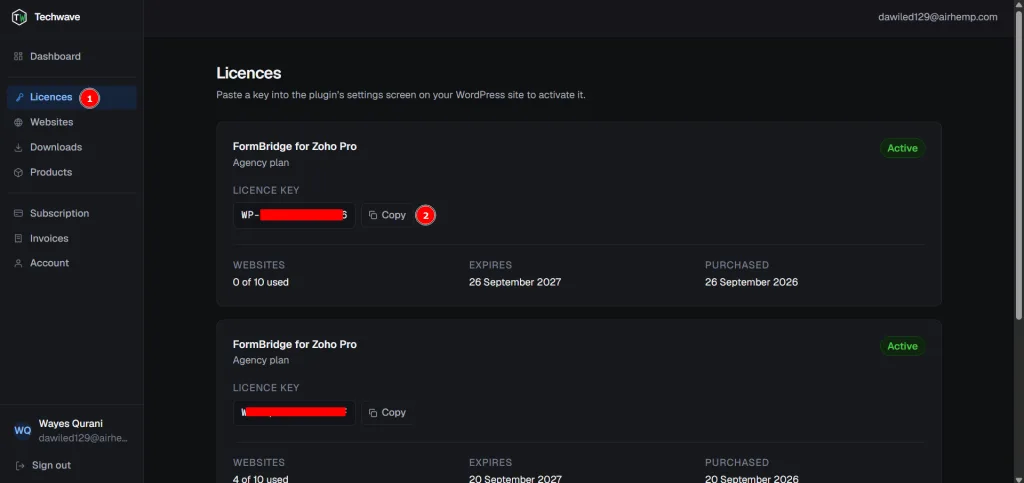
Copying the license key from Licences. Step 2: Paste the key and activate
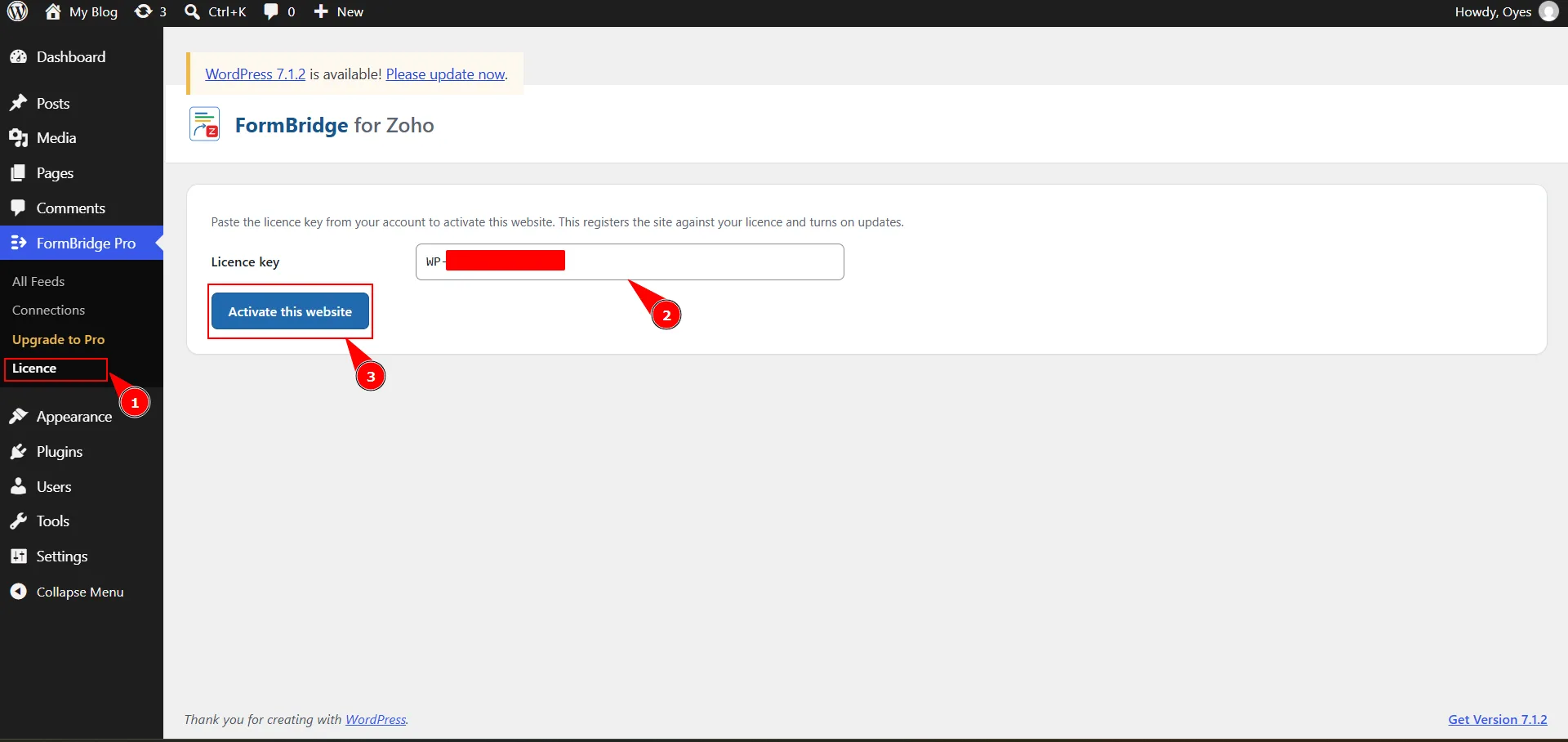
WordPress › FormBridge for Zoho › LicenseIn your WordPress Dashboard, go to FormBridge for Zoho → License. Paste the key into the License Key field and click Activate.
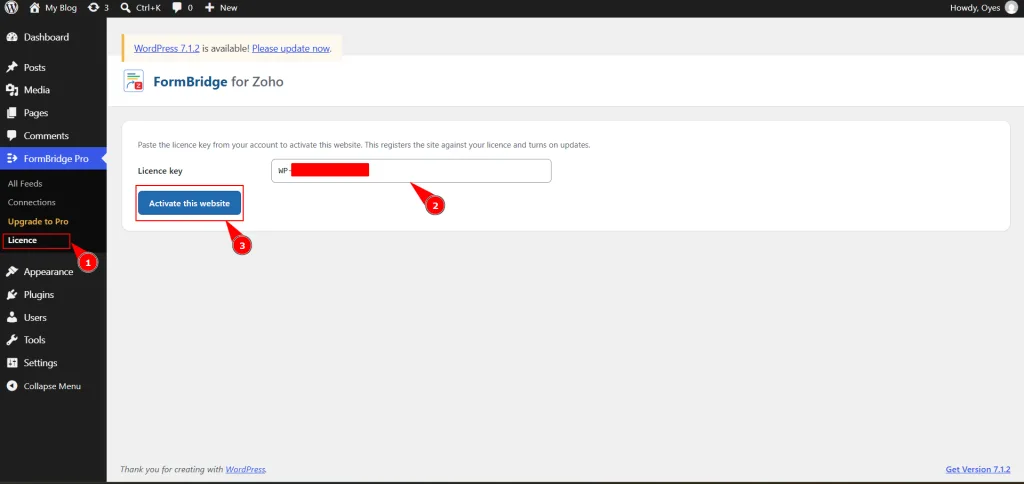
Pasting and activating the license key in WordPress. When the key is accepted, the license shows as activated and connected.
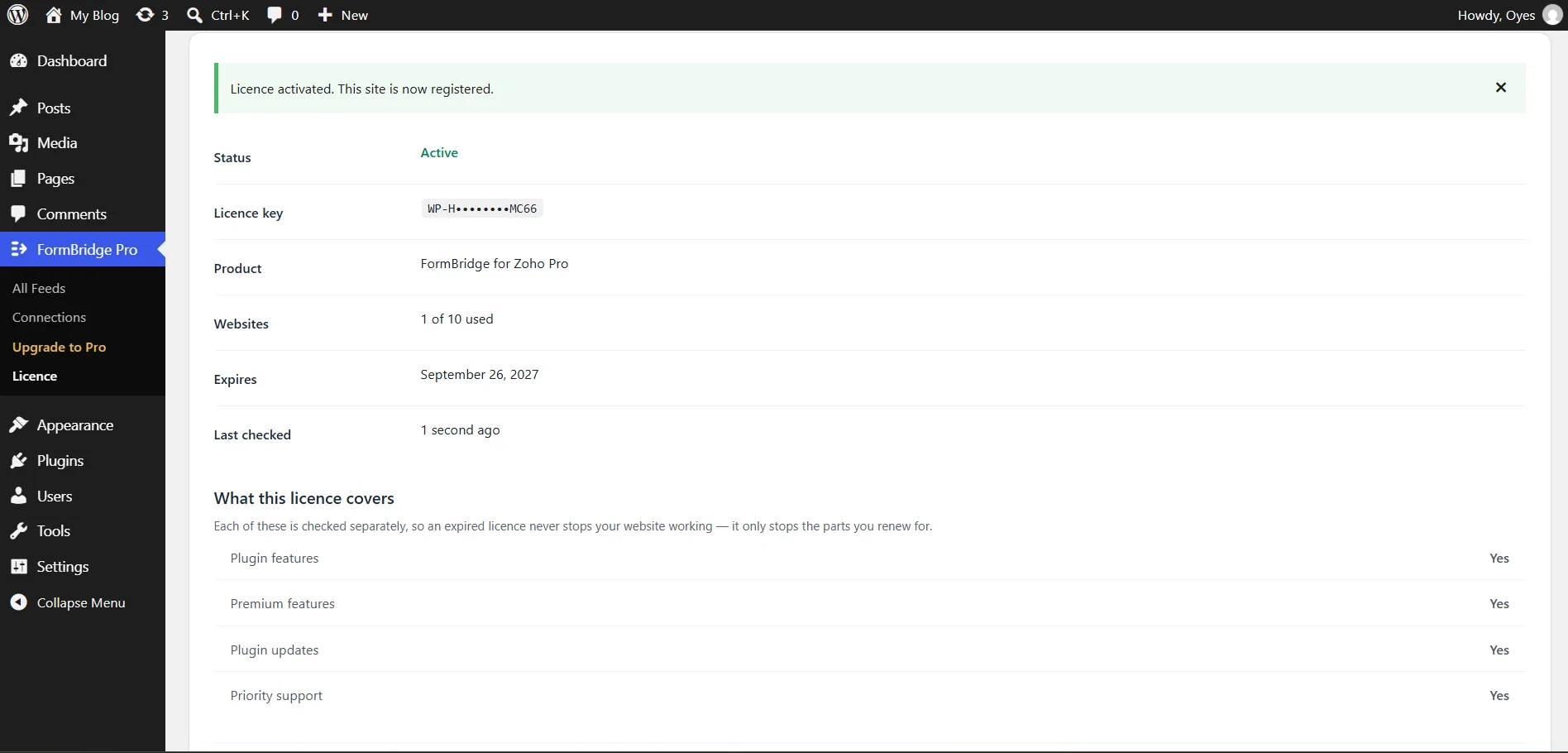
The license shows as activated and connected. What the License screen showsThe masked key, license status, plan, websites used, expiry date and when the licensing server was last reached.
Use the license key linked to your FormBridge for Zoho Pro subscription.
Update FormBridge for Zoho
Both plugins update through the normal WordPress Plugins and Dashboard → Updates screens. There is nothing extra to download by hand.
| Plugin | Where updates come from |
|---|---|
| FormBridge for Zoho (free) | WordPress.org, like any directory plugin |
| FormBridge for Zoho Pro | Your license. Updates are offered only while the license is active. |
