
WooCommerce Booking Zoho Integration: Send Bookings to Zoho
FormBridge for Zoho • Trigger guide
A WooCommerce Booking Zoho integration sends your store’s booking details to your Zoho apps automatically, with no copying and pasting. With FormBridge for Zoho, WooCommerce Booking is the trigger, and the captured data goes to Zoho CRM, Zoho Bigin, Zoho Books, Zoho Desk, Zoho Campaigns or Zoho Marketing Automation.
This guide shows how to select WooCommerce Booking as the trigger and name your feed, ready for the Zoho action.
Before you start
Check these before you create the feed.
- WooCommerce and your bookings plugin are installed and activated.
- You’ve published at least one bookable product, so customers can book.
- Your Zoho account is connected under FormBridge for Zoho → Connections. See how to create a connection
How to set up WooCommerce Booking with FormBridge for Zoho
Follow these four steps to make WooCommerce Booking the trigger for your Zoho integration.
Stage 1 of 4 · Trigger · Steps 1–2
Step 1: Create a new integration feed
FormBridge for Zoho › All FeedsIn your WordPress dashboard, open FormBridge for Zoho, click All Feeds, then click + Add New Feed.
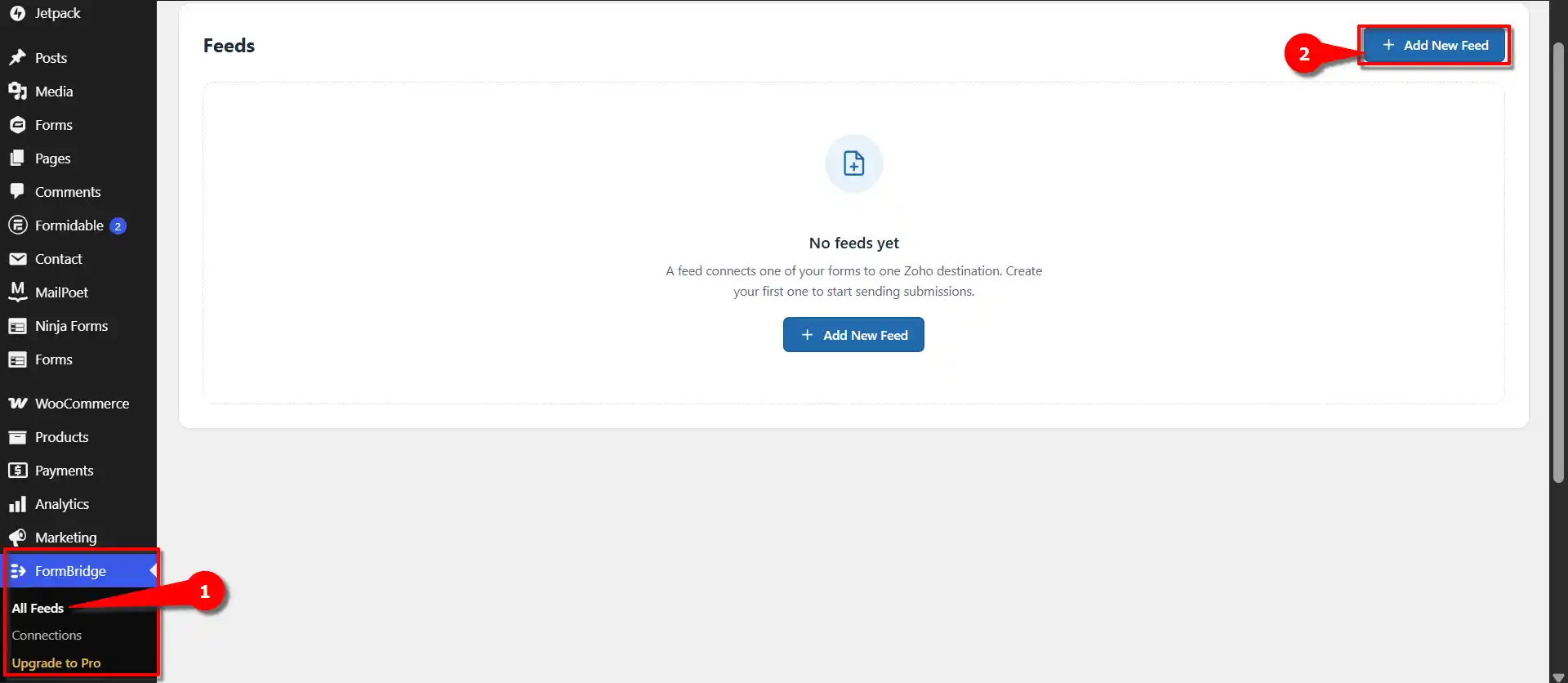
Open All Feeds and click + Add New Feed. Step 2: Select WooCommerce Booking as the trigger
New feed › Trigger appFrom the list of trigger apps, select WooCommerce Booking. The feed will now run on your booking data instead of a form.
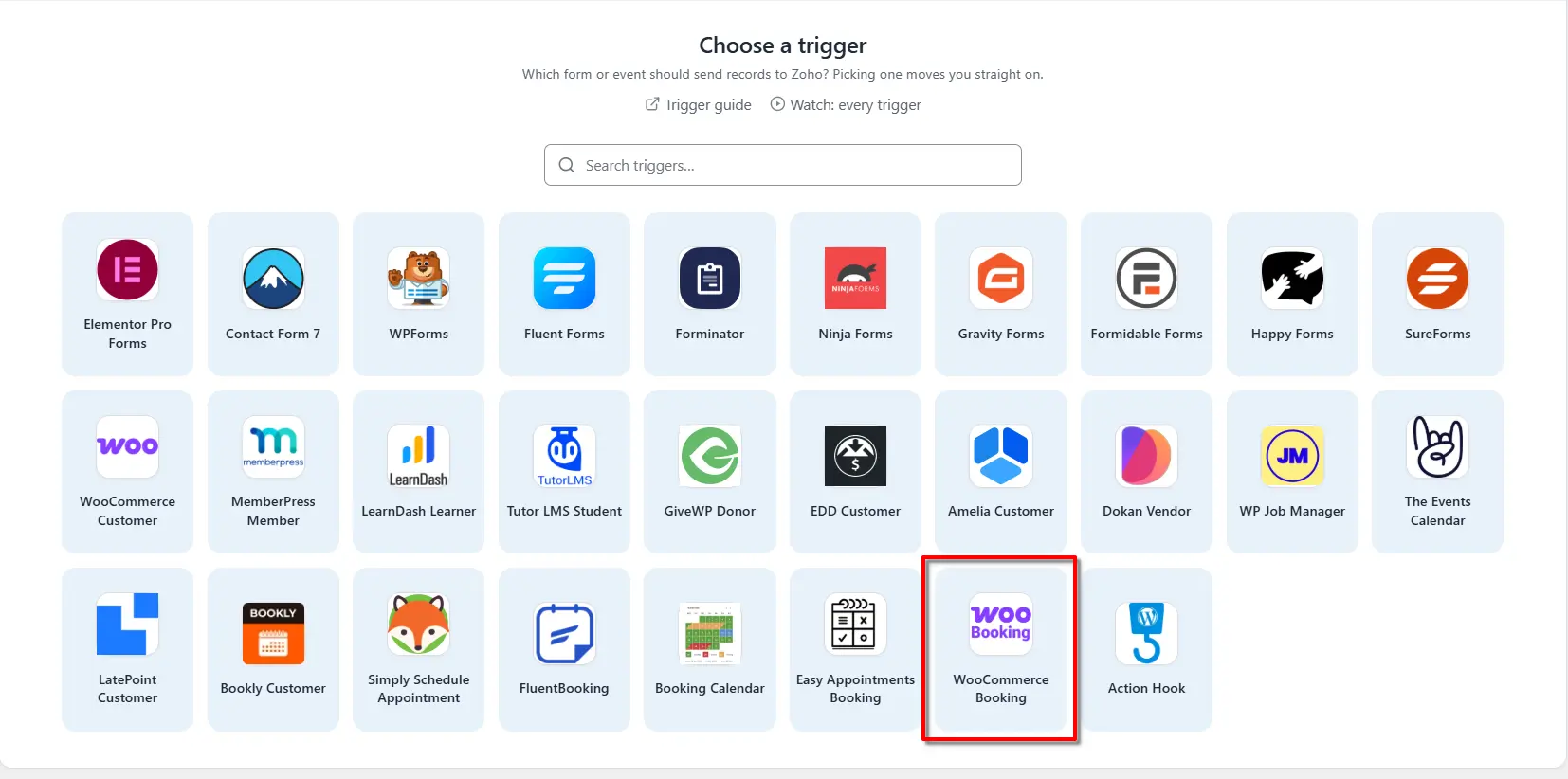
Select WooCommerce Booking from the trigger apps.
Stage 2 of 4 · Details · Steps 3–4
Step 3: Enter a feed title
Name this feed › Feed titleOn the Name this feed screen, enter the required information. In the Feed title field, enter a name of your choice.
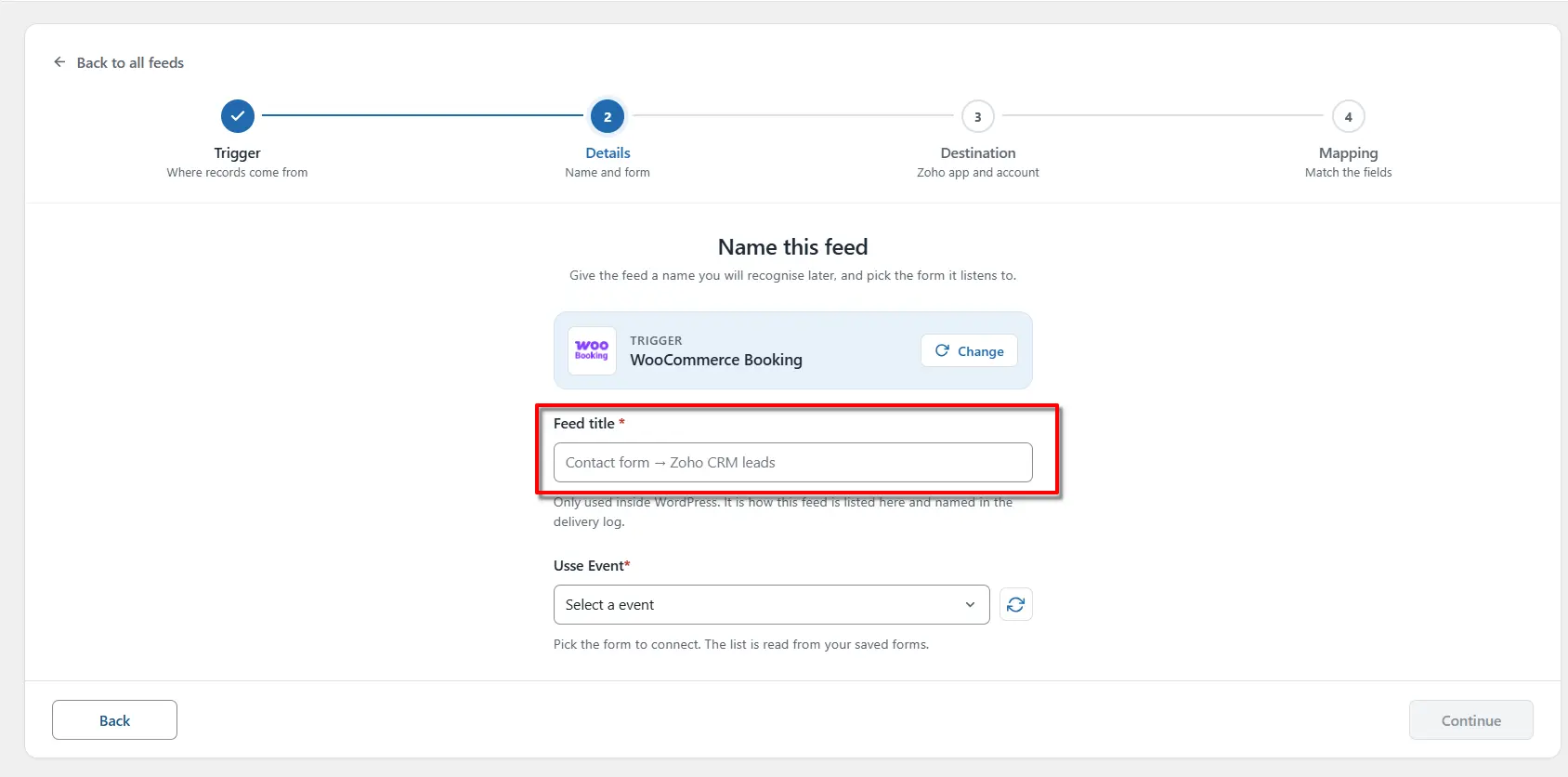
Enter a feed title you’ll recognise later. Step 4: Select your Event
New feed › EventFrom the provided dropdown menu, select the Event you want to connect with FormBridge for Zoho. For exampleCustomer makes a booking then click Continue.
One feed, one destinationEach feed sends data to a single Zoho app. To send the same bookings to a second app, create another feed.
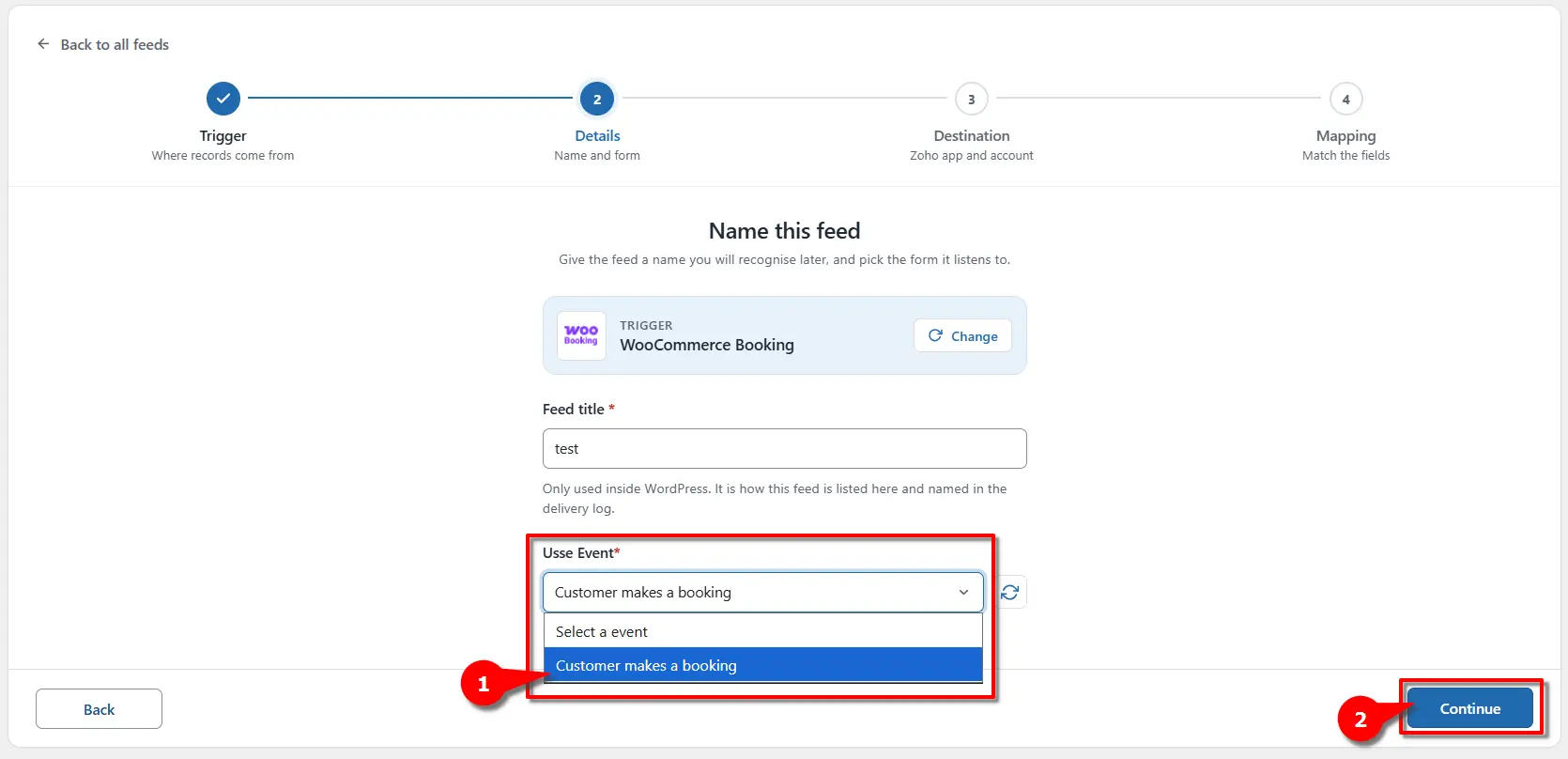
Choose your WooCommerce Booking event, then click Continue.
Next step: configure the Zoho action
After completing these steps, go to the Destination section and select the Zoho Action you want to connect with your selected Trigger. This allows FormBridge for Zoho to send your booking data to the selected Zoho application automatically.
Frequently asked questions
01Can I connect WooCommerce bookings to Zoho CRM?
Yes. Use WooCommerce Booking as the trigger and Zoho CRM as the action. Choose a module such as Leads or Contacts, then map your booking details to the matching CRM fields.
02Do I need a form plugin for this?
No. WooCommerce Booking is the trigger itself, so no separate form plugin is involved. Form plugins are only needed when the data comes from a form.
03Can I send booking data to several Zoho apps?
Yes. Create one feed per Zoho app and select WooCommerce Booking as the trigger in each feed.
04Do I need coding for the WooCommerce Booking Zoho integration?
No. FormBridge for Zoho is set up entirely from its settings screens. You select the trigger, pick a Zoho app and map the fields without writing any code.
05How do I check that a booking reached Zoho?
Place a test booking in your store, then open FormBridge for Zoho → Logs. Every delivery is listed with its result, and failed deliveries can be resubmitted.
Want the whole setup in one place? Read the complete WordPress to Zoho CRM guide, or email support@techwavesolutions.net for help.
