
Divi Contact Form to Zoho Desk Integration
A Divi Contact Form to Zoho Desk integration sends every form submission from your WordPress site straight into Zoho Desk, with no copying and pasting and no code.
FormBridge for Zoho connects Divi Contact Form to Zoho Desk through a single feed. This guide covers the complete process in 11 steps, from creating the feed and picking the trigger to configuring the Zoho Desk destination, mapping the fields and testing the result.
Supported sources and Zoho apps
FormBridge for Zoho connects these WordPress sources with your Zoho apps. This page follows the Divi Contact Form to Zoho Desk route from start to finish.
WordPress form plugins
- Elementor Forms
- Contact Form 7
- WPForms
- Gravity Forms
- Fluent Forms
- Ninja Forms
- Forminator Forms
- Formidable Forms
- Happyforms
- SureForms
- Divi
Zoho apps
- Zoho CRM
- Zoho Bigin
- Zoho Books
- Zoho Desk
- Zoho Campaigns
- Zoho Marketing Automation
- Zoho Inventory (Pro)
Before you start
- Divi is installed and activated, as the theme or the Divi Builder plugin.
- You’ve added a Contact Form module to a page and published it.
- Elementor Forms is installed and activated, and you have published at least one page containing a form. The Form widget is available in Elementor Pro only.
- FormBridge for Zoho is installed and activated on the same site.
- You know which Zoho Desk organization, department and module should receive the data, and your form collects that module’s required fields.
- Your Zoho account is authorised for Zoho Desk under FormBridge for Zoho → Connections. If it isn’t, follow the guide to creating a Zoho connection.
How to connect Divi Contact Form to Zoho Desk
11 steps, from creating the feed to a live form submission reaching Zoho Desk.
Steps 1–4 · Trigger and details
Step 1: Create a new integration feed
FormBridge for Zoho › All FeedsIn your WordPress dashboard, open FormBridge for Zoho, click All Feeds, then click + Add New Feed.
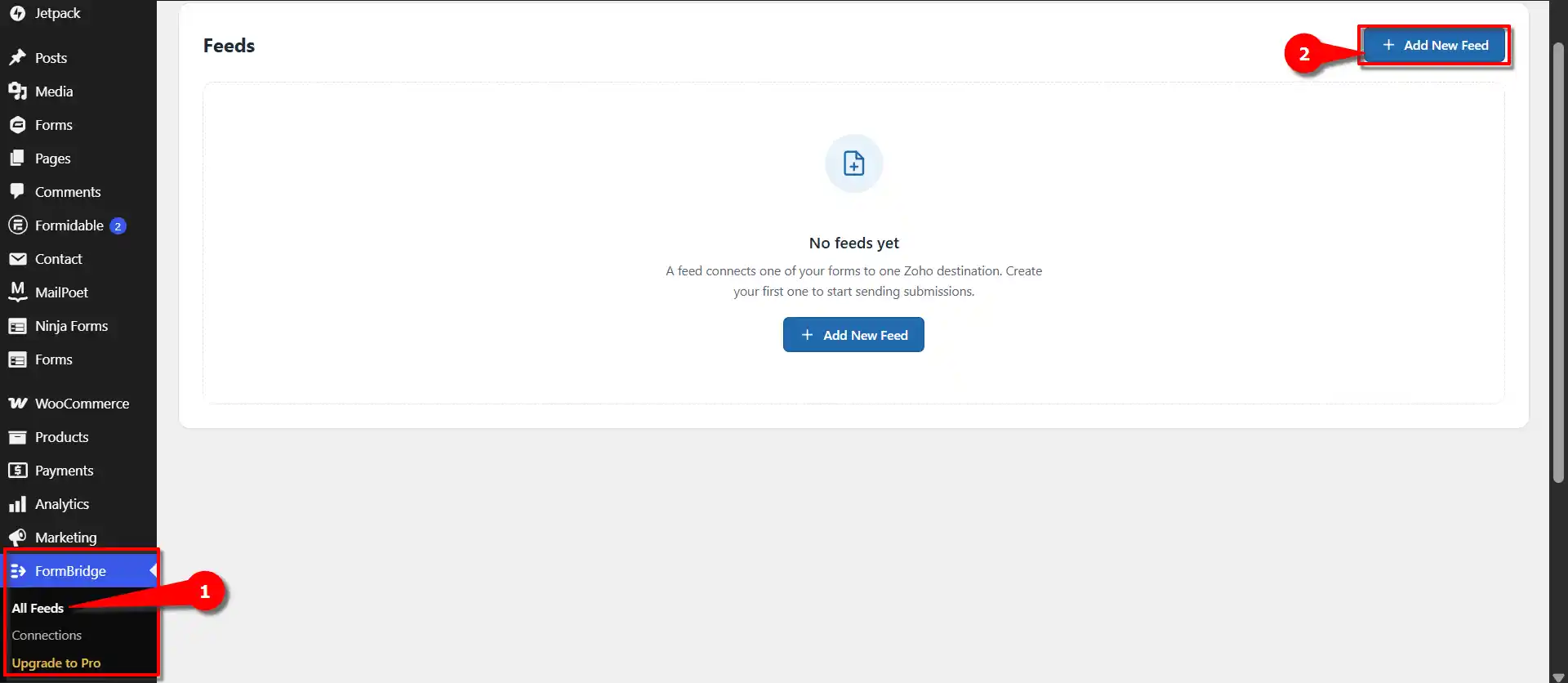
Open All Feeds and click + Add New Feed. Step 2: Select Divi as the trigger
New feed › Trigger appFrom the list of trigger apps, select Divi. The feed will now run each time the Divi contact form you choose is submitted.
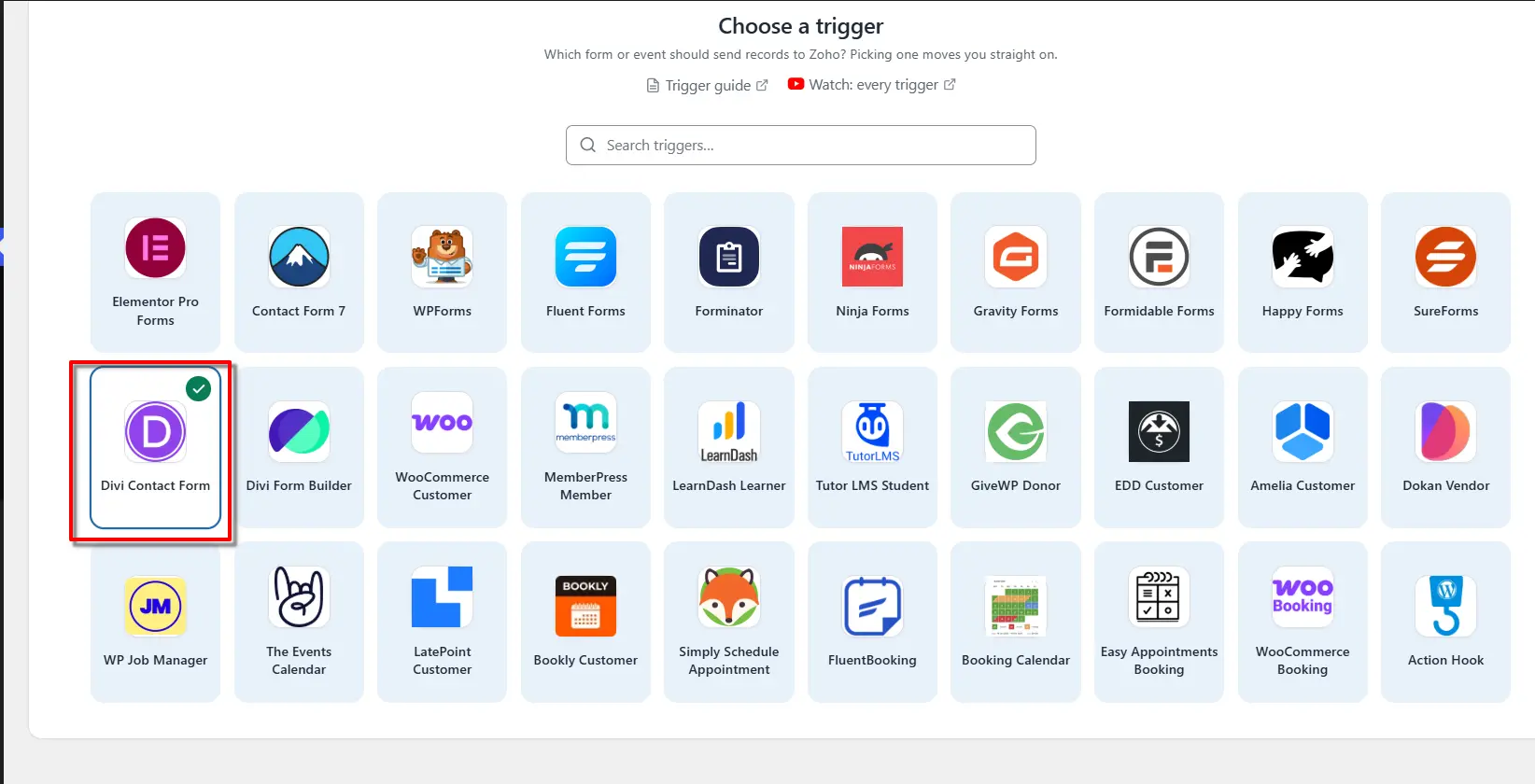
Select Divi from the trigger apps. Step 3: Enter a feed title
Name this feed › Feed titleOn the Name this feed screen, enter the required information. In the Feed title field, enter a name of your choice.
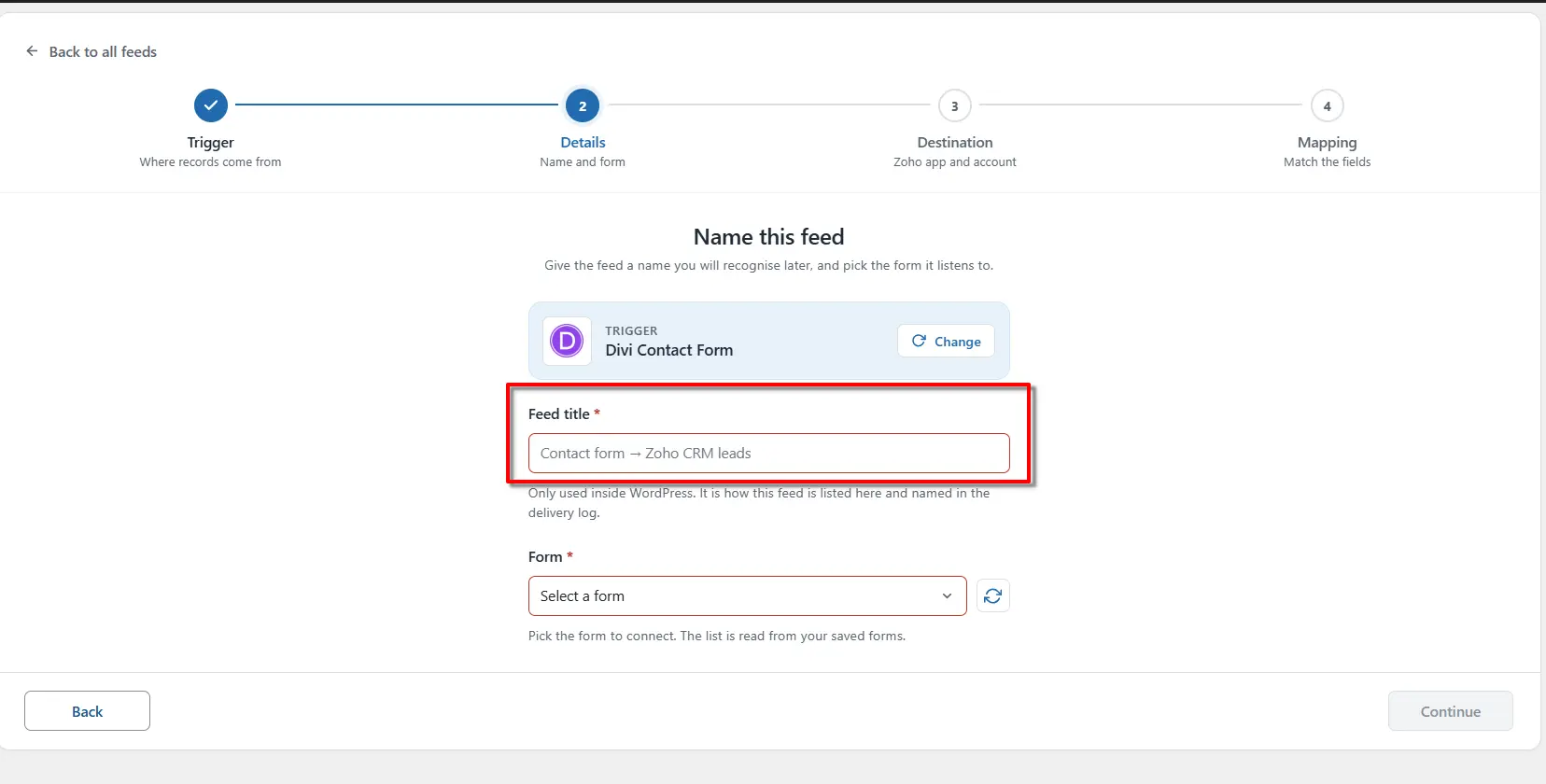
Enter a feed title you’ll recognise later. Step 4: Select your form
New feed › FormFrom the provided dropdown menu, select the Form you want to connect with FormBridge for Zoho.For example, select Contact Form-Collage Form, then click Continue
Each feed listens to exactly one form. To connect another Divi contact form, create another feed.
One feed, one formEach feed listens to exactly one form. To connect another Divi contact form, create another feed.
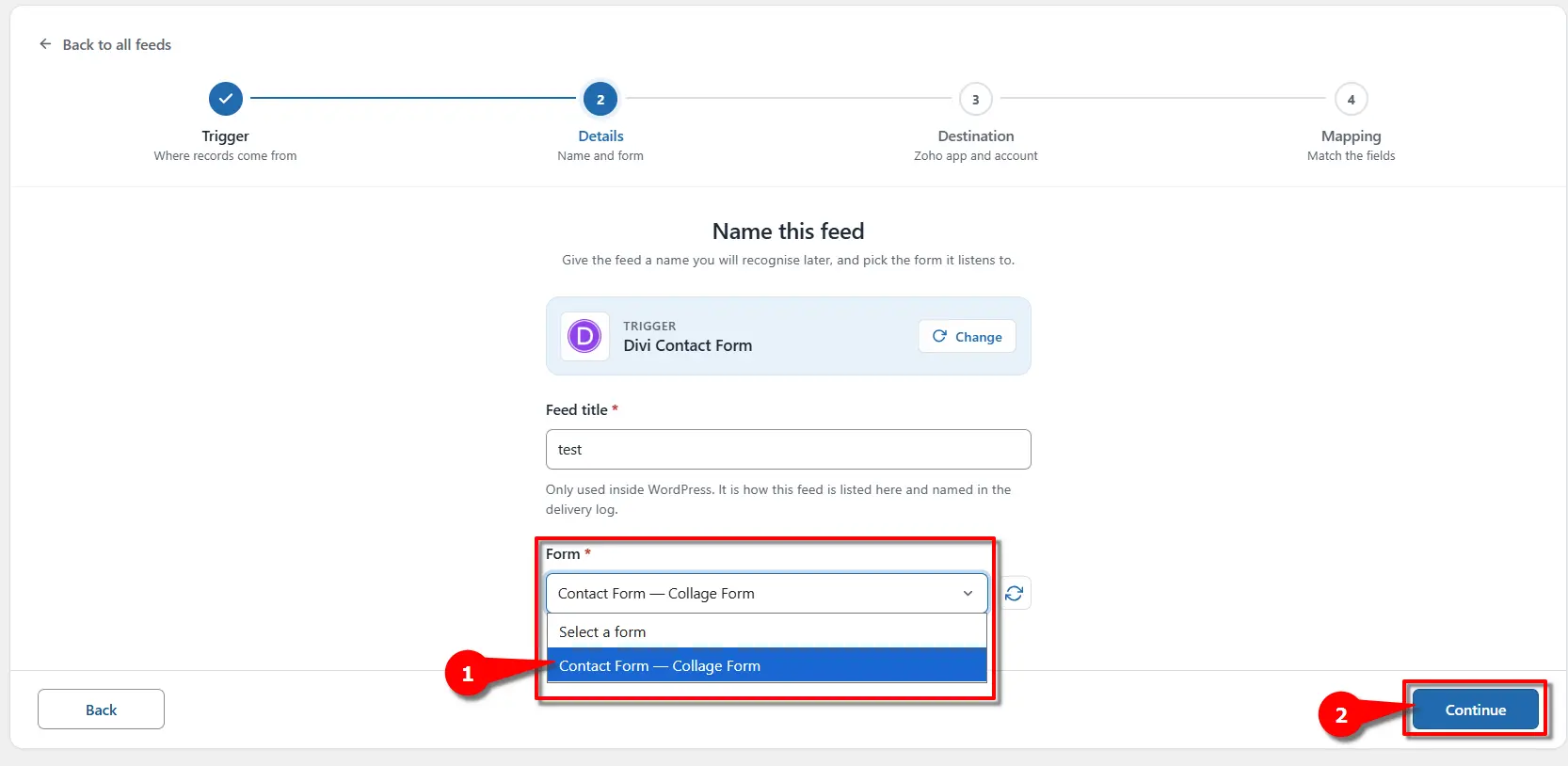
Choose your Divi contact form, then click Continue.
Steps 5–11 · Destination and mapping
Step 5: Select your connected account
Zoho connection step › Connected accountOn the Zoho connection step, open the Connected account dropdown and choose the Zoho account you connected under FormBridge for Zoho → Connections.
No account in the list?Create a connection first, then return to the feed. Learn how to create a Zoho connection.
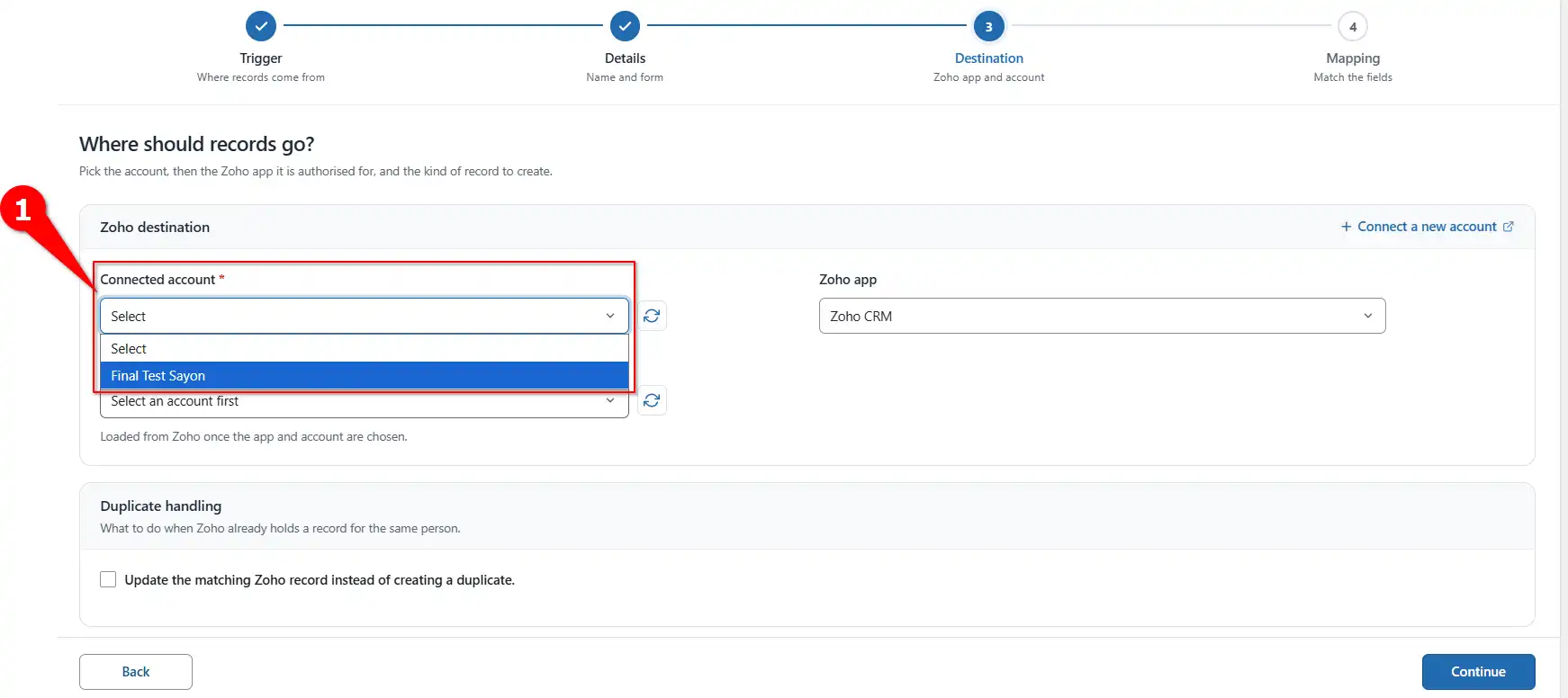
Choosing the connected Zoho account. Step 6: Select Zoho Desk as the Zoho app
Zoho connection step › Zoho AppNext, open the Zoho App dropdown and select Zoho Desk. This tells FormBridge to send the submitted form data to Zoho Desk.
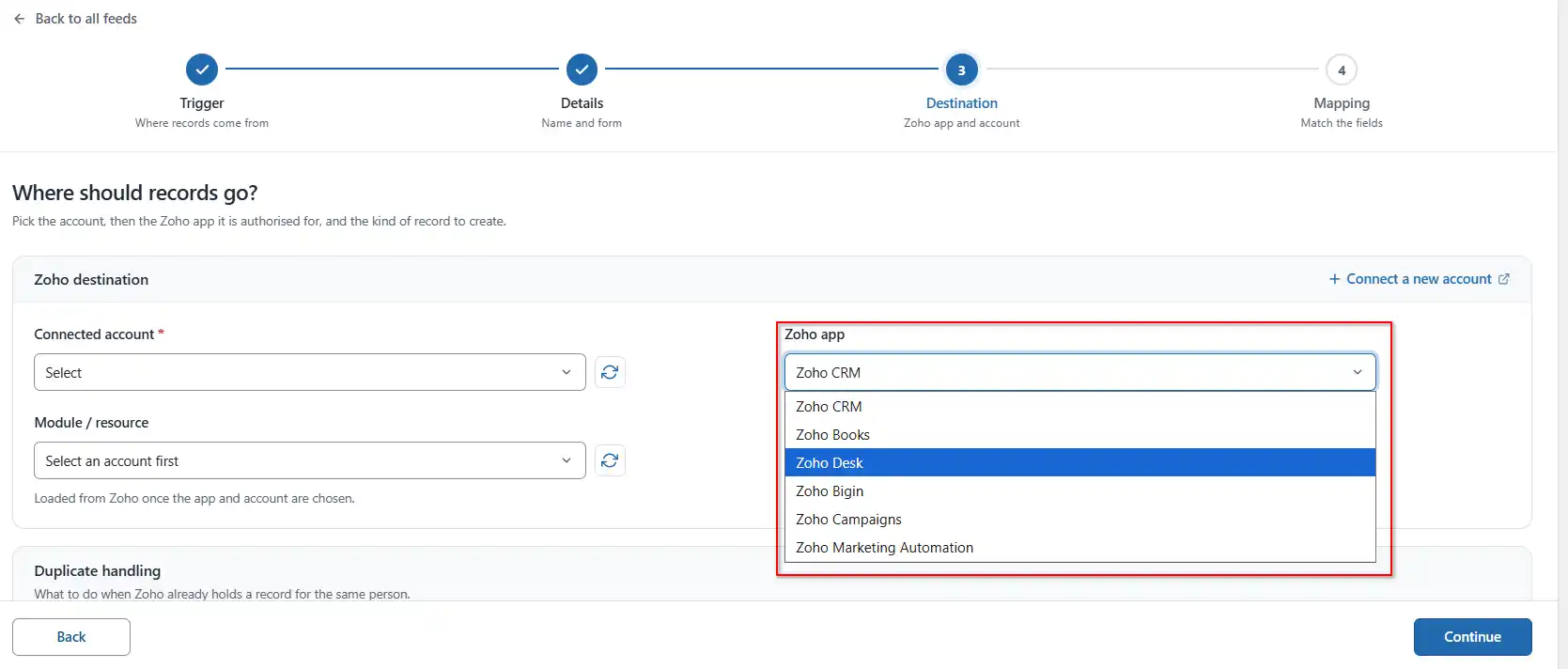
Selecting Zoho Desk as the destination app. Step 7: Select the organization
Zoho connection step › OrganizationFrom the Organization dropdown, choose the Zoho Desk organization that should receive the data.
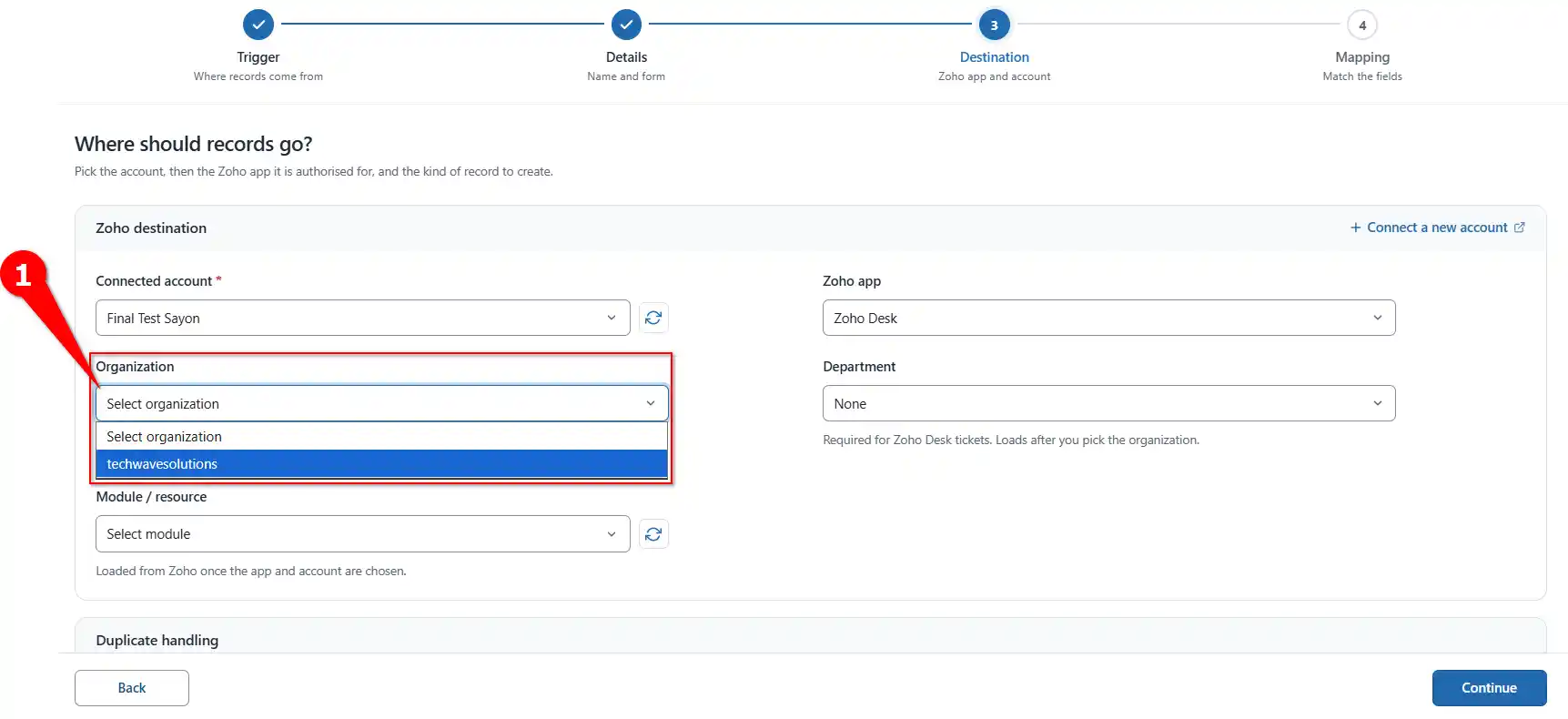
Choosing your Zoho Desk organization. Step 8: Select the department
Zoho connection step › DepartmentFrom the Department dropdown, choose the department where incoming contacts or tickets should be routed and assigned in Zoho Desk.
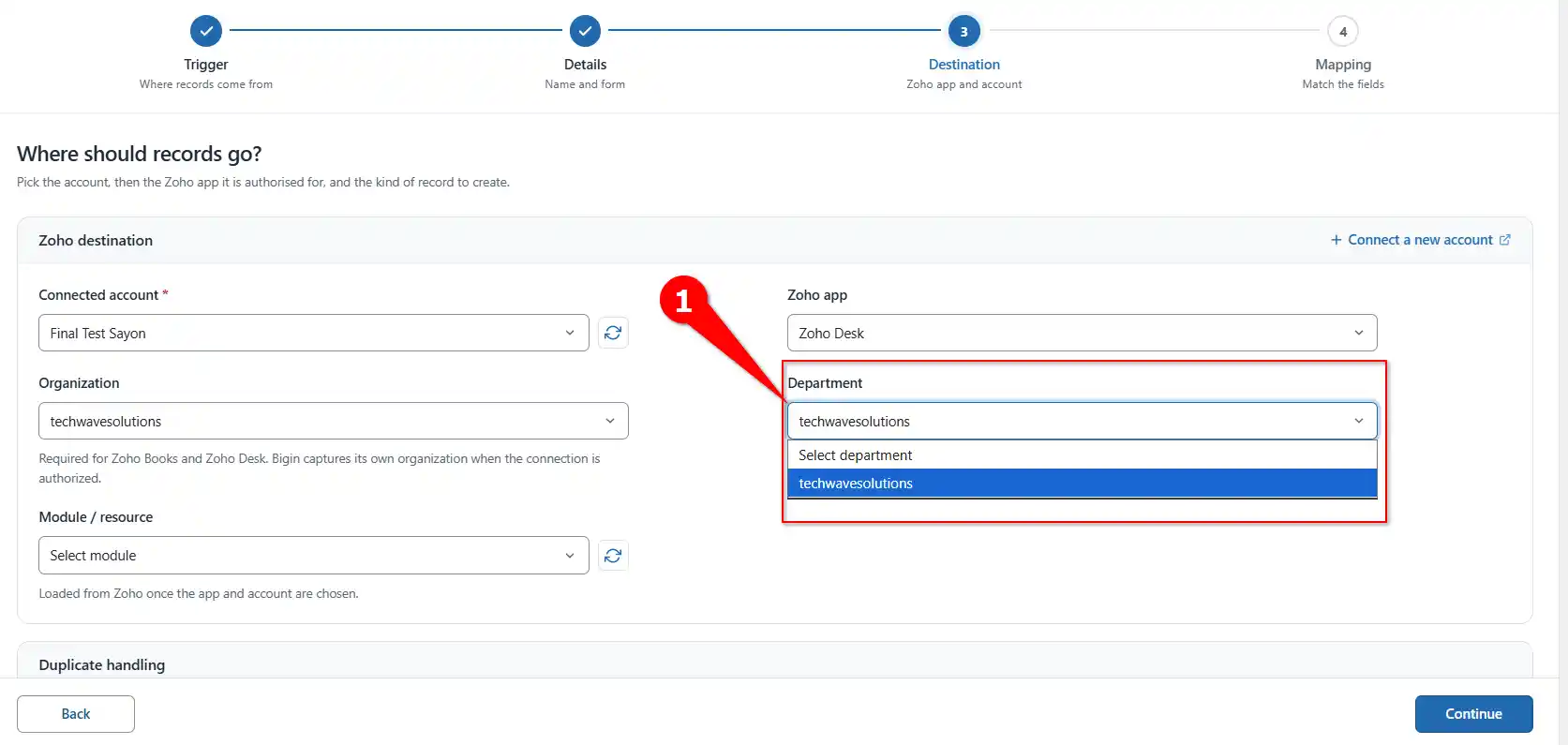
Choosing the Zoho Desk department. Step 9: Select the Zoho Desk module
Zoho connection step › Module / resourceFrom the Module / resource dropdown, choose the Zoho Desk module that should receive your form data. To add new people from a contact form, choose Contacts.
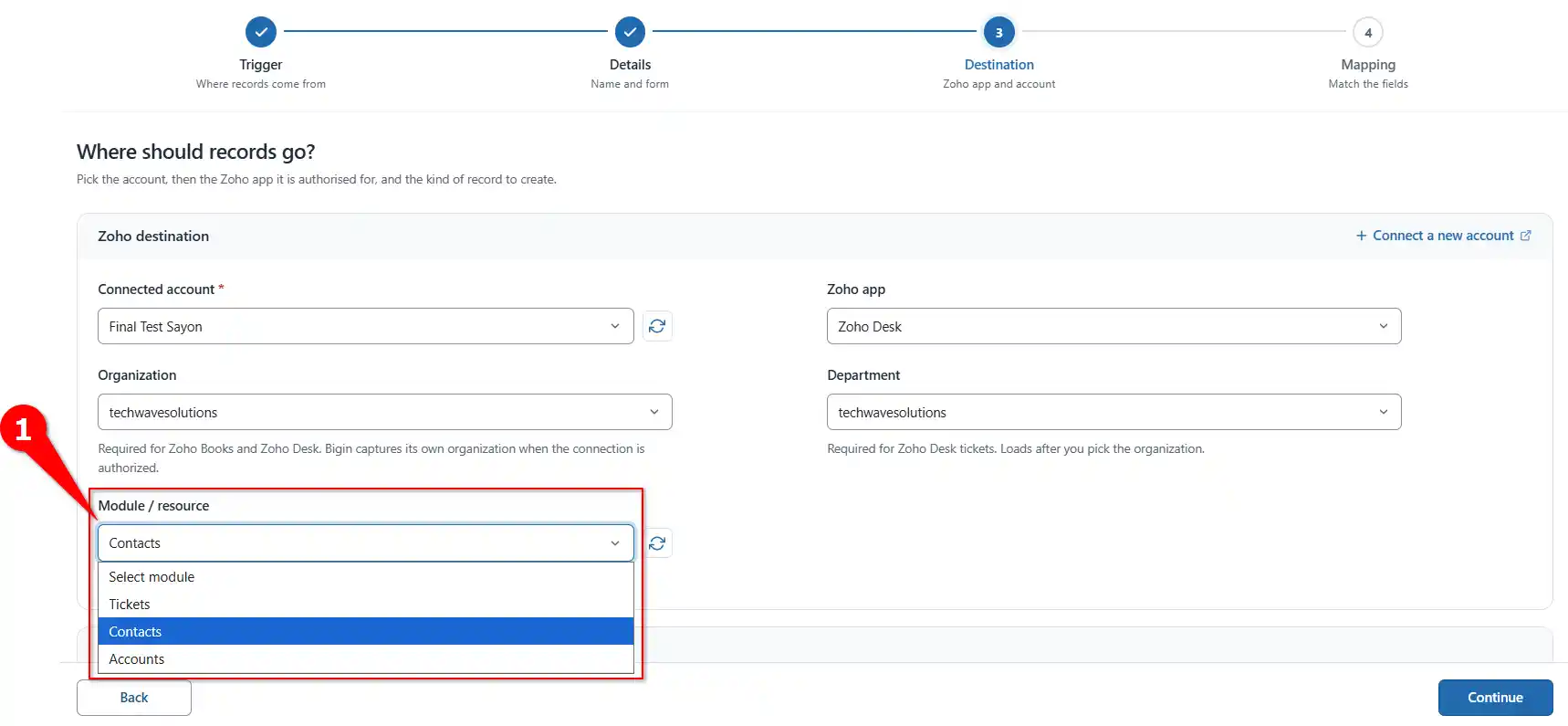
Choosing the Zoho Desk module that receives the data. Step 10: Turn on the duplicate check
Zoho connection step › Duplicate CheckThe duplicate check looks for an existing Zoho Desk record that matches the submission, based on email, name or another field. When it finds a match, FormBridge updates that record instead of creating a new one.
Turn it on if you want existing records updated, then click Continue.
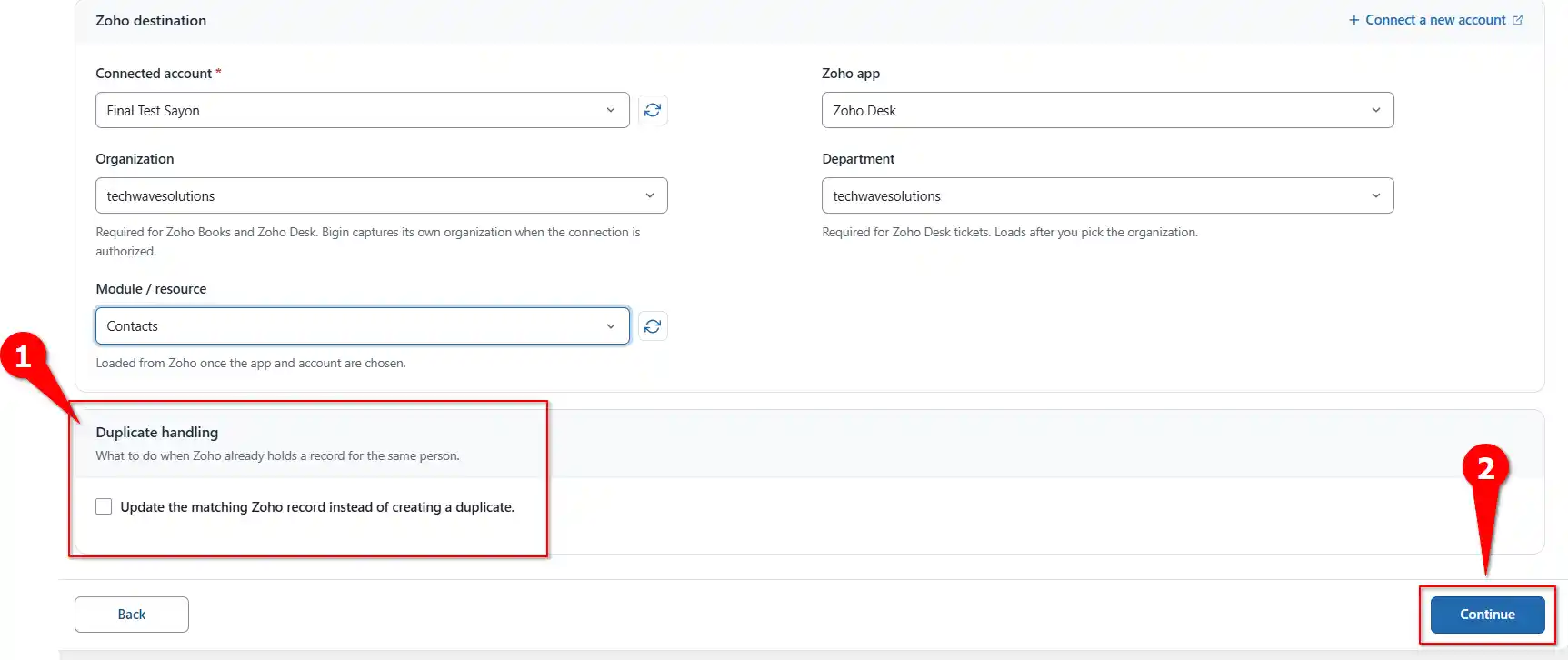
Turning on the duplicate check to update existing records. Step 11: Map your form fields and create the feed
Mapping step › Field MappingMatch each Elementor Forms field to the Zoho Desk field that should store its value. Click Add Mapping Row to map more fields.
Required fieldsEach Zoho Desk module has its own required fields. For Contacts, map a value to Last Name. If a required field is empty, Zoho Desk won’t create the record.
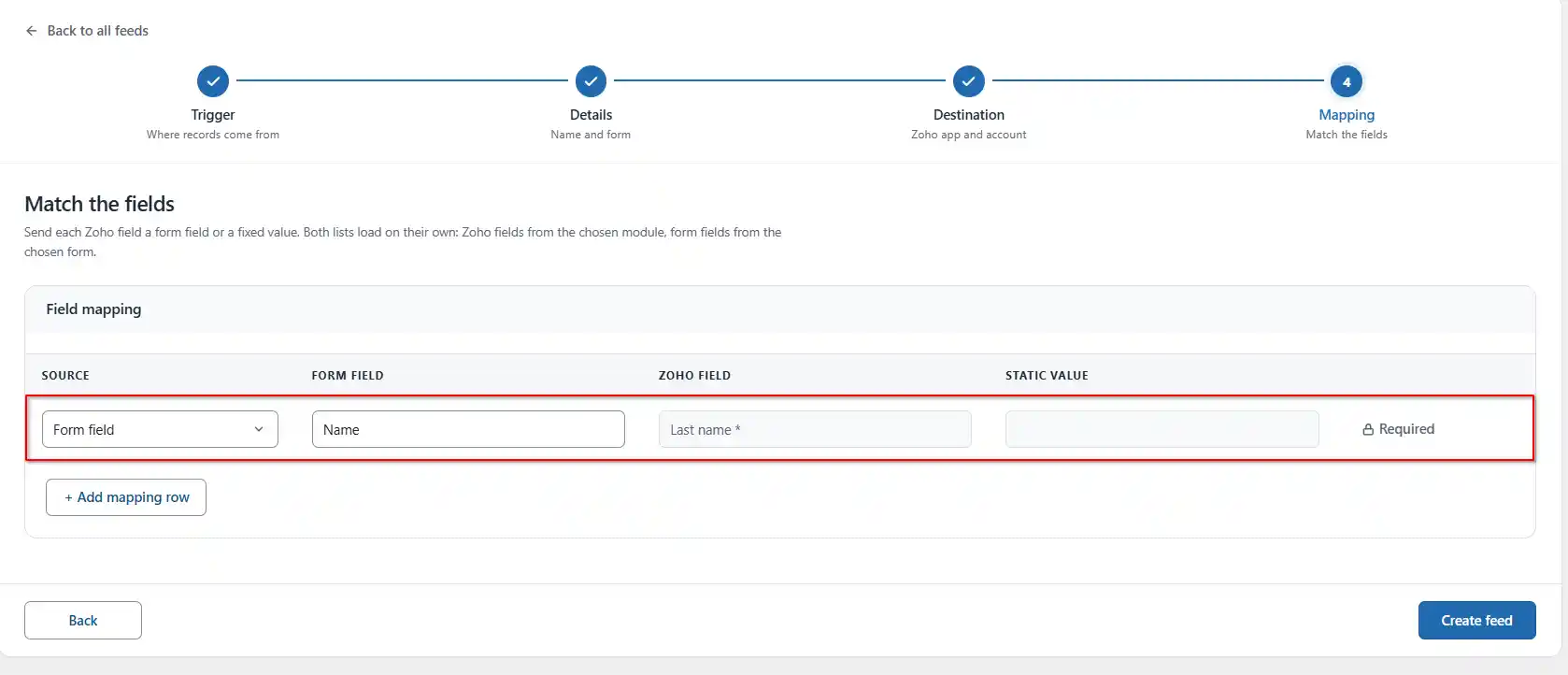
Mapping Elementor Forms fields to Zoho Desk fields. If a Zoho Desk field should always get the same value, set a static value in its mapping row instead of choosing a form field. When the required fields are mapped, click Create feed. The feed starts listening to the selected form straight away, and can be disabled later without being deleted.
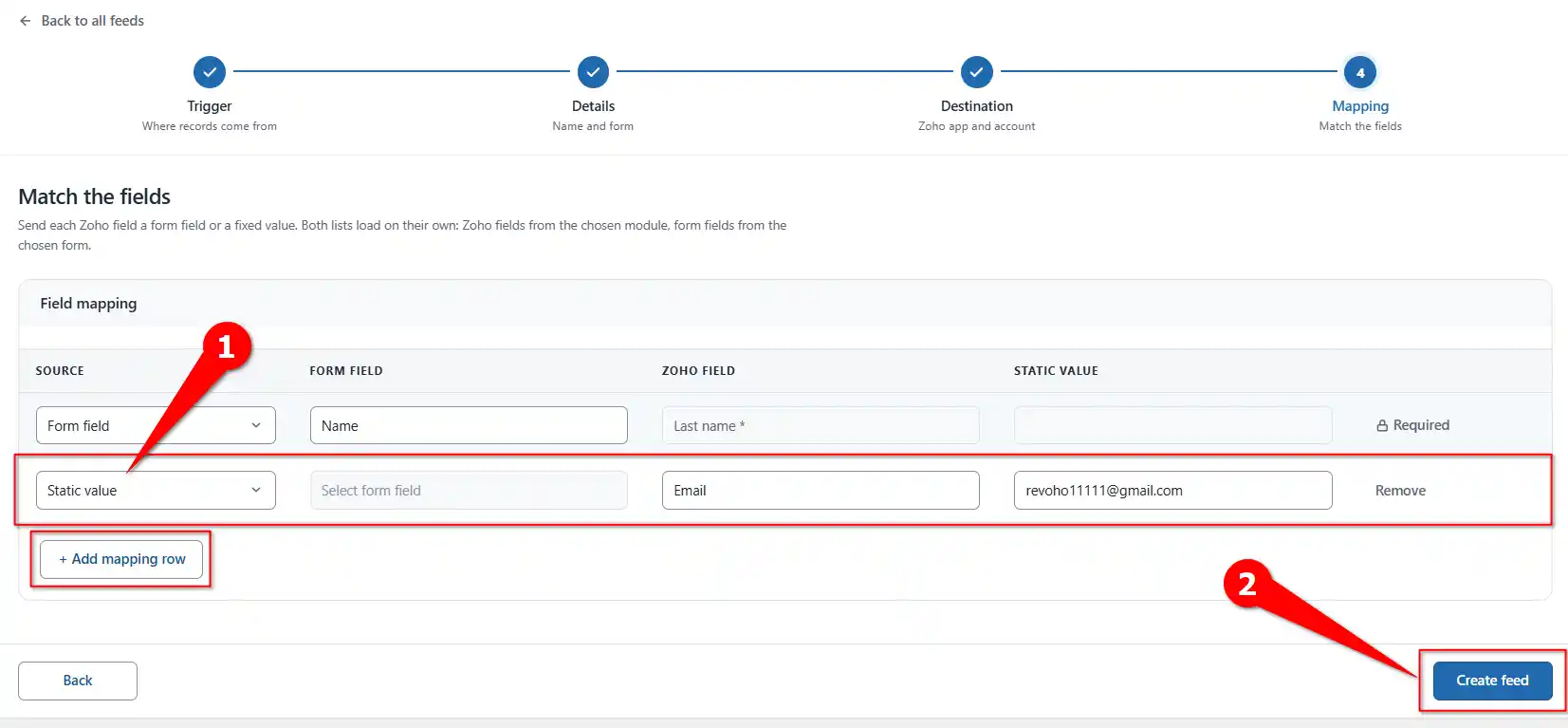
Adding a static value and creating the feed. Delivery logsEvery delivery, successful or failed, is recorded under FormBridge for Zoho → Logs. Failed deliveries can be sent again with Resubmit.
Feed settings reference
| Setting | Stage | What it does |
|---|---|---|
| Trigger app | Trigger | The source that starts a delivery. Here, Elementor Forms. |
| Feed title | Details | Names the feed in the feed list and the delivery log. Used inside WordPress only. |
| Form | Details | The single form this feed listens to. |
| Connected account | Destination | The authorised Zoho account where records are created. |
| Zoho App | Destination | Chooses the Zoho app that receives the data. Select Zoho Desk. |
| Organization | Destination | The Zoho Desk organization that receives the data. |
| Department | Destination | Where incoming contacts or tickets are routed and assigned inside that organization. |
| Module / resource | Destination | The Zoho Desk module that receives the record, such as Contacts. |
| Duplicate Check | Destination | Updates a matching Zoho Desk record instead of creating a new one. |
| Source | Mapping | Form field sends the visitor’s input. Static value sends the same text every time. |
| Form field / Zoho field | Mapping | The form field to send and the Zoho Desk field that receives it. |
| Add Mapping Row | Mapping | Adds another field pair. |
| Create feed | Mapping | Saves the feed and starts listening to the form. |
Verify the integration
- Submit a test entry on the page holding your form, using an email address you can recognise.
- Check the log under FormBridge for Zoho → Logs and confirm the delivery succeeded.
- Find the record in Zoho Desk, in the department and module you selected, by searching for the test email.
- Check the values, including any static values.
- Test the duplicate check, if it’s on, by submitting the same email again. The existing record should update.
Troubleshooting
Pick the symptom you’re seeing to get the fix.
No record is created
- Likely cause
- A required field is unmapped.
- How to fix it
- Check the selected module, then map every field Zoho Desk marks as required. For Contacts, that includes Last Name.
Wrong department
- Likely cause
- A different department was selected in the feed.
- How to fix it
- Edit the feed and choose the correct department in Step 8.
No form in the dropdown
- Likely cause
- The form hasn’t been saved on a published page, or Elementor isn’t active.
- How to fix it
- Publish the page containing the form, confirm Elementor is active, then reopen the feed and open the Form dropdown again.
Mapping rows cleared
- Likely cause
- The app, account or module changed after mapping.
- How to fix it
- Set the account, app and module first, then map the fields. Changing any of them resets the rows.
Duplicate records
- Likely cause
- The duplicate check is turned off in the feed.
- How to fix it
- Turn on the duplicate check in Step 10 and choose a match field, such as email.
Field name not found
- Likely cause
- The API name doesn’t exist in the selected module.
- How to fix it
- Check the correct name under FormBridge for Zoho → Connections → Modules & Fields.
Wrong form firing
- Likely cause
- The feed’s trigger points at a different form.
- How to fix it
- Check which form the trigger points at. Give every form that needs to reach Zoho Desk its own feed.
Still stuck? Email the failed entry from the Logs screen to support@techwavesolutions.net, or ask in the FormBridge for Zoho community.
Frequently asked questions
Do I need the Divi theme or Divi Builder?
Yes. The contact form is a Divi Builder module, so you need Divi installed and active on your site to use it as a trigger.
Do I need coding for the Divi Zoho integration?
No. FormBridge for Zoho is set up entirely from its settings screens. You select the trigger, choose your form, pick a Zoho app and map the fields without writing any code.
How do I check that a submission reached Zoho?
Submit the form with test data, then open FormBridge for Zoho → Logs. Every delivery is listed with its result, and failed deliveries can be resubmitted.
Can I connect Elementor Forms to Zoho Desk?
Yes. Use Elementor Forms as the trigger and Zoho Desk as the destination. After selecting your form, choose your connected Zoho account, the organization and department, pick a module such as Contacts, then map your Elementor Forms fields to the matching Zoho Desk fields.
Do I need Elementor Pro?
Yes. The form widget is part of Elementor Pro, so free Elementor has no form to use as a trigger.
What do Organization and Department control in Zoho Desk?
Organization chooses which Zoho Desk organization receives the data. Department chooses where incoming contacts or tickets are routed and assigned inside that organization.
Can FormBridge update existing Zoho Desk records?
Yes. Turn on the duplicate check in Step 10. FormBridge then looks for a matching record, for example by email, and updates it instead of creating a new one.
Can two forms send data to Zoho Desk?
Yes. Each feed listens to exactly one form, so create a separate feed for each form.
Can one form send data to multiple Zoho apps?
Yes. Create a separate feed for each destination. For example, one feed can send form data to Zoho Desk while another sends the same form data to Zoho CRM.
Related guides
Setting this up with a different trigger or a different Zoho app? Start from the matching guide.
- Create a Zoho connection
- All FormBridge triggers
- Zoho CRM action guide
- Zoho Books action guide
- Zoho Bigin action guide
- Zoho Campaigns action guide
- Zoho Marketing Automation action guide
Still stuck? Email the failed entry from the Logs screen to support@techwavesolutions.net.
