
WooCommerce Booking to Zoho SalesIQ Integrations
FormBridge for Zoho Pro
A WooCommerce Booking to Zoho SalesIQ integration sends every booking from your WordPress site straight into Zoho SalesIQ, with no copying and pasting and no code.
FormBridge for Zoho connects WooCommerce Booking to Zoho SalesIQ through a single feed. This guide covers the complete process in 9 steps, from creating the feed and picking the trigger to configuring the Zoho SalesIQ destination, mapping the fields and testing the result.
The Zoho SalesIQ destination is part of FormBridge for Zoho Pro. See how to buy FormBridge for Zoho Pro.
Supported sources and Zoho apps
FormBridge for Zoho connects these WordPress sources with your Zoho apps. This page follows the WooCommerce Booking to Zoho SalesIQ route from start to finish.
WordPress form plugins
- Elementor Forms
- Contact Form 7
- WPForms
- Gravity Forms
- Fluent Forms
- Ninja Forms
- Forminator Forms
- Formidable Forms
- Happyforms
- SureForms
Zoho apps
- Zoho CRM
- Zoho Books
- Zoho Desk
- Zoho Bigin
- Zoho Campaigns
- Zoho Marketing Automation
- Zoho Inventory
- Zoho FSM
- Zoho People
- Zoho Creator
- Zoho Recruit
- Zoho Projects
- Zoho Sheet
- Zoho Sign
- Zoho Analytics
- Zoho Cliq
- Zoho SalesIQ
Before you start
- WooCommerce and your bookings plugin are installed and activated.
- You’ve published at least one bookable product, so customers can book.
- FormBridge for Zoho Pro is installed and your licence is active.
- Your form collects at least an email address, since that is what identifies the visitor in SalesIQ.
- Your Zoho account is authorised for Zoho SalesIQ under FormBridge for Zoho → Connections. If it isn’t, follow the guide to creating a Zoho connection.
How to connect WooCommerce Booking to Zoho SalesIQ
9 steps, from creating the feed to a live booking reaching Zoho SalesIQ.
Steps 1–4 · Trigger and details
Step 1: Create a new integration feed
FormBridge for Zoho › All FeedsIn your WordPress dashboard, open FormBridge for Zoho, click All Feeds, then click + Add New Feed.
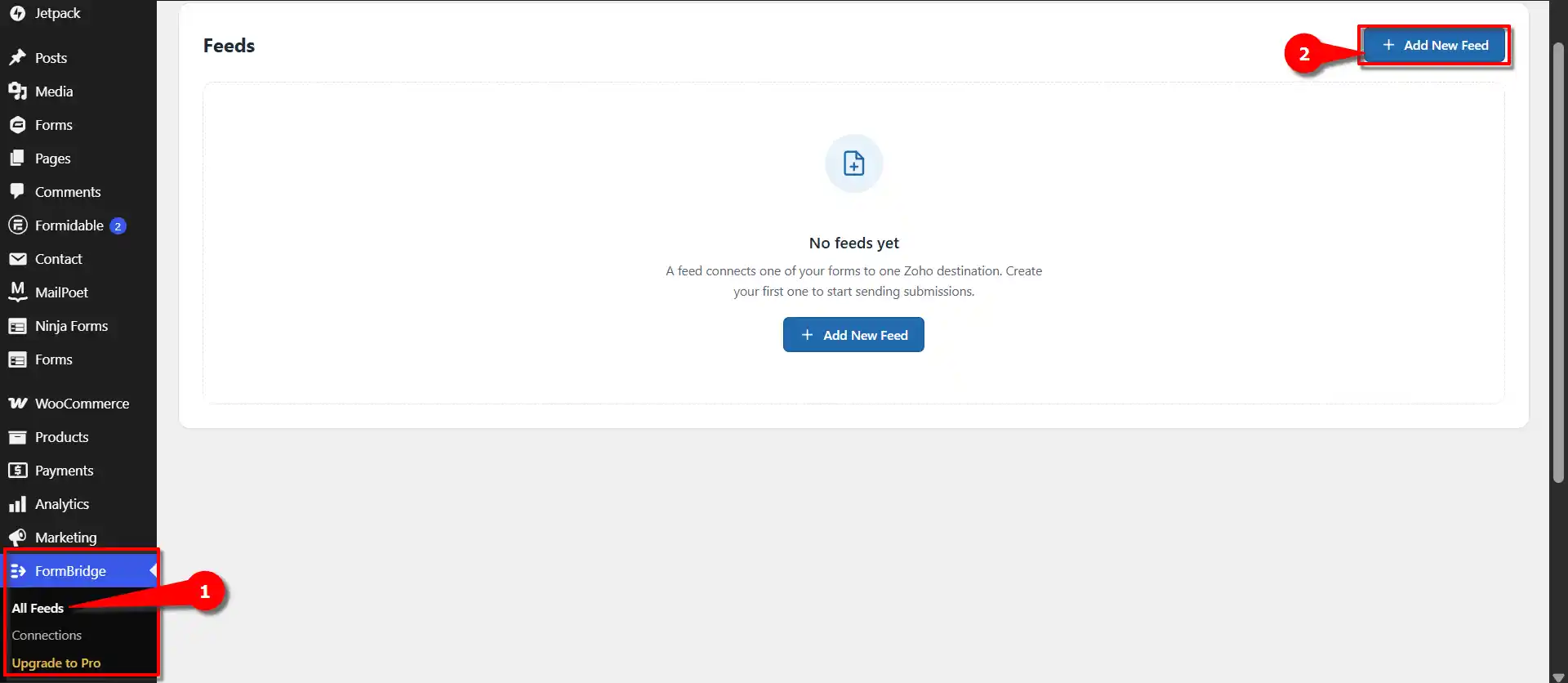
Open All Feeds and click + Add New Feed. Step 2: Select WooCommerce Booking as the trigger
New feed › Trigger appFrom the list of trigger apps, select WooCommerce Booking. The feed will now run on your booking data instead of a form.
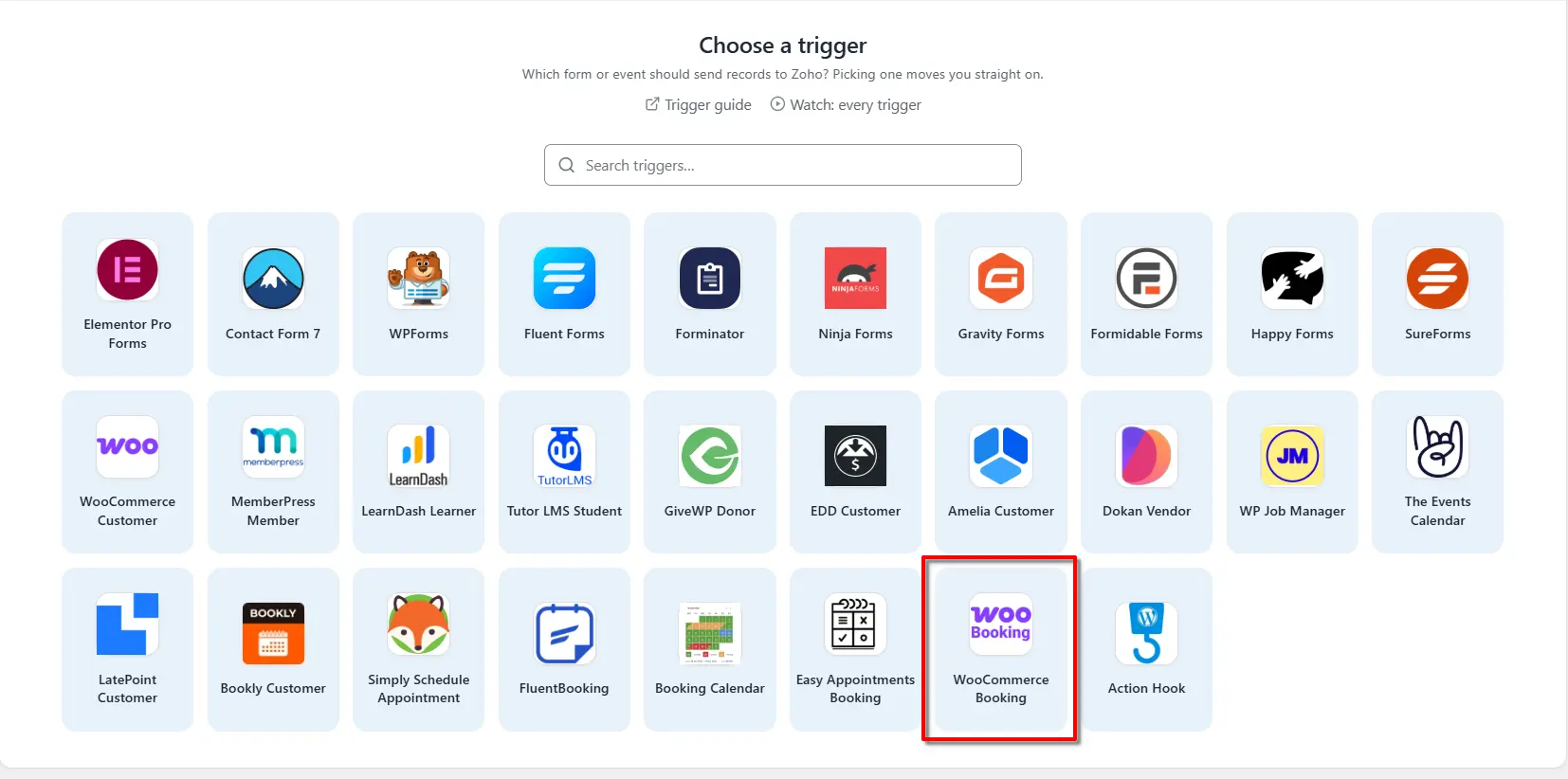
Select WooCommerce Booking from the trigger apps. Step 3: Enter a feed title
Name this feed › Feed titleOn the Name this feed screen, enter the required information. In the Feed title field, enter a name of your choice.
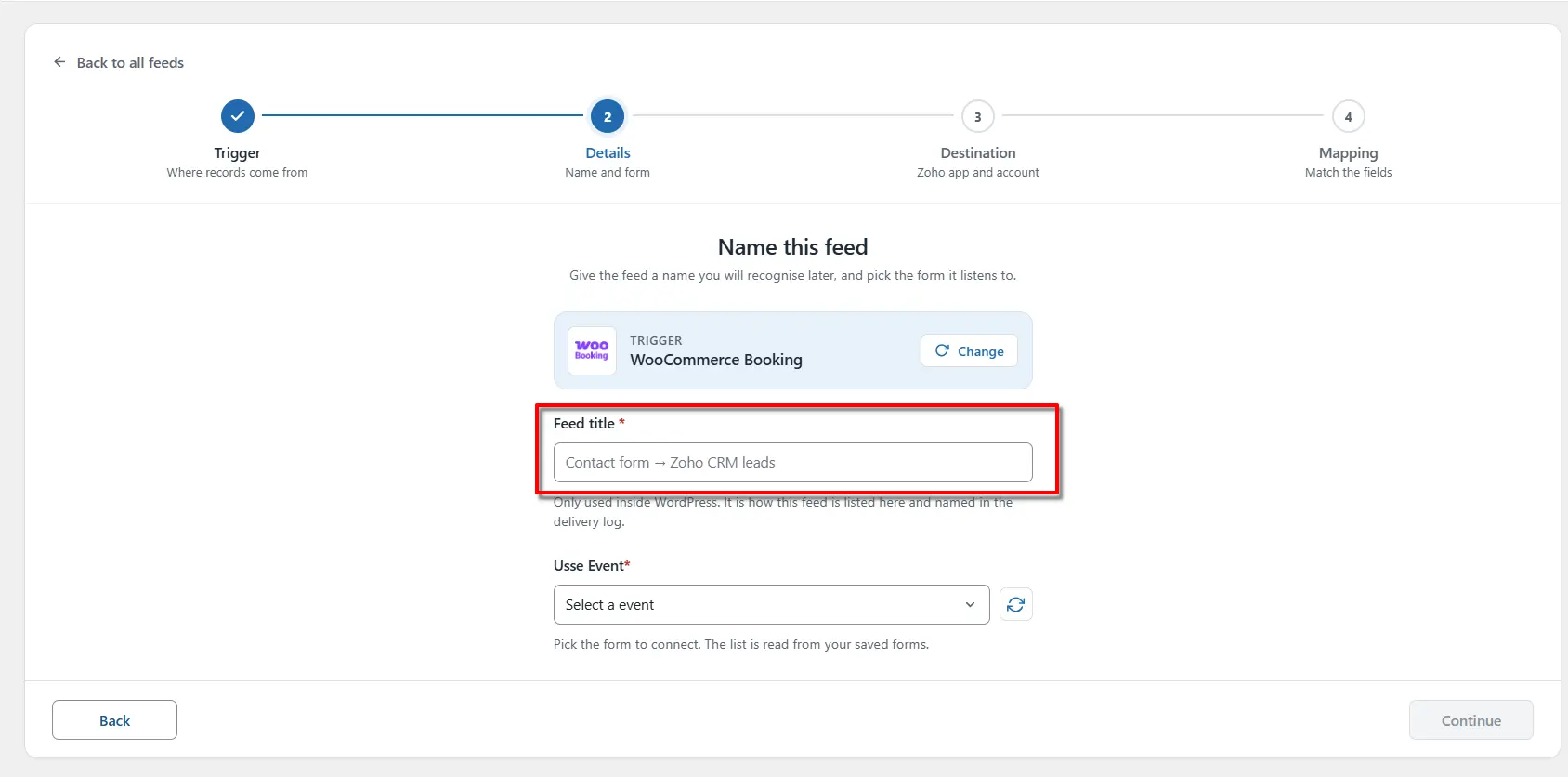
Enter a feed title you’ll recognise later. Step 4: Select your Event
New feed › EventFrom the provided dropdown menu, select the Event you want to connect with FormBridge for Zoho. For exampleCustomer makes a booking then click Continue.
Each feed sends data to a single Zoho app. To send the same bookings to a second app, create another feed.
One feed, one destinationEach feed sends data to a single Zoho app. To send the same bookings to a second app, create another feed.
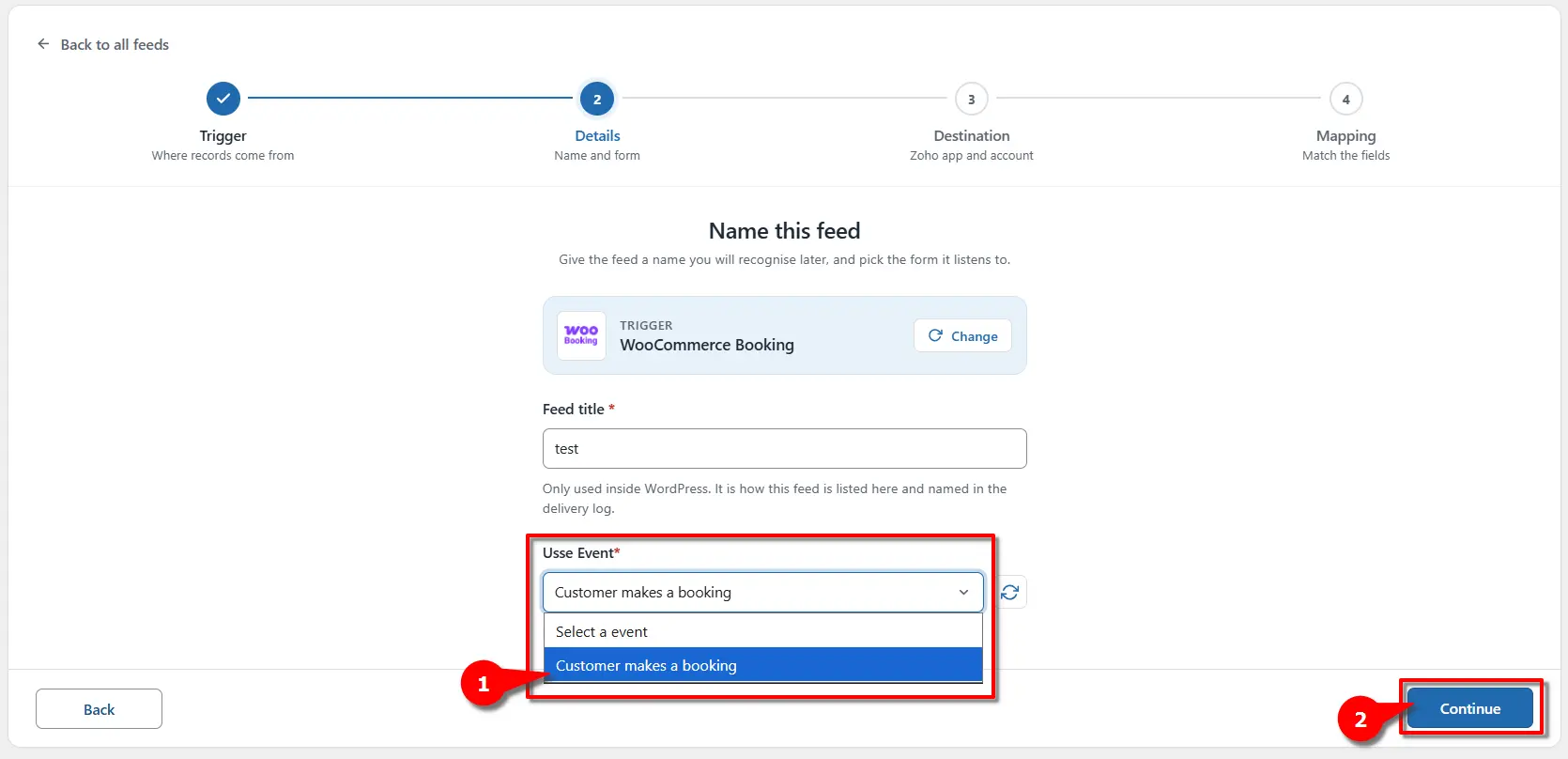
Choose your WooCommerce Booking event, then click Continue.
Steps 5–9 · Destination and mapping
Step 5: Select Zoho SalesIQ as the Zoho app
Destination › Zoho appOn the Destination step, open the Zoho app dropdown and select Zoho SalesIQ. The dropdown lists every app your account is authorised for, so scroll down past the record apps to find it.
Zoho SalesIQ not in the list?The connection must include Zoho SalesIQ. Open FormBridge for Zoho → Connections, choose Edit access for the account, tick Zoho SalesIQ and reauthorise. Zoho grants only the permissions asked for when a connection is made.
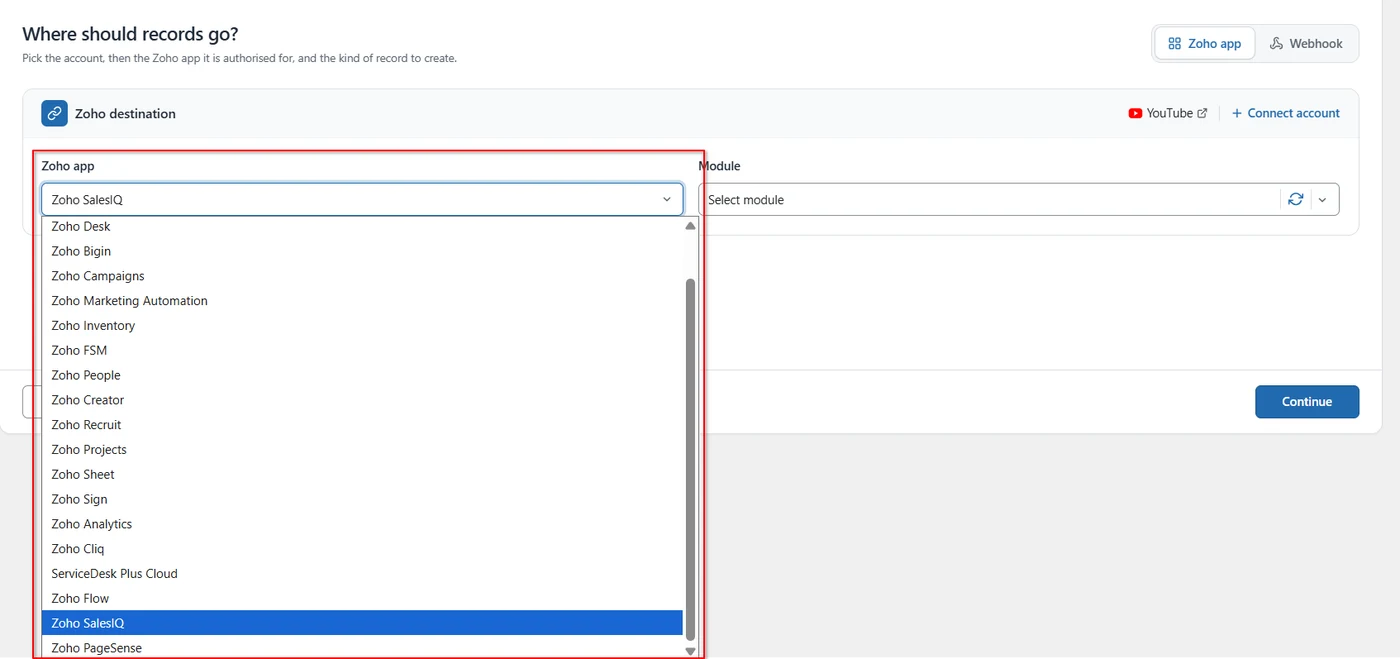
Selecting Zoho SalesIQ as the Zoho app. Step 6: Select the module
Destination › ModuleOpen the Module dropdown and choose Visitor: set name, email, phone and details. SalesIQ has this one module, so there is nothing to weigh up — it is what sends the submitted details across as the visitor’s identity.
Click Continue to move on to the mapping step.
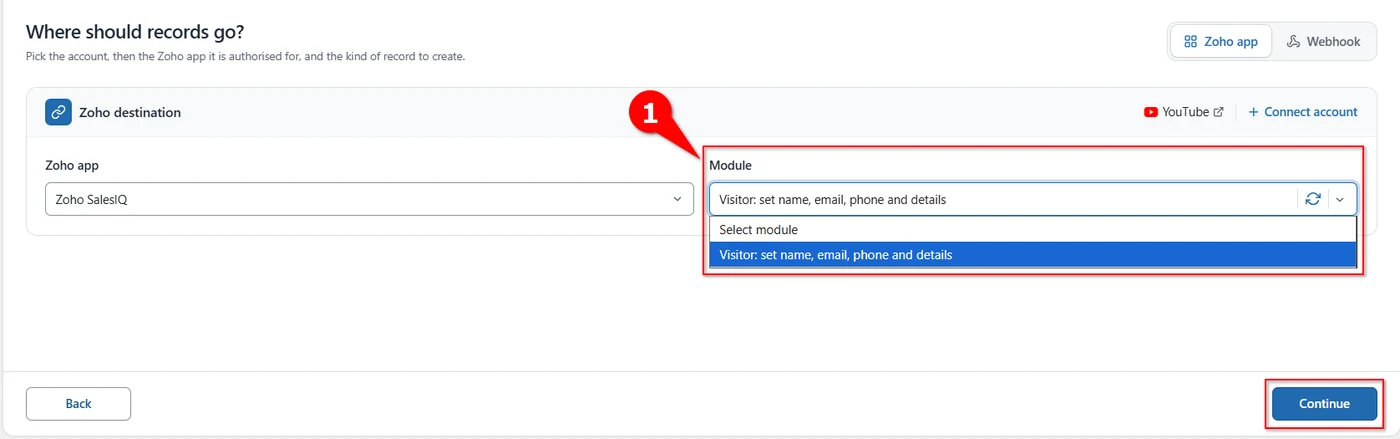
Choosing the visitor module, then continuing. Step 7: Map the visitor fields
Mapping › Field mappingOn the Mapping step, give each Zoho field a form field. Both lists load on their own: the Zoho fields come from the module, and the form fields from your form.
On each row, leave Source as Form field, pick the form field in the second column, then pick the SalesIQ field it should fill — your form’s Name into Name, Email into Email. Use Remove to drop a row you don’t need.
Map email firstEmail is what ties the submission to a visitor in SalesIQ. Map it even if you map nothing else.
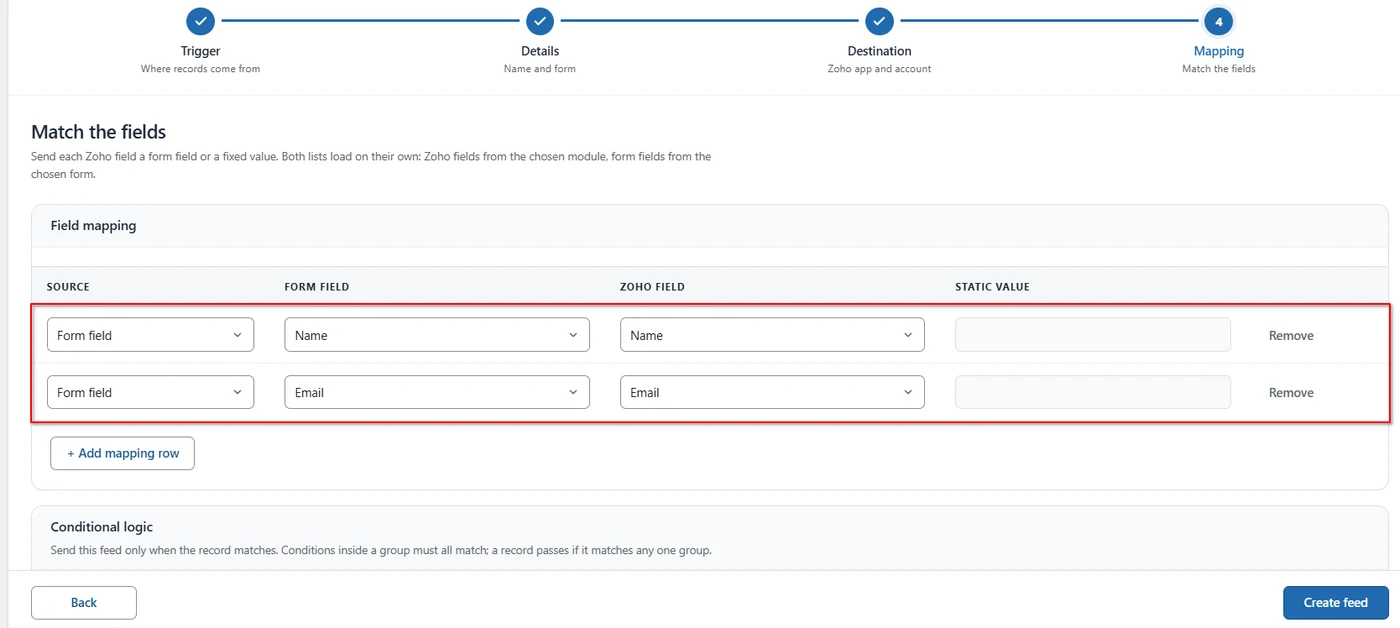
Mapping the form’s name and email to the visitor fields. Step 8: Send fixed values and add more rows
Mapping › Static valueClick + Add mapping row to fill more visitor fields. To send the same value every time, set Source to Static value: the form field column greys out and you type the value in the Static value box instead — a shared Phone number, for instance, on a form that doesn’t ask for one.
A static value is the same for everyoneUse a static phone number only when it genuinely belongs to every submission. If the form collects a phone number, map the form field instead, or every visitor in SalesIQ ends up with the same one.
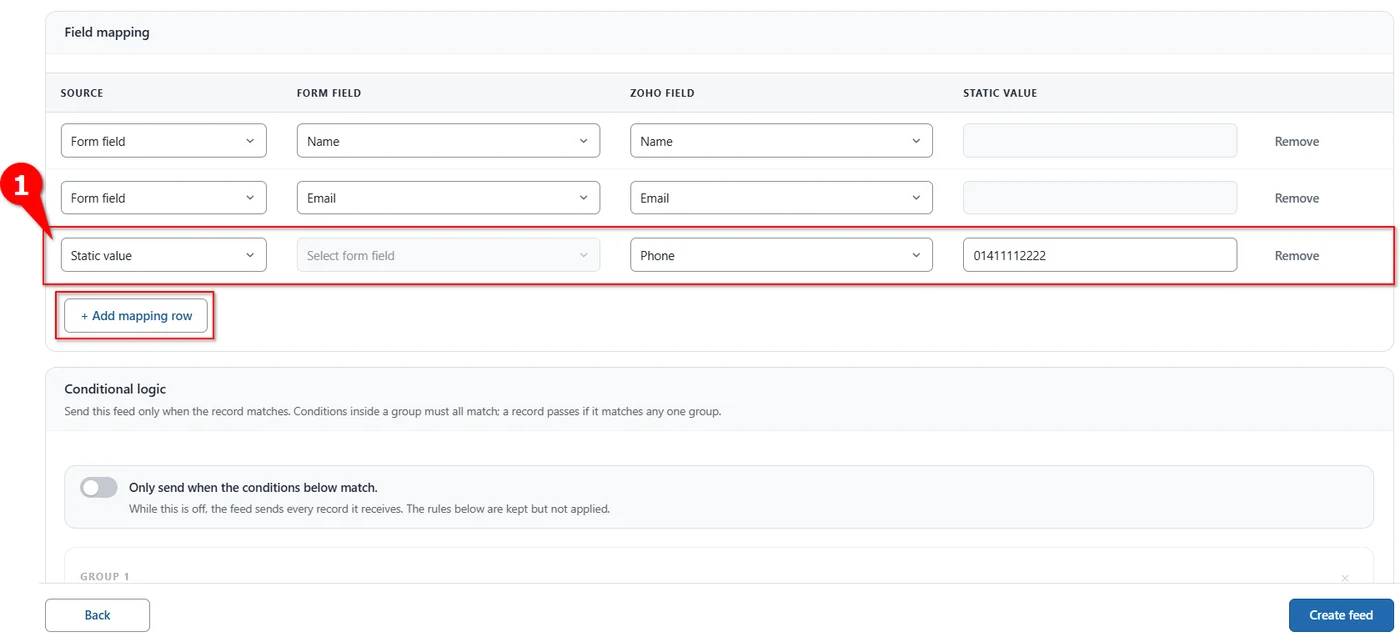
Sending a fixed phone number with a static value. Step 9: Set conditions and create the feed
Mapping › Conditional logic and Create feedConditional logic lets a feed send only the submissions you want. Turn on Only send when the conditions below match, then build your rules: conditions inside a group must all match, and a record passes if it matches any one group. While the switch is off the feed sends every record it receives, and any rules you have written are kept but not applied.
Read the full conditional logic guide →
When the mapping is ready, click Create feed. The feed starts listening to the selected form straight away, so submit the real form once and check the visitor in SalesIQ.
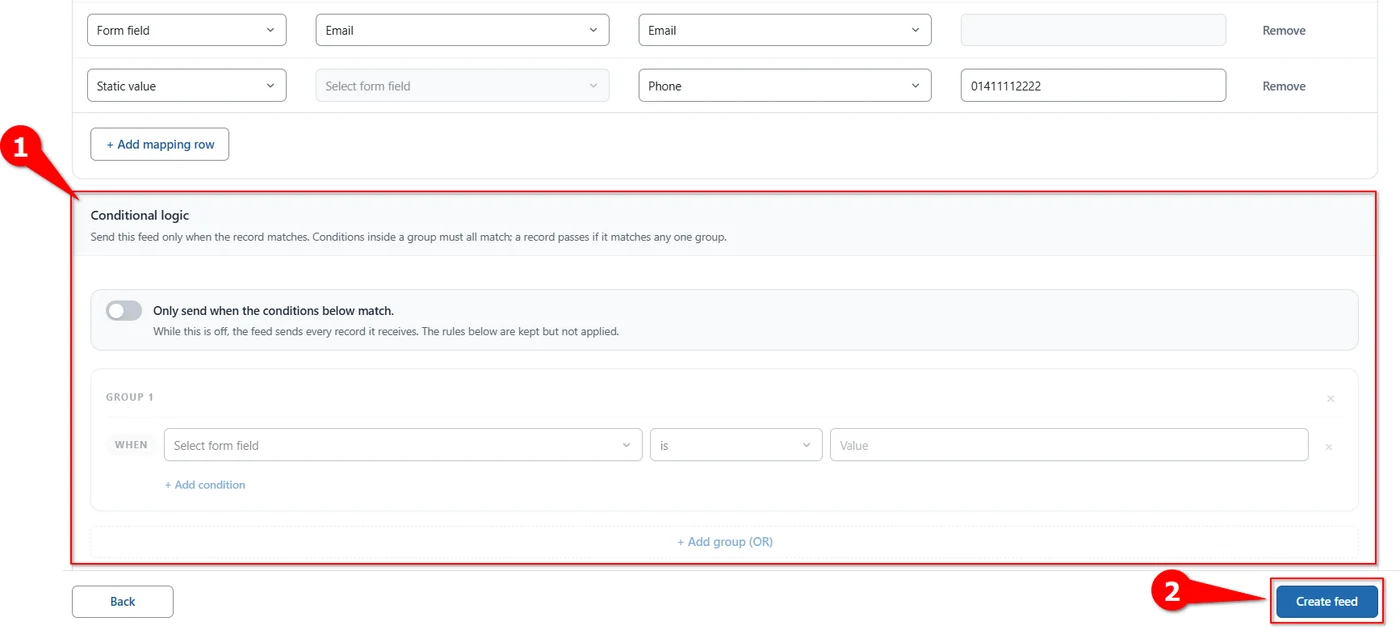
Setting conditional logic, then creating the feed. Delivery logsEvery delivery, successful or failed, is recorded under FormBridge for Zoho → Logs. Failed deliveries can be sent again with Resubmit.
- One feed listens to exactly one form. For a second form, create a second feed.
- Changing the app or module after mapping clears the mapping rows, so set those first.
- SalesIQ is about identifying the person chatting on your site. If you also want a CRM or Desk record from the same submission, add a separate feed for it.
Verify the integration
- Submit the real form with your own name and email address.
- Check the log under FormBridge for Zoho → Logs and confirm the delivery succeeded.
- Open Zoho SalesIQ and find the visitor.
- Check the details: the name, email, phone and anything else you mapped.
- Submit again with a different name to confirm the feed keeps working.
Troubleshooting
Pick the symptom you’re seeing to get the fix.
Nothing reaches Zoho SalesIQ
- Likely cause
- The feed never ran, or SalesIQ rejected the request.
- How to fix it
- Open FormBridge for Zoho → Logs. No entry means the trigger didn’t fire, so check the form selected on the Trigger step. A failed entry shows the error SalesIQ returned.
Zoho SalesIQ missing from the dropdown
- Likely cause
- The connection was authorised before SalesIQ was added.
- How to fix it
- Open Connections → Edit access for the account, tick Zoho SalesIQ and reauthorise.
The module list is empty
- Likely cause
- The list was loaded before the app was fully authorised.
- How to fix it
- Use the reload button beside the Module dropdown. If it stays empty, reauthorise the connection with SalesIQ ticked.
The visitor has no name or email
- Likely cause
- The mapped form field was empty on that submission.
- How to fix it
- Check the mapping rows point at the right form fields, and make those fields required on the form itself so they are never blank.
Every visitor has the same phone number
- Likely cause
- Phone is mapped as a static value.
- How to fix it
- Change that row’s Source back to Form field and pick the form’s phone field, or remove the row.
A Zoho field is missing from the list
- Likely cause
- The field list was loaded before the module was selected.
- How to fix it
- Go back to the Destination step, reload the Module list, select the module again and return to the mapping step.
Still stuck? Email the failed entry from the Logs screen to support@techwavesolutions.net.
Frequently asked questions
Do I need a form plugin for this?
No. WooCommerce Booking is the trigger itself, so no separate form plugin is involved. Form plugins are only needed when the data comes from a form.
Can I send booking data to several Zoho apps?
Yes. Create one feed per Zoho app and select WooCommerce Booking as the trigger in each feed.
Do I need coding for the WooCommerce Booking Zoho integration?
No. FormBridge for Zoho is set up entirely from its settings screens. You select the trigger, pick a Zoho app and map the fields without writing any code.
How do I check that a booking reached Zoho?
Place a test booking in your store, then open FormBridge for Zoho → Logs. Every delivery is listed with its result, and failed deliveries can be resubmitted.
What does the Zoho SalesIQ destination do?
It sends the visitor’s details — name, email, phone and anything else you map — to Zoho SalesIQ when the form is submitted, so the chat record carries a real identity instead of an anonymous visitor.
How many modules does Zoho SalesIQ have?
One: Visitor: set name, email, phone and details. The Module dropdown holds that single option, so there is nothing to choose between.
Why is there no Organization dropdown for Zoho SalesIQ?
SalesIQ does not use one in FormBridge. The destination row goes straight from the Zoho app to the module.
Can I send a value that is not on the form?
Yes. Set Source to Static value on a mapping row, leave the form field column empty and type the value in the Static value box. It is sent with every submission.
Which fields should I map first?
Email is the one that matters most, because it identifies the visitor. Map name next, then phone and any further details you collect.
Related guides
Setting this up with a different trigger or a different Zoho app? Start from the matching guide.
- Create a Zoho connection
- All FormBridge triggers
- Zoho CRM action guide
- Zoho Books action guide
- Zoho Bigin action guide
- Zoho Desk action guide
- Zoho Campaigns action guide
- Zoho Marketing Automation action guide
Still stuck? Email the failed entry from the Logs screen to support@techwavesolutions.net.
